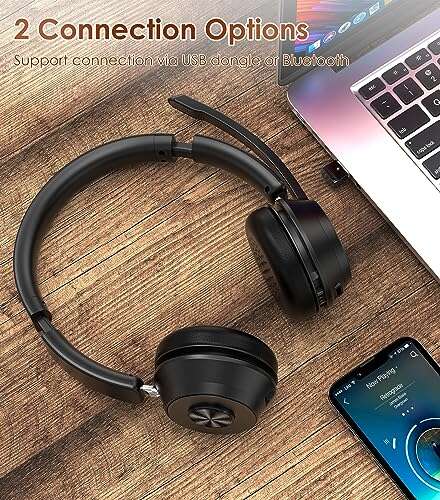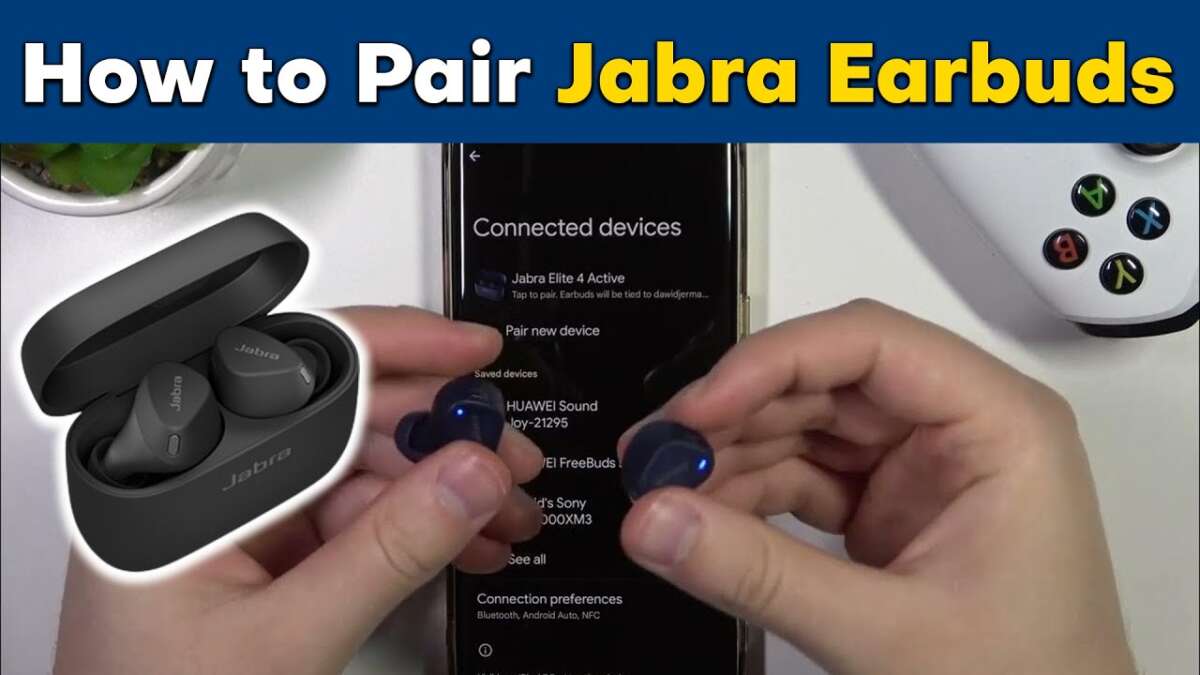
Press and hold the headset power or Bluetooth button until the LED flashes blue; then pair from your device.
I’ve spent years testing headsets and fixing Bluetooth headaches. In this guide I’ll show exactly how to put Jabra headphones in pairing mode for the most common Jabra models. You’ll get clear, step-by-step instructions, model-specific tips, troubleshooting moves, and real-world tricks I use when a stubborn pair won’t connect. Read on to pair fast and stay connected.
Why pairing matters and what pairing mode does
Pairing mode tells your Jabra headphones to broadcast a Bluetooth signal so your phone, tablet, or computer can find them. This step creates a secure link between devices so audio, calls, and controls work reliably.
Understanding pairing helps you avoid common problems. If you know how to put Jabra headphones in pairing mode, you save time and frustration. You also get better battery life and fewer dropouts by pairing cleanly.

Quick checklist before pairing
- Ensure your Jabra headphones have at least 20% battery.
- Turn off the headphones and then back on to clear temporary glitches.
- Close Bluetooth on nearby devices that might auto-connect.
- Update the Jabra firmware via the Jabra Sound+ or Jabra Direct app if available.
- Make sure your phone or PC Bluetooth is on and scanning.

How to put Jabra headphones in pairing mode — step-by-step
Follow these general steps to put Jabra headphones in pairing mode. Exact buttons vary by model, but the flow is similar.
- Turn off the headphones.
- Press and hold the power or Bluetooth button for about 3–5 seconds.
- Watch for a flashing blue light or hear a voice prompt that says "pairing" or "pairing mode."
- Open Bluetooth settings on your device and pick the Jabra name from the device list.
- Confirm pairing if prompted by tapping Connect or entering a PIN (0000 or 1234, rarely needed).
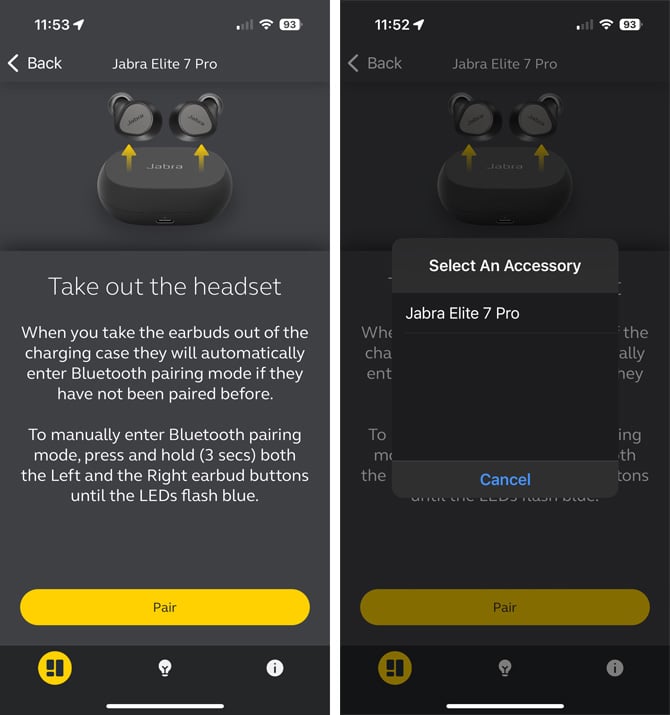
If your Jabra model uses a case (true wireless), open the case with earbuds inside and press the headset button or remove the earbuds while holding their buttons until the LED flashes. This puts the earbuds into pairing mode.

How to put Jabra headphones in pairing mode — Jabra Elite 75t / 85t / 65t
- With earbuds in the case, open the case. If they don’t enter pairing, take both earbuds out and hold the left and right buttons (or touch areas) for 3–5 seconds until the LEDs flash blue.
- If already out of the case, press and hold the left and right touch controls together until the voice prompt says "pairing."

How to put Jabra headphones in pairing mode — Jabra Elite Active and Sport models
- Turn the earbuds off and then press and hold the multi-function button on both earbuds for 3–5 seconds.
- Look for a rapid blue blink or hear "pairing" before selecting the device from your phone.

How to put Jabra headphones in pairing mode — Jabra Move and Evolve on-ear/headset
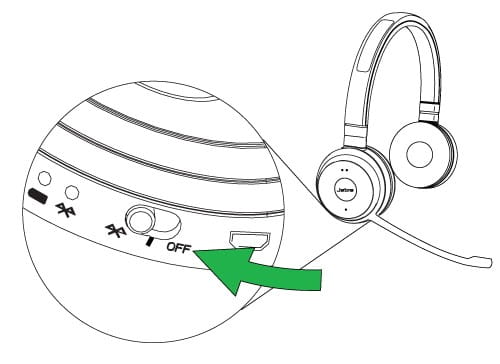
- Power off. Press and hold the power/Bluetooth button until the LED flashes blue and amber or you hear a "pairing" prompt.
- On some Evolve headsets, hold the Bluetooth button for 5–7 seconds until pairing mode is announced.

How to put Jabra headphones in pairing mode — Jabra Elite 45h and wired-bluetooth hybrids
- Press and hold the power button until the LED blinks blue. The voice prompt usually confirms.
- On these models, long-press enters pairing quickly and reliably.

Pairing with specific devices: Android, iPhone, Windows, Mac
Each device type is similar, but here are quick steps for each.
Android
- Open Settings > Bluetooth.
- Turn Bluetooth on and scan.
- Tap your Jabra name when it appears.
iPhone / iPad
- Go to Settings > Bluetooth.
- Toggle Bluetooth on and wait under “Other Devices.”
- Tap the Jabra listing to connect.
Windows 10 / 11
- Start > Settings > Bluetooth & devices.
- Turn on Bluetooth and choose Add device.
- Select Bluetooth and pick your Jabra headset.
macOS
- System Settings > Bluetooth (or System Preferences > Bluetooth).
- Turn Bluetooth on and wait for the Jabra device.
- Click Connect.
After pairing, your device usually auto-reconnects next time. If it doesn’t, open Bluetooth settings and select the Jabra device manually.
Troubleshooting: common pairing problems and fixes
Problem: Headphones won’t enter pairing mode.
- Fix: Fully power off. Charge for 10 minutes. Then press and hold the power/Bluetooth button for 8–10 seconds.
Problem: Phone can’t find the Jabra name.
- Fix: Turn off Bluetooth on other nearby devices. Move closer. Restart Bluetooth on the phone.
Problem: Headphones pair but no audio or one ear is silent.
- Fix: Unpair and forget the device on your phone. Reset the headset (see reset section) then pair again.
Problem: The headset reconnects to an old device.
- Fix: Turn Bluetooth off on the old device or remove the headset from its paired device list.
Problem: Pairing times out or shows pairing failed.
- Fix: Reboot both devices, clear Bluetooth cache (Android), and try again.
How to reset Jabra headphones when pairing fails
A factory reset clears device memory and can solve many pairing problems.
Jabra Elite series reset (common method)
- Place earbuds in the case and close the lid.
- Wait 30 seconds then open the case.
- Press and hold the headset buttons for 10 seconds until LEDs flash. Some models require 15 seconds.
Jabra Move, Evolve, and on-ear reset
- Power off.
- Press and hold the power/Bluetooth button for 10–15 seconds.
- Release when the LED behavior changes or you hear a reset prompt.
After reset, repeat the pairing steps. You’ll need to re-pair with every device.
Tips to make pairing easier and more reliable
- Keep firmware updated via the Jabra Sound+ or Jabra Direct app for bug fixes.
- Remove old, unused Bluetooth pairings from your phone to reduce conflicts.
- Pair close to the device, within 3 feet, for the first connection.
- Avoid crowded Wi‑Fi or Bluetooth environments when pairing.
- If pairing with a PC, update Bluetooth drivers and use a quality USB Bluetooth dongle for older machines.
Personal experience: mistakes to avoid and practical tips
I once tried to pair a Jabra Elite in a crowded office and it kept connecting to a colleague’s laptop. I solved it by turning off that laptop’s Bluetooth and resetting the earbuds. Lesson: disable other Bluetooth devices while pairing.
Another tip from testing: charge for a short while before pairing if the headset is unresponsive. Low battery often blocks pairing signals. Firmware updates fixed intermittent drops for me more than once.
Frequently Asked Questions of how to put jabra headphones in pairing mode
How long do I press the button to enter pairing mode?
Press and hold the power or Bluetooth button for about 3–5 seconds for most Jabra models. If that doesn’t work, try 8–10 seconds for a deeper reset.
My Jabra shows up as “Connected” but there’s no sound. What do I do?
Open your device’s Bluetooth settings and ensure the Jabra is set as the audio output. If it is, unpair and re-pair the device to refresh the Bluetooth link.
Can I pair my Jabra headphones with two devices at once?
Many Jabra models support multi-point connections with two devices. Check your model’s specs; if supported, pair both devices and manage connections from the device Bluetooth menus.
What if my Jabra won’t enter pairing even after reset?
Charge the headset for at least 30 minutes and update firmware if possible. If the issue continues, contact support or book a warranty check.
Do Jabra earbuds need a PIN to pair?
Most Jabra headphones don’t require a PIN. If prompted, try 0000 or 1234. Rarely, a device may request a PIN due to legacy Bluetooth standards.
Conclusion
Knowing how to put Jabra headphones in pairing mode removes a lot of daily friction. Follow the model-specific steps, keep firmware updated, and use the simple troubleshooting tips here to fix most issues fast. Try the reset and pairing checklist the next time the headset acts up.
Take action now: charge your Jabra, update firmware, and practice one clean pairing cycle. If this guide helped, subscribe or leave a comment about your model and the issue you solved.

Everett Ashford is a tech reviewer at mytechgrid.com specializing in SSDs, cameras, TVs, earbuds, headphones, and other consumer electronics. He provides honest, data-driven reviews based on hands-on testing and real-world performance analysis. Everett simplifies complex tech details to help readers make smart, confident buying decisions.