For most people in the United States, Windows should be installed on an SSD, not an HDD. An SSD makes Windows start faster, reduces app loading times, and makes the whole PC feel more responsive.
An HDD still works for Windows, especially on an older or low-cost computer. However, its slower mechanical parts can make startup, updates, searches, and multitasking feel sluggish. A strong setup for many US households is to install Windows and apps on an SSD, then use an HDD for large files, backups, photos, videos, and games that do not need fast load times.

SSD vs. HDD: What Is the Difference?
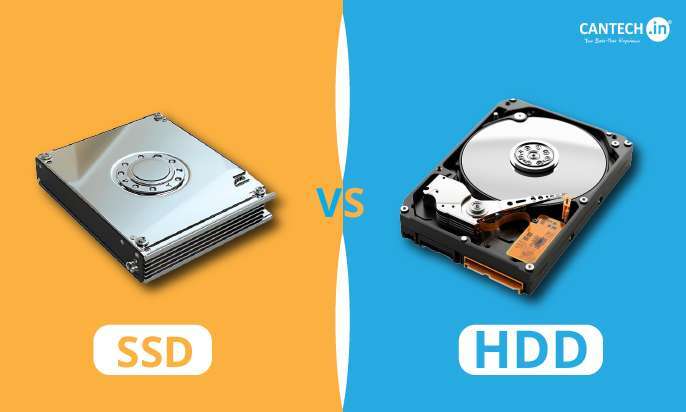
An SSD, or solid-state drive, stores data on flash memory. It has no moving parts. An HDD, or hard disk drive, stores data on spinning magnetic disks and uses a moving read/write head.
That design difference affects Windows performance. Windows constantly reads and writes small files for startup, updates, services, search indexing, security scans, and temporary tasks. SSDs handle these quick, scattered tasks much better than HDDs.
| Feature | SSD | HDD |
|---|---|---|
| Windows startup | Fast | Slow |
| App launch | Quick | Slower |
| Moving parts | No | Yes |
| Noise | Silent | May make noise |
| Power use | Usually lower | Usually higher |
| Cost per gigabyte | Higher | Lower |
| Best use | Windows, apps, active games | Large files, archives, backups |
| Shock resistance | Generally better | More sensitive to impact |
Windows can run from either drive. The key issue is not basic compatibility. The key issue is how responsive the computer feels during normal use.
Microsoft’s Windows 11 requirements specify at least 64 GB of storage, but they do not require an SSD. That minimum only covers the operating system requirement. It does not guarantee enough free space for updates, apps, personal files, or long-term use. See Microsoft’s Windows 11 specifications and requirements.
Why Windows Runs Better on an SSD
An SSD improves the tasks that Windows performs most often. It does not make every part of a computer faster, but it removes one of the most common storage bottlenecks.
Faster startup and shutdown
When Windows starts, it loads system files, drivers, services, and startup programs. An SSD can read these files much faster than a typical hard drive.
The result is usually:
- Less time waiting at the Windows sign-in screen
- Faster loading after entering a password or PIN
- Quicker shutdown and restart
- Less delay after Windows updates
The exact improvement depends on the PC. A slow processor, limited memory, or too many startup programs can still cause delays.
Faster app launches
Programs often use many small files. An SSD can find and open these files with much less delay than an HDD.
You may notice the difference when opening:
- Web browsers
- Microsoft 365 apps
- Adobe applications
- File Explorer
- Photo and video tools
- Development software
- Large games
Better multitasking
Windows may access the storage drive while you work, even when you are not opening a new program. For example, it may run a security scan, install an update, index files, or use virtual memory.
An HDD can become a serious bottleneck during these tasks. An SSD usually keeps the system more responsive.
Quicker updates and file searches
Windows updates can involve large downloads and many small file operations. Search indexing also reads file information across the drive.
An SSD can reduce the time spent on these tasks. It cannot make the internet connection faster, but it can speed up the local work that happens after a download finishes.
A quieter computer
HDDs contain spinning platters and moving heads. They can produce clicks, hums, or vibration. An SSD operates silently, which can matter in a bedroom, office, or living room PC.
When an HDD Still Makes Sense
An HDD remains useful when storage capacity matters more than speed. It can provide a large amount of space at a lower cost per terabyte.
An HDD may be suitable for:
- Photos and videos
- Music libraries
- Local backups
- Archived documents
- Disk images
- Older games
- Large files that you rarely open
- A secondary storage drive in a desktop PC
Installing Windows on an HDD can also make sense when:
- The computer has no SSD slot or compatible connection
- You are repairing an older system at minimal cost
- The SSD is too small for Windows and your main apps
- You need temporary storage while replacing another drive
- The PC performs only very light tasks
The trade-off is clear: an HDD can save money, but Windows will usually feel slower.
An HDD also has mechanical parts. Moving a laptop while its HDD is active may increase the risk of physical damage. This does not mean every HDD will fail soon, but it does mean you should maintain a current backup.
The Best Storage Setup for Most PCs
For many desktop computers, the best arrangement is a combination of both drive types:
- SSD: Windows, drivers, apps, and frequently used games
- HDD: Photos, videos, downloads, archives, and backups
This setup gives Windows fast access to its main files while keeping large, less-used data on affordable storage.
Example setup
A desktop might use:
- A 500 GB or 1 TB SSD for Windows and programs
- A 2 TB or larger HDD for personal files
- An external drive or cloud service for backups
Do not treat the second internal drive as a complete backup. If the PC is stolen, damaged, infected with ransomware, or affected by a power event, both internal drives may be lost.
Laptop setup
A laptop often benefits more from an SSD because it may have only one internal drive. An SSD can also use less power and tolerate movement better than an HDD.
If a laptop has a small SSD, you can store large files on:
- An external USB drive
- A network-attached storage device
- A trusted cloud storage service
- A microSD card, when the computer supports it
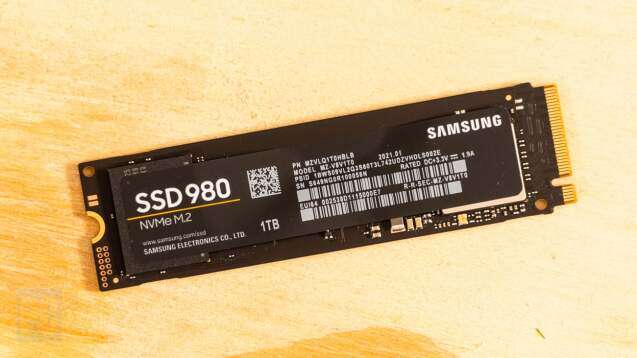
Check the laptop manual before buying a replacement drive. A laptop may use a 2.5-inch SATA drive, an M.2 SATA drive, or an M.2 NVMe drive. These formats are not always interchangeable.
How Much SSD Storage Does Windows Need?
Windows itself may fit within the official minimum, but a practical Windows drive needs more room.
A larger drive gives space for:
- Windows updates
- Temporary files
- System restore data
- Applications
- Browser caches
- Downloads
- Hibernation and paging files
- Game installations
- Free space that helps normal maintenance
For a general-purpose US home PC, these sizes are practical starting points:
| SSD size | Best for | Main limitation |
|---|---|---|
| 128 GB | Basic repair or very light use | Fills quickly |
| 256 GB | Windows and a small app set | Needs careful storage management |
| 500 GB | Most basic home and office PCs | Limited for many large games |
| 1 TB | Most users who install many apps or games | Higher purchase cost |
| 2 TB or more | Large game libraries and creative work | More expensive |
These are planning guidelines, not Windows requirements. Your needs depend on your programs and files.
Try to keep reasonable free space on the Windows drive. A nearly full system drive can cause update failures, slow file operations, and problems with temporary files. Windows may continue to run, but low free space makes maintenance harder.
SATA SSD or NVMe SSD for Windows?
Both SATA SSDs and NVMe SSDs are suitable for Windows. The main difference is how they connect to the computer.
A SATA SSD uses the older SATA interface. It is much faster than an HDD and works in many older desktops and laptops.
An NVMe SSD usually connects through an M.2 slot and uses PCI Express. It can offer much higher sequential speeds than SATA storage.
For normal Windows use, the difference between a SATA SSD and an NVMe SSD is often less noticeable than the difference between either SSD and an HDD. Startup time, app loading, and everyday use depend on more than the drive’s advertised maximum speed.
Choose based on compatibility:
- Use an NVMe SSD if the motherboard or laptop supports the correct M.2 NVMe drive.
- Use a SATA SSD if the system has a SATA connection or does not support NVMe.
- Check the computer manual before ordering an M.2 drive.
- Confirm the physical size, such as 2280, when buying an M.2 SSD.
- Check whether an M.2 slot supports SATA, NVMe, or both.
Do not assume every M.2 drive works in every M.2 slot. The connector can look similar while the supported storage protocol differs.
How to Move Windows From an HDD to an SSD
You have two main options: clone the existing Windows installation or perform a clean installation.
Option 1: Clone the HDD
Cloning copies the existing Windows installation, apps, settings, and files to the SSD.
Before cloning:
- Back up important personal files.
- Check the SSD capacity.
- Delete unnecessary files from the HDD.
- Make sure the used space fits on the SSD.
- Connect the SSD to the computer.
- Use reputable disk-cloning software.
- Clone the correct source disk to the correct target disk.
- Shut down the computer after cloning.
- Set the SSD as the first boot device in the firmware settings.
- Confirm that Windows starts from the SSD.
A USB-to-SATA adapter or an appropriate external enclosure may help connect a new SSD to a laptop. Desktop users may be able to connect both drives internally.
The most common cloning mistake is selecting the wrong source or target. Check the drive capacity and model several times before starting. A mistaken clone operation can overwrite the wrong disk.
Option 2: Perform a clean Windows installation
A clean installation starts with a fresh copy of Windows. It can remove old drivers, unwanted programs, and years of accumulated clutter.
Before starting:
- Back up documents, photos, browser data, and other important files.
- Confirm that you can reinstall paid software.
- Record product keys or sign-in details when needed.
- Create Windows installation media using Microsoft’s official tools.
- Confirm that the PC meets the Windows version requirements.
- Disconnect other internal drives if you are worried about selecting the wrong disk.
During setup, select the SSD as the Windows installation drive. After Windows starts, install the required drivers and applications, then restore your personal files.
Microsoft provides official guidance for creating Windows installation media and installing Windows. Menus and requirements can change, so use the instructions for your exact Windows version.
How to Check Whether Windows Is Running on the SSD
You can check the Windows drive without opening the computer.
Use Task Manager
- Press Ctrl + Shift + Esc.
- Select Performance.
- Select each listed disk.
- Look for the drive type shown in the panel.
Windows may identify the drive as SSD or HDD. The label can vary by Windows version and hardware.
Use Optimize Drives
- Press the Windows key.
- Search for Defragment and Optimize Drives.
- Open the tool.
- Check the Media type column.
It should identify the drive as a solid-state drive or hard disk drive.
Check the Windows drive letter
The Windows installation is often on C:, but the drive letter alone does not tell you whether it is an SSD or HDD. Use the performance or optimization tools to identify the physical drive.
If Windows is on an HDD even though an SSD is installed, the computer may still boot from the old drive. The SSD may be empty, used for storage, or assigned another drive letter.
Common Problems After Moving Windows to an SSD
A few issues appear often after cloning or reinstalling Windows.
The PC still boots from the HDD
The firmware may still prioritize the old drive. Enter the computer’s boot settings and place the SSD or Windows Boot Manager associated with the SSD first.
Do not erase the old drive until Windows has successfully booted from the SSD and you have checked your files.
The SSD is not detected
Possible causes include:
- A loose cable
- An incompatible M.2 drive
- An unused or disabled M.2 slot
- A missing storage controller driver
- A faulty adapter
- A drive that needs initialization in Windows Disk Management
Power off the computer before checking internal cables. Follow the manufacturer’s safety instructions and avoid touching exposed contacts.
Windows shows activation problems
Activation may depend on the computer’s hardware and the type of Windows license. A major hardware change can require you to sign in with the Microsoft account linked to the license or enter a valid product key.
Use Microsoft’s activation troubleshooting guidance rather than unofficial activation tools.
The cloned drive has the wrong partition size
Some cloning tools copy partitions without automatically using all available SSD space. Windows Disk Management may let you extend the main partition if unallocated space is available next to it.
Do not delete recovery or system partitions unless you understand their purpose. Removing the wrong partition can make the system unbootable.
The old drive is still using space
After confirming that the SSD boots Windows, move personal folders and large files to the HDD if needed. You can also change the default save locations in Windows settings.
Keep the old Windows installation for a short verification period if you have enough space. Once you are certain the SSD works and your files are safe, securely erase or reformat the old drive before reusing it.
SSD and HDD Maintenance Tips
An SSD does not need routine defragmentation. Windows normally recognizes SSDs and uses an optimization process called TRIM, which helps the drive manage deleted data.
Follow these basic habits:
- Keep Windows updated.
- Leave adequate free space on the SSD.
- Enable automatic backups.
- Avoid unknown disk-cleaning programs.
- Do not defragment an SSD manually with old third-party tools.
- Monitor an aging HDD for unusual clicking or repeated errors.
- Replace a drive that shows clear failure warnings after making a backup.
- Use a surge protector or an appropriate uninterruptible power supply for important desktop systems.
Backups matter more than drive type. An SSD can fail without warning, and an HDD can fail after years of use. Use at least one backup copy that is separate from the computer.
Should Windows Be on an SSD or HDD? Decision Guide
Choose an SSD for Windows if you want:
- Faster startup
- Faster app launches
- Better multitasking
- Less noise
- Better performance from an older computer
- A more responsive laptop
An HDD may be acceptable if you:
- Use a very old computer
- Need the lowest possible cost
- Have only light computing needs
- Cannot install an SSD
- Need a temporary Windows drive
Use both when you want the best balance of speed and capacity. Put Windows and active applications on the SSD. Put large, less-used files on the HDD.
The simplest recommendation is:
Install Windows on the fastest compatible SSD with enough capacity for Windows, apps, updates, and free space. Use an HDD as secondary storage when you need inexpensive capacity.
Frequently Asked Questions
Can Windows run on an HDD?
Yes. Windows can run on an HDD if the computer meets the operating system’s requirements. The system will usually boot and operate, but startup, updates, searches, and app launches may take longer than they would on an SSD.
Does an SSD make Windows faster than adding more RAM?
They improve different problems. An SSD reduces storage delays, while RAM helps the computer keep more active programs and data available. If the PC has very little RAM, adding compatible memory may help. If Windows is on an HDD, moving it to an SSD is often the more noticeable storage upgrade.
Is a 256 GB SSD enough for Windows?
A 256 GB SSD can be enough for Windows, basic apps, and light personal use. It may fill quickly after updates, games, creative software, and downloads are added. A 500 GB SSD gives most users more practical room.
Should games be installed on the SSD or HDD?
Games that you play often usually load faster from an SSD. An HDD can store older or less frequently played games when capacity matters more than loading speed. An SSD does not automatically increase game frame rates unless storage speed was causing a specific delay.
Can I use an external SSD for Windows?
Some computers can boot Windows from an external SSD, but support depends on firmware, connection type, Windows configuration, and the computer manufacturer. An internal SSD is usually simpler and more reliable for a normal Windows installation.
Final Recommendation
For nearly every modern Windows PC in the United States, put Windows on an SSD. Choose an HDD only when cost, capacity, or older hardware makes it the practical option.
A 500 GB SSD is a sensible starting point for basic use. A 1 TB SSD gives more room for apps, games, updates, and personal files. If you need large storage at a lower cost, add an HDD for files and backups rather than using it as the main Windows drive.
Before changing drives, back up your data, confirm compatibility, and verify that the computer boots from the SSD before erasing the old drive.

Everett Ashford is a tech reviewer at mytechgrid.com specializing in SSDs, cameras, TVs, earbuds, headphones, and other consumer electronics. He provides honest, data-driven reviews based on hands-on testing and real-world performance analysis. Everett simplifies complex tech details to help readers make smart, confident buying decisions.