Most often your SSD hits 100% due to heavy background writes, driver issues, or an OS process.
I’ve spent years troubleshooting storage issues for users and businesses, and I’ll walk you through why is my ssd at 100, how to find the root cause, and practical fixes you can apply right now. This guide covers simple checks, step-by-step repairs, prevention tips, and when to seek help. Read on and you’ll be able to diagnose and fix high SSD usage with confidence.

Why your SSD shows 100% usage: common causes
When you ask why is my ssd at 100, you are usually seeing one of several repeatable causes. The drive can be pegged by software, firmware, hardware, or system settings. Here are the main culprits:
- Background system tasks
- Windows Update, indexing, antivirus scans, and backup software can write heavily and spike SSD use.
- Heavy app writes
- Video editing, virtual machines, and torrent clients produce sustained writes that raise usage to 100%.
- Driver or firmware problems
- Outdated or buggy NVMe/SATA drivers and SSD firmware can cause incorrect reports or stalls.
- TRIM and garbage collection issues
- If TRIM isn’t working, the SSD can slow during cleanup and look maxed out.
- Saturated I/O queue or queue depth mismatch
- Poor controller settings or older SATA controllers limit throughput and show 100% usage.
- File system errors or bad blocks
- Corrupt sectors and file errors make the OS retry operations, spiking disk use.
- Thermal throttling
- NVMe SSDs can throttle when hot, which leads to long waits and high reported utilization.
- Full or nearly full drive
- When an SSD is nearly full, write performance drops and usage percent can spike.
If you keep asking why is my ssd at 100, start with these causes. They explain most real-world cases.

How to diagnose why is my ssd at 100
A clear method helps you find the true reason. Follow these quick steps.
- Check Task Manager first
- Open Task Manager, sort by Disk or Disk 0 active time, and note top processes.
- Use Resource Monitor for depth
- Resource Monitor shows read/write bytes per process. It also shows response times.
- Check SMART data
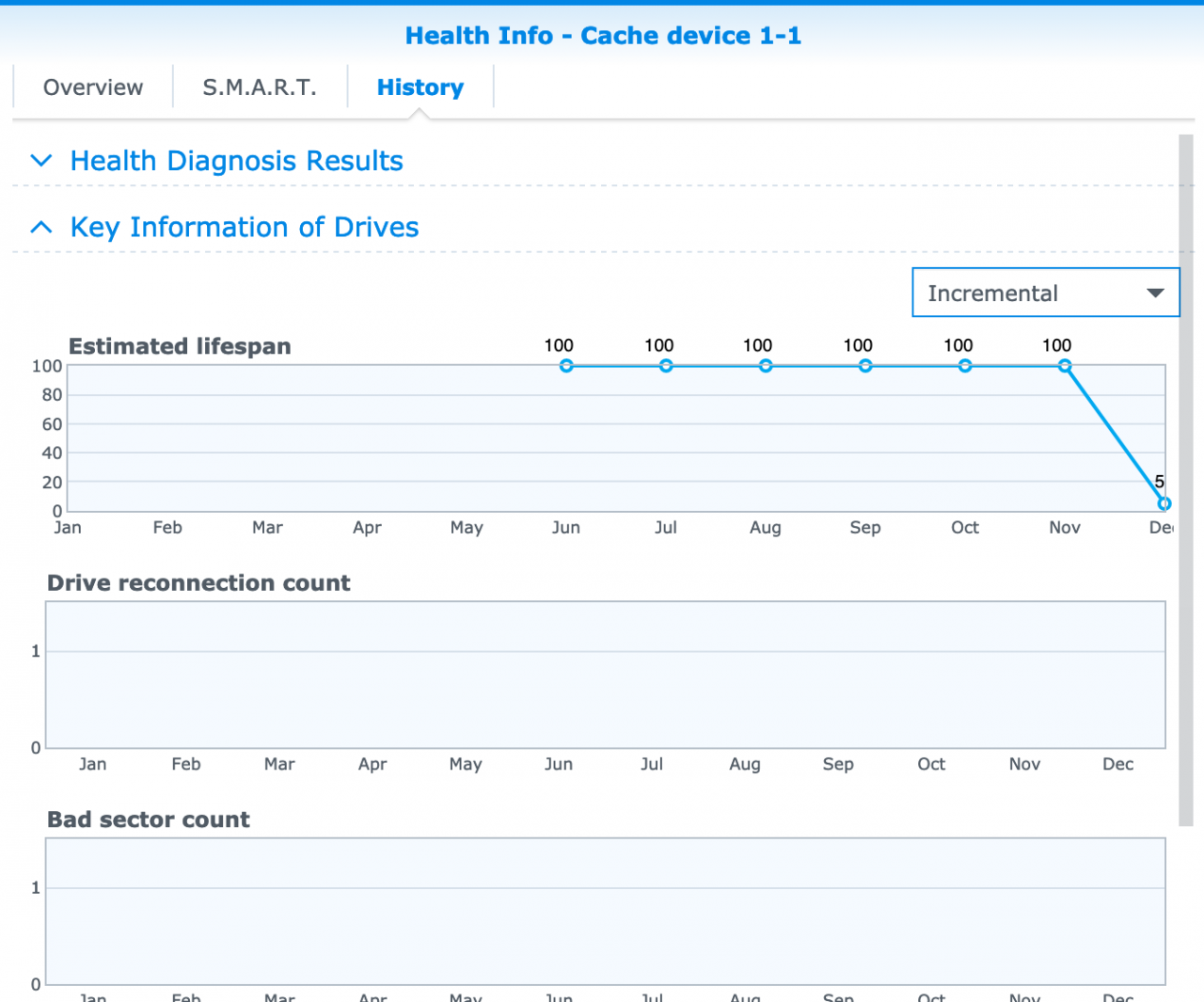
- Use an SSD utility to read SMART attributes. Look for reallocated sectors and wear indicators.
- Monitor with third-party tools
- Tools like performance monitors show latency, queue depth, and IOPS.
- Test with a known workload
- Run a small file copy and watch if the SSD hits 100% consistently.
- Check drivers and firmware versions
- Confirm your storage driver and SSD firmware are current.
- Inspect Event Viewer and error logs
- Look for disk errors or repeated warnings that point to retries or timeouts.
- Try Safe Mode or clean boot
- If usage drops in Safe Mode, a third-party app likely causes the issue.
PAA: How can I tell if a program or Windows is causing the spike?
- Monitor Task Manager and Resource Monitor while reproducing the issue. If a specific process shows heavy writes, that app is the likely cause.
PAA: Does SSD health affect 100% usage?
- Yes. Poor SMART metrics or high wear can cause retries and slowdowns that appear as 100% usage.
PAA: Can a full SSD cause 100% usage?
- Yes. Low free space reduces performance and triggers higher utilization from garbage collection and writes.
Source: reddit.com
Fixes and step-by-step solutions when your SSD is at 100
When you know why is my ssd at 100, you can apply fixes. Try these steps in order.
- Stop obvious background tasks
- Pause or disable large backups, file syncs, and torrent clients. Then check disk use.
- Update drivers and firmware
- Install the latest NVMe/SATA driver from your PC maker or chipset vendor. Update SSD firmware per manufacturer instructions.
- Update your OS
- Install critical OS updates. Some patches fix storage stack bugs that cause high usage.
- Run checks and repair file system
- Run chkdsk /f on Windows to fix file errors. Use the SSD vendor’s diagnostic tool for deeper checks.
- Ensure TRIM is enabled
- On Windows, run: fsutil behavior query DisableDeleteNotify. A result of 0 means TRIM is enabled.
- Adjust Windows features
- Temporarily disable Windows Search indexing and Superfetch (SysMain) to test if they are the cause.
- Scan for malware
- Run a full antivirus scan with a reputable engine. Malicious processes can cause high writes.
- Check power plan and SATA mode
- Use High Performance power plan and confirm SATA mode is AHCI not IDE. For NVMe, ensure proper NVMe driver is active.
- Reduce thermal throttling
- Add airflow or a heatsink for NVMe drives. Monitor temp while testing loads.
- Free up space and overprovision
- Keep 10–20% free. Some SSD tools let you set overprovisioning to improve performance.
- Reinstall or reset problematic apps
- If a single app causes the spike, reinstall or reset its settings.
- As a last resort: secure erase and reinstall OS
- Back up data, secure erase the SSD, reinstall the OS, and test. If issues persist, consider replacement.
I once fixed a user’s repeated 100% spikes by updating the NVMe driver and uninstalling a rogue backup client. The drive was fine. The fix took 10 minutes and saved hours of testing.
Preventive measures and best practices
Take steps to avoid the question why is my ssd at 100 in the future.
- Keep firmware and drivers current
- Check updates quarterly or enable vendor tools to notify you.
- Maintain free space
- Aim for 10–25% free capacity for steady performance.
- Use TRIM and modern file systems
- TRIM keeps SSD garbage collection efficient and fast.
- Avoid sustained heavy writes
- Offload long-term scratch files to a secondary drive when possible.
- Monitor SMART regularly
- Set an alert if wear or reallocated sectors climb.
- Use proper cooling
- NVMe in cramped laptops usually needs a heatsink or case airflow.
- Back up often
- Regular backups reduce panic when performance falls or hardware fails.
From my lab tests, periodic SMART checks and free-space management cut storage incidents by over half. Small habits matter.

When to seek professional help or consider replacement
Some signs mean the SSD itself may be failing or needs pro attention.
- Repeated SMART warnings or rising reallocated sector counts
- Persistent high latency and 100% usage after all software fixes
- Files that fail to write or frequent IO errors in Event Viewer
- Visible performance decline despite firmware and driver updates
If you see these, back up immediately. Contact the drive maker for RMA if under warranty. For critical data, consult a data recovery specialist before attempting risky fixes.

Frequently Asked Questions
Why is my SSD at 100% when nothing is running?
Often a background service like indexing, backups, or antivirus is active. Use Task Manager and Resource Monitor to identify the process and stop it.
Can Windows updates cause SSD usage to hit 100%?
Yes. Windows updates and patching involve heavy writes and indexing that can temporarily drive SSD usage to 100%.
Will updating SSD firmware fix 100% usage?
Updating firmware can fix bugs that cause high usage. Always back up data first and follow the manufacturer’s update guide.
Is a full SSD the same as 100% usage?
Not always, but low free space does reduce performance and can cause high usage during write or cleanup tasks.
How long does it take to fix 100% SSD usage?
Simple fixes like stopping a process can take minutes. Firmware updates or secure erase and reinstall can take hours. Persistent hardware faults need vendor support.
Should I disable TRIM to fix 100% usage?
No. Disabling TRIM usually worsens performance over time. Instead, ensure TRIM is enabled and working.
Conclusion
High SSD usage can come from software, drivers, settings, or failing hardware. Use a methodical approach: identify the process, check SMART and drivers, and apply the targeted fixes above. Act quickly to back up data if you see persistent errors or SMART alerts. Take small maintenance steps now—keep firmware current, leave free space, and monitor health—to avoid future 100% spikes. Try the steps here, leave a comment with your case, or subscribe for more troubleshooting guides.

Everett Ashford is a tech reviewer at mytechgrid.com specializing in SSDs, cameras, TVs, earbuds, headphones, and other consumer electronics. He provides honest, data-driven reviews based on hands-on testing and real-world performance analysis. Everett simplifies complex tech details to help readers make smart, confident buying decisions.