Pair, fit, control, and maintain the Bose QuietComfort Earbuds II for top audio and active noise canceling.
I’ve used the Bose QuietComfort Earbuds II for daily work calls, flights, and runs, so I’ll walk you through exactly how to use Bose QuietComfort Earbuds 2 step by step. This guide explains setup, fit, touch controls, noise-canceling modes, charging, troubleshooting, and pro tips from real use. Read on to get a smooth, confident start and squeeze every bit of performance from your earbuds.
What’s in the box and key features
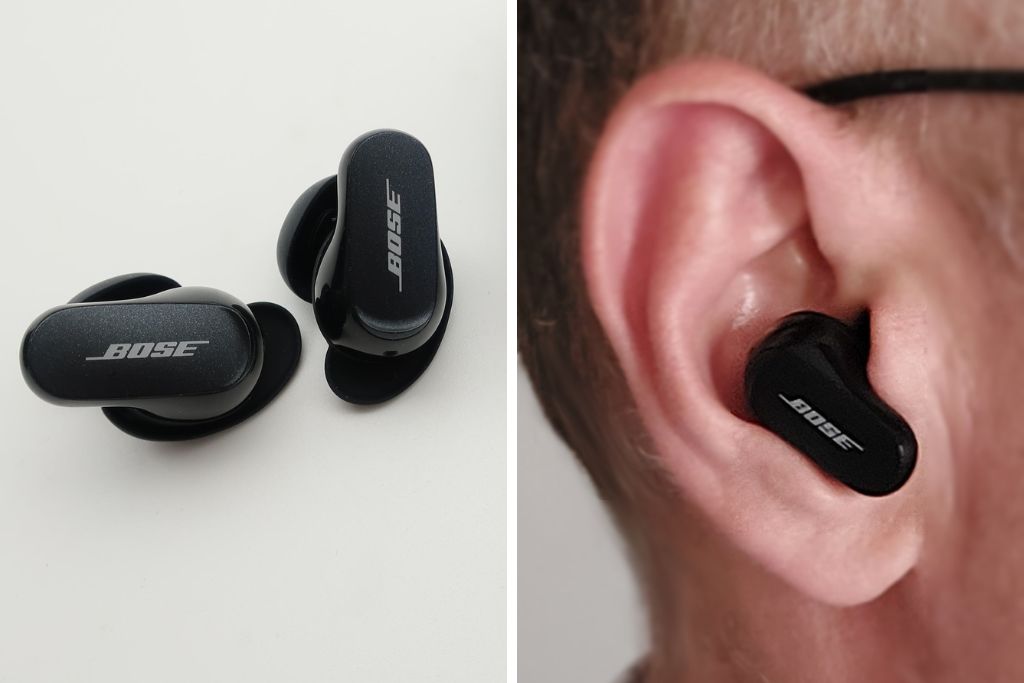
The box includes the earbuds, charging case, three sizes of ear tips, USB-C charging cable, and quick start guide. The earbuds offer industry-leading active noise canceling, a balanced sound profile, and reliable Bluetooth. Knowing the parts helps you use the earbuds faster and avoid common mistakes.
Key features at a glance
- Active Noise Cancellation with adjustable levels for different environments.
- Transparency (Aware) mode to hear the world without removing buds.
- Customizable touch controls through the Bose Music app.
- Multipoint Bluetooth so you can pair two devices.
- Up to 6 hours per charge and 18 extra hours from the case, depending on settings.
Quick setup and pairing
If you’re wondering how to use Bose QuietComfort Earbuds 2 right away, start with pairing. Out of the case, the earbuds enter pairing mode automatically. If not, put them back, open the lid, and press the button on the case for a few seconds.
Step-by-step pairing
- Charge the case until the LED shows power.
- Open the case near your phone; follow on-screen prompts for iOS or Android.
- Or go to your device Bluetooth settings, find “Bose QC Earbuds II,” and tap to pair.
- Install the Bose Music app for firmware updates, sound settings, and control customization.
Tips from experience
- Turn off other Bluetooth devices during first pairing to avoid interference.
- If pairing fails, hold the case button for 30 seconds to reset and try again.
Fit and comfort tips for best noise canceling
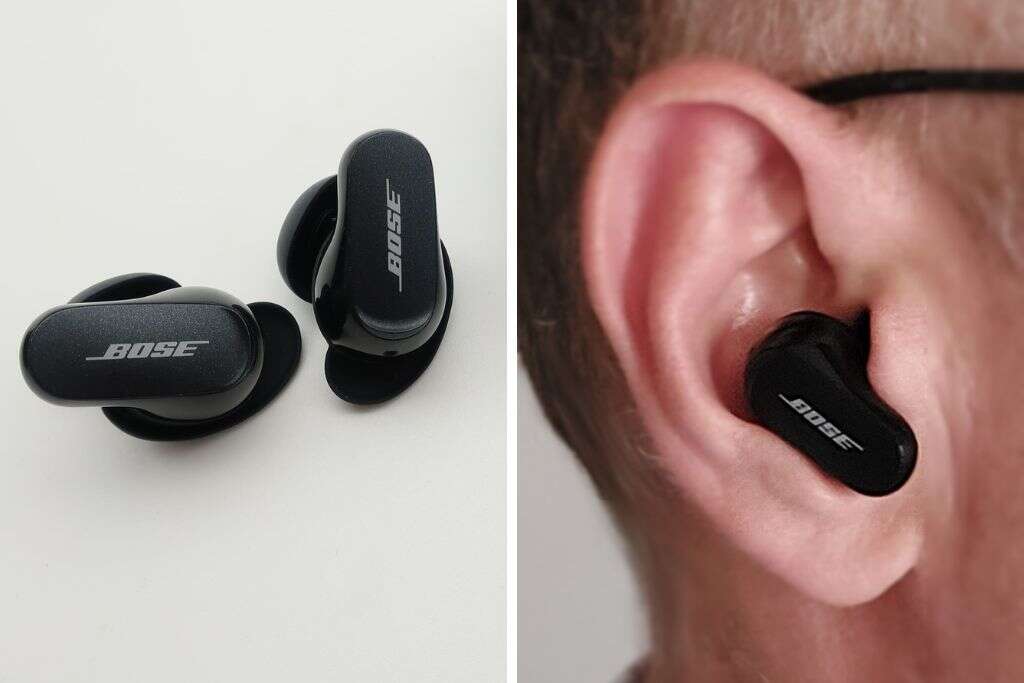
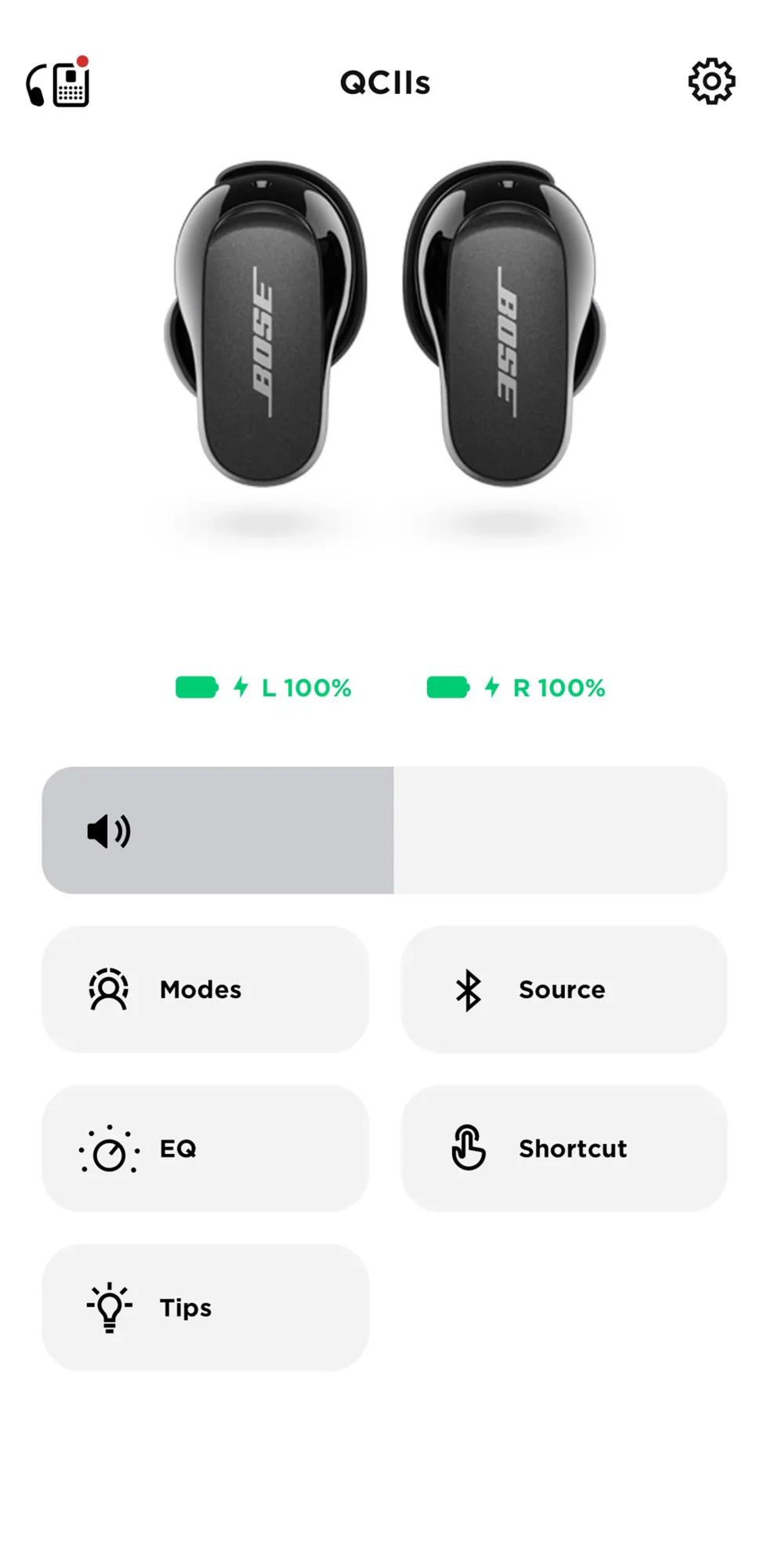
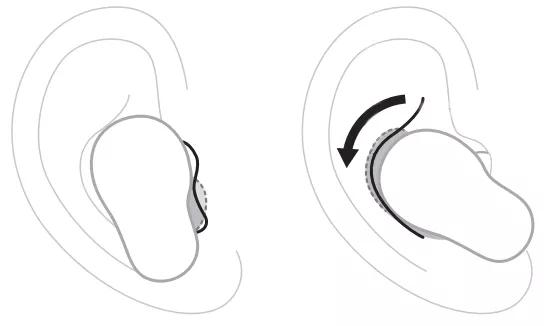
A good seal matters more than you think. Proper fit both locks bass and lets ANC work. Try different ear tip sizes and a small twist-and-lock motion when inserting.
Fit checklist
- Start with medium tips and swap if there is air leakage or low bass.
- Insert, then rotate backward slightly until they feel snug.
- Do a quick seal test by playing a bass-heavy track; increase tip size if bass is weak.
Real-world note
I found the small tips were best for my runs because they stayed put. For flights, I switched to large tips for the best ANC. Testing different sizes is key.

Controls and gestures
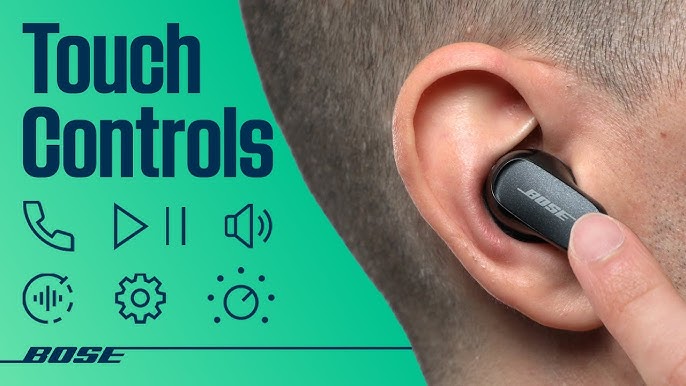
Learning the gestures makes daily use easy. The default controls are responsive and can be changed in the app.
Default touch gestures
- Tap once on either bud to play or pause.
- Double-tap right bud to skip forward; double-tap left to skip back.
- Press and hold to switch between ANC and Aware mode.
- Single tap during a call to answer or end; press and hold to reject.
Customize in the Bose Music app
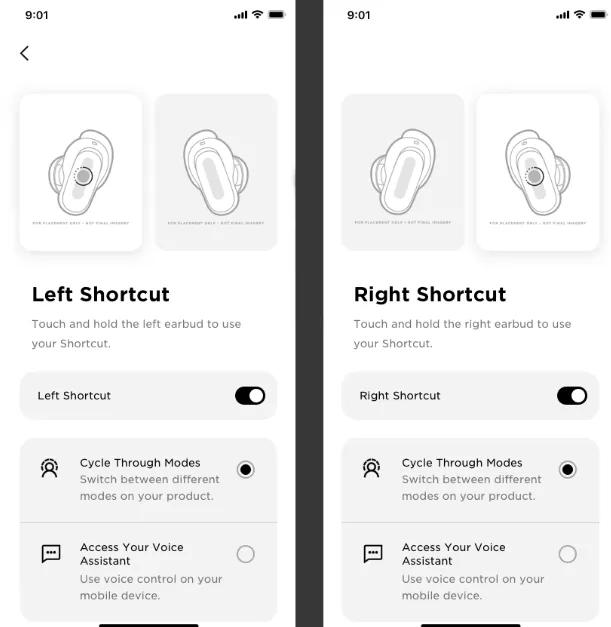
- Reassign gestures for voice assistant, volume, or toggle modes.
- Set comfort controls to reduce accidental taps.
Personal tip
I set long-press to volume control on one bud and mode switch on the other. That let me change noise canceling quickly while walking.
Noise cancelation modes and sound settings
ANC is adjustable. Use the app to fine-tune noise cancellation strength and sound profile. Try these modes for best results.
Common modes and uses
- Full ANC for planes and busy commutes.
- Aware mode to hear announcements or talk briefly.
- Conversation mode (if available) to boost voices.
- EQ presets in the app to emphasize bass or clarity.
How I use modes
I run with light ANC for safety. In offices I use full ANC to focus. Adjusting levels in the app helped reduce ear pressure during long flights.

Charging, battery life, and maintenance
Charging is simple with USB-C. Battery life depends on ANC level and volume. Expect roughly six hours per charge with ANC on, and the case adds around 18 hours.
Charging tips
- Full case charge takes about two hours via USB-C.
- A 20-minute quick charge gives about two hours of playtime.
- Check battery percent in the Bose app for precise estimates.
Care and maintenance
- Clean ear tips and contact points weekly with a dry cloth.
- Keep the case dry and avoid extreme heat.
- Replace ear tips if they stretch or get sticky.
Troubleshooting common issues
If you run into problems, try targeted fixes before a full reset. These quick fixes solve most issues fast.
Connectivity and audio fixes
- One bud not working: Put both buds in the case, close the lid, wait 30 seconds, then reopen.
- Dropouts: Move closer to the source and remove interference like crowded Wi-Fi areas.
- Low volume on calls: Check phone settings and reset Bluetooth if needed.
Reset and firmware
- To reset, press and hold the case button for 30 seconds. Re-pair via Bluetooth.
- Always update firmware in the Bose Music app for performance and bug fixes.

Advanced tips and use cases
Use multipoint to switch easily between laptop and phone. For travel, enable maximum ANC and use a noise-canceling audio source. For calls, mute on noisy backgrounds and use a single bud for awareness.
Pro tips from testing
- For low-latency TV or gaming, use the wired adapter (if available) or keep devices close for less lag.
- For workouts, make sure tips are snug and clean sweat after sessions.
- Use the “Find My Buds” feature in the app if a bud goes missing.
How to use Bose QuietComfort Earbuds 2 in daily life
- Commuting: Full ANC and podcasts.
- Office: Balanced EQ and meeting-friendly mic mode.
- Exercise: Secure fit and Aware mode for safety.
Frequently Asked Questions of how to use bose quietcomfort earbuds 2
How do I pair my Bose QuietComfort Earbuds II with two devices?
Open the case and pair to the first device, then enable multipoint in the Bose Music app and pair the second device through Bluetooth settings. The earbuds will remember both and switch automatically during use.
How do I change the touch controls on the earbuds?
Install the Bose Music app, connect the earbuds, and use the settings menu to remap gestures for play/pause, volume, or voice assistant. Changes apply instantly and are stored on the earbuds.
Why does one earbud have lower volume than the other?
Check the ear tip seal and clean the mesh; poor seal or debris often causes imbalance. If cleaning doesn’t help, reset the earbuds via the case button and re-pair.
How long does the battery last with ANC on?
You can expect about six hours per charge with ANC active, and the charging case provides multiple additional charges for about 18 more hours. Actual life varies with volume and usage.
How do I update the firmware on Bose QuietComfort Earbuds II?
Open the Bose Music app while the earbuds are connected and follow prompts under device settings to install firmware updates. Keep the case charged and stay near your phone during updates.
Conclusion
You now have a clear, practical plan for how to use Bose QuietComfort Earbuds 2 with confidence. Start with a proper fit, pair with the Bose Music app, and customize controls to match your routine. Test ANC levels for each environment and keep firmware and tips clean for best performance. Try the tips today, leave a comment with your experience, and subscribe for more hands-on guides.

Everett Ashford is a tech reviewer at mytechgrid.com specializing in SSDs, cameras, TVs, earbuds, headphones, and other consumer electronics. He provides honest, data-driven reviews based on hands-on testing and real-world performance analysis. Everett simplifies complex tech details to help readers make smart, confident buying decisions.