Install the SSD, clone or clean-install your OS, set BIOS to boot, and enjoy much faster performance.
I’ve installed dozens of drives for friends and clients, and this guide walks you through exactly how to install SSD disk hardware and software the right way. You’ll get clear steps for desktops and laptops, compatibility checks, cloning vs fresh install advice, optimization tips, and quick fixes. Read on and you’ll finish the job with confidence and minimal downtime.
Why upgrade to an SSD
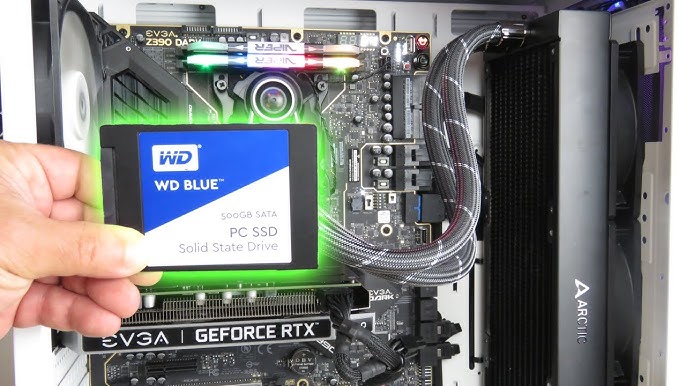
Upgrading to an SSD transforms slow boot times and laggy apps into a snappy system. SSDs have no moving parts, so they start and access files much faster than old hard drives. If you want faster startup, quicker app launches, and better overall responsiveness, learning how to install SSD disk correctly is the first step.
Types of SSDs and compatibility
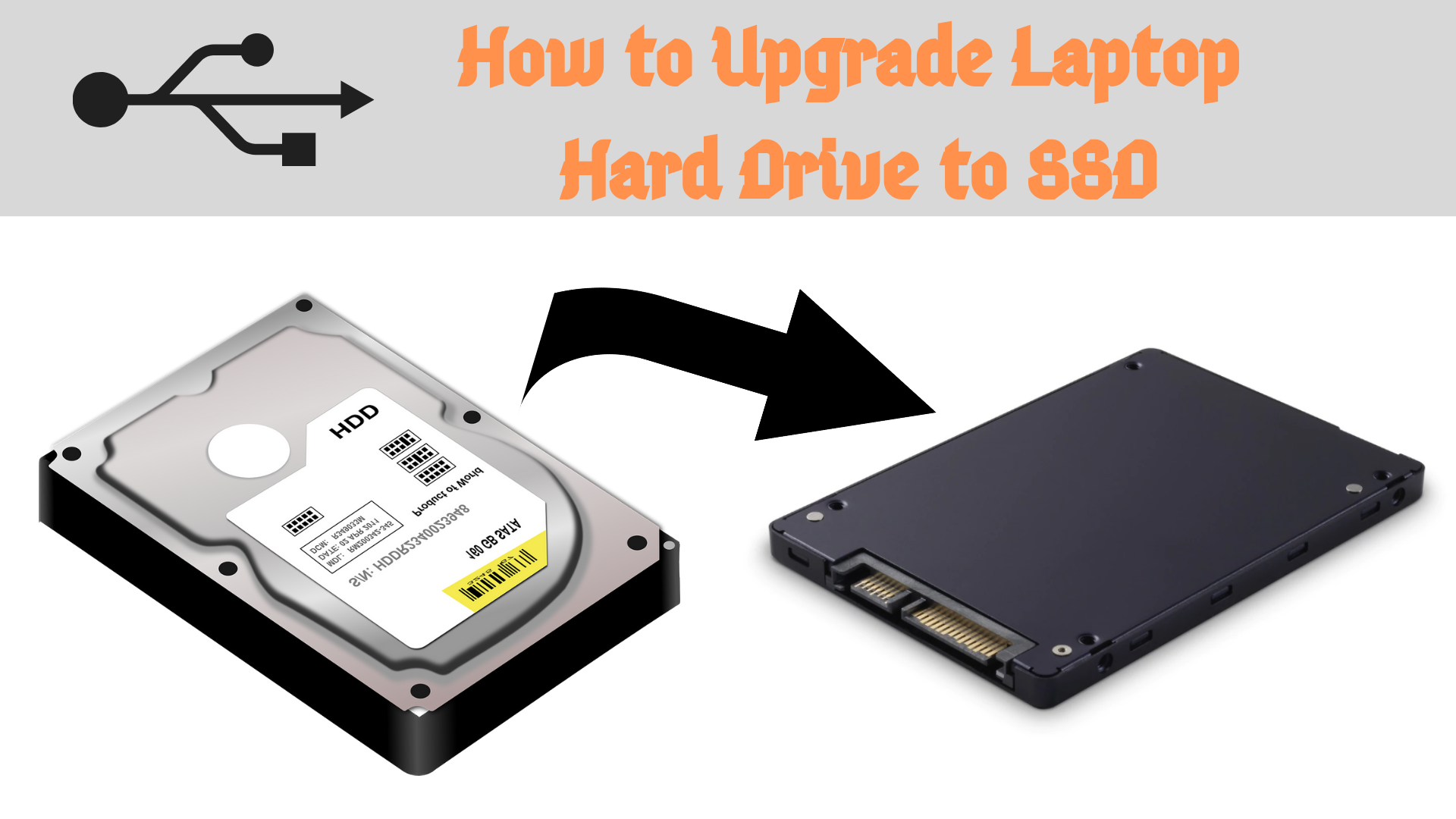
Not all SSDs are the same. Pick the right form factor and interface.
- SATA SSD
- Fits many desktops and older laptops.
- Similar speed to older drives but much faster in access times.
- M.2 SATA SSD
- Small stick form factor using SATA signaling.
- Good for thin laptops if the slot supports SATA M.2.
- M.2 NVMe (PCIe) SSD
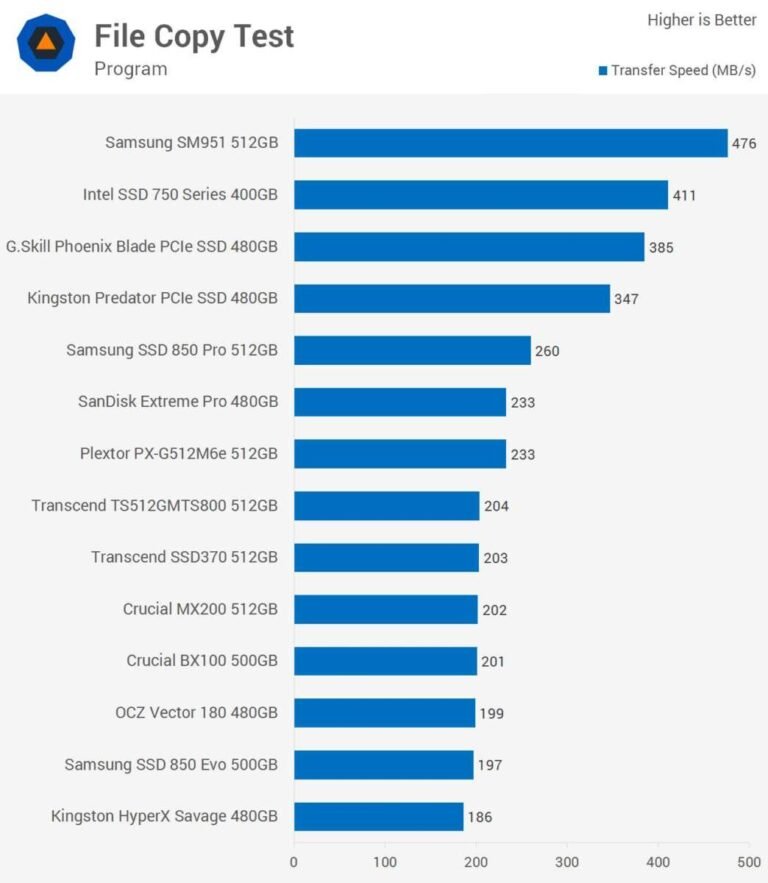
- Much faster than SATA. Uses PCIe lanes and NVMe protocol.
- Check your motherboard or laptop supports NVMe.
- PCIe add-in SSD
- Plugs into a desktop PCIe slot. Great if M.2 slots are full.
Before buying, check your manual or motherboard spec to confirm which SSD type fits. Knowing how to install SSD disk depends on matching the SSD type to your system.
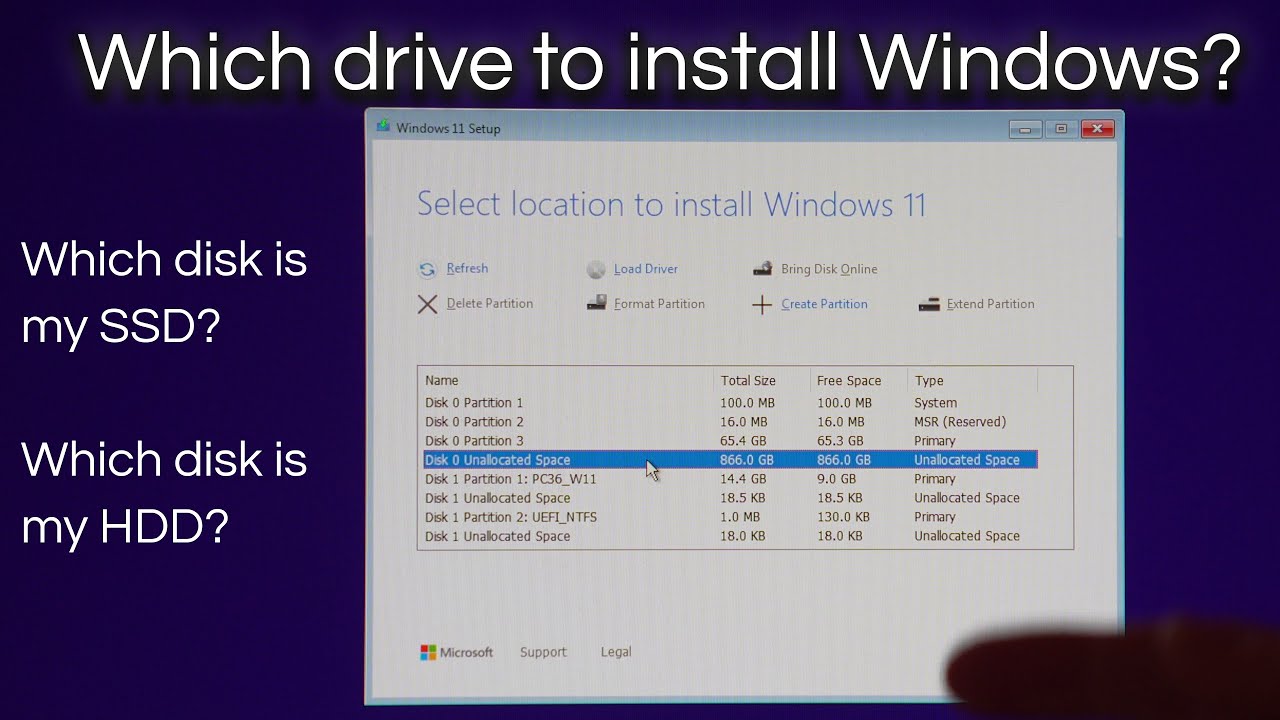
What you need before you start
Prepare well so the installation goes smoothly.
- Backup your data
- Always save important files to an external drive or cloud.
- Tools
- Small Phillips screwdriver, anti-static wrist strap (optional), and an M.2 screw if not included.
- Software
- Cloning software if you want an exact copy, or a fresh OS installer (USB).
- Compatibility checks
- Confirm physical fit, connector type, and BIOS support.
- Power and cables
- SATA drive needs a SATA cable and power cable. M.2 usually does not.
I once tried to install an M.2 NVMe in a laptop that only supported M.2 SATA. It fit, but the drive wouldn’t work. Check compatibility so you don’t waste time or money learning how to install SSD disk the hard way.
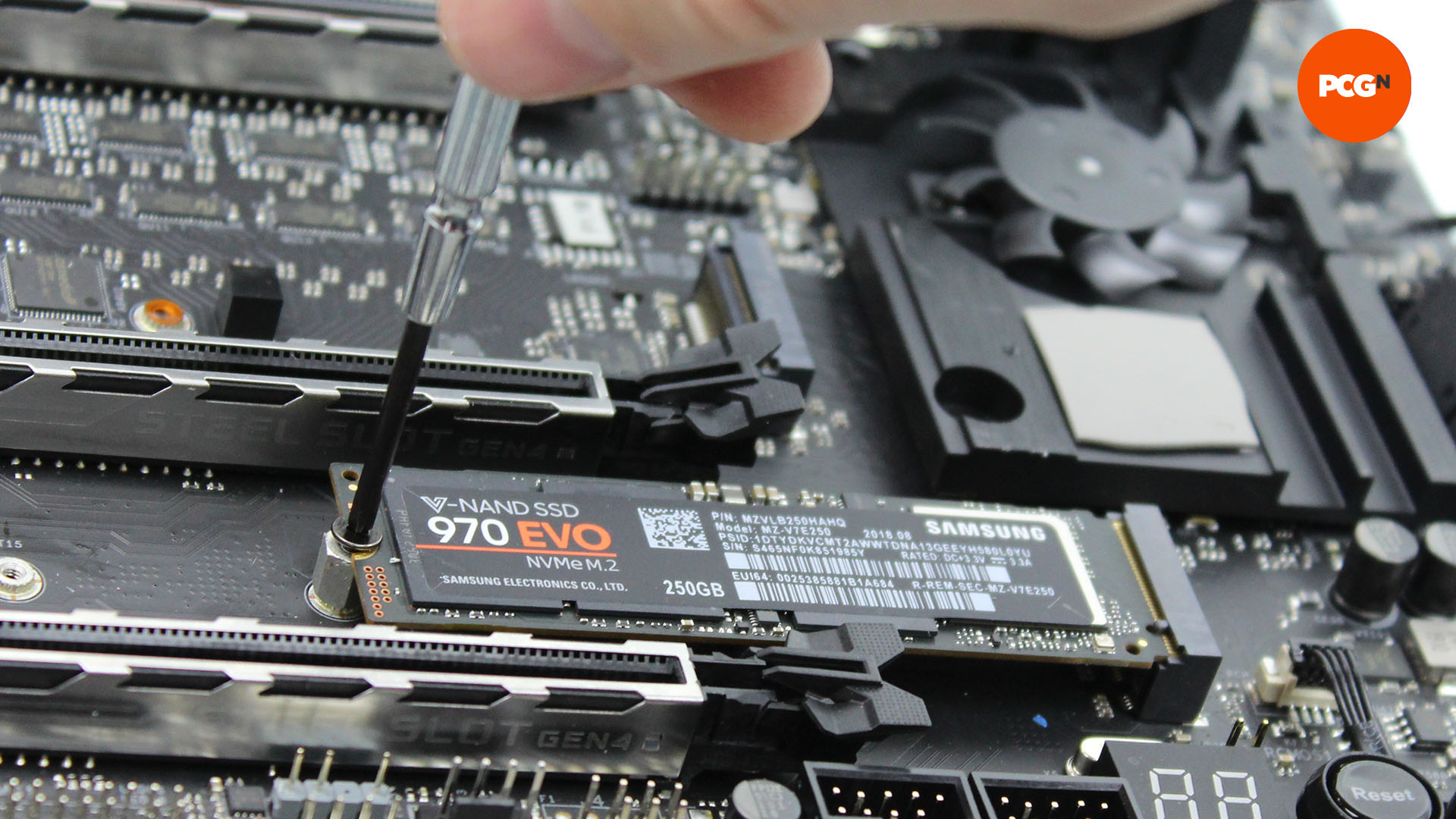
Step-by-step: How to install SSD disk in a desktop
This is a clear, simple path to get an SSD working in a desktop PC.
- Power down and unplug the PC. Press the power button for a few seconds to drain residual charge.
- Open the case. Remove the side panel and ground yourself.
- Locate the drive bay or M.2 slot. For 2.5" SATA drives, pick an open bay. For M.2, remove the small mounting screw.
- If using a 2.5" SATA SSD:
- Mount the SSD in a bay or bracket.
- Connect a SATA data cable to the SSD and motherboard.
- Connect a SATA power cable from the PSU to the SSD.
- If using an M.2 NVMe or M.2 SATA:
- Insert the M.2 drive at a 20–30 degree angle into the slot.
- Gently press down and secure with the screw.
- Close the case and plug in the PC. Power on.
- Enter BIOS/UEFI. Ensure the new SSD is detected and set SATA mode to AHCI for SATA drives.
- Install OS or restore clone image. If cloning, run your cloning software and then change boot order to the SSD.
Keep steps short and methodical. I often recommend labeling cables as you remove them when you first open a system. That saves confusion and speeds up how to install SSD disk in desktops.

Step-by-step: How to install SSD disk in a laptop
Laptop installs can be tight and need extra care.
- Power off and remove the battery if possible. Unplug power.
- Open the access panel. Consult your manual for the correct screws and procedure.
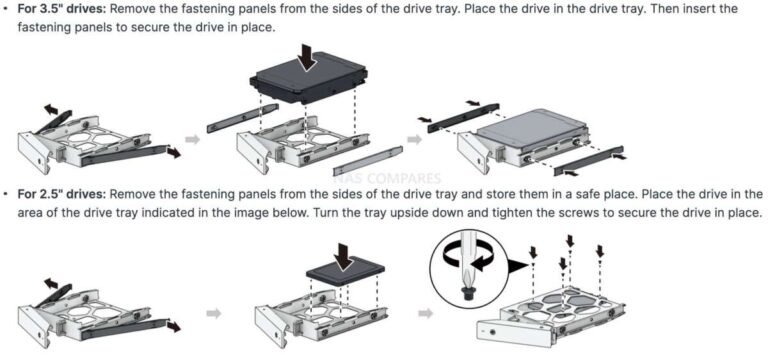
- For 2.5" SATA laptops:
- Slide the SSD into the drive bay and fasten the bracket.
- Reconnect any SATA/power connectors inside.
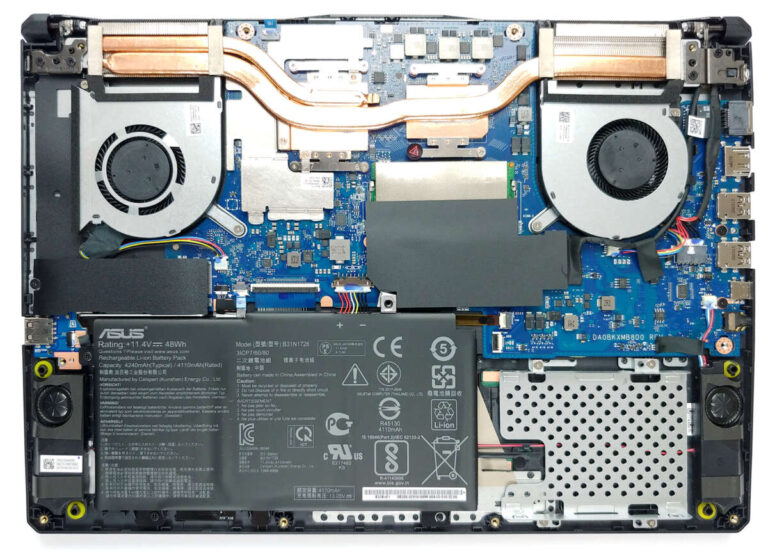
- For M.2 drives:
- Remove the M.2 screw, insert the SSD, and secure it.
- Some laptops require removing the whole bottom cover to access the slot.
- Reassemble and boot into BIOS to confirm detection.
- Install or clone your OS and set the SSD as the first boot device.
Laptops vary widely. I once had to remove a keyboard to reach the M.2 slot. If your laptop is tricky, search for a model-specific guide before you proceed with how to install SSD disk in a laptop.
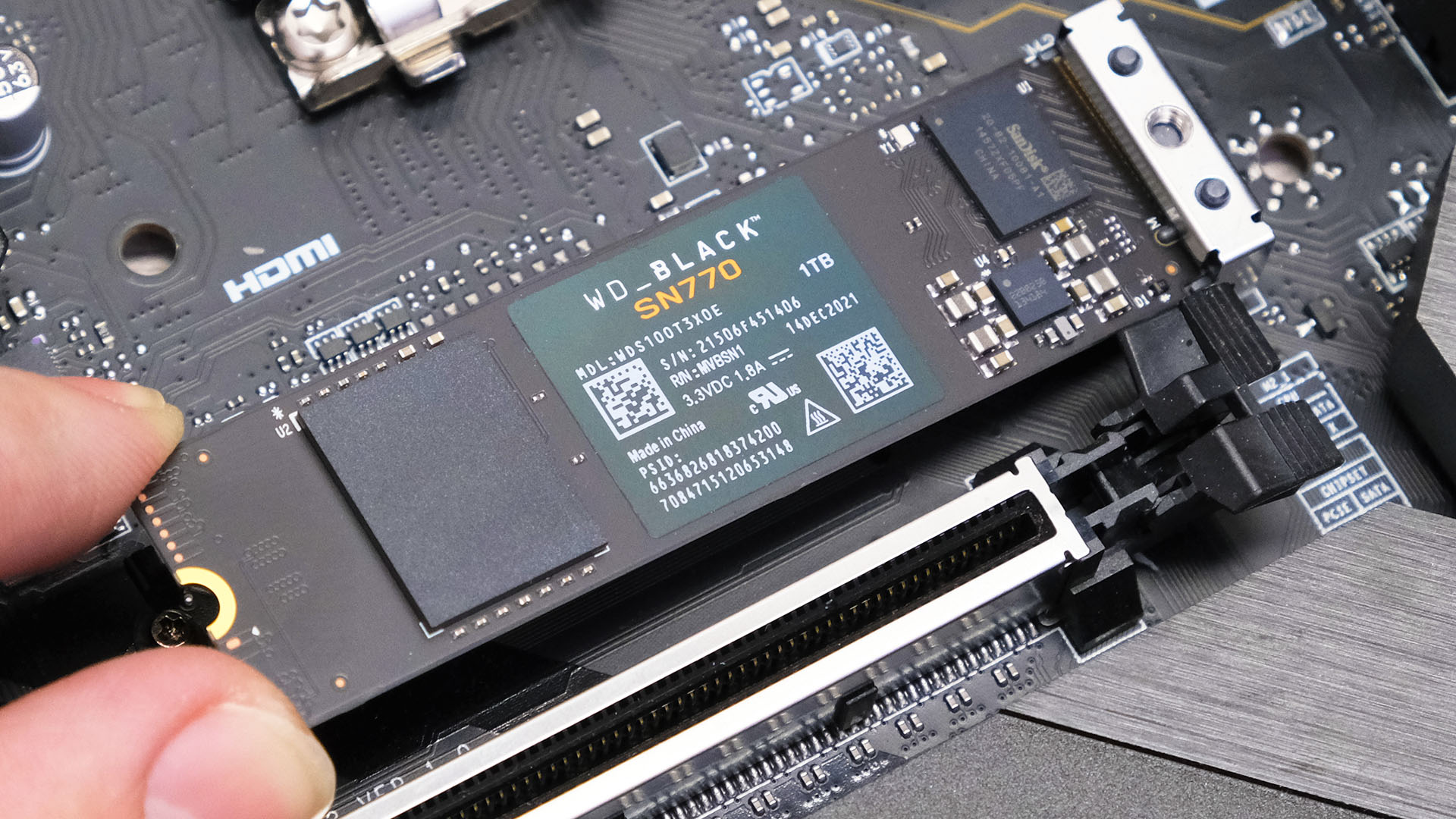
Cloning vs fresh OS install
Choose the approach that fits your needs.
- Cloning
- Pros: Keeps your apps, settings, and files as-is.
- Cons: Carries over old clutter; you must resize partitions if needed.
- Tip: Align partitions during cloning for best SSD performance.
- Fresh install
- Pros: Cleaner system and often faster performance after setup.
- Cons: Time to reinstall apps and copy files.
- Tip: Have installers and license keys ready.
PAA-style questions:
- Will cloning my HDD to SSD keep everything? Yes. Cloning copies files and boot sectors so the system boots from the SSD. Ensure the cloning tool supports your partition layout and adjusts alignment.
- Do I need to wipe the old drive after cloning? Not immediately. Keep it as a backup until you confirm the SSD boots correctly and all files are intact.
Understanding how to install SSD disk often means deciding which method gives you the best balance of speed and convenience.
Post-install checks and optimization
After install, do these steps to get peak performance.
- Confirm BIOS/UEFI boot order
- Make the SSD the first boot device.
- Enable AHCI for SATA drives
- AHCI gives better performance than IDE mode.
- Ensure TRIM is enabled
- TRIM keeps SSD performance healthy over time.
- Update SSD firmware
- Use manufacturer tools to check for firmware updates.
- Check partition alignment and clone settings
- Misaligned partitions reduce speed. Most modern tools do this automatically.
When I set up client PCs, these post-install checks usually fix 80% of speed complaints related to how to install SSD disk.
Troubleshooting common issues
If things don’t go as planned, try these fixes.
- SSD not detected in BIOS
- Re-seat the drive and cables. Try a different SATA port. Ensure the slot supports NVMe for M.2 drives.
- System won’t boot after cloning
- Check boot order, and repair boot loader with recovery media if needed.
- Slow speeds after install
- Confirm AHCI mode, TRIM enabled, and firmware updated.
- Drive shows smaller capacity
- Check partition table and delete old partitions to reclaim space.
Be patient and test one fix at a time. I once resolved a “not detected” issue by simply updating the motherboard BIOS.
Maintenance and lifespan
Protect your SSD and keep it healthy.
- Monitor drive health with SMART tools
- Watch for reallocated sectors and wear indicators.
- Keep firmware up to date
- Updates may improve stability and performance.
- Avoid excessive writes
- SSDs have finite write cycles; avoid unnecessary large temp files and frequent full backups to the SSD.
- Keep backups
- SSD failure is rare but possible. Regular backups keep data safe.
Knowing how to install SSD disk also means knowing how to care for it. Proper care extends drive life and keeps performance steady.
Frequently Asked Questions of how to install ssd disk
How do I know which SSD fits my computer?
Check your motherboard or laptop manual for supported form factors and interfaces. Look for M.2 slot type (NVMe vs SATA) and available SATA ports.
Can I clone Windows from HDD to SSD without reinstalling?
Yes, cloning tools can copy the OS and data to the SSD. Make sure the clone handles partition alignment and resize if the SSD is smaller.
Do I need to change BIOS settings after installing an SSD?
You should set the boot order to the SSD and enable AHCI for SATA drives. For NVMe drives, ensure UEFI and NVMe support are enabled.
Will an SSD make my old PC run like new?
An SSD dramatically improves boot and app load times, but CPU, RAM, and GPU still limit overall speed. It feels much faster for everyday tasks.
Is TRIM necessary and how do I enable it?
TRIM helps maintain SSD performance. Most modern OSes enable TRIM automatically, but you can check with system commands or SSD utilities.
Conclusion
You now have a clear, practical roadmap for how to install SSD disk in desktops and laptops. Follow the prep steps, pick the right drive, choose cloning or a fresh install, and complete post-install checks for the best results. Try the steps on a test machine or backup well, then take action—upgrade your system and enjoy the speed boost. If this guide helped, leave a comment with your model and questions, or subscribe for more hands-on hardware guides.

Everett Ashford is a tech reviewer at mytechgrid.com specializing in SSDs, cameras, TVs, earbuds, headphones, and other consumer electronics. He provides honest, data-driven reviews based on hands-on testing and real-world performance analysis. Everett simplifies complex tech details to help readers make smart, confident buying decisions.