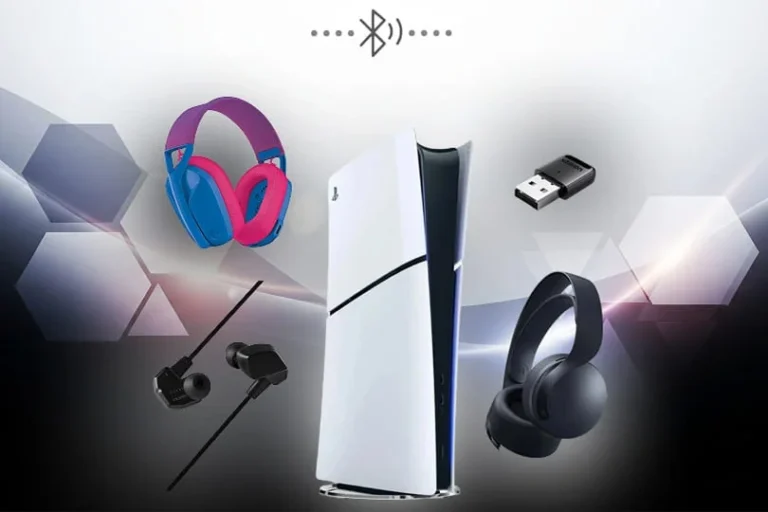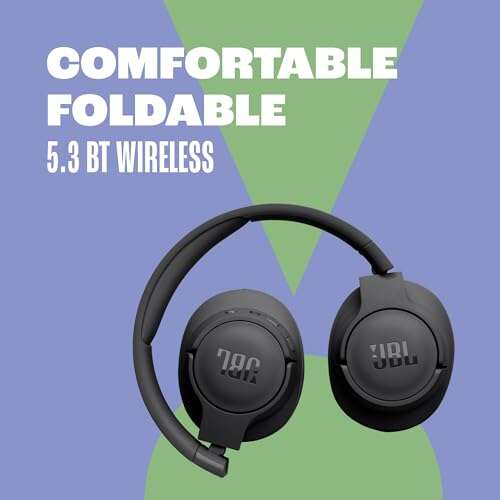
Plug headphones into the correct jack or pair via Bluetooth, then set them as the default device.
I’ve fixed audio problems for years, and this guide covers every practical step on how to get headphones to work on PC. You’ll get clear, tested fixes for wired, USB, and Bluetooth headsets. Read on to resolve detection, driver, and sound routing issues fast.

Common causes why headphones won’t work on PC
Many things can stop sound. Hardware faults, wrong ports, muted apps, bad drivers, and Windows settings top the list. Even simple things like a loose jack or disabled output device can block sound. Knowing the likely causes makes it faster to fix how to get headphones to work on PC.
Quick checklist to try first
Start simple. Try each item below before diving deeper. These steps solve most problems fast.
- Make sure the headphones are plugged in or paired and powered on.
- Check volume levels on the PC and on the headset.
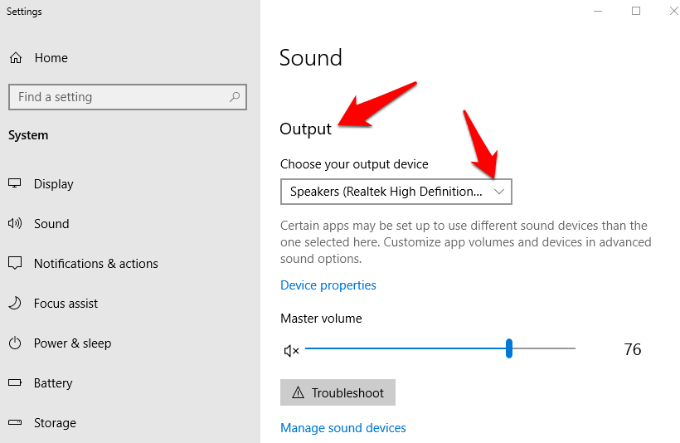
- Confirm the correct playback device is selected in Sound settings.
- Reboot the PC and replug the headphones.
- Try the headphones on another device to rule out hardware fault.
Following this checklist will often fix the issue and show you how to get headphones to work on PC without extra tools.

Step-by-step: wired headphones on Windows
Use these clear steps for 3.5mm or optical wired headsets. Each step is small and simple.
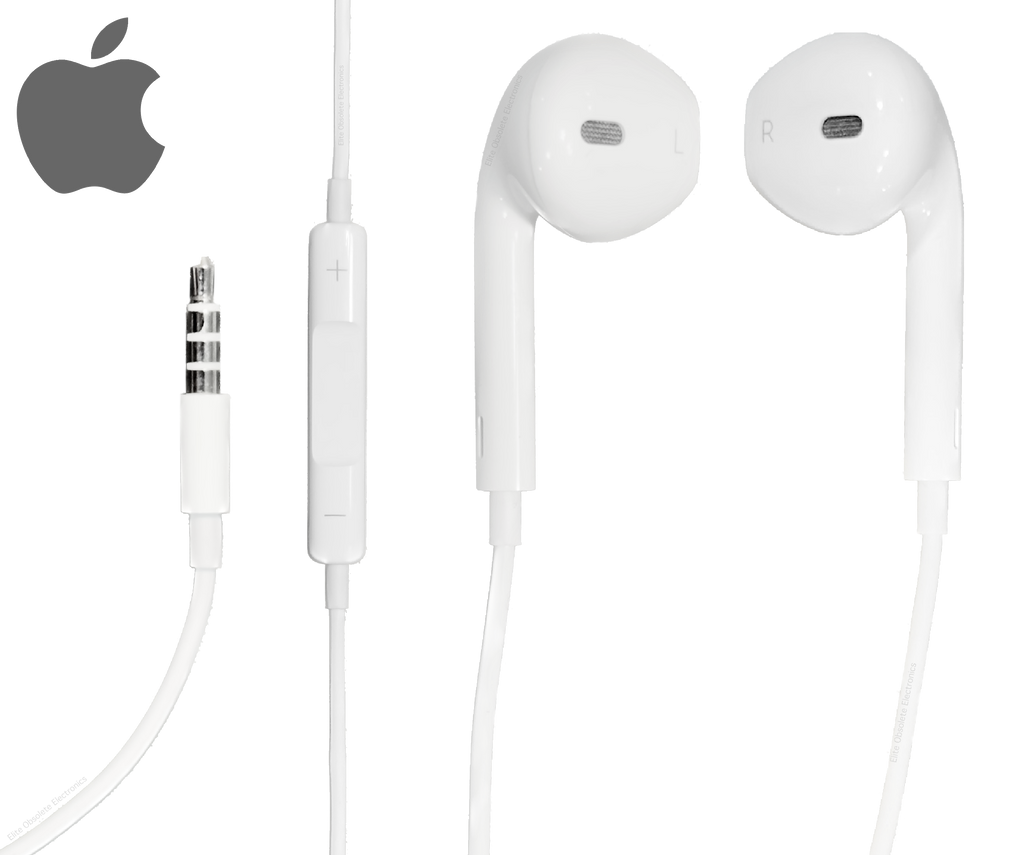
- Plug headphones into the correct jack. Many PCs have separate jacks for mic and audio. Look for the headphone icon.
- Open Settings > System > Sound. Under Output, select your headphones. If none appear, continue next steps.
- Right-click the speaker icon on the taskbar. Choose Sounds or Open Sound settings. In the Playback tab, right-click empty space and enable disabled devices.
- Set the headset as Default Device and Default Communication Device. Test sound using Play Test Sound.
If the device is missing, the jack or drivers may be the problem. These steps show exactly how to get headphones to work on PC for most wired cases.
Bluetooth headphones: pairing and fixes
Bluetooth adds a few more steps. Keep them close and charged.
- Turn on Bluetooth on the PC and headset. Put the headset in pairing mode.
- Go to Settings > Bluetooth & devices and click Add device. Select your headset from the list.
- Once paired, return to Sound settings and choose the headset as the output.
- If audio is low or missing, check the Bluetooth audio profile. Use “Stereo” or “Hands-Free” depending on the need. Stereo gives better music quality.
Bluetooth can fail due to range or interference. These checks make clear how to get headphones to work on PC wirelessly.
USB headsets and headset dongles
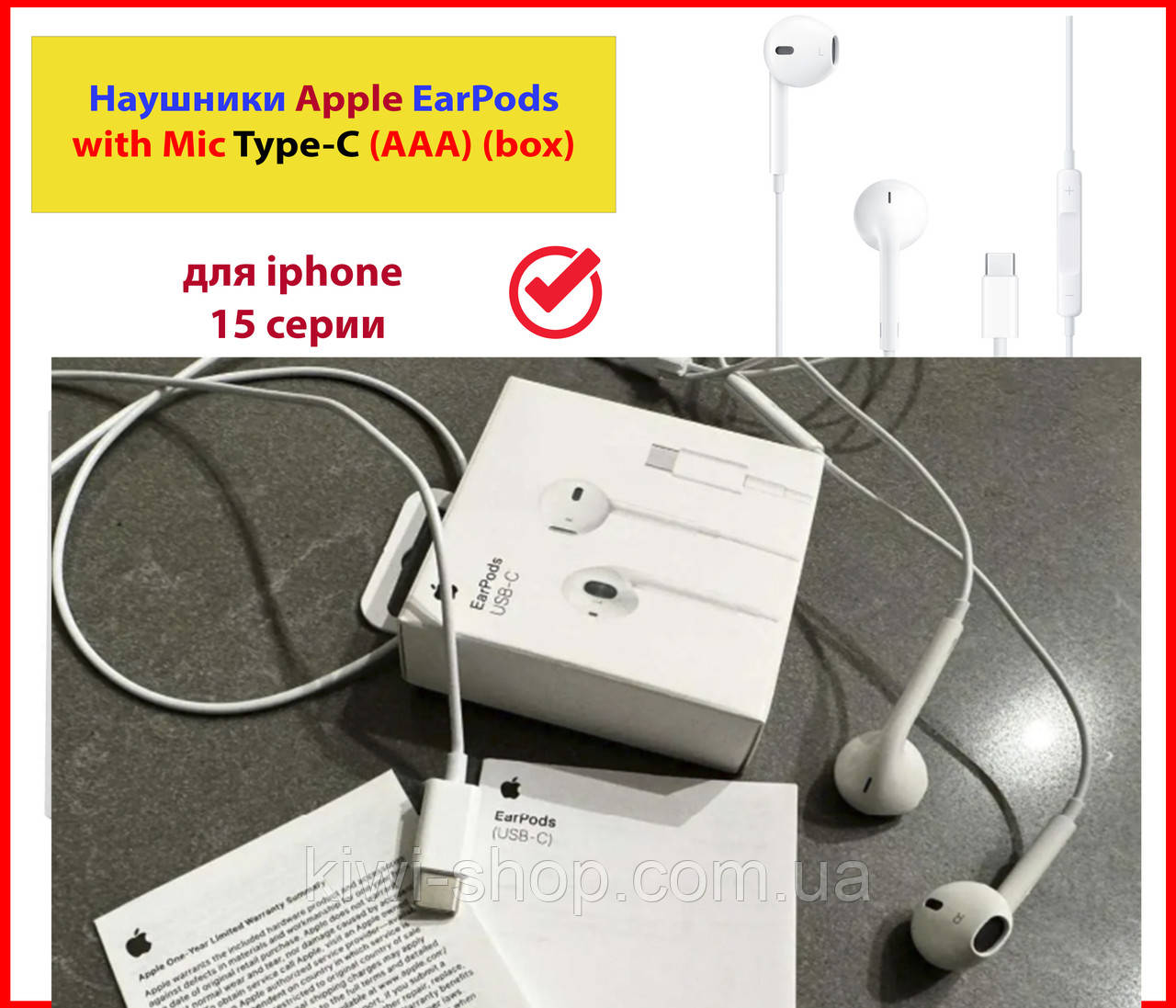
USB headsets use digital audio and appear as separate devices. Treat them like independent sound cards.
- Plug the USB device into a working USB port. Try front and back ports if unsure.
- Windows should install drivers automatically. If not, visit Device Manager > Sound, video and game controllers. Look for unknown devices.
- Set the USB headset as Default Playback device in Sound settings and test audio.
- If mic and speaker act strangely, check the headset’s bundled app or firmware updater.
USB headsets can bypass faulty analog jacks and often solve how to get headphones to work on PC quickly.

Drivers and audio software fixes
Bad or missing drivers are common. Updating or reinstalling drivers often restores sound.
- Open Device Manager and expand Sound, video and game controllers.
- Right-click your audio device and choose Update driver. Let Windows search automatically.
- If problems persist, right-click and choose Uninstall device, then restart the PC. Windows will reinstall drivers.
- Consider installing the latest chipset or audio drivers from your PC or motherboard maker for best compatibility.
Correct drivers are the backbone of audio. Fixing them is essential to how to get headphones to work on PC reliably.

Advanced troubleshooting steps
When basic fixes fail, try these targeted methods. They help when software or hardware is subtle.
- Test the headset on another PC or phone to confirm it works.
- Boot into Safe Mode with Networking and check if sound works there. If it does, a third-party app is blocking audio.
- Run the Windows Audio Troubleshooter from Settings > System > Troubleshoot. Follow the prompts.
- Check Realtek, Dolby, or vendor control panels for device-specific muting or routing. Reset to defaults if needed.
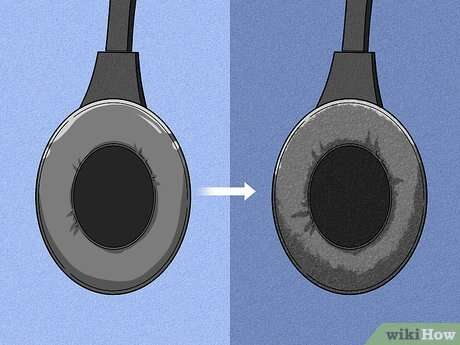
- Inspect cables and jacks under good light. Bent pins or lint in the port can cause poor contact.
These steps dig deeper into root causes. They are useful for persistent issues and help you master how to get headphones to work on PC.
:max_bytes(150000):strip_icc()/PXL_20201108_004746486-e6e2c998b9704a258f0fa4878556501e.jpg)
Personal experience and practical tips from real fixes
I’ve fixed headphone issues for friends and clients for years. A few habits helped most.
- Always test the headset on another device first. That single test saves time.
- Rebooting after driver changes avoids strange Windows behavior. I learned this the hard way.
- Label ports on older PCs. People often plug into a line-in or mic jack by mistake.
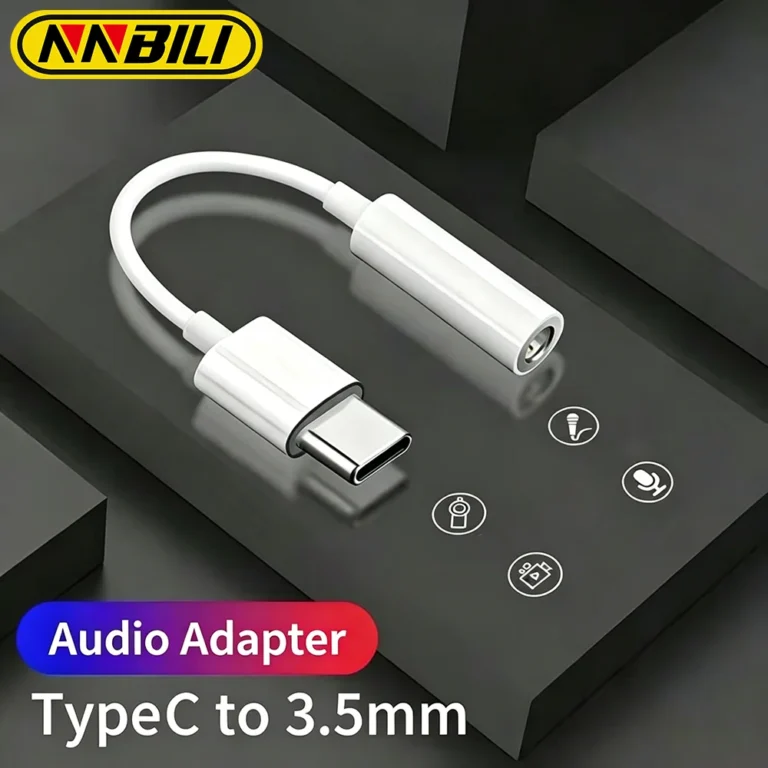
- Keep a small set of adapter plugs. A 3.5mm TRRS-to-TRS adapter solved mic problems for me on multiple headsets.
From hands-on repairs, these tips speed your path to how to get headphones to work on PC. They avoid common mistakes and save time.
Common mistakes to avoid
Avoid habits that make fixes longer. These are the most frequent traps.
- Don’t assume a working headphone on phone means it will auto-work on PC. Profiles differ.
- Don’t skip the Playback device check in Sound settings. Many people forget it.
- Don’t install unverified driver packages. Use the PC maker or chipset maker’s drivers.
- Don’t force jacks. Forcing can bend pins and cause long-term damage.
Avoiding these mistakes keeps your setup healthy and makes it easier to get headphones to work on PC in the future.
Frequently Asked Questions of how to get headphones to work on pc
How do I check if Windows recognizes my headphones?
Open Settings > System > Sound and look under Output for the headset. You can also open Device Manager and check Sound, video and game controllers for the device.
Why is sound coming from my speakers and not my headphones?
Your headphones may not be set as the default playback device. Go to Sound settings and set the headset as Default Device and Default Communication Device.
What if my Bluetooth headset pairs but has no audio?
Check the audio profile and ensure Windows uses the right output for media. Also verify the headset battery level and move it closer to the PC to reduce interference.
Will updating drivers help if I have no audio?
Yes. Updating or reinstalling audio and USB drivers often fixes detection and playback issues. Use Device Manager or the PC maker’s support site.
How can I test if the headphone jack is faulty?
Try the headphones on another device and try a different pair on the PC. If only one combination fails, the jack or headset is likely at fault.
Conclusion
You now have a clear, step-by-step path to troubleshoot and fix headphone problems. Start with the simple checks, then move to drivers and advanced tests if needed. Use the practical tips and avoid common mistakes to save time and stress. Try these steps now, and if one fix doesn’t work, move to the next—your sound should return. Leave a comment with your issue or subscribe for more hands-on PC audio tips.

Everett Ashford is a tech reviewer at mytechgrid.com specializing in SSDs, cameras, TVs, earbuds, headphones, and other consumer electronics. He provides honest, data-driven reviews based on hands-on testing and real-world performance analysis. Everett simplifies complex tech details to help readers make smart, confident buying decisions.