To set up an SSD drive, install it, connect it, initialize it, format it, and move files or Windows onto it.
Learning how to set up a SSD drive can make an old computer feel new again. An SSD starts apps faster, reduces loading times, and runs quietly because it has no moving parts. This guide explains the full process for desktops, laptops, external SSDs, fresh Windows installs, and drive upgrades, with simple steps and practical tips to help you avoid common mistakes.
What You Need Before Setting Up an SSD
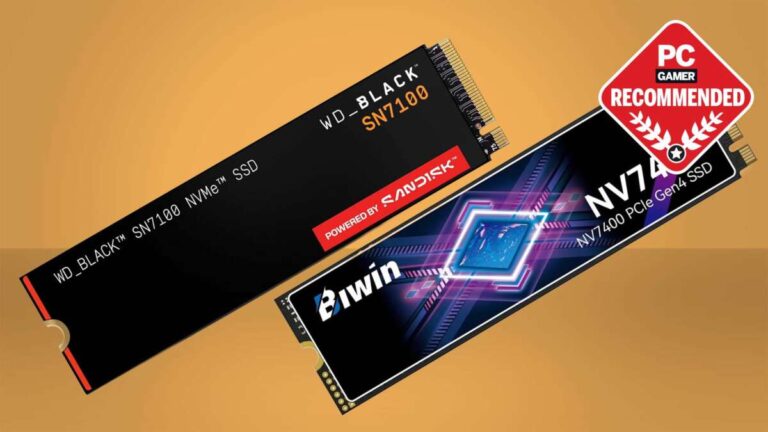
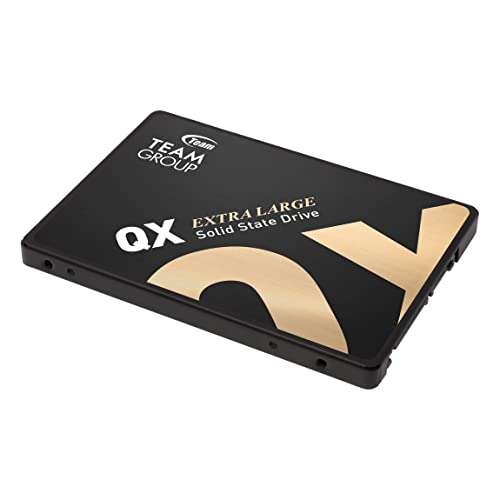
Before learning how to set up a SSD drive, identify the SSD type and check whether your computer supports it. The two most common internal types are 2.5-inch SATA SSDs and M.2 SSDs.
A 2.5-inch SATA SSD looks like a small flat rectangle. It uses a SATA data cable and a SATA power cable. An M.2 SSD is a thin circuit board that fits directly into an M.2 slot on the motherboard.
You may need the following items:
- The SSD
- A small Phillips screwdriver
- A SATA data cable for a 2.5-inch SATA SSD
- A mounting bracket for some desktop cases
- An M.2 screw for an M.2 SSD
- A USB-to-SATA adapter for cloning a laptop drive
- A backup drive for important files
- A Windows installation USB if you are performing a clean install
Check your motherboard or laptop manual before buying parts. Some M.2 slots support only SATA M.2 drives, while others support NVMe PCIe drives. These drives may look similar, but they do not always use the same interface.
A reliable backup is essential. Drive upgrades often go smoothly, but a loose cable, failed clone, or wrong partition choice can cause data loss. Copy important documents, photos, and work files to cloud storage or another drive before you begin.

Choose Between SATA and NVMe SSDs
A SATA SSD connects through the same general interface used by many older hard drives. It is much faster and more responsive than a hard disk drive, but its speed is limited by the SATA interface.
An NVMe SSD uses the PCIe interface. It can offer much higher sequential speeds, especially when moving large files or working with video, 3D projects, and large databases. For everyday browsing and office work, both SATA and NVMe SSDs still feel fast.
Use this simple guide:
- Choose a 2.5-inch SATA SSD for an older desktop or laptop with a SATA drive bay.
- Choose an M.2 NVMe SSD if your motherboard or laptop supports the correct PCIe standard.
- Choose an M.2 SATA SSD only when your system specifically supports M.2 SATA storage.
- Choose an external USB SSD for portable storage, backups, or devices that cannot accept an internal drive.
Capacity also matters. A 500 GB SSD works for basic use, but a 1 TB SSD gives more room for applications, games, photos, and system updates. Leave some free space because a completely full SSD can slow down and may have less room for internal maintenance.

Back Up Your Existing Drive
The safest way to set up a SSD drive is to back up the old drive before opening the computer. A backup gives you a way back if the installation or cloning process fails.
Use one of these methods:
- Copy personal files to an external hard drive.
- Use a trusted cloud backup service.
- Create a full system image.
- Clone the old drive directly to the SSD.
- Create a Windows installation USB for a clean installation.
A file copy is enough for personal data, but it does not copy Windows, installed programs, or system settings. A clone copies the old drive structure to the SSD, which can help you keep your existing setup.
Before cloning, remove files you no longer need. Empty the Recycle Bin, uninstall unused programs, and check the total amount of data on the old drive. The data must fit on the new SSD, even if the old drive has a larger total capacity.
For example, a 1 TB hard drive with only 300 GB of data can often be cloned to a 500 GB SSD. The cloning software must support resizing partitions, and the used space must fit within the new drive.
:max_bytes(150000):strip_icc()/6-0094128015f74a7c84f1011743f4d556.jpg)
Install a 2.5-Inch SATA SSD in a Desktop
Installing a SATA SSD in a desktop is usually simple. Shut down the computer, turn off the power supply, and unplug the power cable. Press the power button for a few seconds to discharge leftover power.
Open the case and touch an unpainted metal part of the chassis to reduce static electricity. You can also use an anti-static wrist strap connected to the case.
Follow these steps:
- Find an open 2.5-inch drive mount or use a compatible mounting bracket.
- Secure the SSD with the correct screws.
- Connect one end of the SATA data cable to the SSD.
- Connect the other end to a SATA port on the motherboard.
- Connect a SATA power plug from the power supply.
- Close the case and reconnect the power cable.
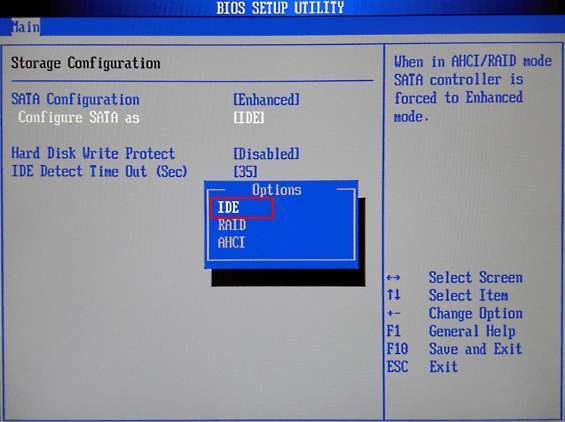
- Start the computer and enter the firmware setup if needed.
The SATA data cable carries information, while the SATA power cable supplies electricity. Both connections are required. A common installation mistake is connecting the data cable but forgetting the power cable.
If the new SSD does not appear, turn off the PC and check both cables. Try another SATA port and another data cable if available.
Install an M.2 SSD
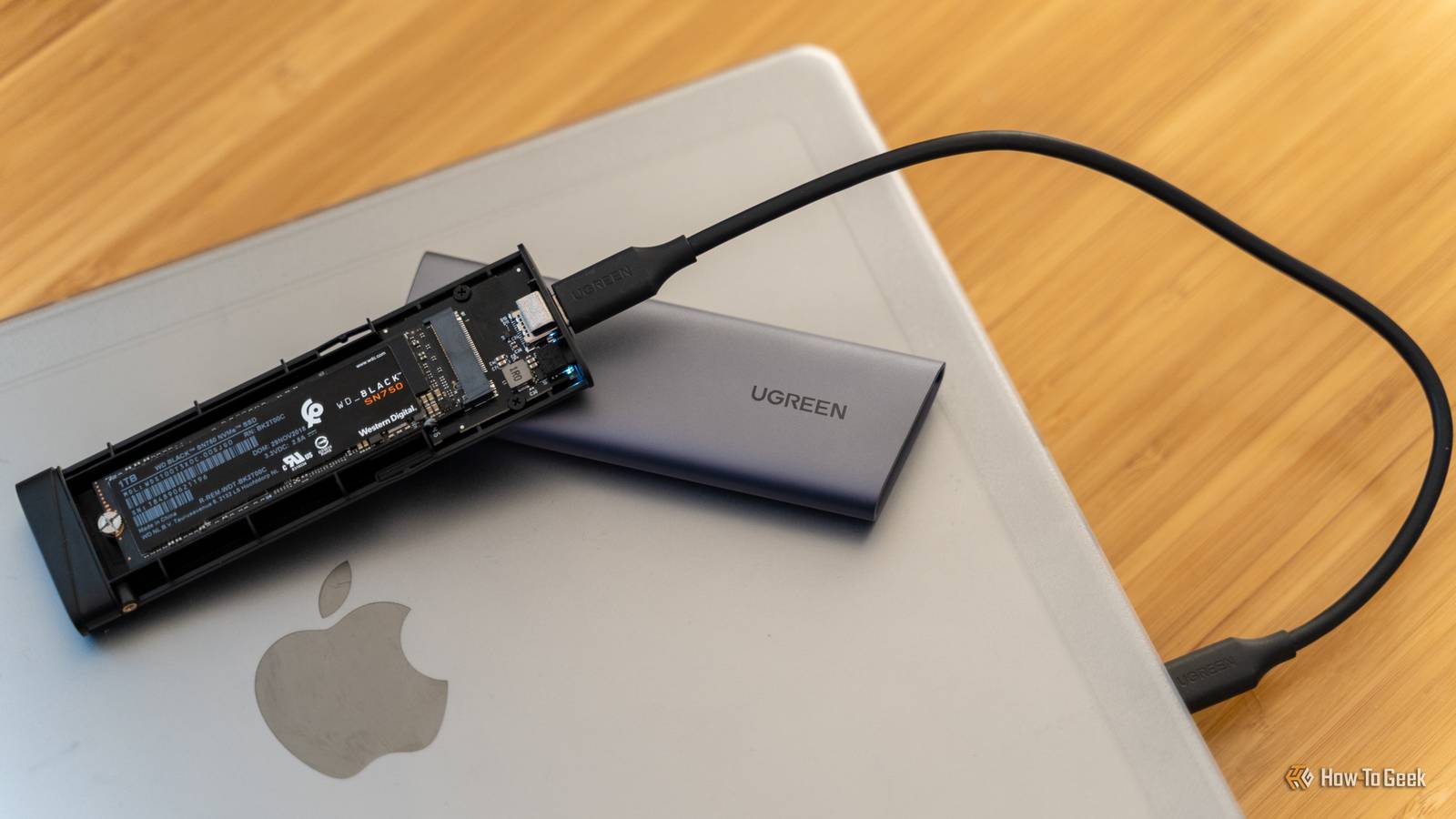
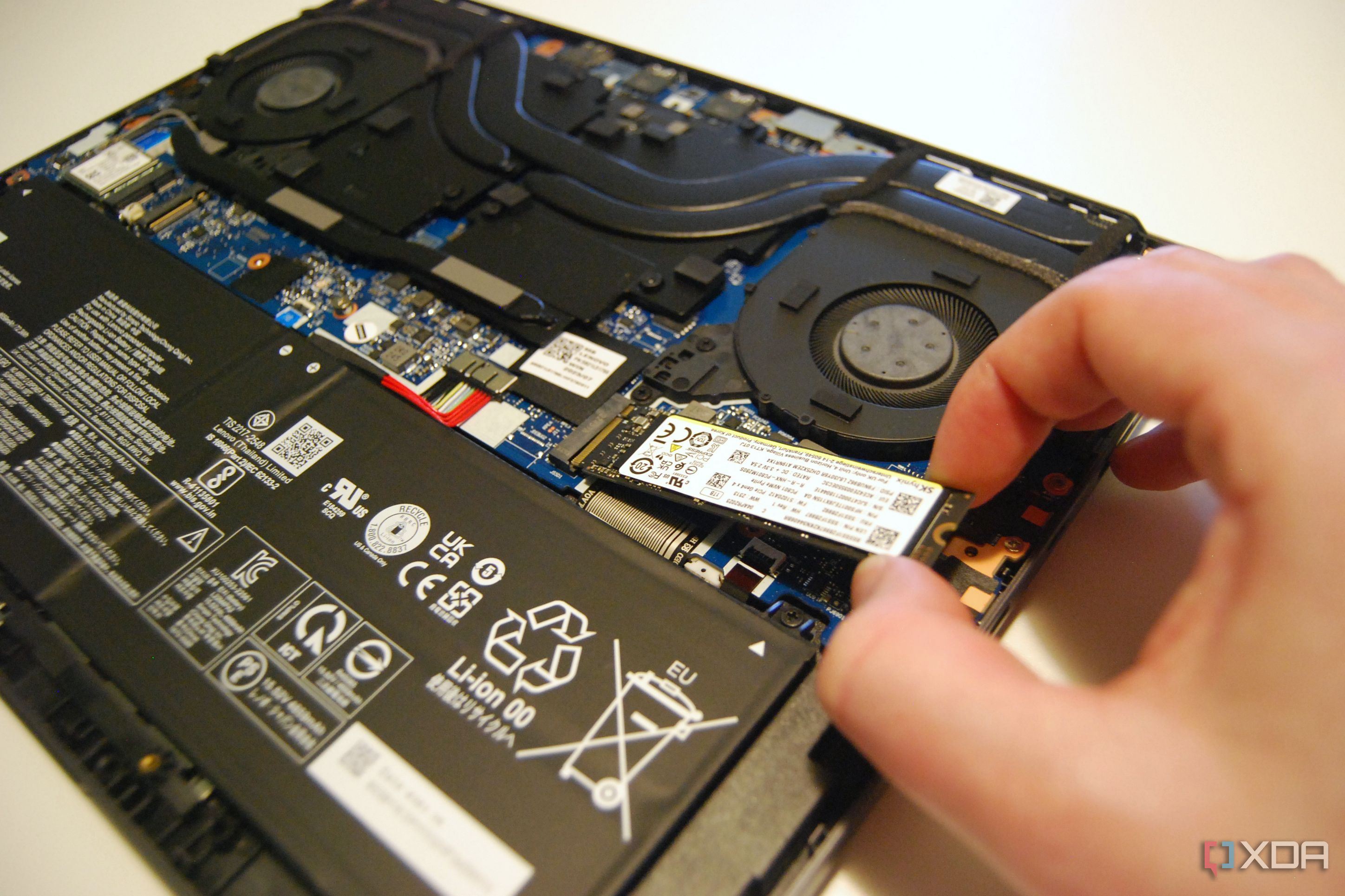
An M.2 SSD installs directly onto the motherboard. It does not need a separate data or power cable, but the drive must match the slot.
Turn off the computer and unplug it. Remove the case panel, locate the M.2 slot, and check the printed label or motherboard manual. Some boards have more than one slot, and the primary slot may provide the best performance.
Use these steps:
- Remove the small M.2 mounting screw.
- Hold the SSD by its edges.
- Align the notch on the SSD with the key inside the slot.
- Insert the drive at a slight angle.
- Press the free end down gently.
- Secure the drive with the M.2 screw.
- Reinstall any motherboard heat spreader if supplied.
Do not force the drive into the slot. The connector has a specific key, and the notch must line up correctly. If the SSD does not slide in easily, remove it and check the orientation.
Some newer NVMe SSDs include a heat spreader or benefit from one, especially during long file transfers. Keep the protective film off the thermal pad before installing the heat spreader.
Set Up an SSD Drive in Windows
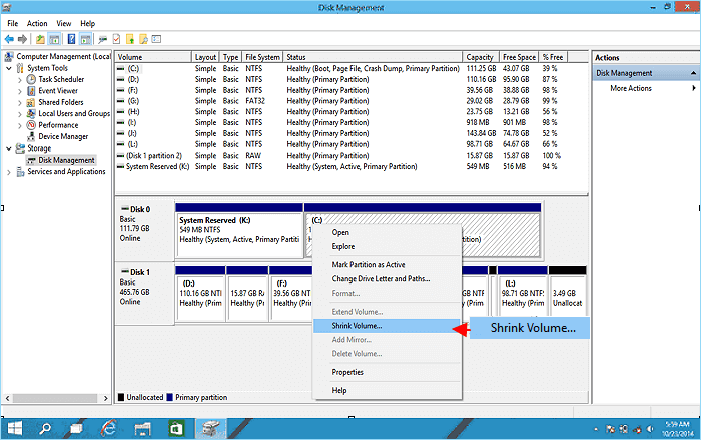
After installing the hardware, Windows may detect the SSD automatically. However, a new drive often needs to be initialized and formatted before it appears in File Explorer.
Here is how to set up a SSD drive as a secondary storage device in Windows:
- Right-click the Start button.
- Select Disk Management.
- Find the disk marked as unallocated or not initialized.
- Confirm that it is the new SSD by checking its capacity.
- Right-click the disk label and choose Initialize Disk.
- Select GPT when offered.
- Right-click the unallocated space.
- Choose New Simple Volume.
- Follow the wizard.
- Assign a drive letter.
- Format the drive as NTFS.
- Give the volume a clear name, such as SSD Storage.
GPT is the normal choice for modern computers using UEFI firmware. MBR may be needed for some older systems, but it has partition and boot limitations.
Formatting removes existing data from the selected partition. Double-check the disk number and capacity before making changes. Selecting the wrong disk can erase your old drive.
Once formatting finishes, open File Explorer. The SSD should appear under This PC with its new drive letter.

Move Windows to the SSD by Cloning
Cloning is useful when you want to keep Windows, applications, files, and settings. The process creates a copy of the old drive on the SSD.
Use drive-cloning software that supports your operating system and the type of drive you are using. The names and buttons differ between programs, but the basic process is similar.
- Connect the SSD to the computer.
- Open the cloning program.
- Select the old drive as the source.
- Select the SSD as the destination.
- Resize the main partition if the SSD is smaller.
- Start the cloning process.
- Wait until the software confirms completion.
- Shut down the computer.
- Disconnect the old drive temporarily.
- Start the computer from the SSD.
Disconnecting the old drive during the first test helps prevent the computer from booting from the wrong disk. If Windows starts normally and your files are present, you can reconnect the old drive and format it later.
A cloning process can take a few minutes or several hours. The time depends on the amount of data, the connection type, and the health of the old drive. Do not shut down the computer during the clone unless the software reports an error.
One practical lesson from many storage upgrades is to keep the old drive untouched for a few days. It acts like a safety net while you confirm that Windows, applications, and personal files work correctly.

Perform a Clean Windows Installation
A clean installation is often the best option when the old system is unstable, infected, or filled with years of unused software. It gives you a fresh start, but you must reinstall applications and restore personal files.
To install Windows on the SSD:
- Create a bootable Windows installation USB.
- Insert the USB into the computer.
- Restart the computer.
- Open the boot menu or firmware settings.
- Select the Windows USB installer.
- Choose Install Windows.
- Enter your product key if required.
- Select the correct Windows edition.
- Choose Custom installation.
- Select the SSD.
- Delete old partitions on the SSD only.
- Select the unallocated space.
- Continue with the installation.
Be extremely careful when deleting partitions. Confirm the SSD capacity and model before proceeding. If the old drive is connected, disconnecting it can reduce the chance of selecting the wrong disk.
After Windows starts, install motherboard or laptop drivers, run Windows Update, and install your essential programs. Restore personal files from your backup only after the system is stable.
Change the Boot Drive
If you cloned Windows but the computer still starts from the old drive, change the boot order.
Restart the computer and open the firmware setup. The key varies by manufacturer, but common choices include Delete, F2, F10, F12, and Esc. Look for a section called Boot, Boot Order, or Boot Priority.
Choose the SSD or Windows Boot Manager entry connected to the SSD. Save the changes and restart.
If two Windows Boot Manager entries appear, shut down the computer and temporarily disconnect the old drive. Start the system with only the new SSD installed. This helps the firmware create a clear boot path.
If the computer shows a “no boot device” message, the clone may not have copied the required system partitions. The computer may also be using Legacy BIOS mode while the installation expects UEFI. Check the cloning software settings and firmware mode before repeating the process.
Optimize and Maintain the SSD
Modern operating systems manage most SSD settings automatically. Still, a few checks help the drive work correctly.
After setting up a SSD drive, review these items:
- Confirm that Windows detects the full drive capacity.
- Install firmware updates only from the SSD manufacturer.
- Keep Windows and motherboard drivers current.
- Leave some free space on the drive.
- Make sure TRIM is enabled.
- Use normal shutdowns and restart options.
- Continue regular backups.
- Avoid defragmenting an SSD manually.
TRIM helps the operating system tell the SSD which blocks no longer contain useful data. Windows normally manages TRIM automatically. You can check it by opening Command Prompt as an administrator and entering:
fsutil behavior query DisableDeleteNotify
A result of 0 usually means TRIM commands are enabled. SSDs may also perform background garbage collection, which helps organize free blocks.
Windows may show an option called Optimize Drives. For an SSD, this process generally sends maintenance commands rather than performing a traditional hard-drive defragmentation. Let the operating system manage this task unless the manufacturer gives different instructions.
Set Up an External SSD
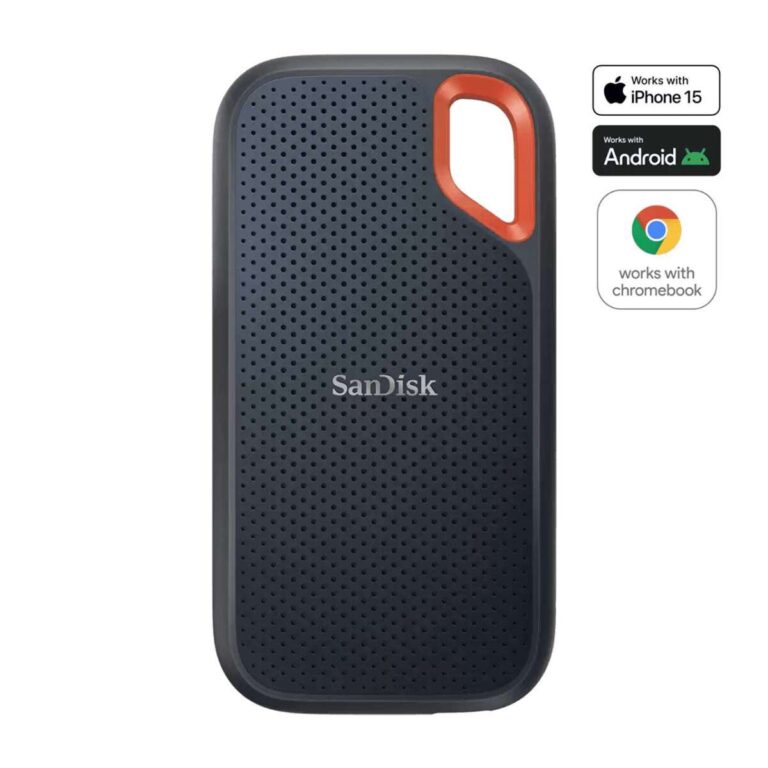
An external SSD is easier to install because you do not need to open the computer. Connect the drive to a USB port, wait for the operating system to detect it, and use Disk Management on Windows or Disk Utility on macOS to format it.
Choose exFAT if you need to use the drive with both Windows and macOS. Choose NTFS for a Windows-focused setup, or APFS for a Mac-focused setup.
Keep these points in mind:
- Use a USB 3.0, USB 3.2, or USB-C connection for better speed.
- Check whether the cable supports data, not just charging.
- Safely eject the drive before unplugging it.
- Avoid placing the drive in extreme heat.
- Use encryption if the drive contains private files.
- Keep a second backup of important data.
An external SSD is convenient for photo libraries, game storage, video projects, and system backups. However, it is still a storage device that can fail or be lost. Portability does not replace a backup plan.
Troubleshoot Common SSD Problems
Even when you follow the steps carefully, a new SSD may not appear or may not boot. Most problems have a simple cause.
The SSD does not appear in Windows
Check whether it appears in Disk Management. If it appears there but not in File Explorer, it may need a partition, format, or drive letter.
If it does not appear in Disk Management, shut down the computer and check the connection. For an M.2 SSD, confirm that the slot supports the drive type. For a SATA SSD, check both the data and power cables.
The SSD appears smaller than expected
Storage manufacturers use decimal units, while Windows reports capacity in a different way. A drive sold as 1 TB will normally show less than 1,000 GB in Windows. A small difference is normal.
If the difference is large, check for unallocated space in Disk Management. You may need to extend the partition to use the full drive.
The computer will not boot from the SSD
Check the firmware boot order and select Windows Boot Manager on the SSD. If the clone did not include the EFI or system partition, repeat the clone with all required partitions selected.
You can also test the SSD by disconnecting the old drive. This shows whether the new drive contains a complete, bootable installation.
The SSD feels slow
Check whether it is connected through the expected interface. An NVMe drive in a slower slot may not reach its rated speed, and an external SSD connected through an older USB port will also be limited.
Large transfers can slow down after the SSD cache fills. This behavior is normal for many consumer SSDs and does not always indicate a fault.
The SSD disconnects during use
Try a different cable, USB port, or power connection. Update the motherboard firmware and SSD firmware if the manufacturer recommends it. Repeated disconnects can signal a hardware or power problem, so back up your data promptly.
Mistakes to Avoid When Setting Up an SSD
A careful setup prevents most problems. These mistakes are especially common:
- Installing an M.2 SATA drive in an NVMe-only slot.
- Forgetting the SATA power cable.
- Choosing the wrong disk in Disk Management.
- Formatting the old drive before testing the new one.
- Cloning more data than the SSD can hold.
- Using a low-quality USB cable for an external SSD.
- Ignoring firmware or driver updates.
- Treating an SSD as a complete backup.
- Filling the drive until almost no free space remains.
- Forcing an M.2 drive into the slot.
Take your time and read the labels on the motherboard. A five-minute check can prevent an hour of troubleshooting. If you are not comfortable working inside a computer, a qualified technician can install the drive and protect your data.
Frequently Asked Questions About How to Set Up a SSD Drive
Do I need to format a new SSD?
Yes, a new secondary SSD usually needs to be initialized, partitioned, and formatted before Windows can use it. During a clean Windows installation, the installer can create the needed partitions automatically.
Should I use GPT or MBR for an SSD?
GPT is the preferred choice for most modern computers using UEFI firmware. MBR is mainly useful for older systems that rely on Legacy BIOS mode.
Can I clone my hard drive to an SSD?
Yes, you can clone a hard drive to an SSD if the used data fits on the SSD. Select the old drive as the source, the SSD as the destination, and include the system partitions needed for booting.
How much free space should I leave on an SSD?
Leaving around 10 to 20 percent of the SSD free is a practical target. The drive can still work when nearly full, but free space supports normal maintenance and helps prevent performance problems.
Do SSDs need defragmentation?
No, traditional defragmentation is not needed for SSDs. Modern versions of Windows manage SSD maintenance with TRIM and other optimization commands.
Why is my SSD not showing in File Explorer?
The SSD may not have a partition, format, or drive letter. Open Disk Management, confirm that you selected the correct disk, and create a new volume if necessary.
Conclusion
Setting up a SSD drive involves more than plugging it in. You must choose a compatible drive, back up your data, install the hardware correctly, initialize and format the drive, and select the right boot option when moving Windows.
For a secondary drive, Disk Management is usually all you need. For a system upgrade, cloning preserves your current setup, while a clean installation provides a fresh start. Take careful backups, verify every disk selection, and keep the old drive available until the new SSD works properly.
Use this guide as you install your drive, and share your setup or questions in the comments so other readers can learn from your experience.

Everett Ashford is a tech reviewer at mytechgrid.com specializing in SSDs, cameras, TVs, earbuds, headphones, and other consumer electronics. He provides honest, data-driven reviews based on hands-on testing and real-world performance analysis. Everett simplifies complex tech details to help readers make smart, confident buying decisions.