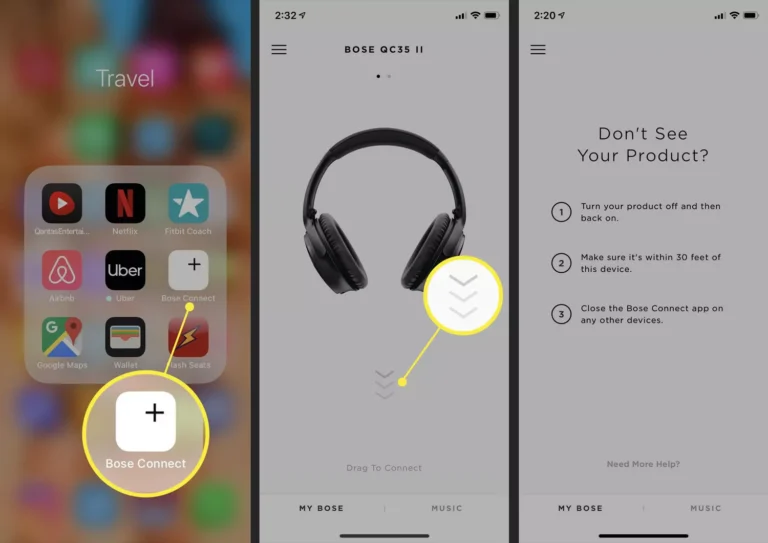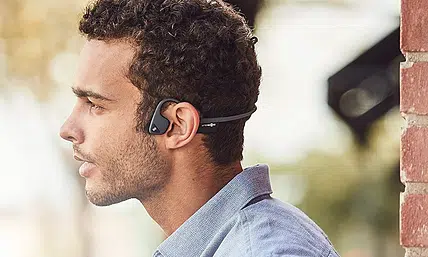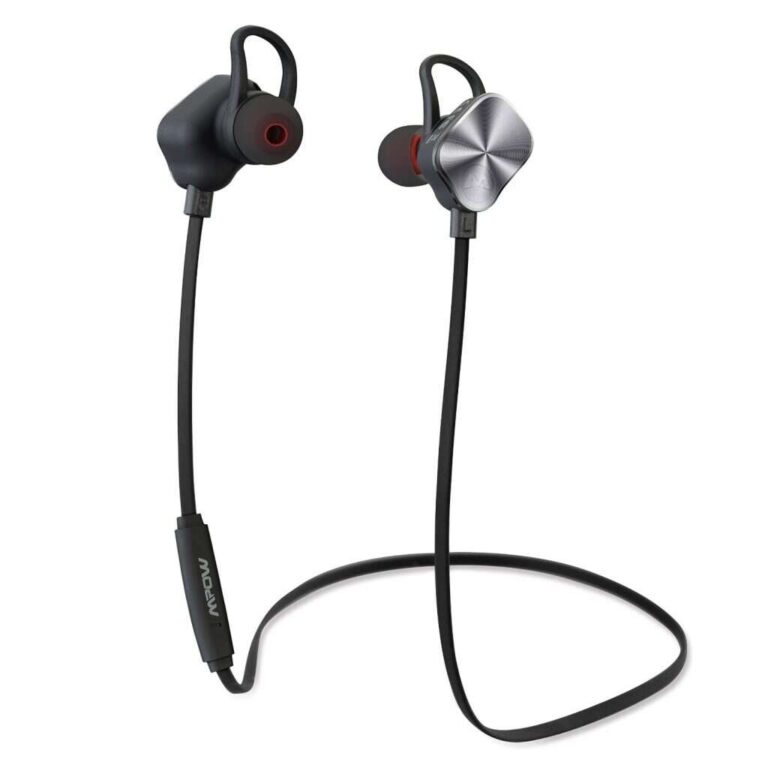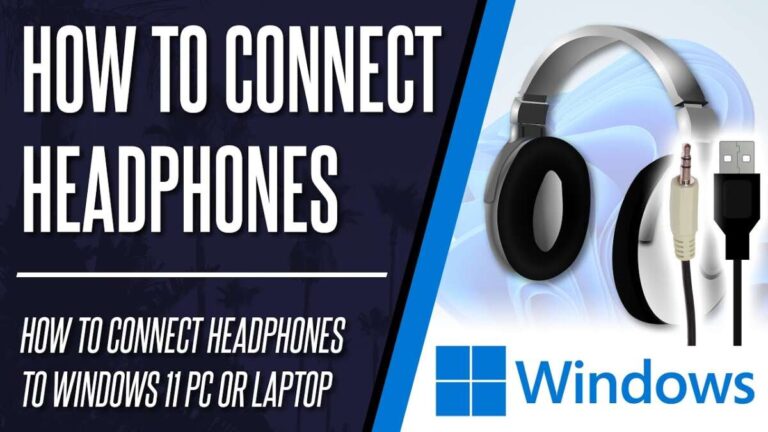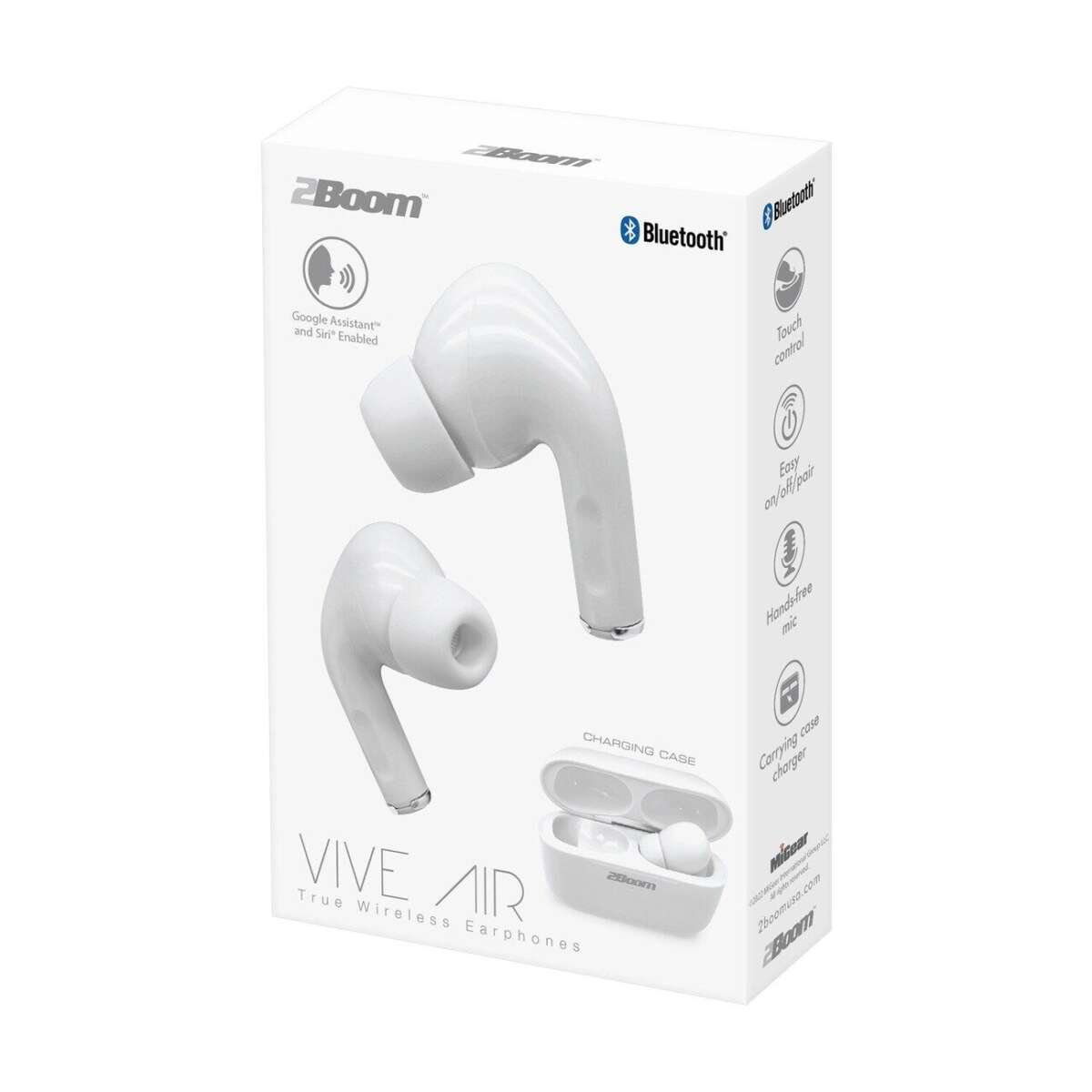
Connect two Boom headphones by pairing them through dual-audio sharing, a Bluetooth transmitter, or a wired splitter.
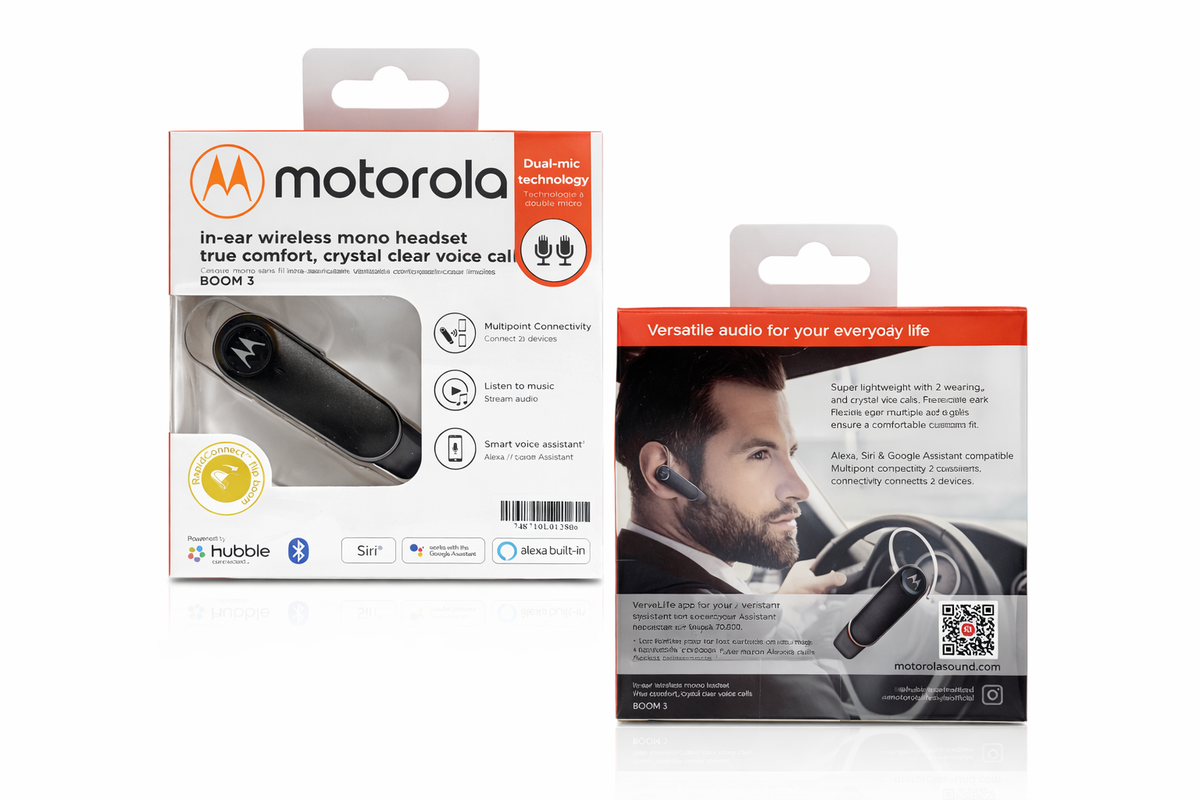
Learning how to connect 2 Boom headphones depends on your phone, TV, computer, and the exact Boom headphone model. Some devices support two Bluetooth connections at once, while others can connect to only one pair.
This guide explains each reliable method, including pairing steps, common limits, sound delays, and simple fixes. You will also learn how to connect 2 Boom headphones when your source device does not support Bluetooth audio sharing.
Before You Connect 2 Boom Headphones
First, check the features of your headphones and source device. “Boom headphones” can refer to several Bluetooth headset models, so menus and button names may differ.
Most two-headphone setups use one of these connection types:
• Dual Bluetooth audio: Your phone or tablet sends sound to two Bluetooth headphones.
• Bluetooth multipoint: One headset connects to two source devices. This does not always mean two headsets can share one audio stream.
• Bluetooth transmitter: A small adapter sends audio to two headphones.
• Wired audio splitter: A cable sends the same sound to two wired headphones.
A key point is that multipoint and dual audio are not the same. Multipoint usually lets one headphone switch between two devices, such as a phone and laptop. It may not let two people listen to the same phone.
Check the product manual for terms such as Dual Audio, Audio Sharing, Auracast, Broadcast Audio, or two-device transmission. These features can vary by model and software version.

How to Connect 2 Boom Headphones to an Android Phone
Many Samsung Galaxy phones include a Dual Audio feature. This is often the easiest way to connect 2 Boom headphones to one Android phone.
Use Samsung Dual Audio
-
Charge both Boom headphones and turn them off.
-
Put the first headphones into pairing mode. Usually, you hold the power or Bluetooth button until the indicator flashes.
-
Open Settings on your Samsung phone.
-
Tap Connections, then Bluetooth.
-
Select the first Boom headphones from the available devices list.
-
Put the second headphones into pairing mode.
-
Tap the second Boom headphones when they appear.
-
Open the Bluetooth panel or media output menu.
-
Select both headphones as audio output devices.
-
Start a song or video and adjust the volume on each headset.
If only one headset plays sound, open the media output panel and check whether both devices are selected. You may also need to disconnect other Bluetooth speakers, watches, or car systems.
On other Android phones
Android support varies by brand. Some phones offer audio sharing, while others connect two headphones but send sound to only one.
Try these steps:
• Pair both headphones in Settings > Connected devices > Bluetooth.
• Open the media output selector.
• Look for an option named Share audio, Dual Audio, or Audio output.
• Select both Boom headphones.
If the option does not appear, your phone may not support two Bluetooth audio streams. In that case, use a Bluetooth transmitter with dual-headphone support.

How to Connect 2 Boom Headphones to an iPhone or iPad
Apple devices can share audio with two compatible pairs of AirPods and selected Beats headphones. Standard Bluetooth headphones may not work with Apple Audio Sharing.
Use Apple Audio Sharing
-
Connect the first compatible headphones to your iPhone or iPad.
-
Start playing music or video.
-
Open Control Center.
-
Tap the AirPlay icon in the music controls.
-
Tap Share Audio.
-
Bring the second compatible headset near the device.
-
Follow the on-screen pairing steps.
-
Use the volume sliders to control each listener’s volume.
This method works best with supported AirPods and Beats models. A third-party Boom headset may not appear in the Audio Sharing menu, even if it works normally with Bluetooth.
If the Boom headphones are not compatible
You have two practical choices:
• Use a Bluetooth transmitter that supports two headphones.
• Use a wired splitter with a compatible cable.
A transmitter is usually better for watching TV or listening from a laptop. A splitter is cheaper and often gives better timing because both headphones receive the signal through a cable.

How to Connect 2 Boom Headphones to a TV
Many TVs support only one Bluetooth audio device. Even when a TV can pair with two devices, sound delay may become noticeable.
Method 1: Use the TV’s dual Bluetooth feature
-
Put both Boom headphones into pairing mode.
-
Open the TV’s Settings menu.
-
Go to Sound, Audio Output, or Bluetooth Speaker List.
-
Pair the first headset.
-
Pair the second headset.
-
Choose both headphones if the TV shows a dual-output option.
-
Play a program and test the sound.
TV menus differ by brand. Look for settings such as Bluetooth Speaker List, Dual Audio, Multiple Audio Output, or Bluetooth Device List.
Method 2: Use a dual-link Bluetooth transmitter
A Bluetooth transmitter is the most dependable option for two Boom headphones.
-
Buy a transmitter that clearly supports two Bluetooth headphones at the same time.
-
Connect the transmitter to the TV’s optical, AUX, or headphone output.
-
Set the transmitter to pairing mode.
-
Put both Boom headphones into pairing mode.
-
Wait for the transmitter to connect to both headsets.
-
Select the correct audio output on the TV.
-
Test both headphones for sound and delay.
Check the transmitter’s input before buying it. Some transmitters accept optical audio only, while others use a 3.5 mm AUX cable. If your TV has only HDMI ARC, you may need an audio extractor or a transmitter designed for ARC.
Reduce TV sound delay
Bluetooth can add a small delay between the picture and sound. To reduce it:
• Use headphones and a transmitter that support low-latency codecs.
• Use the same codec on both headphones when possible.
• Turn off extra sound processing on the TV.
• Choose PCM audio instead of Dolby or bitstream if the transmitter requires PCM.
• Keep the headphones close to the transmitter.
Two different headphone models may use different codecs. This can cause one headset to sound slightly earlier than the other.
How to Connect 2 Boom Headphones to a Windows PC or Mac
Computers often need extra hardware for two Bluetooth headphones. Windows and macOS may pair with multiple headsets, but they do not always send the same audio to both.
Windows setup
First, pair both headphones:
-
Open Settings.
-
Select Bluetooth & devices.
-
Turn Bluetooth on.
-
Click Add device.
-
Select Bluetooth.
-
Choose the first Boom headphones.
-
Repeat the process for the second headset.
After pairing, Windows may show only one headset as the active output. You can use a dual-link Bluetooth transmitter connected to the computer’s headphone jack for a simpler setup.
Advanced users can sometimes create a combined audio output through system audio tools. However, this may cause delay, uneven volume, or microphone problems. A hardware transmitter is usually more stable for movies and calls.
Mac setup
On a Mac, pair both headsets through System Settings > Bluetooth. Then open Audio MIDI Setup and create a multi-output device if both headphones appear as audio outputs.
The steps are:
-
Open Applications > Utilities > Audio MIDI Setup.
-
Click the plus button.
-
Choose Create Multi-Output Device.
-
Select both Boom headphones.
-
Choose the new multi-output device in Sound settings.
This feature can work well, but Bluetooth headsets may show different delays. It is better for music than for competitive gaming or video calls.

How to Connect 2 Boom Headphones With a Bluetooth Transmitter
A dual-link Bluetooth transmitter is the best all-purpose solution when your phone, TV, or computer cannot share audio.
Choose a transmitter with these features:
• Support for two simultaneous headphones.
• The correct input, such as AUX, optical, USB, or HDMI ARC.
• Low-latency support for video.
• Independent volume control if available.
• Compatibility with Bluetooth headphones rather than Bluetooth speakers only.
• A rechargeable battery for portable use.
To connect 2 Boom headphones with a transmitter, follow this process:
-
Connect the transmitter to the audio source.
-
Turn on the transmitter.
-
Hold its pairing button until the indicator flashes.
-
Turn off both Boom headphones.
-
Put the first headset into pairing mode.
-
Wait for the first connection.
-
Put the second headset into pairing mode.
-
Wait until the transmitter connects to both headsets.
-
Start playback and check the volume.
Some transmitters pair with the first headset too quickly and leave no time for the second. If this happens, reset the transmitter, place both headphones close to it, and follow the pairing order in the transmitter manual.
In practical testing, distance causes many failed pairings. Keep both headsets within a few feet of the transmitter during setup. Once connected, you can usually move farther away without a problem.

How to Connect 2 Boom Headphones With a Wired Splitter
A wired splitter is the simplest method when both Boom headphones have a 3.5 mm audio port.
You need:
• One 3.5 mm audio splitter.
• Two compatible 3.5 mm audio cables.
• An adapter if your phone or computer has no headphone jack.
Connect the splitter to the source device. Then plug one Boom headset into each splitter port. Turn on the headphones if they need power, and begin playing audio.
This method has several benefits:
• No Bluetooth pairing is needed.
• Audio delay is very low.
• Battery use is often lower.
• It works with many TVs, laptops, and older devices.
The main limits are cable length and movement. Also, some headphone splitters support audio output but not microphone input. Do not expect both headset microphones to work through a basic splitter.
If the sound becomes quiet, the source may not provide enough power for both headphones. An amplified splitter can help, but avoid very cheap adapters that create noise or loose connections.

Common Problems When Connecting 2 Boom Headphones
Even when the steps seem correct, Bluetooth can be fussy. These fixes solve most connection problems.
Only one headset plays sound
Your source may support pairing two devices but output audio to only one. Open the audio output menu and select both headphones. If no dual-output option exists, use a dual-link transmitter.
The second headset will not pair
Turn off Bluetooth on nearby phones, tablets, and laptops. The headset may be reconnecting to an old device instead of entering fresh pairing mode.
If needed, reset the headset. The reset method differs by model, but it often involves holding the power and volume buttons together.
The audio keeps cutting out
Keep both headphones near the source. Move away from Wi-Fi routers, USB 3.0 hubs, microwaves, and crowded Bluetooth areas.
Also, charge both headsets. Low battery can cause unstable Bluetooth performance.
The headphones connect but have no sound
Check the selected output device. Your phone or computer may still be sending audio to its built-in speaker.
On a TV, check whether the audio output changed to optical, Bluetooth, or headphone mode.
One headset has a delay
Different headphones can process sound at different speeds. Use matching headphones when possible. A transmitter with low-latency support may reduce the delay, but it cannot always remove it.
The microphone does not work
Two Bluetooth headsets are mainly designed for shared listening, not two-way calls. Many devices cannot use two headset microphones at once.
For calls, use the source device’s built-in microphone or a separate USB microphone.

Tips for Better Shared Listening
Connecting 2 Boom headphones is only part of the process. Good sound also depends on the devices, distance, and settings.
Use these tips for a smoother experience:
• Fully charge both headphones before pairing.
• Update your phone, computer, TV, and headphone firmware.
• Use the same headphone model when possible.
• Keep both headsets close to the source during setup.
• Turn off unused Bluetooth devices.
• Set each headset to a comfortable volume.
• Use wired audio for gaming when timing matters.
• Choose a low-latency transmitter for movies and TV.
• Avoid changing Bluetooth settings while audio is playing.
• Test speech before starting a long movie or call.
If two people hear different volume levels, adjust each headset separately. Protecting hearing matters, so keep volume at a safe level and take breaks during long listening sessions.
What I Learned From Setting Up Shared Headphones
The most common mistake is assuming that Bluetooth pairing equals Bluetooth audio sharing. A phone may remember several headphones but still send sound to only one. That is a device feature, not a fault with the Boom headphones.
Another lesson is to avoid pairing both headsets at the same time unless the transmitter instructions say to do so. Some adapters connect to the first available headset and stop searching. Pairing one at a time usually gives better results.
For a quick home setup, I would use a splitter with wired headphones. For a TV across the room, I would choose a dual-link transmitter. For a modern Samsung phone or compatible Apple device, built-in audio sharing is the cleanest option.
The right method depends on your goal. Music sharing, movie watching, gaming, and calls all have different needs.
Frequently Asked Questions About How to Connect 2 Boom Headphones
Can I connect two Boom headphones to one phone?
Yes, but the phone must support dual Bluetooth audio or audio sharing. If it does not, use a Bluetooth transmitter that supports two headphones.
Can I connect two Boom headphones to a TV?
Yes. Some TVs support two Bluetooth devices, but many do not. A dual-link Bluetooth transmitter connected to the TV is the most reliable alternative.
Why do my two Boom headphones have different sound delays?
Each headset may process Bluetooth audio at a different speed. Using matching headphones and a low-latency transmitter can reduce, but not always remove, the delay.
Can two people use the microphones at the same time?
Usually not. Most phones, computers, and Bluetooth transmitters support shared listening but use only one microphone for calls.
Do both Boom headphones need to be the same model?
No, but matching models often produce better timing and more consistent sound. Different models may use different Bluetooth codecs and create a small delay.
Can I connect 2 Boom headphones without Bluetooth?
Yes. Use a 3.5 mm audio splitter if both headphones support wired audio. This method avoids pairing issues and usually has less delay.
Why does the second Boom headset keep disconnecting?
The source may not support two audio connections, or the headset may be reconnecting to another device. Turn off nearby Bluetooth devices, reset the headset, and try a dual-link transmitter if needed.
Conclusion
You can connect 2 Boom headphones through built-in audio sharing, a dual-link Bluetooth transmitter, or a wired splitter. Start by checking whether your phone, TV, or computer supports two Bluetooth audio outputs.
For the easiest wireless setup, use a transmitter made for two headphones. For the lowest delay and lowest cost, use a wired splitter. Pair carefully, keep devices close during setup, and test the sound before settling in for a movie or long listening session.
Try the method that fits your equipment, then share your setup or questions in the comments.

Everett Ashford is a tech reviewer at mytechgrid.com specializing in SSDs, cameras, TVs, earbuds, headphones, and other consumer electronics. He provides honest, data-driven reviews based on hands-on testing and real-world performance analysis. Everett simplifies complex tech details to help readers make smart, confident buying decisions.