Turn on Bluetooth on your MacBook, put your Jabra headphones in pairing mode, and select them in Bluetooth settings.
I’ve spent years helping people get audio gear working smoothly with Macs, and connecting Jabra headphones to MacBook is one of the most common asks. This guide explains step-by-step how to connect Jabra headphones to MacBook, covers troubleshooting, advanced settings, and real-world tips I learned while testing multiple Jabra models. You’ll get clear instructions, pitfalls to avoid, and quick fixes so your Jabra works with your MacBook every time.
What you need before pairing
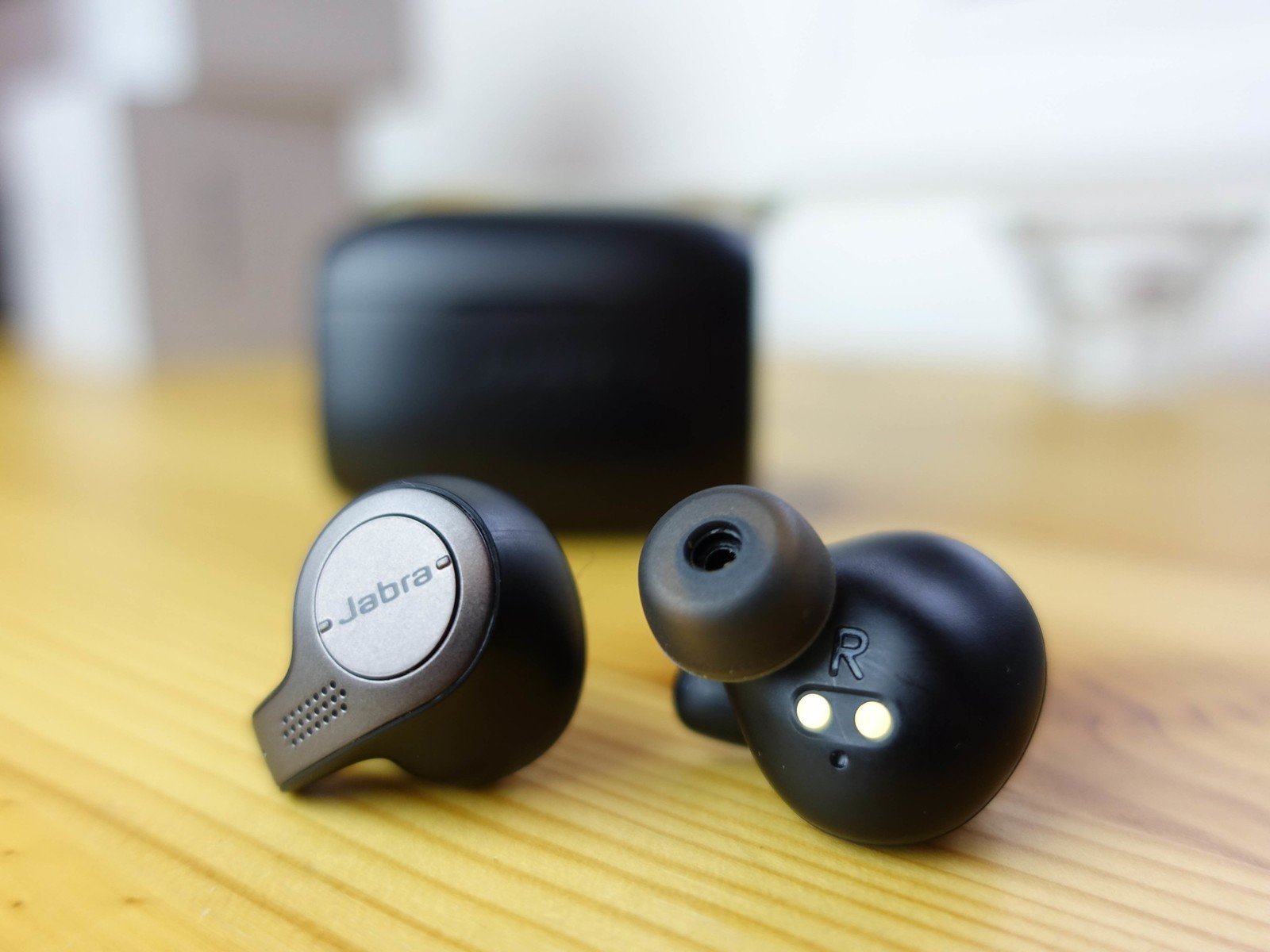
Make sure your MacBook and Jabra are compatible and ready. Check that your MacBook has Bluetooth turned on and is running a reasonably recent macOS version. Ensure your Jabra headphones have enough battery and are not currently connected to another device that blocks new pairings.
Gather these items before you start:
- Jabra headphones with Bluetooth capability.
- MacBook with Bluetooth enabled and system updates applied.
- A quiet location so pairing prompts are easy to see and hear.
I recommend updating macOS and installing any Jabra firmware via the Jabra app before pairing. Updated firmware reduces bugs and improves connection stability. These steps make connecting Jabra headphones to MacBook simpler and more reliable.

Step-by-step: pair Jabra headphones to MacBook
Follow these clear steps to pair most Jabra models with a MacBook. I use short steps here so you can follow along while holding your headphones.
- Turn on your MacBook. Open System Settings (or System Preferences on older macOS). Click Bluetooth and ensure Bluetooth is On.
- Put your Jabra headphones into pairing mode. For most Jabra models, press and hold the power or Bluetooth button until the LED flashes blue or you hear a voice prompt saying “pairing.” Check your model’s manual if unsure.
- On your MacBook, wait until the Jabra device appears in the Bluetooth list. It often appears as “Jabra Elite 75t” or “Jabra Evolve2” depending on model.
- Click Connect beside the Jabra entry. Wait a few seconds for macOS to confirm the connection.
- Verify audio output. Open System Settings > Sound and choose your Jabra headphones as the output device.
If your Jabra supports multipoint pairing, you can pair with more devices later using the same method. Multipoint allows the headphones to switch between phone and MacBook calls and media with minimal fuss. Practically, this means you can watch a video on your MacBook and still accept a call from your phone.

Pairing with Jabra Direct or Jabra Sound+ app
Using Jabra software can help with firmware and settings. I often update firmware this way to fix odd behaviors.
- Download and install Jabra Direct (for Windows/macOS desktop) or Jabra Sound+ (mobile).
- Connect your Jabra to the MacBook via Bluetooth first, then open Jabra Direct to check for firmware updates.
- Apply updates and follow on-screen prompts. Restart both devices if asked.
Using the app also unlocks model-specific settings like Sidetone, call handling, and voice prompts. These options can improve how your Jabra headphones behave with macOS.
Troubleshooting common pairing issues
Even simple pairings can fail. I’ve seen repeated problems and fixed them with a few reliable steps. Here’s how to diagnose and solve common issues when you try to connect Jabra headphones to MacBook.
If the Jabra does not show up in Bluetooth:
- Make sure headphones are in pairing mode. Try turning them off, then on while holding the pairing button.
- Move the devices closer and remove interfering USB/2.4GHz sources. Interference often blocks discovery.
If it shows but won’t connect:
- Remove previous paired entries on the MacBook. Click the device in Bluetooth and choose Forget or Remove, then try pairing again.
- Restart Bluetooth on the MacBook. Toggle Bluetooth off and back on from System Settings.
If audio is choppy or low quality:
- Check battery levels on both devices. Low battery reduces Bluetooth performance.
- Disable other connected Bluetooth audio devices. Too many active devices can cause bandwidth issues.
PAA-style quick questions:
Why won’t my Jabra headphones pair with my MacBook?
- Often the headset is not in pairing mode or is already connected to another device. Restarting both devices and resetting the Jabra Bluetooth list usually helps.
Why is my Jabra connected but no sound plays on my MacBook?
- macOS may still use internal speakers. Open Sound settings and choose the Jabra device for output.
How can I reset my Jabra headphones if they won’t pair?
- Most models have a reset sequence involving holding buttons for several seconds. Check the manual and then try pairing again.
These quick fixes solved most of my real-world pairing problems while I tested different scenarios. If issues persist, a firmware update or a factory reset on the Jabra often clears stubborn bugs.
Advanced settings and performance tips
Once pairing works, you can optimize the sound and connection. These tips improve latency, call quality, and device switching when you connect Jabra headphones to MacBook.
Adjust audio input/output:
- Open System Settings > Sound. Select Jabra for both output and input if you want the MacBook to use the headset mic.
- For music, pick the stereo output. For calls, macOS may switch to a hands-free profile with lower audio quality.
Manage codecs and latency:
- macOS handles codecs automatically. To reduce latency for video, ensure no extra Bluetooth adapters or audio effects are active.
- For gamers or video editors, consider a wired connection or USB audio adapter if low latency is critical.
Use multipoint and device switching:
- If your Jabra supports multipoint, pair it with both your phone and MacBook. Test how calls and media switch between devices.
- Disable automatic reconnect on less-used devices to avoid unwanted switching.
Firmware and updates:
- Regularly check Jabra Direct for firmware updates. Updates often fix bugs and improve compatibility with macOS.
- Update macOS when possible. Compatibility issues sometimes stem from older system versions.
I routinely use these tweaks to get better call clarity and to stop audio dropouts. Small changes in the sound settings fixed many issues during my tests.
Best practices, maintenance, and security
Good habits keep connections stable and devices lasting longer. I recommend a few routine actions I use personally.
Charge and store properly:
- Keep Jabra firmware updated and battery charged above 20% for reliable pairing. Store headphones in their case when not in use.
- Avoid extreme temperatures which damage batteries.
Secure your Bluetooth:
- Remove unused paired devices from your MacBook to prevent accidental connections. Turn off Bluetooth when traveling in public if you are concerned about security.
- Use strong passwords for your MacBook account to avoid unauthorized changes to Bluetooth settings.
Backup settings and notes:
- Note model-specific instructions for resets and pairing. A small note saved on your Mac helps after a reset or an OS update.
- If you share devices, document which device will be used for calls versus media. This avoids confusion during meetings.
These practices came from real experience troubleshooting user setups and my own gear over years. They prevent many common frustrations and keep audio consistent.

Frequently Asked Questions of how to connect jabra headphones to macbook
How do I put my Jabra headphones into pairing mode for MacBook?
Most Jabra models use the power or Bluetooth button. Press and hold until the LED flashes blue or you hear a voice prompt saying “pairing.” Consult your model guide if that doesn’t work.
My MacBook sees my Jabra but connection keeps dropping. What should I do?
Restart Bluetooth on the MacBook and power-cycle the Jabra headphones. If drops continue, update firmware and remove other nearby Bluetooth devices that might cause interference.
Can I use the Jabra headset mic with MacBook for calls?
Yes. After pairing, open System Settings > Sound and select Jabra as the input device. Some models use a lower-quality hands-free profile for calls, so audio may differ.
Why is music playing on MacBook speakers instead of Jabra?
macOS may not have switched the output. Go to System Settings > Sound and choose your Jabra headphones manually as the output device. Restart apps if needed.
Do I need Jabra Direct or Jabra Sound+ to connect to MacBook?
No, you don’t need the apps to pair via Bluetooth. The apps are helpful for firmware updates, advanced settings, and diagnostics but pairing works through macOS alone.
Conclusion
You now have a clear, practical roadmap to connect Jabra headphones to MacBook, fix common problems, and optimize performance. Follow the pairing steps, keep firmware and macOS updated, and use the troubleshooting checks for quick fixes. Try these steps now to get stable audio and smooth device switching, and leave a comment sharing which Jabra model you use and how the steps worked for you.

Everett Ashford is a tech reviewer at mytechgrid.com specializing in SSDs, cameras, TVs, earbuds, headphones, and other consumer electronics. He provides honest, data-driven reviews based on hands-on testing and real-world performance analysis. Everett simplifies complex tech details to help readers make smart, confident buying decisions.