Most headphone jack problems come from muted audio, wrong output settings, dirty ports, loose plugs, or damaged hardware.
When your PC headphone jack stops working, the cause is often simple to fix. I have seen many “dead” headphone ports recover after changing the Windows output device, updating an audio driver, or removing dust from the jack. This guide explains how to fix headphone jack on PC with safe checks, clear steps, and practical repair advice.

Check the Simple Causes First
Before changing drivers or opening your computer, check the parts that fail most often. A quick inspection can save you time and prevent unnecessary repairs.
Try these steps first:
- Push the headphone plug fully into the jack.
- Test the headphones on a phone, tablet, or another computer.
- Test a second pair of headphones on your PC.
- Turn up the volume on both the PC and the headphones.
- Check whether the headphones have a mute switch.
- Disconnect Bluetooth speakers or wireless headsets.
- Restart the computer with the headphones connected.
- Try the rear audio jack if the front jack does not work.
A plug that looks connected may still sit too loosely in the port. This is common with thick phone cases, bent plugs, and worn headphone jacks.
If the headphones work on another device, the PC is likely the problem. If they fail everywhere, replace the headphones or repair their cable first. These tests are the fastest way to learn how to fix headphone jack on PC without guessing.

Select the Correct Audio Output in Windows
Windows may send sound to a monitor, USB headset, Bluetooth device, or HDMI connection instead of the headphone jack. In that case, the jack may work perfectly even though you hear no sound.
On Windows 11:
- Right-click the speaker icon on the taskbar.
- Select Sound settings.
- Open the Output section.
- Choose Headphones, Speakers, or the device linked to the headphone jack.
- Raise the volume.
- Make sure the output is not muted.
On Windows 10:
- Right-click the speaker icon.
- Select Open Sound settings.
- Choose the correct output device under Choose your output device.
- Open Device properties.
- Confirm that the volume is enabled.
You can also open the classic sound panel. Select More sound settings in Windows 11 or Sound Control Panel in Windows 10. On the Playback tab, right-click your headphones and choose Set as Default Device.
A small green check mark usually identifies the default output. If your PC keeps selecting the wrong device, disconnect unused monitors, USB audio adapters, or Bluetooth accessories and test again. This is one of the most reliable ways to fix headphone jack on PC.
Check the Volume Mixer and App Settings
Your main volume may be on, while a specific app remains muted. For example, music may play through the browser, but the browser volume could be set to zero in the Windows mixer.
To check the mixer:
- Right-click the speaker icon.
- Select Open volume mixer.
- Find the app that should play sound.
- Raise its volume.
- Confirm that the app uses the correct output device.
Many games and video apps also have their own audio settings. Open the app’s settings and select the same headphones shown in Windows Sound settings.
A useful test is the Windows system sound. If you hear the test tone but not YouTube audio, the problem is inside the app or browser. If you hear nothing at all, continue with the next checks.

Run the Windows Audio Troubleshooter
Windows includes automatic tools that can detect some output and driver problems. These tools cannot repair physical damage, but they can correct muted devices and basic configuration errors.
On Windows 11:
- Open Settings.
- Select System.
- Choose Troubleshoot.
- Select Other troubleshooters.
- Run the Audio troubleshooter.
On Windows 10:
- Open Settings.
- Select Update & Security.
- Choose Troubleshoot.
- Open Additional troubleshooters.
- Run Playing Audio.
Follow the instructions on screen. Windows may enable a disabled device, change the default output, restart an audio service, or adjust the driver.
The troubleshooter is not perfect. It may report that no issue was found even when the jack has a hardware fault. Still, it is a safe first step when learning how to fix headphone jack on PC.
Update or Reinstall the Audio Driver
An audio driver allows Windows to communicate with the sound hardware. A bad, outdated, or incomplete driver can stop the headphone jack from detecting a plug.
To update the driver:
- Press Windows key + X.
- Select Device Manager.
- Expand Sound, video and game controllers.
- Right-click the audio device.
- Select Update driver.
- Choose Search automatically for drivers.
Also check the Audio inputs and outputs category. Your headphone device may appear there instead.
If updating does not help, reinstall the driver:
- Open Device Manager.
- Right-click the audio device.
- Select Uninstall device.
- Restart the PC.
- Allow Windows to reinstall the driver.
For the best result, download the audio driver from your PC or motherboard maker. Manufacturer drivers often include jack detection software that the basic Windows driver lacks. Avoid random driver sites, because incorrect packages can create new sound problems or security risks.
If the problem began after a Windows update, open the device properties in Device Manager. The Driver tab may offer Roll Back Driver. Use this option only when the previous driver worked correctly.
Check Audio Services
Windows audio services must run in the background. If one stops, the computer may show a speaker icon but produce no sound through the headphone jack.
To restart the services:
- Press Windows key + R.
- Type
services.msc. - Press Enter.
- Find Windows Audio.
- Right-click it and select Restart.
- Find Windows Audio Endpoint Builder.
- Restart it as well.
Set both services to start automatically. Open Properties, select Automatic under Startup type, and click Apply.
Restarting these services can fix software glitches after sleep mode, an update, or a device change. It will not repair a broken port, but it is a useful step in how to fix headphone jack on PC.

Check the Headphone Jack Detection Software
Many desktop and laptop computers use Realtek Audio Console, Waves MaxxAudio, Dolby software, or a similar control panel. These programs decide how the audio jack behaves when you insert a plug.
Open the audio control app from the Start menu. Look for settings such as:
• Enable jack detection
• Detect when a device is plugged in
• Disable front panel jack detection
• Headphone or headset selection
If the app asks what you connected, select Headphones for regular stereo headphones. Select Headset if the plug includes a microphone.
Some desktop cases have separate headphone and microphone ports. A four-contact headset plug may need a splitter to work with two separate desktop ports. Without the splitter, you may hear sound but lose microphone input.
On some PCs, disabling front panel jack detection can make the front port work. Use this only as a test. Proper jack detection is better because it lets the computer switch between speakers and headphones correctly.
Test the Front and Rear Audio Ports
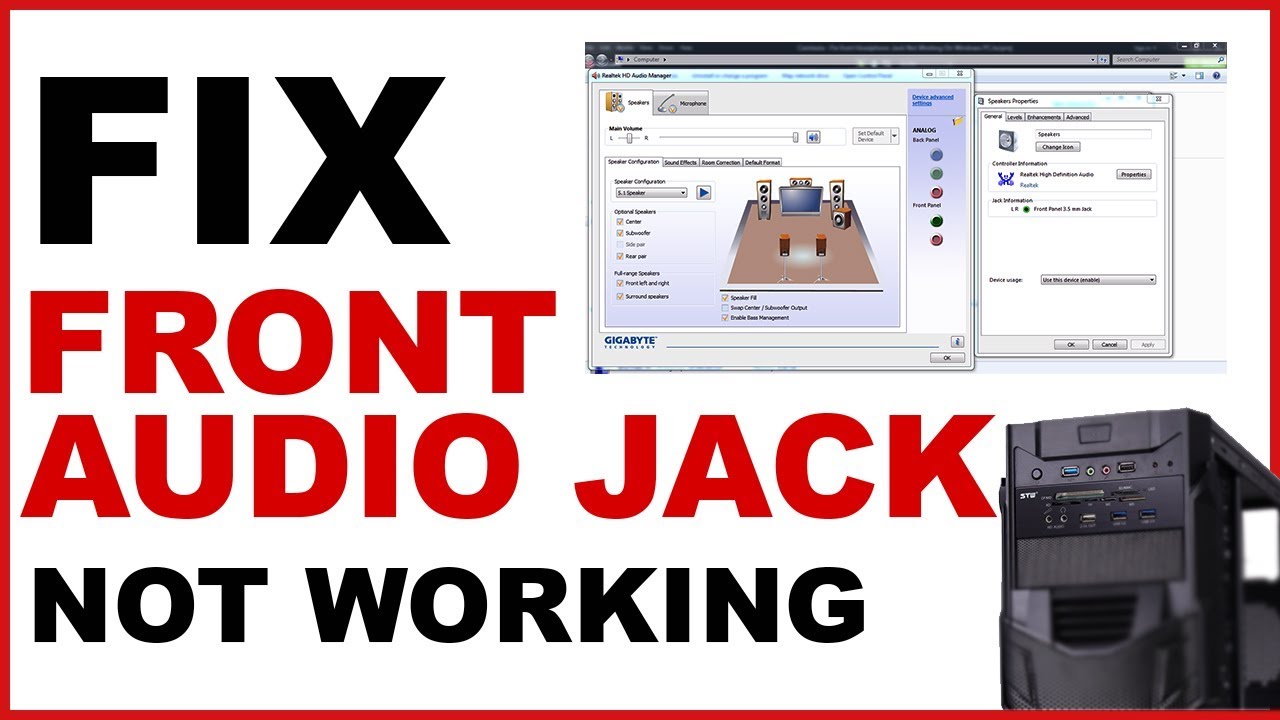
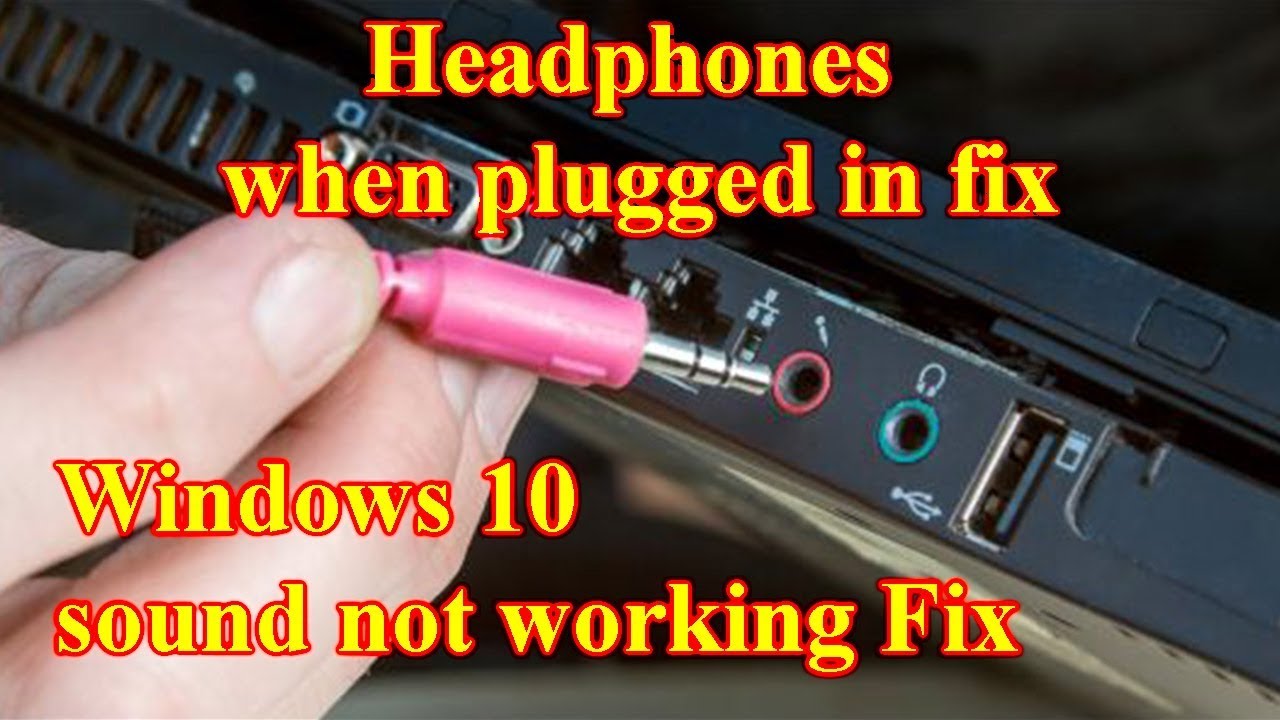
Desktop PCs often have two audio locations. The rear green port connects directly to the motherboard. The front port connects through a cable inside the case.
If the front headphone jack fails, test the rear green port. If the rear port works, the front port may have a loose cable, damaged socket, or case wiring issue.
Turn off the PC and unplug the power cable before checking inside the case. Remove the side panel and look for the cable labeled HD AUDIO. It should connect to the motherboard header marked F_AUDIO, HD_AUDIO, or a similar label.
Do not use the older AC’97 connector when an HD AUDIO connector is available. The wrong connector can cause poor detection or incorrect port behavior.
Handle the motherboard carefully. Do not force the plug onto the header. If you are not comfortable working inside a desktop PC, use the rear jack or ask a repair technician to inspect the cable.
In repairs I have handled, a loose front-panel audio cable has caused more “broken” headphone ports than many people expect. This simple check can often fix headphone jack on PC without replacing any part.

Clean the Headphone Jack Safely
Dust, lint, and dirt can prevent the plug from reaching the internal contacts. A pocket or backpack can push debris into a laptop jack over time.
Turn off the PC before cleaning. Then use these safe methods:
• Shine a flashlight into the port.
• Hold the computer so the jack faces downward.
• Use short bursts of compressed air from a distance.
• Insert and remove the plug gently a few times.
Never pour liquid into the jack. Avoid metal pins, needles, and paper clips. They can bend the contacts or cause an electrical short.
A wooden toothpick may remove visible lint, but use extreme care and do not push it deep into the port. If the jack feels blocked, loose, or gritty, professional cleaning is safer.
One mistake I have seen is spraying contact cleaner into a laptop without checking the product instructions. Some cleaners can damage plastic or leave residue. Cleaning should be gentle, dry, and limited to visible debris.
Check Whether the Jack Is Physically Damaged
A physical problem is likely when the plug feels loose, sound cuts out when the cable moves, or only one side works. Crackling can also point to worn contacts, a broken solder joint, or a damaged cable.
Test the jack with known working headphones. Play audio and gently move the plug from side to side. Do not twist it hard. If the sound changes when the plug moves, the port or plug may be worn.
Look for these signs:
• The plug will not stay inserted.
• The jack is pushed inside the case.
• Sound comes from one ear only.
• Audio cuts out when the cable moves.
• The port feels unusually loose.
• The computer never detects insertion.
A damaged desktop front port can often be replaced as part of the case’s front I/O panel. A laptop jack may be soldered to the motherboard or connected through a small board. Laptop repairs require special tools and can cost more than a USB audio adapter.
Use a USB Audio Adapter as a Practical Workaround
A USB audio adapter creates a new sound output and bypasses the damaged 3.5 mm headphone jack. It is often the quickest solution for a desktop or laptop with failed audio hardware.
Connect the adapter to a USB port, then select USB Audio Device in Windows Sound settings. Most basic adapters work without extra drivers.
This solution has several benefits:
• It avoids a damaged analog jack.
• It costs less than many motherboard repairs.
• It can add a microphone input.
• It works well for calls, music, and casual gaming.
There are limits. Very cheap adapters may produce hiss, low volume, or poor microphone quality. For music production or competitive gaming, choose a quality USB sound card with stable drivers and low background noise.
Bluetooth headphones are another option. However, Bluetooth can add delay and may reduce microphone quality when the headset switches to hands-free mode. A wired USB adapter is usually better for clear voice calls and gaming.
Fix Headset Microphone Problems
Sometimes the headphone jack plays sound, but the microphone does not work. This often happens because desktop PCs use separate ports for headphones and microphones.
Check the plug type first. A standard stereo headphone plug has two black rings and three contacts. A headset plug with a microphone usually has three black rings and four contacts. This is called a TRRS plug.
If your desktop has separate green and pink ports, use a TRRS headset splitter. Connect the headphone side to the green port and the microphone side to the pink port.
Then check Windows:
- Open Settings.
- Select System.
- Choose Sound.
- Open Input.
- Select the correct microphone.
- Raise the input volume.
- Test the microphone.
Also check microphone privacy settings under Privacy & security. Windows can block apps from accessing the microphone even when the hardware works.
Reset Audio Enhancements and Format Settings
Audio enhancements can conflict with certain drivers or headphones. A mismatched sample format can also cause silence or distortion.
To test these settings:
- Open Sound settings.
- Select your output device.
- Turn off audio enhancements.
- Open Advanced settings.
- Choose a common format, such as 24-bit, 48 kHz.
- Test the sound again.
You can also disable spatial sound for testing. If the headphones begin working, enable features one at a time to find the cause.
These settings usually affect sound quality, not physical jack detection. If Windows never recognizes the plug, focus on the driver, jack detection, cable, and hardware.
When a BIOS or Hardware Reset May Help
Some desktop and laptop systems let you enable or disable onboard audio in the BIOS or UEFI. If onboard audio is disabled, the motherboard headphone jack will not work.
Restart the computer and enter BIOS or UEFI by pressing the key shown during startup. Common keys include Delete, F2, F10, and Esc. Find a setting such as Onboard Audio, HD Audio Controller, or Integrated Audio, and make sure it is enabled.
Do not change unrelated BIOS settings. If you are unsure, leave the setting alone or check your computer manual.
A full power reset can also clear a temporary hardware state:
- Shut down the PC.
- Unplug the power cable.
- Hold the power button for about 15 seconds.
- Reconnect power.
- Start the PC and test the headphones.
This will not fix physical damage, but it can help after a system lockup or failed sleep cycle.
Decide Whether to Repair or Replace the Port
Repair makes sense when the computer is valuable, the port is easy to access, and the repair cost is reasonable. A desktop front-panel port is usually simpler to replace than a laptop motherboard jack.
Choose a USB audio adapter when:
• You need a quick solution.
• The computer is out of warranty.
• The built-in jack is physically damaged.
• A professional repair costs too much.
Choose professional repair when:
• The jack is loose inside the laptop.
• The port is soldered to the motherboard.
• The computer is still under warranty.
• You need reliable audio for work.
Avoid opening a laptop unless you have the right tools and repair experience. A small mistake can damage ribbon cables, clips, or the motherboard. For warranty devices, opening the case may also affect warranty coverage.
Common Mistakes to Avoid
The wrong repair method can turn a small audio issue into a larger one. Keep these mistakes in mind while you learn how to fix headphone jack on PC.
• Do not install drivers from unknown websites.
• Do not force a plug into the port.
• Do not clean the jack with metal tools.
• Do not assume the front port and rear port share the same cable.
• Do not replace hardware before testing the headphones elsewhere.
• Do not change many settings at once.
• Do not ignore Bluetooth and HDMI output devices.
Change one setting at a time and test after each step. Write down what you changed. This simple habit makes troubleshooting faster and helps you reverse a setting that causes a new problem.
Frequently Asked Questions About How to Fix Headphone Jack on PC
Why is my PC not detecting my headphones?
Your PC may be using the wrong output device, have a disabled audio driver, or have a dirty or damaged jack. Test another pair of headphones, select the correct output in Windows, and update the audio driver.
How do I fix the headphone jack on a Windows 11 PC?
Open Settings, select System, choose Sound, and select your headphones as the output device. If that fails, run the audio troubleshooter, reinstall the audio driver, and test the rear or USB audio connection.
Why does my headphone jack work on the rear but not the front?
The front-panel HD AUDIO cable may be loose, incorrectly connected, or damaged. Turn off the desktop and check that the cable is connected to the correct motherboard audio header.
Can dust stop a headphone jack from working?
Yes. Lint and dust can block the plug or prevent contact with the internal connectors. Turn off the PC and use gentle compressed air, but avoid liquids and metal tools.
Why do my headphones work but the microphone does not?
A desktop may have separate headphone and microphone ports, while your headset uses one combined TRRS plug. Use a compatible headset splitter, then select and allow the microphone in Windows Sound and privacy settings.
Should I use a USB audio adapter if the headphone jack is broken?
Yes. A USB audio adapter is a practical and low-cost workaround that bypasses the damaged 3.5 mm port. Choose a reputable model if you need low noise, clear microphone sound, or gaming performance.
Conclusion
Most headphone jack problems come from the wrong output device, muted app audio, driver errors, loose front-panel wiring, dirt, or physical damage. Start with simple tests, confirm the headphones work, and check Windows Sound settings before changing hardware.
If software steps fail, inspect the desktop audio cable, clean the port carefully, or use a USB audio adapter. These steps can help you fix headphone jack on PC without an expensive repair.
Work through the checks in order, change one setting at a time, and share your result or troubleshooting experience in the comments.

Everett Ashford is a tech reviewer at mytechgrid.com specializing in SSDs, cameras, TVs, earbuds, headphones, and other consumer electronics. He provides honest, data-driven reviews based on hands-on testing and real-world performance analysis. Everett simplifies complex tech details to help readers make smart, confident buying decisions.