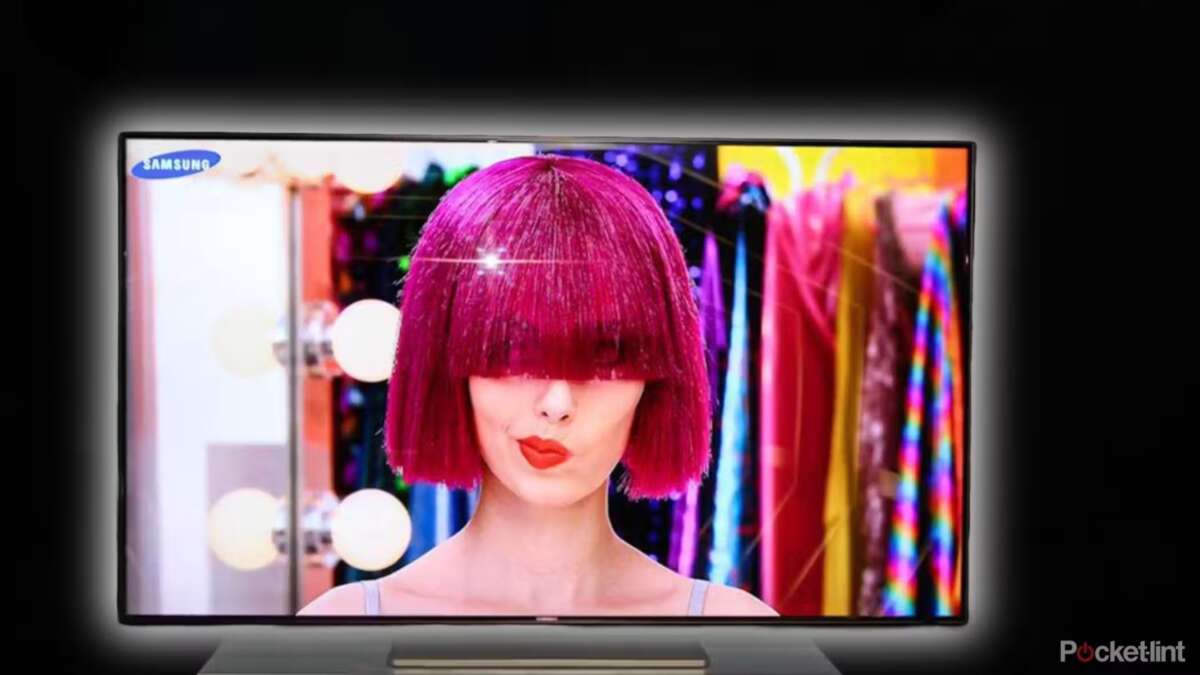
Some smart TVs have built-in cameras, but most modern models do not include one by default.
Do smart TVs have a camera? The answer depends on the brand, model, year, and accessories connected to the television. Some TVs use cameras for video calls, gesture controls, facial recognition, or fitness apps, while many rely only on a microphone and internet connection. This guide explains how to check your TV, protect your privacy, and choose a safer setup with confidence.
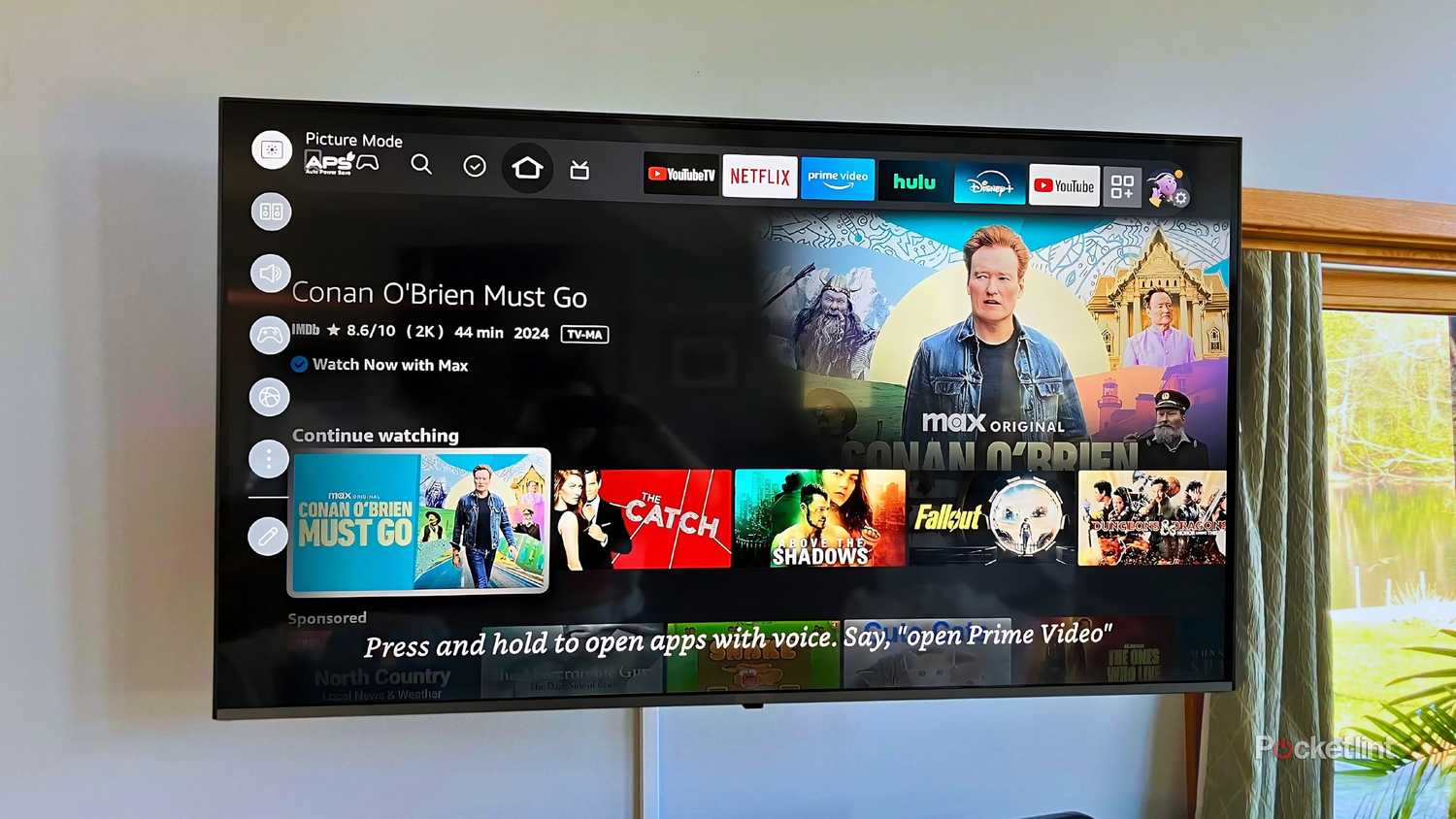
Do smart TVs have a camera?
Some smart TVs have a built-in camera, but cameras are not standard across the smart TV market. Many current models include microphones for voice commands but leave out cameras because of privacy concerns, cost, and limited demand.
A camera may be placed:
• Above the screen in a small pop-up module
• Inside the TV bezel, where it can be hard to notice
• On a detachable accessory connected through USB
• Inside a separate webcam made for video calls
Older premium smart TVs were more likely to include cameras. Some models used them for Skype calls, facial recognition, motion control, or smart fitness tools. Newer televisions often offer camera support through an optional webcam instead.
The safest assumption is simple: do smart TVs have a camera? Sometimes, but never assume every smart TV has one. Check the exact model and inspect the hardware before buying or installing the television.

Why do smart TVs use cameras?
A built-in camera can give a television features that go beyond watching shows. However, these features are not useful to every household.
Common camera functions include:
• Video calls through services such as Zoom or other supported apps
• Gesture control for menus, games, or fitness programs
• Face tracking during exercise or interactive lessons
• Facial recognition for user profiles
• Automatic framing during video calls
• Presence detection that notices when someone is in front of the screen
A camera can make a large screen feel more personal. For example, a family may use the TV for a group video call instead of gathering around a small laptop. A fitness app may also use the camera to track movement and provide feedback.
Still, these benefits come with limits. A camera needs strong software support, good lighting, and careful privacy controls. If the app is poorly designed, the camera may offer more risk than value.
How to tell if your smart TV has a camera
Finding out whether your smart TV has a camera usually takes only a few minutes. Start with the physical design, then confirm your findings in the settings and user manual.
Look at the top edge of the screen. A camera often appears as a small dark circle, a glass lens, or a sliding pop-up unit. Some models hide the lens behind a panel, so the camera may not be obvious at first glance.
Next, check the TV’s settings menu. Search for terms such as:
• Camera
• Video call
• Motion control
• Face recognition
• Gesture control
• Privacy
• Connected devices
• Permissions
You can also find the model number on the back of the TV, inside the settings menu, or on the original box. Search the official product page or manual for words such as “built-in camera,” “camera compatible,” or “webcam support.”
A USB port does not prove that the television has a camera. It only shows that the TV may support external devices. This difference matters when answering, do smart TVs have a camera, because a compatible TV may work with a camera without having one built in.
Do smart TVs have cameras and microphones?
Many smart TVs have microphones even when they do not have cameras. Voice assistants use microphones to hear commands such as “open Netflix” or “change the volume.”
Microphones may be located:
• In the TV body
• Inside the remote control
• In a connected soundbar
• In a streaming device
• In a smart speaker placed near the TV
A microphone listens for sound, while a camera captures images. They are separate devices with separate privacy risks. Turning off the camera does not always disable the microphone.
Some remotes include a physical microphone switch. Others let you disable voice recognition in the TV settings. If privacy is important, check both the television and remote rather than changing only one setting.
Which smart TVs usually have cameras?
Camera availability changes often, so the model number matters more than the brand name. A brand may sell one TV with a built-in camera, another with camera support, and a third with no camera features at all.
In general:
• Older high-end Samsung models sometimes included pop-up cameras for video calls and motion features.
• Some LG televisions supported optional webcams rather than built-in cameras.
• Sony smart TVs have commonly offered camera accessories for selected features instead of including a camera in every set.
• Amazon Fire TV models generally focus on microphones and voice control, while camera support depends on the model and connected accessories.
• Google TV and Android TV devices may support USB webcams, but compatibility varies by app and manufacturer.
This is why broad claims about whether do smart TVs have a camera can be misleading. Always verify the exact model, not just the logo on the front.
Manufacturers can also change features between regions. A television sold in the United States may differ from a similar model sold in Europe or another market. Product manuals and official specifications are the best sources for final confirmation.
Are smart TV cameras always recording?
A camera is not necessarily recording simply because it is installed. Most cameras remain inactive until a compatible app or feature requests access.
However, privacy depends on software design, account settings, and the device’s network connection. A camera can be activated by an approved app, a system feature, or an external device if permissions allow it.
Keep these points in mind:
• A camera may capture video only when a video call begins.
• A privacy shutter can block the lens but may not turn off the camera electronically.
• A camera indicator light may show activity, but do not rely on the light alone.
• A factory reset may remove personal settings but may not change the TV’s built-in hardware.
• Firmware updates can change menus, permissions, and privacy controls.
There is no need to panic, but there is good reason to stay aware. Treat a smart TV like any internet-connected device in your home. Review permissions, install updates, and avoid connecting unknown accessories.
Smart TV camera privacy risks
The main concern is not the camera itself. The concern is how the camera, apps, accounts, and network work together.
Potential risks include:
• Unauthorized access caused by weak passwords
• Apps requesting more access than they need
• Outdated TV software with known security flaws
• Accidental video sharing during a call
• Data collection linked to viewing or voice activity
• An unsecured external webcam
A camera pointed into a living room can reveal private details about your home. Even a short accidental recording may show family members, children, documents, or daily routines.
Consumer privacy guidance commonly recommends disabling features you do not use, limiting permissions, and protecting connected devices with strong passwords. Home network security also matters. A secure Wi-Fi password and updated router reduce the chance of unwanted access.
For extra privacy, place the television where it does not face bedrooms, private work areas, or sensitive documents. A simple physical camera cover can also block the lens, although it should not cover ventilation openings or damage the screen.

How to disable a smart TV camera
If your TV has a built-in camera, you may be able to disable it through the settings menu. The exact steps vary, but the process usually follows this pattern:
-
Open Settings.
-
Select Privacy, Security, or Device Preferences.
-
Look for Camera, App Permissions, or Smart Features.
-
Turn off camera access or disable the related feature.
-
Review every app that can request camera access.
-
Restart the TV and test the camera feature.
Some televisions do not offer a software switch. In that case, use the built-in privacy shutter if available, unplug the camera accessory, or cover the lens with a removable cover.
Do not cut wires, open the TV, or remove internal parts. That can cause electric shock, damage the display, void the warranty, and create a fire risk. If the camera is built into the television and privacy is critical, a qualified technician can explain safer options.
Remember to disable the microphone separately. Many people ask, do smart TVs have a camera, and then focus only on the lens. The microphone may still collect voice commands even after the camera is blocked.
How to secure a smart TV with a camera
Good security habits can reduce most everyday risks. You do not need advanced technical skills to make a meaningful improvement.
Use these steps:
• Create a strong, unique password for your TV account.
• Turn on automatic software updates when available.
• Install apps only from the TV’s official app store.
• Delete apps you no longer use.
• Review camera and microphone permissions each month.
• Disable personalized advertising if you do not want interest-based tracking.
• Turn off voice assistants that you never use.
• Secure your home Wi-Fi with WPA2 or WPA3 encryption.
• Avoid connecting unknown USB cameras or storage devices.
• Use a separate guest network for devices that do not need access to your main network.
A physical shutter is useful because it works even if settings change. It acts like closing a curtain. The TV may still be online, but the camera cannot see through a covered lens.

Do smart TV cameras improve video calls?
A smart TV camera can make video calls more comfortable because people can sit farther from the screen. A wide display also helps several family members appear in the same frame.
The experience depends on several factors:
• Camera resolution
• Microphone quality
• Room lighting
• Internet speed
• Supported video call apps
• TV processing power
• Webcam placement
A camera above the screen usually gives a better eye-level view than a camera placed below the TV. Bright light behind you can make your face look dark, so place a lamp in front of you instead.
Many users get similar results by connecting a laptop or streaming device to the TV. This setup may offer better app support and easier camera replacement. It also lets you unplug the camera when the call ends.
Built-in camera versus external webcam
A built-in camera looks neat and needs no extra cable. It may also work smoothly with the TV’s own software. The downside is that you cannot easily replace it if the image quality is poor or the hardware becomes outdated.
An external webcam offers more control. You can unplug it, move it, replace it, or cover it with a physical shutter. However, not every smart TV supports every webcam, and some apps may not recognize external cameras.
Choose a built-in camera when:
• You want a clean setup
• The TV supports the apps you use
• The camera has clear privacy controls
• You trust the manufacturer’s software updates
Choose an external webcam when:
• You want stronger physical privacy
• You need better video quality
• You plan to upgrade the camera later
• You want to keep the camera disconnected most of the time
Before buying, confirm compatibility. A USB port alone does not guarantee that the television will accept a webcam or provide drivers for it.

Smart TV camera mistakes to avoid
The most common mistake is assuming that every smart TV works the same way. Features can differ between screen sizes, model years, operating systems, and regions.
Avoid these errors:
• Buying by brand name without checking the full model number
• Assuming a microphone means the TV also has a camera
• Believing a camera indicator light is the only privacy safeguard
• Leaving unused video call apps signed in
• Using the same password for the TV and email account
• Ignoring firmware updates
• Connecting a webcam and forgetting that it remains plugged in
• Covering sensors or vents with thick tape
Another mistake is placing the TV in a private room without reviewing its permissions. A television in a bedroom deserves the same privacy care as a laptop or phone.
When people ask, do smart TVs have a camera, they often want a yes-or-no answer. The better answer is to check the hardware, software, and connected accessories together. Privacy is a system, not a single button.
Frequently Asked Questions About Do Smart TVs Have a Camera
Do all smart TVs have a built-in camera?
No. Most smart TVs do not have a built-in camera, although some models include one or support an optional webcam. Check the exact model specifications and inspect the top bezel for a lens.
How can I know if my Samsung smart TV has a camera?
Look for a pop-up lens, a small opening above the screen, or camera-related settings such as video calls and motion control. You can also enter the model number on the manufacturer’s support page and read the manual.
Can someone watch you through a smart TV camera?
A camera could create a privacy risk if it is active, connected to an insecure account, or controlled by compromised software. Disable camera permissions, update the TV, use a strong password, and cover or unplug the camera when you do not need it.
Do smart TVs record everything you say?
Not necessarily. A TV with a voice assistant may process audio when it hears a wake word or when voice features are enabled, but settings differ by model. Review voice privacy controls and disable the microphone or assistant if you do not use it.
Can I use an external webcam with a smart TV?
Some smart TVs support USB webcams, but compatibility depends on the operating system, camera model, and app. Check the TV manual before buying, because a USB port does not guarantee webcam support.
Does turning off the camera also turn off the microphone?
No. The camera and microphone are separate devices. You usually need to disable each one in the privacy or voice assistant settings.
Is a camera cover safe for a smart TV?
A thin, removable cover is usually safe if it does not press against the screen or block vents and sensors. Do not use a cover that leaves sticky residue or requires opening the TV.
Conclusion
Do smart TVs have a camera? Some do, but many modern models use microphones only or support a separate webcam. The exact answer depends on the model, year, region, software, and connected accessories.
Check the lens, read the manual, review privacy settings, update the TV, and disable features you do not need. If your television includes a camera, use a shutter or unplug an external webcam when video calls are over. Take a few minutes today to inspect your TV, then share this guide with anyone choosing a new smart television.

Everett Ashford is a tech reviewer at mytechgrid.com specializing in SSDs, cameras, TVs, earbuds, headphones, and other consumer electronics. He provides honest, data-driven reviews based on hands-on testing and real-world performance analysis. Everett simplifies complex tech details to help readers make smart, confident buying decisions.