SSDs are faster than HDDs because they use flash memory with no moving parts, reducing access time and improving data transfer.
Understanding why SSD is faster than HDD starts with one simple contrast: an SSD reads data from electronic memory, while an HDD uses a spinning disk and moving read/write heads. That design difference affects boot time, app loading, file transfers, gaming, noise, power use, and system responsiveness. After comparing both drive types in everyday upgrades and performance tests, the reason becomes clear: an SSD spends far less time waiting for data.

The basic difference between an SSD and an HDD
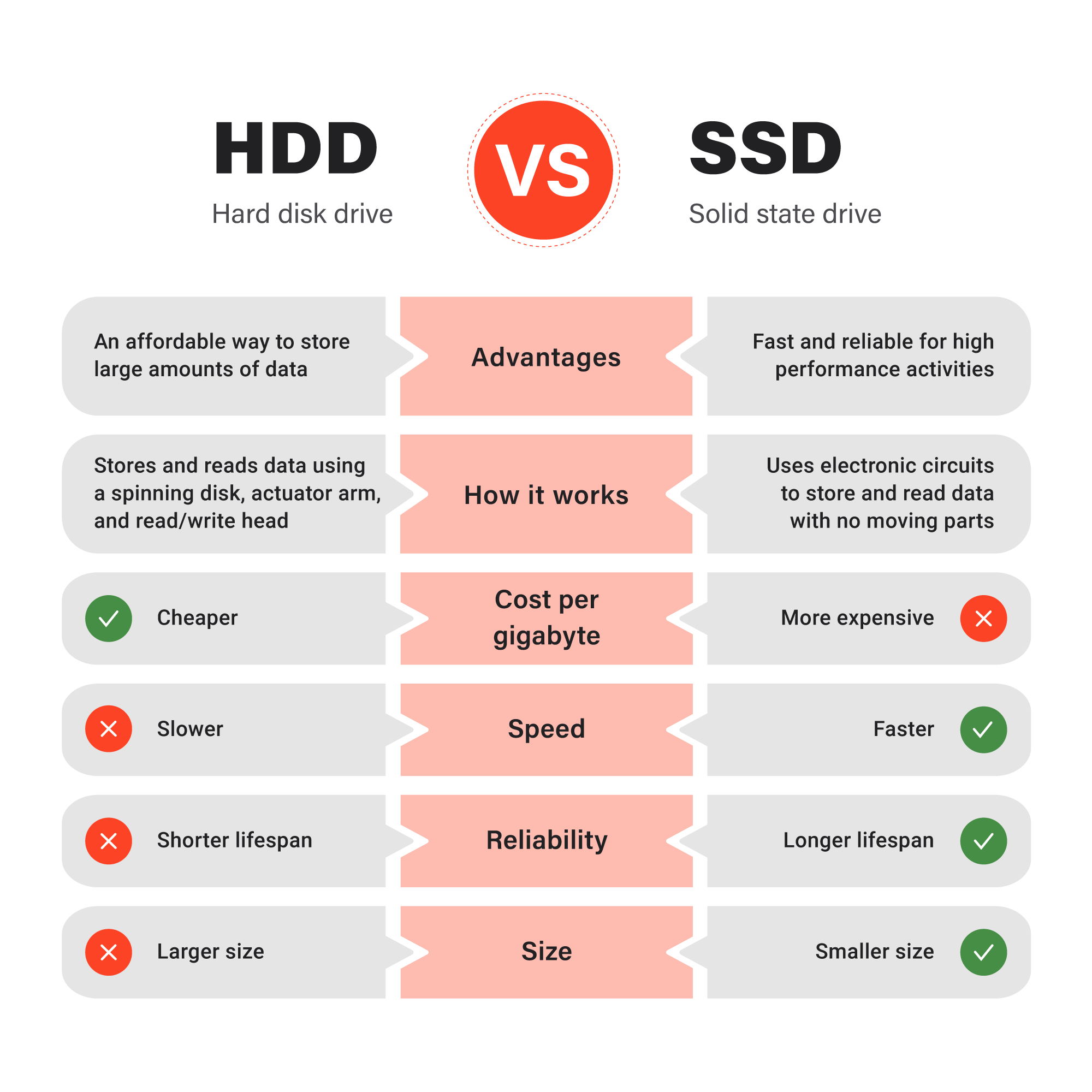
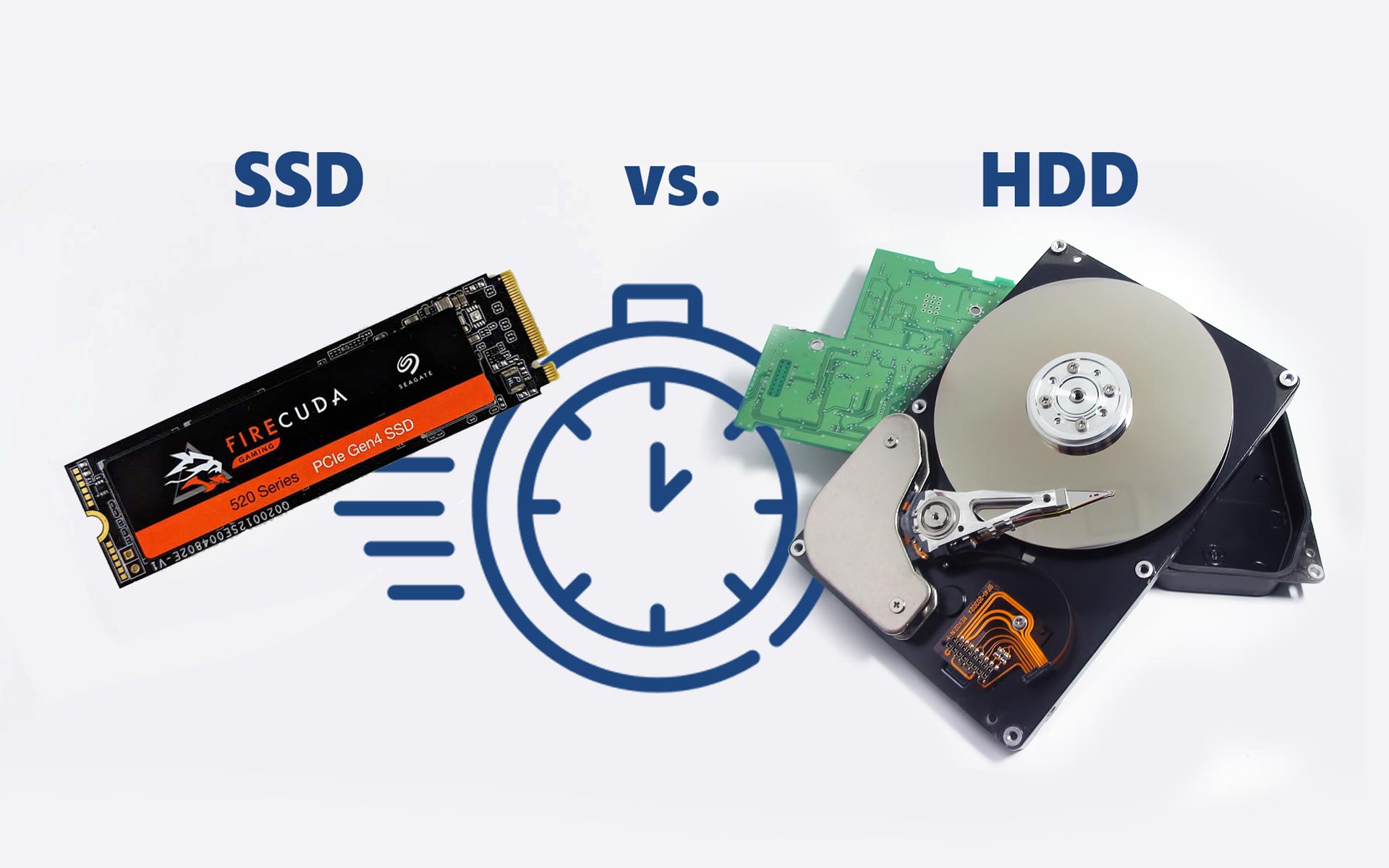
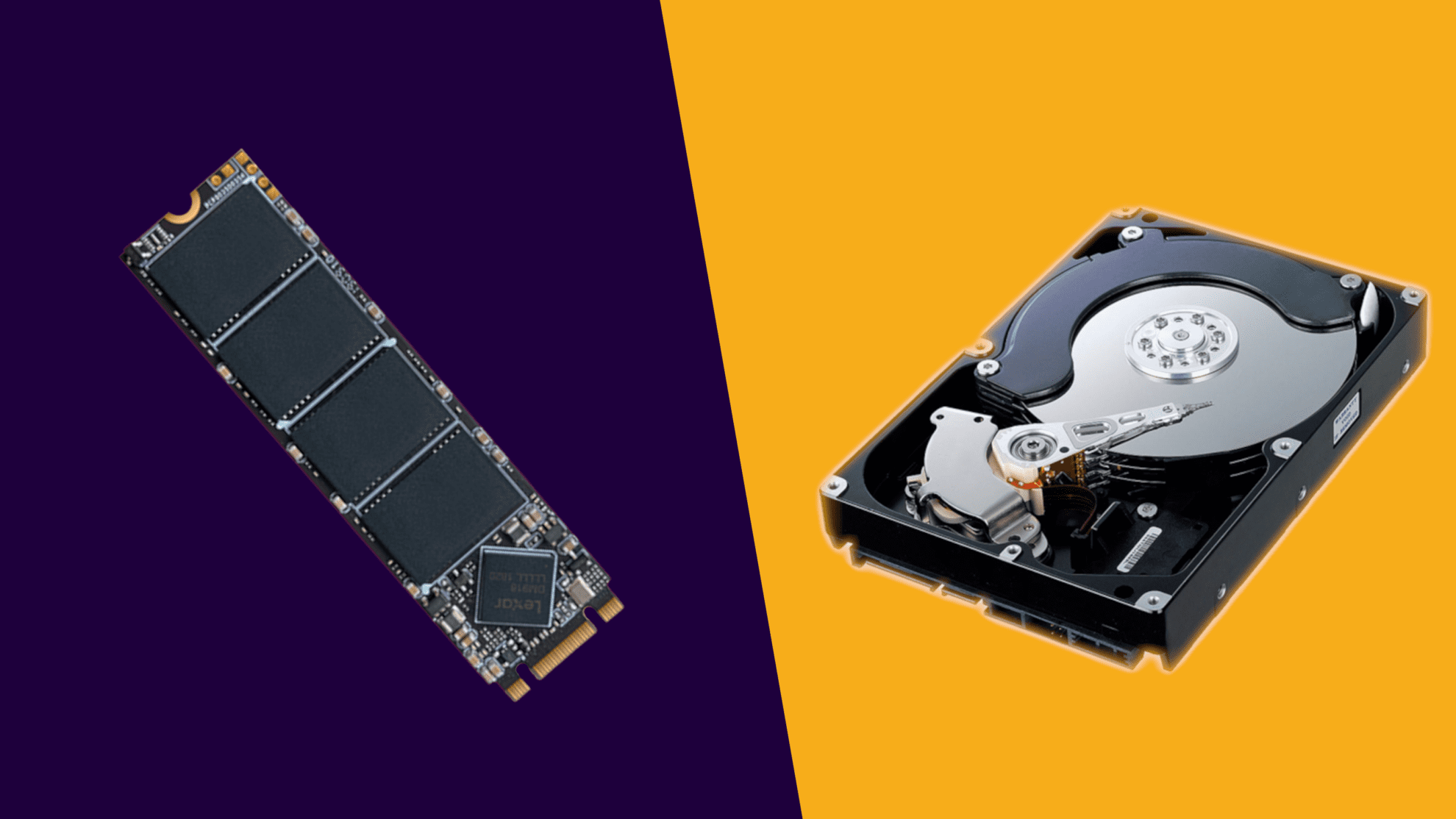
A hard disk drive, or HDD, stores data on spinning magnetic platters. A small mechanical arm moves across each platter to find and read the requested data. It works much like a record player, although an HDD is far more precise and complex.
A solid-state drive, or SSD, stores data in NAND flash memory. It has no spinning platters, moving arms, or mechanical seek process. Instead, a controller uses electronic signals to locate data across memory cells.
This hardware difference explains why SSD is faster than HDD in most computer tasks. An HDD must physically move parts into position before reading data, while an SSD can access many areas of storage almost instantly.
How an HDD reads data
When a computer requests a file, an HDD must complete several physical steps:
- The platters rotate to the correct position.
- The actuator arm moves the read/write head.
- The head waits for the correct data sector.
- The drive transfers the data to the computer.
These steps happen quickly, but they still create delays. The delay becomes more noticeable when a system opens many small files at once.
How an SSD reads data
An SSD receives the request and checks its flash memory map. Its controller then retrieves the required data electronically. There is no need to wait for a platter to rotate or a head to move.
This is the core reason why SSD is faster than HDD. Electronic access removes mechanical delays from the storage process.

Why SSD is faster than HDD in real-world use
Storage speed is not only about the maximum megabytes per second listed on a product page. It also depends on access time, input/output operations per second, queue depth, and how well the drive handles small files.
An SSD improves several parts of the user experience at once:
- Lower latency means the computer waits less before receiving data.
- Higher IOPS means the drive can handle more small requests.
- Faster random access helps apps, operating systems, and games.
- Faster sustained transfers help with large videos, backups, and project files.
- Consistent performance makes the system feel smoother.
An HDD may advertise a reasonable sequential transfer speed, but it often slows down during random tasks. This is why a computer with an SSD can feel much faster even when the processor and memory stay the same.
Access time and latency
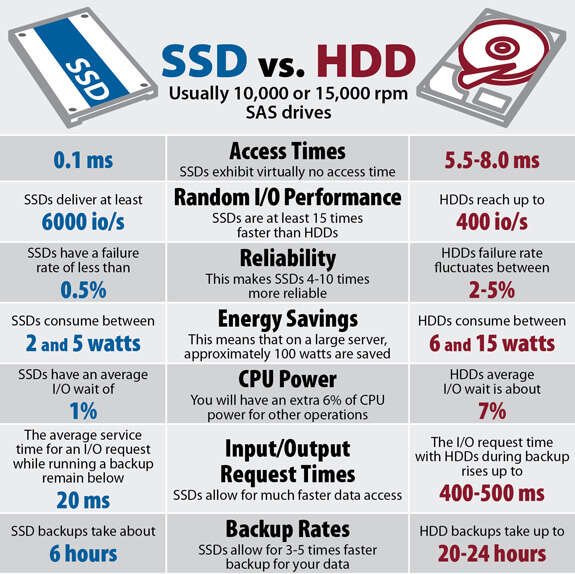
Access time measures how long a drive takes to find and begin reading data. A typical HDD may need several milliseconds for a random access. An SSD usually works in microseconds, which is dramatically faster.
That difference seems tiny for one request. However, modern operating systems make thousands of storage requests during startup and normal use. Small delays add up, much like a line of short traffic stops on a long drive.
Random performance and IOPS
IOPS means input/output operations per second. It shows how well a drive handles many small read and write requests.
SSDs usually deliver far higher random IOPS than HDDs. This matters when Windows, macOS, or Linux loads system files, when a browser opens several tabs, or when a game loads many assets from different locations.
Sequential performance
Sequential performance measures how quickly a drive reads or writes a large block of continuous data. SATA SSDs often reach about 500 to 550 MB/s in practical use. PCIe NVMe SSDs can reach several thousand MB/s, depending on the model and PCIe generation.
Many HDDs deliver roughly 100 to 220 MB/s under favorable conditions. Their performance can also drop as the platter fills or as files become fragmented. These figures vary by drive, workload, and test method, but the general performance gap remains wide.
Why moving parts make HDDs slower
Mechanical parts limit an HDD in several ways. The platter must spin at a fixed speed, often 5,400 or 7,200 revolutions per minute. The actuator arm must also move across the disk to find the right track.
This movement creates seek time and rotational latency. The drive cannot read data until the correct sector passes beneath the head.
Mechanical parts also limit how many requests an HDD can handle at the same time. If the computer asks for data from many locations, the arm may move back and forth repeatedly. This behavior is sometimes called thrashing, and it can make the system feel frozen.
This is another key reason why SSD is faster than HDD. An SSD does not need to physically search for each file.
Fragmentation affects HDD performance
When an HDD stores, deletes, and replaces files, free space can become scattered. A single file may occupy many separate areas of the platter. The drive then needs to move its head between locations to read the complete file.
SSDs also manage scattered data, but fragmentation usually has a much smaller effect on access speed. Defragmenting an SSD is not normally recommended because unnecessary write activity can add wear.
Modern operating systems use TRIM and other storage commands to help SSDs manage unused blocks. These features help maintain performance without treating an SSD like a traditional hard disk.
SSD speed differences: SATA versus NVMe
Not all SSDs have the same speed. The two common types are SATA SSDs and NVMe SSDs.
A SATA SSD uses the older SATA interface. It is much faster than an HDD for booting and random access, but its maximum speed is limited by the interface. An NVMe SSD connects through PCI Express and uses a protocol designed for flash storage.
SATA SSD
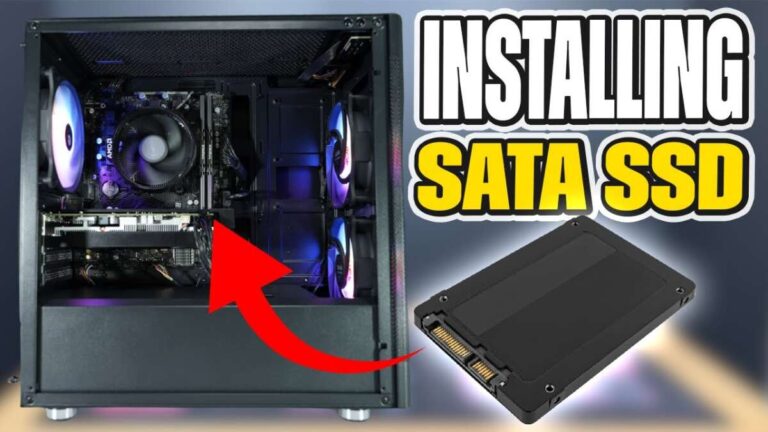
A SATA SSD is a strong choice for upgrading an older desktop or laptop. It can make a slow computer feel new by reducing startup time and improving app response.
Common benefits include:
- Simple installation in many computers
- Lower cost than high-end NVMe models
- Much faster random access than an HDD
- Lower power use and less noise
- Good performance for office work and everyday gaming
NVMe SSD
An NVMe SSD is often the best option for a newer computer with an M.2 slot that supports PCIe. It can provide much higher sequential speeds than a SATA SSD.
NVMe speed is most useful for tasks such as:
- Editing high-resolution video
- Moving large game files
- Working with large databases
- Compiling software projects
- Loading large professional applications
- Managing virtual machines
For basic web browsing, the difference between SATA and NVMe may be less noticeable than the difference between any SSD and an HDD. This is because everyday tasks often depend more on latency than on maximum transfer speed.
How SSD speed changes common computer tasks
The reason why SSD is faster than HDD becomes easy to see in daily use. The biggest improvement often appears in tasks that require many small files.
Faster startup
An operating system loads hundreds or thousands of files during startup. An SSD can access these files with very little delay. As a result, the computer usually reaches the login screen and desktop faster.
Startup time varies with the operating system, background programs, memory, and firmware. Still, replacing an HDD with an SSD is one of the most noticeable upgrades for an older computer.
Faster application loading
Applications often use many small files, libraries, settings, and temporary files. An SSD can retrieve these parts quickly, so programs open with less waiting.
Large professional programs may still take time to start because they also depend on the processor and memory. The SSD removes storage delays, but it cannot fix every performance limit.
Faster gaming load times
Games load textures, maps, sound files, and character data from storage. An SSD usually reduces loading screens and can help open large game worlds more smoothly.
An SSD does not automatically increase frame rate. Frame rate mainly depends on the graphics processor, processor, memory, and game settings. Its main gaming benefit is shorter load time and, in some games, less texture streaming delay.
Faster file transfers
SSDs are much faster when copying large files, especially when the source and destination drives are also fast. However, the slowest device in the transfer path sets the limit.
For example, copying files from an NVMe SSD to an external HDD will not provide NVMe-level speed. The cable, USB port, destination drive, file size, and thermal limits also matter.
Energy use, noise, heat, and durability
Speed is the main answer to why SSD is faster than HDD, but the design also affects other parts of the computer experience.
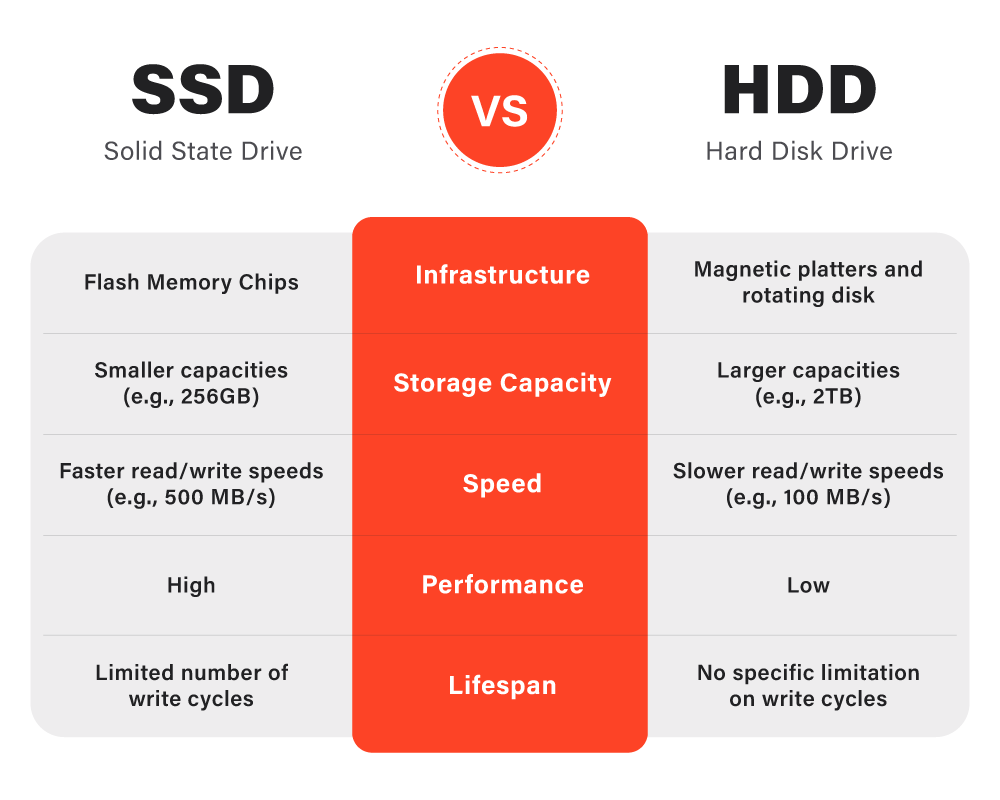
HDDs use motors to spin platters and power to move the actuator arm. SSDs use less power in many workloads because they have no motors. Lower power use can help laptop battery life, although the exact benefit depends on the system and workload.
SSDs are silent. HDDs can produce soft humming, clicking, or vibration during operation. A healthy click is not usually a problem, but repeated clicking may indicate a failing drive.
SSDs also handle movement better because they have no spinning disk or moving head. This makes them useful in laptops and portable devices. However, SSDs are not indestructible. Their controllers can fail, and NAND flash cells have a finite write endurance.
SSD limitations to remember
A balanced comparison should include the drawbacks:
- SSDs often cost more per terabyte than HDDs.
- Deleted data may be difficult to recover after certain failures.
- Some low-cost SSDs slow down during long writes.
- Nearly full SSDs may lose some performance.
- High-speed NVMe drives can become hot.
- Flash memory has limited write endurance, although modern drives often last for years under normal use.
In practical upgrade work, a common mistake is buying the fastest SSD without checking compatibility. The computer may lack an NVMe slot, may support only SATA M.2 drives, or may not have enough cooling for a high-end model.

SSD versus HDD: which one should you choose?
For most primary storage, an SSD is the better choice. It makes the operating system, programs, and everyday work feel more responsive.
An HDD still has an important role. It offers a large amount of storage at a lower price, which makes it useful for backups, media libraries, archives, and surveillance systems.
A balanced setup can use both:
- Install the operating system and frequently used programs on an SSD.
- Store large videos, photos, backups, and archives on an HDD.
- Keep at least one separate backup of important files.
- Monitor drive health with trusted system tools.
- Leave some free space on the SSD for stable performance.
This hybrid approach often provides the best mix of speed, capacity, and cost.
A practical upgrade example
Suppose an older laptop takes two minutes to start from an HDD. Replacing the HDD with a SATA SSD may reduce startup time to well under a minute, depending on the operating system and software. Apps can open faster, and the laptop may feel more responsive even without a new processor.
That kind of upgrade is why SSD is faster than HDD in a way people can feel immediately. The improvement is not only visible in benchmark charts. It appears every time you open a file, launch a program, or wake the computer.
How to get the best SSD performance
Choosing an SSD is only part of the process. Installation and maintenance also affect results.
Use these practical tips:
- Check whether your computer supports SATA, NVMe, or both.
- Review the motherboard manual before buying an M.2 drive.
- Install the operating system on the fastest suitable SSD.
- Keep some free capacity available.
- Update the SSD firmware through the manufacturer’s trusted software.
- Enable TRIM if the operating system supports it.
- Avoid unnecessary defragmentation.
- Use a heat sink for high-performance NVMe drives when needed.
- Keep important files in more than one place.
- Do not treat an SSD as a backup.
One lesson worth remembering is that benchmark speed does not always equal daily speed. A premium NVMe SSD may be several times faster than a SATA SSD in large file transfers, but both can feel similar during email, web browsing, and document work.
What research and benchmarks show
Storage benchmarks consistently show a large gap between SSD and HDD random access performance. They also show that SSDs handle concurrent requests more effectively, which is important for modern operating systems and multitasking.
Independent testing commonly finds that:
- SSD latency is measured in microseconds.
- HDD latency is commonly measured in milliseconds.
- SATA SSDs reach close to the practical limit of the SATA interface.
- NVMe SSDs can deliver much higher sequential throughput.
- HDD performance varies with platter speed, data location, and fragmentation.
These results explain why SSD is faster than HDD, but benchmarks need context. A drive’s speed may fall during a long write when its cache fills. Temperature, firmware, capacity, and workload type can also change the result.
For a fair comparison, test both random and sequential performance. Also check real tasks such as boot time, application loading, and file copying. Those tests better reflect how most people use storage.
Frequently Asked Questions About Why SSD Is Faster Than HDD
Why is SSD faster than HDD?
An SSD stores data in electronic NAND flash memory, while an HDD uses spinning platters and moving read/write heads. Removing mechanical movement gives the SSD much lower latency and faster random access.
Is an SSD always faster than an HDD?
For normal computer storage tasks, an SSD is almost always faster than an HDD. The exact result depends on the SSD interface, workload, thermal conditions, and whether the task is limited by the processor or another device.
Does an SSD make a computer faster?
An SSD can make a computer feel much faster by reducing startup time, application loading, and file access delays. It does not directly increase processor speed or graphics performance.
Is NVMe faster than a SATA SSD?
NVMe SSDs are usually faster than SATA SSDs because they use the PCI Express interface and a storage protocol built for flash memory. The difference is largest during large file transfers and demanding professional workloads.
Are SSDs more reliable than HDDs?
SSDs avoid mechanical failures caused by motors, platters, and moving heads, but they can still fail without warning. HDDs and SSDs both need backups, and neither should be trusted as the only copy of important data.
Should you use an SSD or HDD for gaming?
An SSD is usually better for the operating system and games because it reduces loading times. An HDD can still work well for large game libraries when capacity and low cost matter more than fast loading.
Can an SSD slow down over time?
An SSD may slow down when it is nearly full, overheats, or performs long sustained writes after its cache is exhausted. Keeping free space, using proper cooling, and installing firmware updates can help maintain performance.
Conclusion
The main reason why SSD is faster than HDD is simple: an SSD uses electronic flash memory, while an HDD must move mechanical parts to find data. That difference leads to lower latency, higher random performance, faster startup, shorter loading times, and a smoother overall experience.
HDDs still make sense for affordable bulk storage and backups. For your operating system and frequently used apps, however, an SSD is usually the smarter upgrade. Check your computer’s interface, choose the right capacity, keep reliable backups, and explore more storage guides before making your purchase.

Everett Ashford is a tech reviewer at mytechgrid.com specializing in SSDs, cameras, TVs, earbuds, headphones, and other consumer electronics. He provides honest, data-driven reviews based on hands-on testing and real-world performance analysis. Everett simplifies complex tech details to help readers make smart, confident buying decisions.