Your SSD may be slow because of low free space, heat, outdated drivers, heavy background tasks, or a failing drive.
If you are wondering why is my ssd so slow, the answer is often easier to find than it seems. SSDs can lose speed when they are nearly full, too hot, poorly connected, or busy with hidden tasks. In my troubleshooting work, I have seen a healthy SSD feel broken simply because Windows was updating, the drive had only 5% free space, or the system was using the wrong storage mode. This guide explains the real causes and the safest fixes.
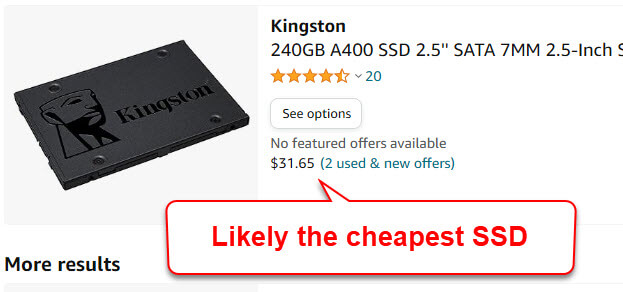
Why is my SSD so slow?
An SSD stores data on flash memory. Unlike a hard disk drive, it has no spinning platters or moving read heads. This lets it access files quickly and makes boot times, app launches, and file transfers much faster.
However, an SSD is not always fast under every condition. Its speed depends on the drive type, free space, temperature, interface, firmware, operating system, and workload.
The most common reasons why is my ssd so slow include:
- The SSD is almost full.
- The drive is overheating.
- The SSD is connected through a slow SATA or USB link.
- Your computer has outdated storage drivers.
- Background apps are using the drive.
- The SSD has poor performance during long writes.
- TRIM is disabled or not working.
- The drive is worn out or developing errors.
- The system has malware or unwanted software.
- The SSD is slower than its advertised peak speed.
An important detail is that advertised SSD speed usually describes a short, ideal test. Real-world performance can be lower. Small file work, system updates, game installs, and multitasking place different demands on the drive than a simple benchmark.

Check whether the SSD is really slow
Before changing settings, measure the problem. A computer may feel slow because of low memory, a weak processor, or too many startup apps. The SSD may not be the true cause.
Start by noticing when the slowdown happens:
- Is startup slow?
- Do apps take a long time to open?
- Are file copies slow?
- Does the slowdown happen only during large transfers?
- Does the computer become slow after several minutes?
- Is the issue limited to one game or app?
Use your operating system’s task manager to check disk usage. In Windows, open Task Manager with Ctrl + Shift + Esc, then select the Performance tab and open Disk. In macOS, use Activity Monitor and select the Disk tab.
Look for these signs:
- Disk usage stays near 100% while transfer speed remains low.
- Read and write speeds rise and fall sharply.
- One process uses most of the disk.
- The drive is active even when you are doing very little.
- The system becomes slow when memory use is high.
A drive showing 100% active time is not always transferring data at its maximum speed. Active time measures how busy the drive is, not how many megabytes it moves each second. Many small requests can make an SSD show high activity while the actual speed remains modest.
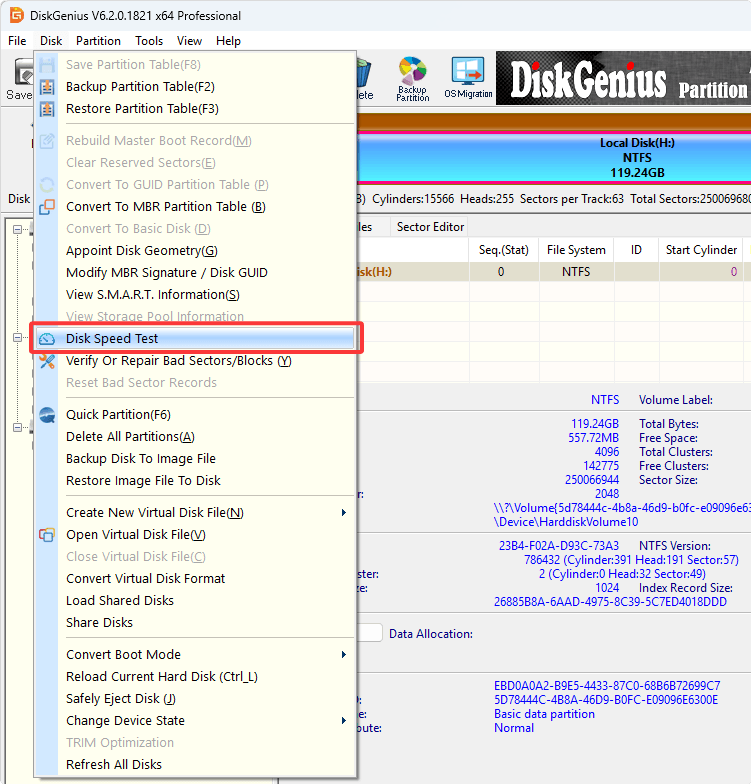
Run a trusted storage benchmark only after checking drive health. Tools such as CrystalDiskMark, Blackmagic Disk Speed Test, or the manufacturer’s utility can show sequential and random performance. Close other apps first, and compare the result with the specifications for your exact model.
Low free space can reduce SSD performance
One of the most common reasons why is my ssd so slow is low free space. SSDs need unused blocks to write new data efficiently. When the drive is nearly full, the controller has fewer clean blocks available.
The drive may then need to move existing data before writing new data. This process is called garbage collection. It is normal, but it can add extra work and reduce write speed.
Try to keep at least 10% to 20% of the SSD free. This is not a strict rule for every model, but it gives the controller room to manage data. Some high capacity drives can remain responsive with less free space, while smaller or budget drives may slow down sooner.
To free space safely:
- Open your operating system’s storage settings.
- Remove temporary files and old update files.
- Uninstall apps and games you no longer use.
- Move large videos, photos, and archives to another drive.
- Empty the Recycle Bin or Trash.
- Avoid deleting unknown system folders.
Do not use aggressive “SSD optimizer” programs that promise dramatic gains. Many simply delete files, change settings, or run unnecessary operations. The best first step is usually simple: remove unwanted data and leave healthy free space.

Heat can cause an SSD to slow down
Heat is another major reason why is my ssd so slow. NVMe SSDs can become especially warm because they connect directly to fast PCIe lanes and handle large data loads.
When an SSD reaches a high temperature, its controller may reduce speed to protect the flash memory. This behavior is called thermal throttling. It is similar to a car slowing down when its engine becomes too hot.
Heat often appears during:
- Large game installations.
- Video editing.
- Moving hundreds of gigabytes.
- Running virtual machines.
- Long benchmark tests.
- Sustained backups.
A short transfer may start very fast and then slow sharply after a few minutes. That pattern often suggests a full write cache or thermal throttling.
Check the SSD temperature with the manufacturer’s app or a trusted hardware monitor. Exact safe limits vary by model, but many consumer NVMe drives become less comfortable as temperatures approach the upper range listed in their specifications.
You can lower SSD temperatures by:
- Installing the correct motherboard heatsink.
- Removing plastic film from the thermal pad.
- Improving case airflow.
- Keeping dust away from intake and exhaust fans.
- Moving the SSD away from a hot graphics card when possible.
- Updating the motherboard BIOS if it improves fan or PCIe behavior.
Never place a thermal pad directly on exposed components without checking the drive and motherboard instructions. Incorrect pressure or poor contact can make cooling worse.

The connection may limit SSD speed
Sometimes the SSD is fine, but the connection is slow. This is common with SATA drives, external SSDs, and NVMe drives installed in the wrong slot.
A SATA III SSD usually reaches around 500 to 560 MB/s in ideal sequential tests. That is normal because the SATA interface has a speed limit. Installing a faster NVMe SSD will not help if the system is using a SATA adapter or a slower connection.
External SSDs can also be limited by the port and cable. A USB 3.0 connection, now often called USB 3.2 Gen 1, may offer less speed than USB 3.2 Gen 2, USB4, or Thunderbolt. The drive, enclosure, cable, and computer port must all support the faster standard.
Check these points:
- Confirm that an NVMe drive is installed in an M.2 PCIe slot.
- Check the motherboard manual for shared lanes.
- Test a different USB port.
- Use a cable rated for the required USB speed.
- Avoid unpowered hubs for demanding external drives.
- Check whether the external enclosure supports NVMe or only SATA.
- Confirm that the drive is operating at the expected PCIe generation.
Some M.2 slots share bandwidth with SATA ports or other PCIe devices. The motherboard manual can explain these limits. A drive can appear correctly in the operating system while still running at a lower link speed.

Background tasks can make the SSD feel slow
Your SSD may be working normally while another task consumes its resources. Windows Update, antivirus scans, cloud synchronization, search indexing, game launchers, and backup tools can all create heavy disk activity.
This is one of the first things I check when a system suddenly becomes slow. In one desktop I tested, the SSD appeared sluggish during every morning startup. The real cause was a cloud sync tool scanning a large photo folder. Once the scan finished, the drive returned to normal speed.
Open Task Manager or Activity Monitor and sort processes by disk use. Give the system a few minutes before ending anything. Some tasks are important and should not be stopped without care.
Common sources include:
- Windows Update or macOS updates.
- Microsoft Defender or another security scan.
- Steam, Epic Games, or other game launchers.
- OneDrive, iCloud Drive, Dropbox, or Google Drive.
- Search indexing.
- Backup software.
- Virtual machines.
- Large browser caches.
- File compression or extraction.
If one process uses the disk constantly, research that process before disabling it. A security scan may be inconvenient, but stopping it can leave your system less protected.
TRIM helps an SSD manage deleted data
TRIM is a command that tells an SSD which blocks no longer contain useful files. The drive can then prepare those blocks for future writes.
Most modern versions of Windows, macOS, and Linux manage TRIM automatically. If TRIM is disabled, write performance may decline over time, especially after the drive has handled many deleted and replaced files.
Windows users can check TRIM from an administrator Command Prompt with this command:
fsutil behavior query DisableDeleteNotify
A result of 0 usually means TRIM notifications are enabled. A result of 1 means they are disabled for that file system or configuration.
Do not run commands you do not understand on an important system. TRIM behavior can differ between internal drives, external enclosures, file systems, and operating systems.
On macOS, TRIM is generally managed automatically for Apple-supported storage. Third-party hardware may behave differently. On Linux, scheduled TRIM may run weekly, or you may see a continuous discard option in the mount settings.
TRIM is not a magic speed switch. It cannot repair a failing drive, overcome a slow USB connection, or turn a budget SSD into a high-end model. It simply helps the SSD manage deleted data more efficiently.

SSD firmware and drivers may need attention
Outdated firmware can cause bugs, compatibility issues, or poor performance. SSD makers sometimes release firmware updates that improve stability, power management, error handling, or performance.
Before updating firmware, back up important files. A firmware update is usually safe, but interruptions can cause problems. Use the manufacturer’s official utility and follow its instructions.
Also check:
- Chipset drivers.
- Storage controller drivers.
- Motherboard BIOS or UEFI updates.
- USB or Thunderbolt drivers.
- Operating system updates.
Windows often uses a standard NVMe driver, and that is usually fine. Installing a special driver will not always improve performance. In some cases, third-party storage drivers can create instability or compatibility problems.
Avoid driver download sites that bundle unknown software. Use the computer maker, motherboard maker, SSD maker, or operating system provider when possible.
The SSD may be worn out or failing
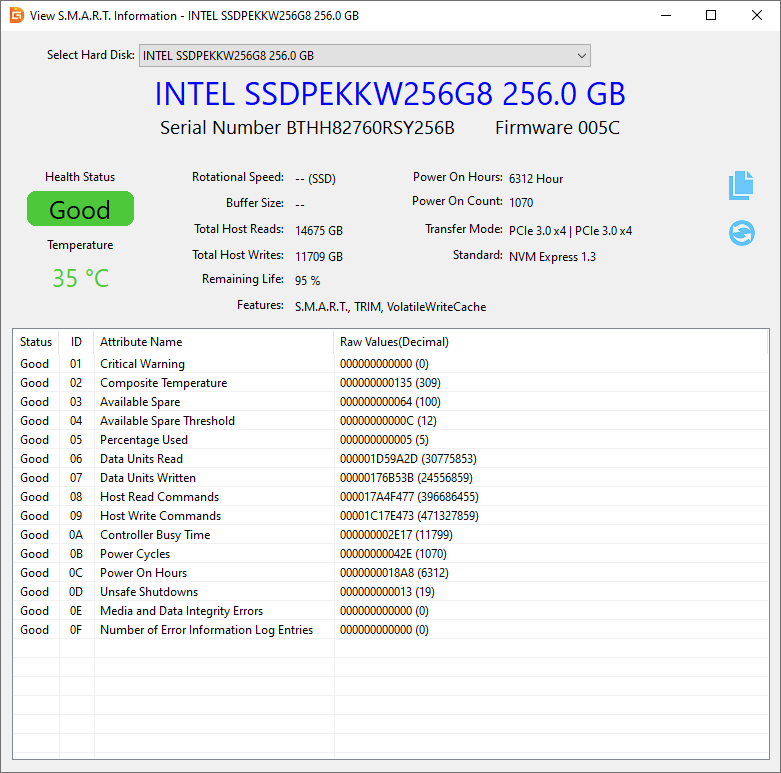
If you are still asking why is my ssd so slow after checking free space, heat, and background tasks, inspect its health.
SSDs track information such as:
- Percentage of life remaining.
- Total data written.
- Available spare capacity.
- Media and data integrity errors.
- Unsafe shutdowns.
- Temperature history.
- Critical warnings.
Use the SSD maker’s diagnostic tool or a trusted SMART reader. SMART data can provide useful clues, but it is not perfect. A drive may fail without giving a clear warning, and a “good” health status does not guarantee that every file is safe.
Back up your data immediately if you notice:
- Files that become corrupted.
- Frequent freezes during file access.
- Disappearing partitions.
- Repeated operating system errors.
- Strange read-only behavior.
- A drive that disconnects and reconnects.
- A rapidly changing health value.
Do not repeatedly benchmark a drive that may be failing. Copy important files first. If the drive is under warranty, contact the manufacturer after preserving your data.
File copies may slow down after the cache fills
Many consumer SSDs use a fast temporary write cache. At the start of a file transfer, data may move at very high speed. Once that cache fills, the drive may switch to a lower sustained write rate.
This explains why a 100 GB transfer can start at 3,000 MB/s and later fall to a few hundred MB/s. The exact result depends on the drive’s controller, NAND type, free space, temperature, and workload.
Budget SSDs that use QLC flash often have lower sustained write performance than TLC models. That does not make them bad. QLC drives can be excellent for games, documents, and general use, but they may be less suitable for constant large writes.
When comparing SSDs, look beyond the peak sequential speed. Check:
- Sustained write speed.
- Random read and write performance.
- Endurance rating.
- Warranty length.
- Thermal design.
- Capacity.
- Reviews with full-drive tests.
This is why a drive can feel fast during startup but slow during a large backup. The tasks use different parts of the SSD’s design.
Operating system settings that can affect speed
Power settings can affect storage performance. A laptop may place the SSD into a low-power state to extend battery life. Waking the drive can add delay, especially during short bursts of activity.
Try the normal or balanced power plan first. Avoid using maximum performance all the time on a laptop because it can increase heat, fan noise, and battery use.
Other settings worth checking include:
- Write caching policies.
- BitLocker or other full-disk encryption.
- Virtual memory settings.
- Storage spaces or software RAID.
- File system errors.
- Startup programs.
- Excessive indexing locations.
Encryption usually causes only a modest performance effect on modern systems with hardware acceleration, but older processors may show a larger impact. Do not disable encryption simply to chase a small benchmark gain.
If you suspect file system errors, use the operating system’s built-in repair tools. Back up first, especially before running repairs on a drive that shows signs of failure.
How to speed up a slow SSD safely
Use this practical order. It starts with low-risk checks and avoids unnecessary changes.
-
Back up important files.
-
Check how much free space remains. Remove or move large files if the drive is nearly full.
-
Restart the computer. This can finish updates and clear temporary system problems.
-
Check Task Manager or Activity Monitor for heavy disk activity.
-
Check the SSD temperature during a demanding task.
-
Confirm the drive interface and link speed.
-
Install official firmware, chipset, and system updates.
-
Verify that TRIM is enabled.
-
Run a trusted SSD health check.
-
Test the SSD again under the same conditions.
Change only one thing at a time. If you change ten settings together, you will not know which action helped.
Avoid these common mistakes:
- Defragmenting an SSD like a hard drive.
- Filling the drive to its last few gigabytes.
- Running repeated benchmarks for hours.
- Using random registry cleaners.
- Installing unofficial storage drivers.
- Disabling security software permanently.
- Moving an SSD without proper backup.
- Ignoring warning signs because the drive still appears in File Explorer.
Modern operating systems optimize SSDs differently from hard drives. A scheduled optimization task may send TRIM commands, not perform traditional defragmentation. That behavior is normal.
When should you replace the SSD?
Replacement makes sense when the drive is failing, too small for your needs, or unable to meet your workload requirements.
Consider a new SSD if:
- Health tools show critical warnings.
- The drive disconnects often.
- Errors continue after cable and software checks.
- The SSD remains slow with plenty of free space.
- The drive is much slower than its rated performance.
- You need more capacity.
- Your workload requires sustained writes.
- The drive is outside its warranty period and no longer reliable.
Choose the replacement based on your computer and workload. A modern PCIe 4.0 NVMe drive may not reach its full speed in an older PCIe 3.0 system. That is not a defect. It is a platform limit.
For office work, web browsing, and gaming, a reliable SATA SSD or entry-level NVMe drive may be enough. For video editing, large data sets, and professional workloads, look for strong sustained performance, good cooling, and a suitable endurance rating.
Frequently Asked Questions About Why Is My SSD So Slow
Why is my SSD so slow even though it is new?
A new SSD may be limited by the motherboard slot, USB enclosure, cable, or PCIe generation. It may also be slower during long transfers after its temporary write cache fills.
Why is my SSD slow when it is almost empty?
If the drive is almost empty, low free space is unlikely to be the cause. Check heat, background processes, link speed, firmware, drivers, and the SSD’s health data.
Can an SSD slow down over time?
Yes. An SSD can slow down as it fills, receives heavy sustained writes, overheats, or develops errors. Normal aging does not always cause a large speed loss, so sudden changes deserve closer inspection.
Does defragmenting an SSD make it faster?
Traditional defragmentation is not a useful routine fix for an SSD. Modern operating systems usually manage SSD maintenance with TRIM and other storage tasks.
How much free space should an SSD have?
Keeping about 10% to 20% free is a practical target for many users. The best amount depends on the model, capacity, workload, and how much sustained writing you do.
Can malware make an SSD slow?
Yes. Malware, unwanted software, and hidden background tasks can consume CPU, memory, and disk resources. Run a trusted security scan and review unfamiliar processes before removing them.
Is an NVMe SSD always faster than a SATA SSD?
NVMe drives usually offer higher peak speeds because they use PCIe, but everyday tasks may not feel dramatically different. App behavior, system memory, processor speed, and the workload also matter.
Conclusion
A slow SSD is usually caused by a clear limit: low free space, excess heat, a slow connection, background activity, outdated firmware, or drive health problems. Start with a backup, check disk activity and temperature, confirm the interface, and inspect the drive’s health before changing advanced settings.
Do not judge an SSD only by its advertised peak speed. Real performance depends on the task, the interface, the cache, and the system around it. Follow the troubleshooting steps in order, and you can often restore normal speed without buying a new drive.
If the SSD shows errors or keeps disconnecting, replace it before data loss occurs. For more storage and performance guides, explore related resources and share your results in the comments.

Everett Ashford is a tech reviewer at mytechgrid.com specializing in SSDs, cameras, TVs, earbuds, headphones, and other consumer electronics. He provides honest, data-driven reviews based on hands-on testing and real-world performance analysis. Everett simplifies complex tech details to help readers make smart, confident buying decisions.