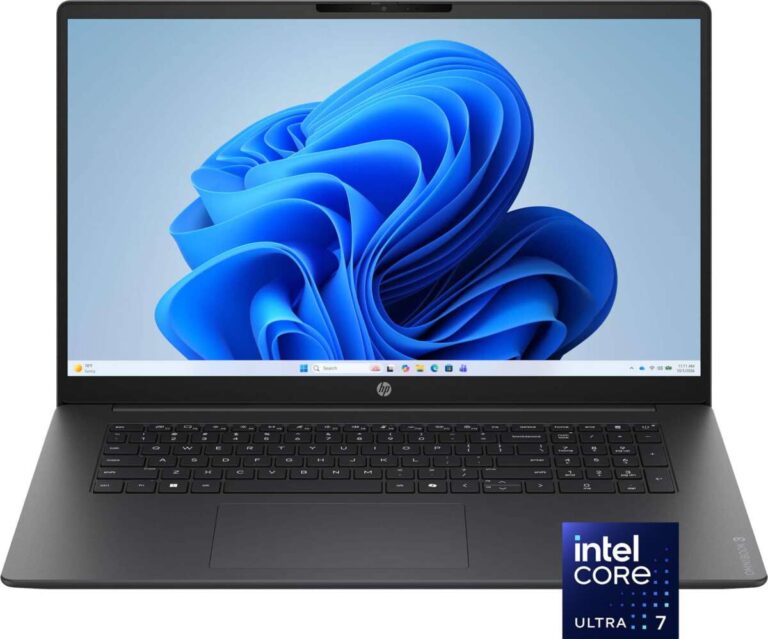
For most computer science students in the United States, the best laptop is a 14-inch model with 16GB of RAM, a 512GB SSD, a modern processor, strong battery life, and a comfortable keyboard. A current MacBook Air is a strong choice for students who are comfortable with macOS. A business-class Windows laptop, such as a Lenovo ThinkPad, Dell Latitude, or HP EliteBook, is usually better for students who need Windows or Linux compatibility.
There is no single best laptop for every computer science major. The right choice depends on your courses, programming tools, budget, operating system needs, and whether you will run virtual machines, Android emulators, game engines, or machine-learning software.
This guide explains what to buy, what specifications matter, and which trade-offs deserve your attention before you spend your money.
Quick answer: the best laptop for most computer science students
A strong general-purpose configuration looks like this:
- Processor: Apple silicon or a recent Intel Core Ultra, AMD Ryzen 5/7, or equivalent processor
- Memory: 16GB minimum; 32GB if you use virtual machines or large development tools
- Storage: 512GB SSD minimum
- Screen: 13 to 15 inches, with a comfortable resolution and good brightness
- Battery: Enough for a full class day under normal use
- Operating system: macOS, Windows, or Linux based on your course requirements
- Ports: At least two USB-C ports; USB-A, HDMI, or an SD card slot can also be useful
- Weight: About 3 to 4.5 pounds for regular campus use
Best overall direction: Choose a MacBook Air with 16GB of memory if your classes support macOS and you do not need Windows-only software. Choose a business-class Windows laptop if your program uses Windows tools, requires Linux dual-booting, or depends on x86-based virtual machines.
A laptop with these specifications should handle web development, Java, Python, C++, SQL, Git, code editors, data structures, and most undergraduate programming work.

What computer science students actually need in a laptop
Computer science coursework often looks light at first. Writing code in a text editor does not require a powerful computer. The workload changes when you add a compiler, browser tabs, database tools, Docker containers, an IDE, a local server, and a virtual machine.
The laptop should support four basic tasks well:
- Writing and testing code
- Running development tools
- Managing files, databases, and local servers
- Compiling projects without excessive heat or delay
CPU: prioritize modern performance, not just clock speed
A recent six-core or eight-core processor is more than enough for most undergraduate work. Modern Apple silicon, AMD Ryzen 5 and Ryzen 7 chips, Intel Core Ultra 5 and Core Ultra 7 chips, and similar processors can all work well.
The processor matters most when you:
- Compile large projects
- Run several programs at once
- Use Docker or virtual machines
- Build Android applications
- Process data locally
- Run game engines or graphics tools
Do not choose a laptop based only on a high advertised clock speed. CPU design, cooling, power limits, and sustained performance also affect real use. A thin laptop may feel fast for short tasks but slow down during long builds if it cannot manage heat.
RAM: 16GB is the practical starting point
16GB of RAM should be the minimum target for a new computer science laptop. It gives you room for an IDE, browser tabs, a local database, and several development tools.
Choose 32GB if you expect to:
- Run Windows or Linux inside a virtual machine
- Use Docker with several containers
- Work with Android Studio and an emulator
- Use Unreal Engine or Unity
- Analyze large datasets
- Keep the laptop for five years or more
Avoid buying an 8GB model unless your budget leaves no other option. Many modern laptops do not allow memory upgrades later. On Apple laptops and some thin Windows models, the memory is built into the system. The lower price today can become a limitation later.
Storage: a 512GB SSD is the sensible minimum
A solid-state drive, or SSD, makes the computer start quickly and helps applications load faster. A 512GB drive gives you room for the operating system, programming tools, course files, local repositories, and personal data.
A 256GB SSD can fill quickly after you install:
- Visual Studio or JetBrains software
- Android Studio
- Docker images
- Virtual machines
- Game engines
- Large datasets
- Multiple programming language toolchains
Choose 1TB if you store virtual machines, media files, large data sets, or many development projects locally. External SSDs can expand storage, but they are less convenient for files you use every day.
GPU: most students do not need a powerful graphics card
Integrated graphics are enough for standard programming, web development, databases, and many data science courses.
A dedicated NVIDIA or AMD graphics card becomes useful for:
- Game development
- 3D modeling
- Computer vision
- Local machine-learning experiments
- GPU programming
- CUDA-based coursework
A dedicated GPU adds weight, heat, fan noise, and cost. It can also reduce battery life. Do not pay for one unless your course or personal projects will use it.
Keyboard, screen, and battery life matter every day
Computer science students type for long periods. A firm keyboard with good key travel can matter more than a small CPU speed increase.
Look for:
- A comfortable keyboard
- A precise trackpad
- A screen that is easy to read indoors
- At least 1080p-class resolution
- A matte or low-glare finish when possible
- Enough brightness for classrooms and libraries
- A battery that can support several hours of mixed work
A 14-inch screen is a useful middle ground. It fits in most backpacks but gives more room than a small 13-inch laptop. A 15- or 16-inch laptop is better for split-screen coding, but it takes up more desk space and weighs more.

MacBook or Windows laptop for computer science?
The operating system can matter more than the brand. Check your department’s course pages before you buy, especially if the program lists required software.
Choose a MacBook when you want a quiet, portable Unix-based laptop
A MacBook Air with Apple silicon is a strong fit for students who value:
- Low weight
- Long battery life
- A quiet, fanless design
- A Unix-based terminal
- High build quality
- Strong performance for common development tasks
macOS includes a Unix-style environment that works well with tools such as Git, Python, SSH, and many web-development systems. Apple also provides official developer documentation for its platforms through Apple Developer.
A MacBook Air is usually enough for programming, web development, software design, and many data science tasks. Select at least 16GB of memory and 512GB of storage if you plan to keep it through college.
The main limitation is compatibility. Some older software, engineering tools, Windows-only programs, and x86-based virtual machines may require workarounds on Apple silicon. Check whether your classes require Visual Studio on Windows, CUDA, or a specific x86 Linux setup.
Choose Windows when your courses use Microsoft or Windows-only software
A Windows laptop is a flexible option for students who need:
- Visual Studio and .NET development
- Windows-only academic applications
- A broad selection of hardware
- Better compatibility with many engineering and business tools
- Easier access to NVIDIA graphics hardware
Windows also supports the Windows Subsystem for Linux, or WSL. Microsoft describes WSL as a way to run a GNU/Linux environment directly on Windows without a traditional virtual machine. Details and limitations can change, so check the current Microsoft WSL documentation.
Business laptops from Lenovo, Dell, and HP often provide better keyboards, repair options, and port selection than low-cost consumer models. Their appearance may be plain, but that can be an advantage on campus.
Choose Linux when Linux is central to your work
Linux can be an excellent choice if you already know how to manage it or your program uses it heavily. It is useful for:
- Systems programming
- Networking
- Server administration
- Operating-system courses
- Embedded development
- Open-source software work
Linux support depends on the exact laptop model. Check the manufacturer’s support pages and the documentation for your chosen distribution before installing it. Wi-Fi, fingerprint readers, graphics drivers, sleep behavior, and battery management can vary by hardware.
For a first-year student who has never used Linux, buying a laptop with good Windows support and using WSL or a virtual machine may be less stressful than making Linux your only operating system.

Best laptop types by student profile
The best choice changes when the student’s workload changes. Use the categories below instead of choosing by brand name alone.
| Student profile | Recommended configuration | Why it fits | Main limitation |
|---|---|---|---|
| General computer science major | 16GB RAM, 512GB SSD, modern CPU | Handles coding, browsers, databases, and IDEs | May struggle with heavy local AI or 3D work |
| Web or software development student | 16GB RAM, 512GB SSD, strong keyboard | Good for editors, Git, browsers, and local servers | High-end graphics are unnecessary |
| Data science student | 16GB or 32GB RAM, 512GB or 1TB SSD | Better for notebooks, data tools, and local analysis | Large models may need cloud computing |
| AI or machine-learning student | 32GB RAM, 1TB SSD, NVIDIA GPU when required | Supports local GPU tools and larger experiments | More expensive, heavy, and less portable |
| Game development student | 32GB RAM, dedicated GPU, 1TB SSD | Supports Unity, Unreal Engine, and 3D assets | Shorter battery life and more fan noise |
| Systems or Linux student | 16GB or 32GB RAM, 512GB SSD, Linux-friendly hardware | Supports containers, compilers, and Linux tools | Hardware compatibility requires checking |
| Student on a tight budget | 16GB RAM, 512GB SSD, recent mid-range CPU | Avoids the biggest performance bottlenecks | May have a weaker screen or build |
| Remote or commuting student | 16GB RAM, 512GB SSD, long battery life | Easier to carry and use away from outlets | May offer fewer ports |
Best overall: a balanced 14-inch laptop
For most students, a 14-inch laptop with 16GB of RAM and a 512GB SSD offers the best balance. It is portable enough for class but large enough for code, documentation, and a terminal window.
Examples include:
- A MacBook Air with Apple silicon
- A Lenovo ThinkPad with a recent AMD or Intel processor
- A Dell Latitude or comparable business laptop
- An HP EliteBook or similar professional model
These are examples of product families, not a claim that every configuration is equally good. A laptop with 8GB of RAM or a 256GB SSD may not provide the same experience as a better-equipped version of the same model.
Best budget choice: buy memory and storage before luxury features
When money is limited, prioritize components in this order:
- 16GB of RAM
- 512GB SSD
- A recent mid-range processor
- A reliable keyboard and display
- Battery life
- Extra features such as a high-refresh-rate screen
A cheaper laptop with 16GB of RAM can be more useful for programming than a premium laptop with 8GB. Refurbished business laptops can also offer good value, but check the battery condition, return policy, warranty, charger, and operating-system license.
Best for AI, game development, and graphics
Students working with AI or 3D graphics may need more than a typical programming laptop. A dedicated NVIDIA GPU can be important for CUDA-based software and local model training.
Before buying, check the course or tool requirements for:
- GPU model and VRAM
- CUDA support
- Operating-system support
- RAM capacity
- Power adapter size
- Cooling requirements
Cloud platforms may be more practical for large machine-learning projects. A powerful laptop can run small experiments, but it does not replace a dedicated workstation or cloud GPU for large models.

How much should you spend on a computer science laptop?
In the United States, the useful budget depends on whether you are buying new, refurbished, or used. Prices change often, so compare the exact configuration rather than relying on a model name.
A practical budget framework is:
- Under $600: Possible, but inspect the RAM, SSD, screen, and processor carefully
- $600–$1,000: Often enough for general computer science coursework
- $1,000–$1,500: More choice, better displays, stronger build quality, and longer useful life
- Above $1,500: Usually justified for game development, local AI, large virtual machines, or premium portability
A simple way to estimate value is to divide the purchase price by the years you expect to use it.
For example, a hypothetical $1,200 laptop used for four years costs about $300 per year, before repairs or accessories. A $700 laptop that needs replacement after two years costs about $350 per year. This calculation is not a guarantee, but it shows why a slightly better configuration may be cheaper over the full college period.
Also budget for:
- A protective sleeve
- A USB-C charger or spare charger
- An external SSD
- A USB-C hub
- A monitor for a dorm or home desk
- Extended warranty coverage, if it offers useful repair protection
Do not pay for an extended warranty without reading its coverage, exclusions, repair process, and accidental-damage terms.
Compatibility checks before you buy
Compatibility problems are more frustrating than slow performance. Check the following before ordering.
Confirm your department’s software list
Look at your school’s course pages or contact the department. Search for requirements involving:
- Visual Studio
- Xcode
- MATLAB
- SolidWorks
- AutoCAD
- Android Studio
- Docker
- Linux
- CUDA
- VirtualBox or VMware
- Specific database systems
A general “computer science laptop” guide cannot know the requirements of every U.S. college. A software list from your department is more useful than a generic recommendation.
Check processor architecture
Most Windows laptops use x86 processors from Intel or AMD. Apple silicon uses the ARM architecture.
ARM laptops can run many common tools well, but some software may need translation or may not support the platform fully. This matters most for:
- Older virtual machines
- Kernel-level tools
- Specialized engineering software
- Some Docker images
- Certain drivers
- CUDA workflows
Docker provides documentation about platform support and multi-platform images at docs.docker.com. Read the documentation for the exact image or tool you plan to use.
Check upgrade and repair options
Some laptops allow memory or storage upgrades. Others solder one or both components to the motherboard.
Before buying, confirm:
- Whether RAM is upgradeable
- Whether the SSD is replaceable
- Whether the battery can be serviced
- Whether parts are available
- Whether the manufacturer publishes repair guides
- How long the warranty lasts
A repairable laptop may be easier to keep for four years, even if it is not the thinnest option.

Common laptop-buying mistakes
The most common mistake is choosing a laptop by brand or appearance instead of workload.
Buying 8GB of RAM to save money
Eight gigabytes may work for basic coding, but it leaves less room for IDEs, browsers, Docker, and virtual machines. If the memory cannot be upgraded, the limitation will remain for the life of the laptop.
Choosing a Chromebook for a full computer science degree
A Chromebook can be useful for web-based tools and introductory programming. It may not support the desktop software, local virtual machines, or development environments required by an entire degree program.
A Chromebook is a safer choice only when your school confirms that browser-based tools are sufficient.
Paying for a gaming laptop you do not need
Gaming laptops often provide strong processors and GPUs, but they are usually heavier and louder. They may also need a large charger. If your coursework is mainly Java, Python, web development, and databases, integrated graphics are usually enough.
Ignoring the keyboard and display
Specifications do not show how comfortable a laptop is to use for six hours of coding. A poor keyboard, dim display, or unstable trackpad can affect daily work more than a small benchmark difference.
Visit a store when possible, or buy from a seller with a clear return policy.
Assuming every Mac or Windows laptop runs every tool
Operating systems and processor architectures have real limits. Confirm requirements for your courses before buying. If a class requires Windows-only software, do not assume that a virtual machine will provide a complete solution.
Using cloud storage as a substitute for backups
Cloud sync is not the same as a backup. Deleted or corrupted files may sync across devices. Keep important projects in a Git repository and maintain a separate backup of important personal files.

A practical laptop-buying checklist
Use this list when comparing two models:
- Does it have at least 16GB of RAM?
- Does it have at least a 512GB SSD?
- Is the processor recent enough for your expected workload?
- Does it support the operating system required by your courses?
- Can it run your IDE, database tools, containers, or virtual machines?
- Does it have a keyboard you can use comfortably?
- Is the display bright and clear enough for classrooms?
- Does it have the ports you need?
- Is the charger easy to carry?
- Can you repair or upgrade it?
- Does the warranty cover your location in the United States?
- Does the seller offer a reasonable return period?
- Is the battery condition clear if the laptop is refurbished?
- Does the price include the correct charger and operating system?
If two laptops meet the same requirements, choose the lighter one with the better keyboard, warranty, and repair options.
Frequently asked questions
Is a MacBook good for computer science students?
Yes, a MacBook can be an excellent choice for programming, web development, Unix-based tools, and many software courses. It may be a poor fit when a course requires Windows-only applications, CUDA, or software that does not support Apple silicon. Confirm your department’s requirements first.
Is 8GB RAM enough for computer science?
It can run basic editors and simple programs, but 8GB is not a strong choice for a new laptop. IDEs, browsers, Docker, Android Studio, and virtual machines can use memory quickly. Choose 16GB when possible, or 32GB for heavier workloads.
Do computer science students need a dedicated graphics card?
Most do not. Integrated graphics are enough for programming, databases, web development, and many data science classes. A dedicated GPU is useful for game development, 3D work, computer vision, and some machine-learning workloads.
Should a computer science student buy a gaming laptop?
Buy one if you need its dedicated GPU for games, 3D tools, or local AI work. Otherwise, a business laptop or MacBook Air may be easier to carry, quieter, and better for long classes.
Is a tablet enough for computer science?
A tablet can be useful for reading, notes, and light code editing. It is usually not a complete replacement for a laptop because many courses require desktop IDEs, compilers, databases, containers, or virtual machines.
How long should a computer science laptop last?
A well-chosen laptop can often serve through a four-year degree, but battery capacity, software support, repairability, and workload affect its useful life. Buying 16GB or 32GB of RAM and a 512GB or 1TB SSD improves the chance that it will remain comfortable to use.
Final recommendation
For most U.S. computer science students, buy a 14-inch laptop with 16GB of RAM, a 512GB SSD, a modern processor, a strong keyboard, and reliable battery life.
Choose a MacBook Air with Apple silicon if you want a light Unix-based laptop and your courses support macOS. Choose a business-class Windows laptop if you need Windows-only software, Linux flexibility, upgrade options, or broad hardware compatibility. Choose a Windows laptop with 32GB of RAM and a dedicated NVIDIA GPU only when your AI, graphics, or game-development work requires it.
Before you buy, compare the exact configuration with your department’s software requirements. The best laptop is not the one with the most impressive specifications. It is the one that runs your required tools, fits your budget, and remains comfortable to carry and use throughout your degree.

Everett Ashford is a tech reviewer at mytechgrid.com specializing in SSDs, cameras, TVs, earbuds, headphones, and other consumer electronics. He provides honest, data-driven reviews based on hands-on testing and real-world performance analysis. Everett simplifies complex tech details to help readers make smart, confident buying decisions.