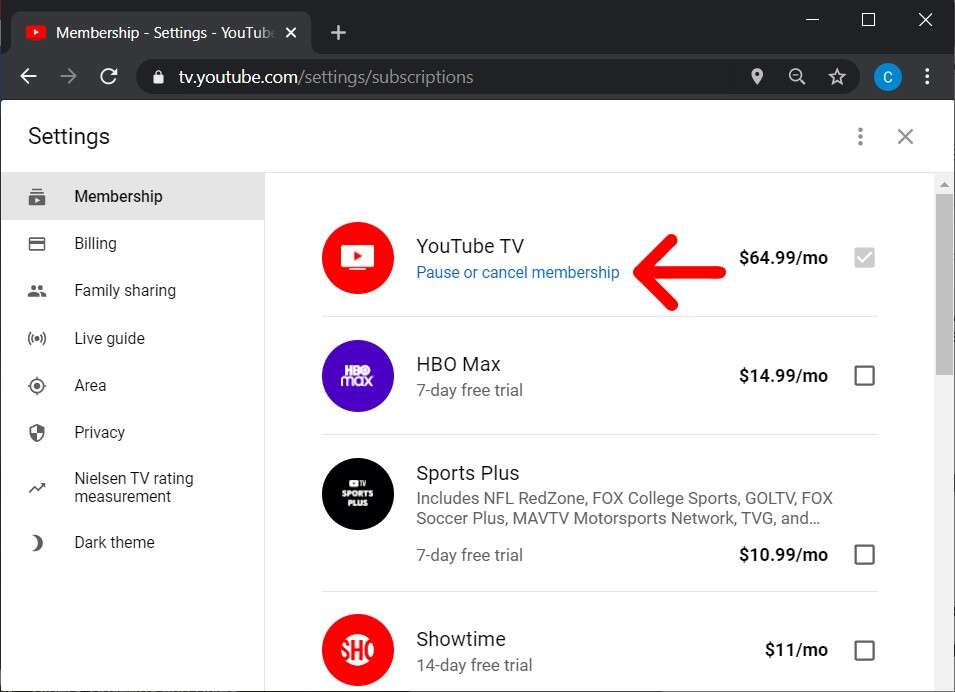
Cancel YouTube TV free trial by signing into your account and cancelling before the trial ends.
I’ve guided dozens of people through how to cancel YouTube TV free trial and avoid surprise charges. I know the exact screens, common pitfalls, and the differences between web, Android, and iOS cancellations. Read on for clear step-by-step instructions, troubleshooting tips, what happens to your DVR and family members, and real-life lessons to make cancelling quick and stress-free.
How to cancel YouTube TV free trial on the web
Follow these simple steps to cancel your YouTube TV free trial on a computer. Doing this before the trial ends prevents automatic billing. The steps are short and repeatable.
- Sign in to YouTube TV at tv.youtube.com using the account that started the free trial.
- Click your profile picture in the top-right corner.
- Select Settings.
- Choose Membership.
- Click Manage next to your membership.
- Select Cancel membership and follow the prompts to confirm.
After you confirm, you should see a cancellation confirmation on screen and receive an email. If the cancellation is during the trial, you will not be charged. Keep a screenshot or email for your records.
How to cancel YouTube TV free trial on Android and Google Play
If you started the trial through Google Play or the YouTube TV app on Android, follow these steps. Cancelling through Google Play ensures your subscription is stopped at the store level.
- Open the Google Play Store app on your Android device.
- Tap your profile icon, then Subscriptions.
- Find YouTube TV and tap Cancel subscription.
- Follow the on-screen instructions to finish cancellation.
If you can’t find YouTube TV under Subscriptions, sign into tv.youtube.com and try cancelling from the web. Always confirm you receive the cancellation email.
How to cancel YouTube TV free trial on iPhone and iPad (Apple subscriptions)
If you used the App Store or subscribed via Apple, you must cancel through Apple’s subscription system. Cancelling in the YouTube TV app may not stop App Store billing.
- Open Settings on your iPhone or iPad.
- Tap your name at the top, then Subscriptions.
- Select YouTube TV from the list.
- Tap Cancel Subscription and confirm.
After cancellation, check your Apple ID email for confirmation. If you still see charges, contact Apple Support and share your confirmation email.

Timing, billing, and what to expect when you cancel
Know when to cancel and what happens next so you don’t get surprised.
- Cancel before the trial end to avoid charges. Free trial lengths vary, so check your trial end date in Membership.
- If you cancel during the free trial, you typically lose access immediately and you won’t be billed.
- If you cancel after the free trial and during a paid period, you usually keep access until the end of the billing cycle.
- Refunds are uncommon for past billing periods, but support can review special cases.
Always record the date and keep confirmation emails. I once missed a trial end by a day; having a screenshot helped secure a refund after contacting support.
What happens to DVR, library, and family sharing after canceling
Cancelling affects saved content and family access. Here’s what to expect.
- Cloud DVR access ends when your membership ends, and recordings may become inaccessible.
- Library and saved shows may not be retained indefinitely. Policies can change, so rejoining quickly gives the best chance to restore content.
- Family group managers should note that family members lose access if the manager cancels the subscription.
- If you’re part of someone else’s plan, ask the manager to cancel or remove you.
If you value recordings, export a list of saved shows or note critical titles before cancelling.
Troubleshooting common problems when cancelling
Here are quick fixes for the most common issues.
- I can’t find Cancel: Make sure you’re signed into the right Google account and try tv.youtube.com/settings.
- I was charged despite cancelling: Check the cancellation confirmation email and contact support with timestamps.
- Subscribed via Apple/Google and web cancel didn’t work: Cancel at the store (Apple ID or Google Play) instead of the YouTube TV web page.
- No confirmation email: Check spam folder and your account’s email address for typos; take a screenshot of the on-screen confirmation.
If problems persist, use YouTube TV Help chat or phone support and have your account email ready.

Tips, best practices, and mistakes to avoid
These quick tips will save time and money when you cancel.
- Put a calendar reminder 1 day before your trial ends so you can cancel on time.
- Take a screenshot of the cancellation confirmation and email it to yourself.
- Check which account started the free trial; many people have multiple Google accounts.
- If you plan to return later, note the shows you recorded and family group structure.
- Don’t assume canceling the app on your phone cancels billing—always confirm in subscriptions.
I learned to always set trial-end reminders after I lost a trial once. That small habit saved me a bundle.

Frequently Asked Questions of how to cancel youtube tv free trial
How do I cancel my YouTube TV free trial without getting charged?
Cancel before the trial end by signing into tv.youtube.com, going to Settings > Membership > Manage > Cancel. Make sure you get a confirmation email to prove cancellation.
Will I lose my DVR recordings immediately after cancelling the free trial?
If you cancel during the free trial, you usually lose access immediately. Recorded content access typically ends with membership cancellation, though policies can vary.
I subscribed through Apple—can I cancel on the YouTube TV website?
No. If your subscription is billed through Apple, cancel via your Apple ID subscriptions in iPhone Settings or App Store > Subscriptions.
Can I get a refund if I forget to cancel and get charged?
Refunds are not guaranteed. Contact support, provide your confirmation and account info, and explain the situation; sometimes refunds are issued on a case-by-case basis.
How do I know when my free trial ends?
Find the trial end date in YouTube TV under Settings > Membership. You’ll also get reminder emails before billing starts if enabled.
Can someone else in my family cancel my YouTube TV free trial?
Only the account that started the subscription or the payment owner can cancel. Family group members cannot cancel the manager’s subscription.
What if I don’t see the cancel option?
Confirm you’re logged into the account that holds the subscription and try cancelling via Google Play or Apple subscriptions if you used those stores.
Conclusion
Canceling a YouTube TV free trial is quick if you know where to look and how you signed up. Follow the web or mobile steps, confirm cancellation with an email, and set reminders to avoid surprise charges. Take action now: check your account, cancel if needed, and save the confirmation. If you found this guide helpful, leave a comment or subscribe for more clear, practical streaming tips.

Jamie Lee is a seasoned tech analyst and writer at MyTechGrid.com, known for making the rapidly evolving world of technology accessible to all. Jamie’s work focuses on emerging technologies, product deep-dives, and industry trends—translating complex concepts into engaging, easy-to-understand content. When not researching the latest breakthroughs, Jamie enjoys exploring new tools, testing gadgets, and helping readers navigate the digital world with confidence.