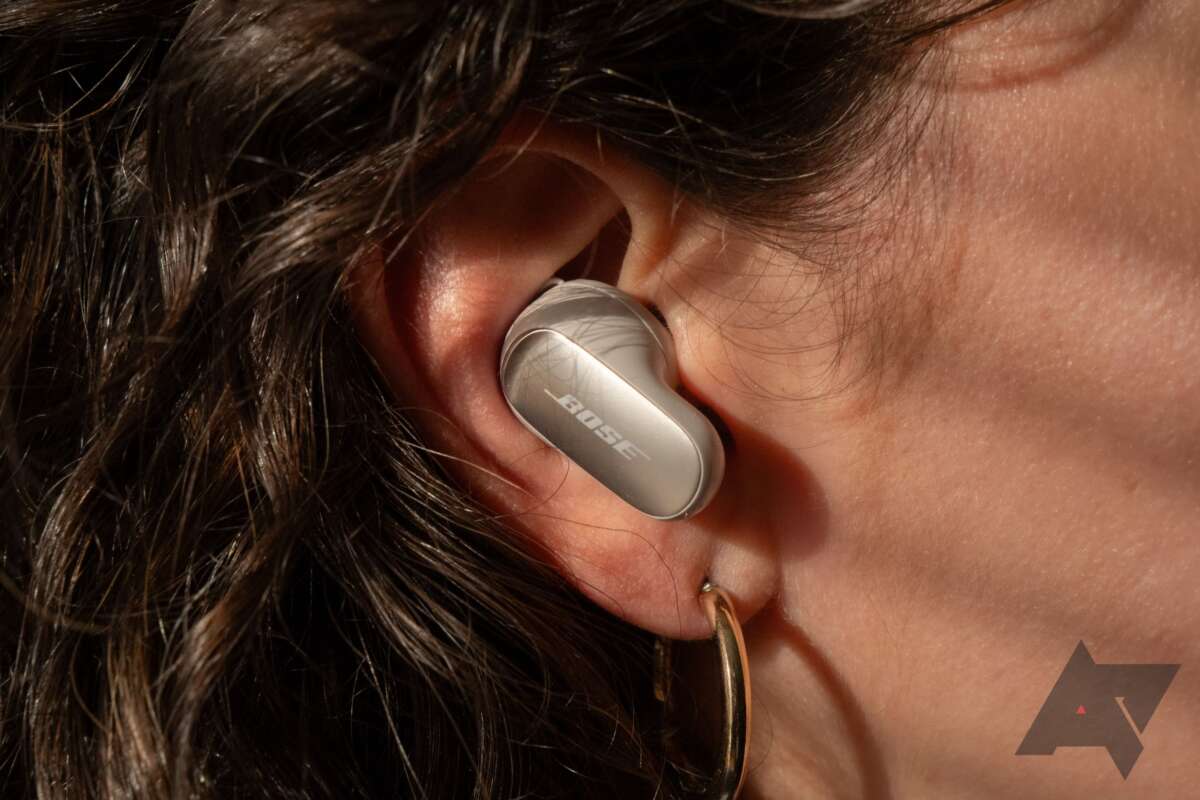
Pair your Bose earbuds via Bluetooth in your laptop’s settings, then choose them as the audio device.
I’ve paired Bose earbuds with dozens of laptops in work and at home. I’ll walk you through how to connect Bose earbuds to laptop with clear, step-by-step instructions for Windows and macOS. You’ll also get troubleshooting fixes, codec and device tips, and real-world advice from my own testing so you can get reliable audio fast.

Why connecting Bose earbuds to a laptop matters
Good wireless audio changes how you work, learn, and enjoy media. Knowing how to connect Bose earbuds to laptop gives you better calls, clearer music, and less desk clutter. It also avoids delays and connection drops that ruin a meeting or a movie.
Benefits of connecting Bose earbuds to laptop
- Hands-free calls that sound clear
- Better privacy in shared spaces
- Reduced cable clutter and more freedom
- Access to laptop audio apps, meeting tools, and games
Limitations to know
- Bluetooth range is limited to about 30 feet in ideal conditions
- Some laptops need driver updates or a Bluetooth dongle
- Audio quality may vary depending on codec and laptop support
Before you start: quick checklist
Make sure these basics are ready before you try to pair. It will save time and frustration.
Essential checklist
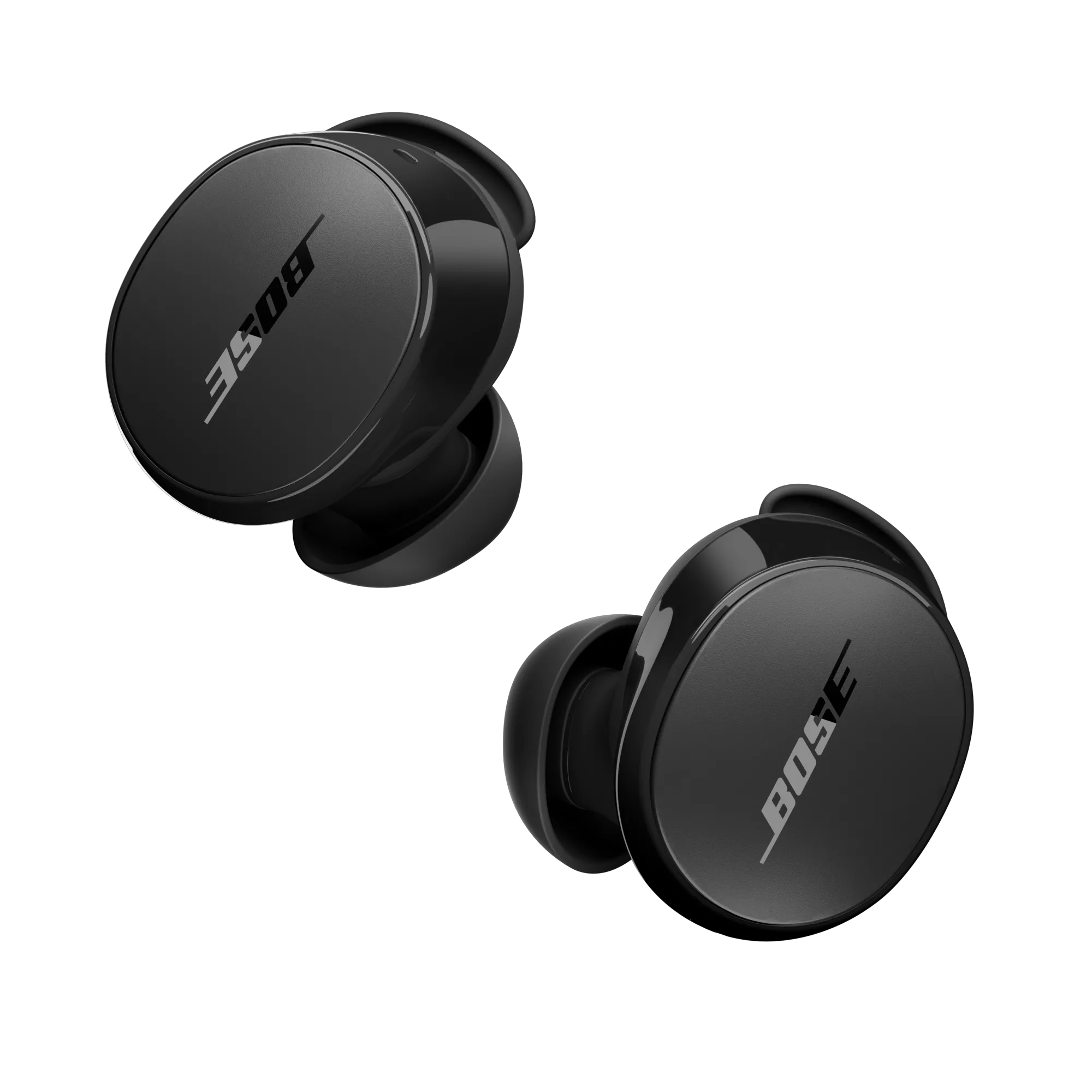
- Fully charged Bose earbuds and charging case
- Laptop with Bluetooth turned on
- Close other Bluetooth devices to avoid interference
- Updated OS on your laptop (Windows or macOS)
- Latest Bose app or firmware (optional but helpful)
Why the checklist helps
- Charging prevents mid-pair failures
- Updated software improves compatibility
- Fewer nearby devices lowers pairing errors
How to connect Bose earbuds to laptop (Windows 10 and Windows 11)
Follow these steps for Windows laptops. They work for most Bose wireless earbuds models.
Step-by-step pairing (Windows)
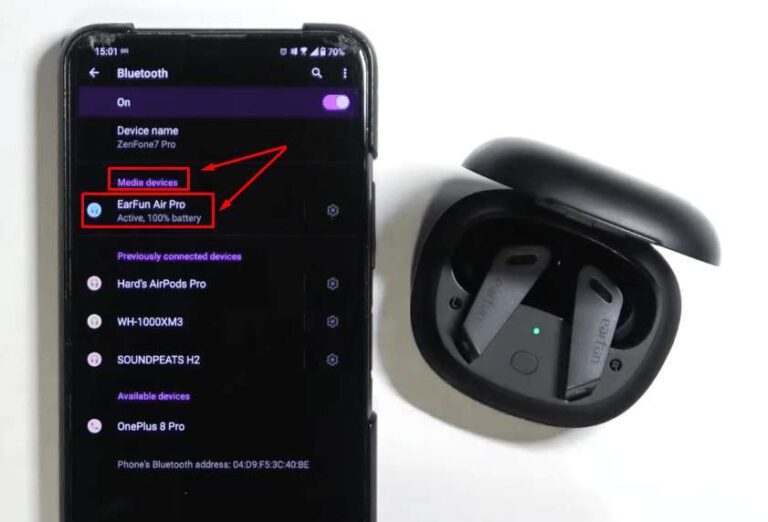
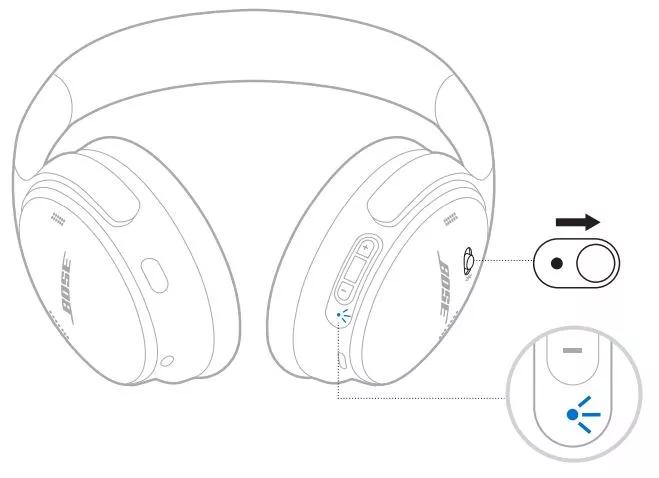
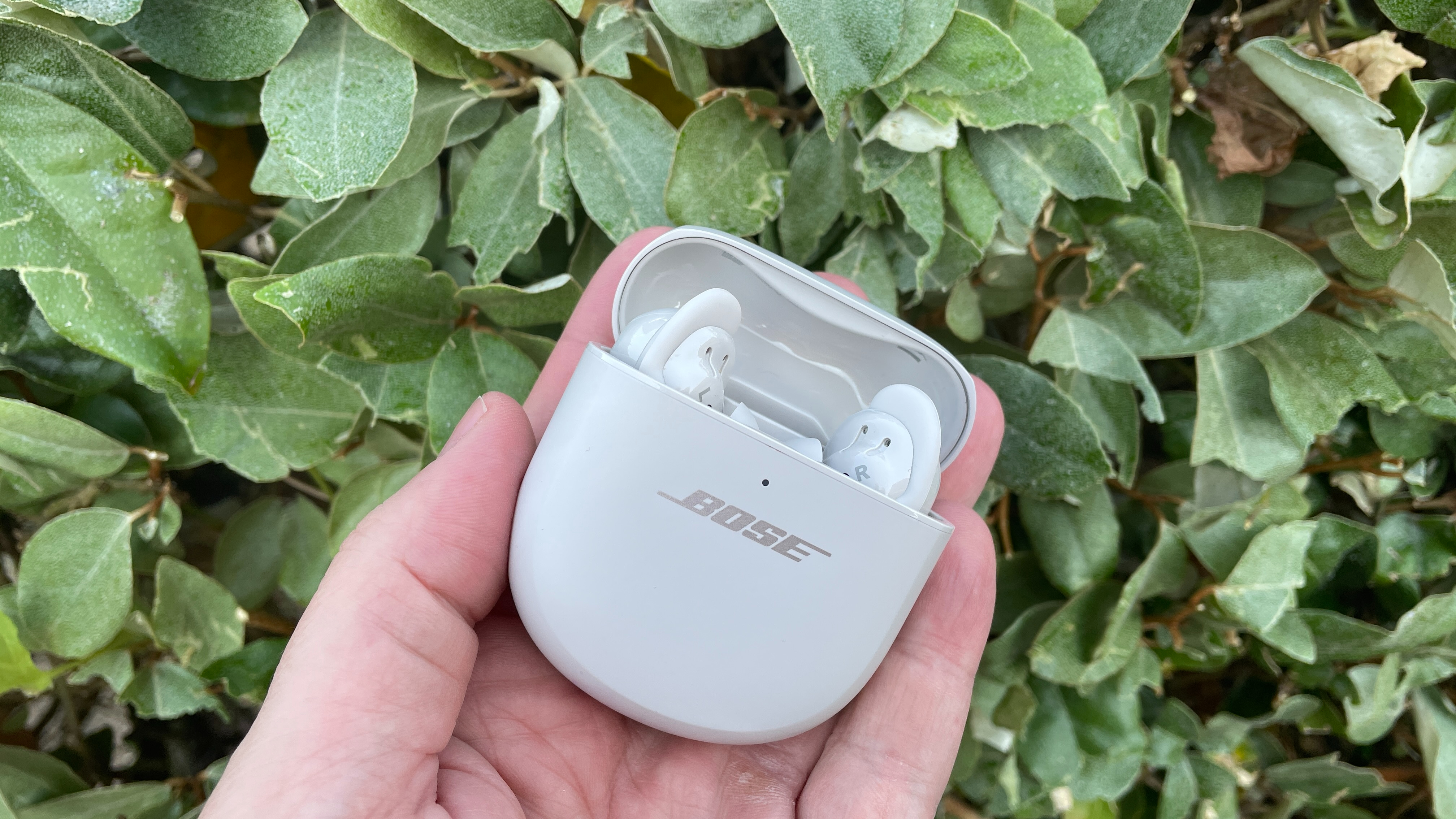
- Put your Bose earbuds in pairing mode. Most models enter pairing when you open the case or press and hold the power/Bluetooth button until you see a blinking light.
- On the laptop, open Settings. Go to Devices > Bluetooth & other devices.
- Turn Bluetooth on if it’s off.
- Click Add Bluetooth or other device. Choose Bluetooth.
- Wait for your Bose earbuds to appear in the list. Click the name to pair.
- Confirm any prompts. Select the earbuds as the default audio device if needed.
Set the earbuds as the default audio device
- Click the speaker icon on the taskbar.
- Click the arrow next to the volume slider.
- Choose your Bose earbuds under Output.
If your laptop can’t find the earbuds
- Restart Bluetooth on the laptop.
- Turn the earbuds off and on and re-enter pairing mode.
- Move the earbuds and laptop closer together.
How to connect Bose earbuds to laptop for multiple audio profiles
- Windows may list the earbuds twice: hands-free and stereo.
- Choose Stereo for music and Hands-Free for calls.
How to connect Bose earbuds to laptop (macOS)
macOS pairing is simple and reliable. These steps apply to most MacBooks and Mac desktops.
Step-by-step pairing (macOS)
- Put the Bose earbuds in pairing mode. The LED should blink.
- On the Mac, open System Settings or System Preferences.
- Go to Bluetooth.
- Ensure Bluetooth is on. Wait for your earbuds to appear.
- Click Connect beside the earbuds’ name.
- After pairing, select the earbuds in Sound settings for output and input.
Switch audio during calls or apps
- Open Control Center or Sound settings.
- Select the Bose earbuds for output and input as needed.
If macOS won’t connect
- Remove the earbuds from Bluetooth list and pair again.
- Reset the earbuds following Bose’s reset steps (detailed below).
Troubleshooting: common problems and fixes
Here are quick fixes for the most common issues when you try to connect Bose earbuds to laptop.
Issue: Earbuds don’t appear in Bluetooth list
- Make sure earbuds are in pairing mode.
- Turn Bluetooth off and on.
- Restart laptop and earbuds.
- Try another device to verify the earbuds are discoverable.
Issue: Audio plays but mic won’t work
- Choose Hands-Free profile in sound settings.
- Update laptop Bluetooth drivers.
- Some laptops have poor headset support; use the laptop mic if needed.
Issue: Low audio quality or lag
- Switch to the Stereo profile for music.
- Close apps that use Bluetooth heavily.
- Use a USB Bluetooth adapter that supports newer codecs.
Issue: Intermittent disconnects
- Move away from Wi-Fi routers or microwaves.
- Keep both earbuds charged and close to the laptop.
- Update firmware and OS.
Resetting Bose earbuds (general method)
- Place earbuds in the case and close the lid.
- Wait 30 seconds and remove them.
- Press and hold the power/Bluetooth button for 10 seconds.
- Re-enter pairing mode and try again.
If none of this works
- Try pairing to a phone to check earbuds.
- Consider a Bluetooth USB dongle for older laptops.
- Contact Bose support for firmware or hardware checks.
Advanced tips: codecs, adapters, and multi-device use
Once basic pairing works, use these tips to improve quality and convenience.
About codecs and sound quality
- Laptops support various Bluetooth codecs. Higher-quality codecs can improve audio.
- Most Bose earbuds use SBC and AAC; performance depends on laptop support.
When to use a USB Bluetooth adapter
- Older laptops may have outdated Bluetooth.
- A modern adapter can add better range and codec support.
- Choose adapters with Bluetooth 5.0 or later for best results.
Multi-device pairing and switching
- Many Bose earbuds remember multiple devices.
- Disconnect on one device before connecting another if auto-switching doesn’t work.
- Some models support fast switching via the Bose app.
Battery life and power tips
- Use mono mode if you want longer single-ear use.
- Turn off headphones between sessions to save battery.
- Keep firmware up to date to improve battery management.
My experience: real tests, mistakes, and practical tips
I’ve paired Bose earbuds with office laptops, old models, and gaming setups. Here’s what I learned.
What worked well
- macOS pairing was almost always seamless.
- Using the Bose app helped fix occasional firmware quirks.
- A small USB Bluetooth adapter revived an older laptop’s audio quality.
Mistakes I made
- Trying to pair too many devices at once created conflicts.
- Ignoring driver updates caused intermittent mic failures.
- Using the hands-free profile for music led to poor sound.
Hands-on tips from my tests
- Always check the sound output after pairing.
- If a meeting app uses the wrong mic, set it in the app’s audio settings.
- Keep a spare adapter in your bag if you travel with an old laptop.

Related concepts and extra context
Understanding a few related topics helps keep your setup smooth.
Bluetooth range and interference
- Physical walls and other devices reduce range.
- Simple moves, like closing a laptop lid less or moving the router, help.
Driver and OS updates
- Windows Update and macOS updates can include Bluetooth fixes.
- Bluetooth stack updates improve connection stability.
When wired is better
- For zero latency, use a wired headset for gaming or critical audio work.
- Some Bose models offer a wired adapter or cable for low-latency needs.
Frequently Asked Questions of how to connect bose earbuds to laptop
How do I put my Bose earbuds in pairing mode?
Most Bose earbuds enter pairing mode when you open the case or hold the power/Bluetooth button until LEDs blink. Check the model guide for exact steps.
My laptop sees the earbuds but audio won’t play. What should I do?
Select the earbuds as the output device in your laptop’s sound settings. If that fails, reconnect the device or restart the audio app.
Can I use the microphone on Bose earbuds for Zoom or Teams?
Yes. Choose the Bose earbuds as the input device in the meeting app. If the mic quality is low, switch profiles or update drivers.
What if my laptop has no Bluetooth?
Use a USB Bluetooth adapter that supports modern Bluetooth versions. Plug in the adapter, install drivers if needed, and pair as usual.
Why does my audio lag while watching videos with Bose earbuds?
Audio lag can be caused by codec mismatch or interference. Use the stereo profile for media and try a Bluetooth adapter if the laptop is old.
Conclusion
You now have a clear, step-by-step path for how to connect Bose earbuds to laptop on both Windows and macOS. Pairing is usually quick, but the checklist, troubleshooting steps, and tips I shared will save you time. Try the steps now, update drivers, and test a call or song to confirm everything works. If you found this helpful, try subscribing, leave a comment, or share your setup experience so others can learn too.

Everett Ashford is a tech reviewer at mytechgrid.com specializing in SSDs, cameras, TVs, earbuds, headphones, and other consumer electronics. He provides honest, data-driven reviews based on hands-on testing and real-world performance analysis. Everett simplifies complex tech details to help readers make smart, confident buying decisions.