Open Bluetooth on your laptop, put the Samsung earbuds in pairing mode, then add and connect them.
I’ve helped dozens of people pair their earbuds to laptops, and I’ll walk you through how to connect my samsung earbuds to my laptop step by step. This guide covers Windows and macOS, pairing tips, codec notes, troubleshooting, and real-world fixes I’ve used. Read on to get a fast, reliable connection and better audio on calls and media.
Why pairing matters and what to expect
Connecting wireless earbuds to a laptop brings freedom from cables and clearer personal audio for meetings, music, and videos. When you learn how to connect my samsung earbuds to my laptop, you get stable sound, low latency when possible, and the ability to switch between devices smoothly. Expect a quick Bluetooth setup, occasional driver or profile hiccups, and fixes that usually take just a few minutes.
Check compatibility and prepare your devices
Before you start, confirm these basics so pairing goes smoothly.
- Laptop Bluetooth support. Verify your laptop has Bluetooth built-in or use a USB Bluetooth adapter.
- Battery level. Charge your Samsung earbuds and the laptop if battery is low.
- Software updates. Install the latest OS updates on Windows or macOS and update Bluetooth drivers if possible.
- Close other Bluetooth connections. Turn off or disconnect nearby devices that might interfere.
Preparing ahead makes the process of how to connect my samsung earbuds to my laptop faster and less frustrating.

Step-by-step: Pair via Bluetooth on Windows 10 and 11
Follow these easy steps to pair Samsung earbuds with most Windows laptops.
- Turn on Bluetooth on your laptop. Go to Settings > Devices > Bluetooth & other devices and toggle Bluetooth on.
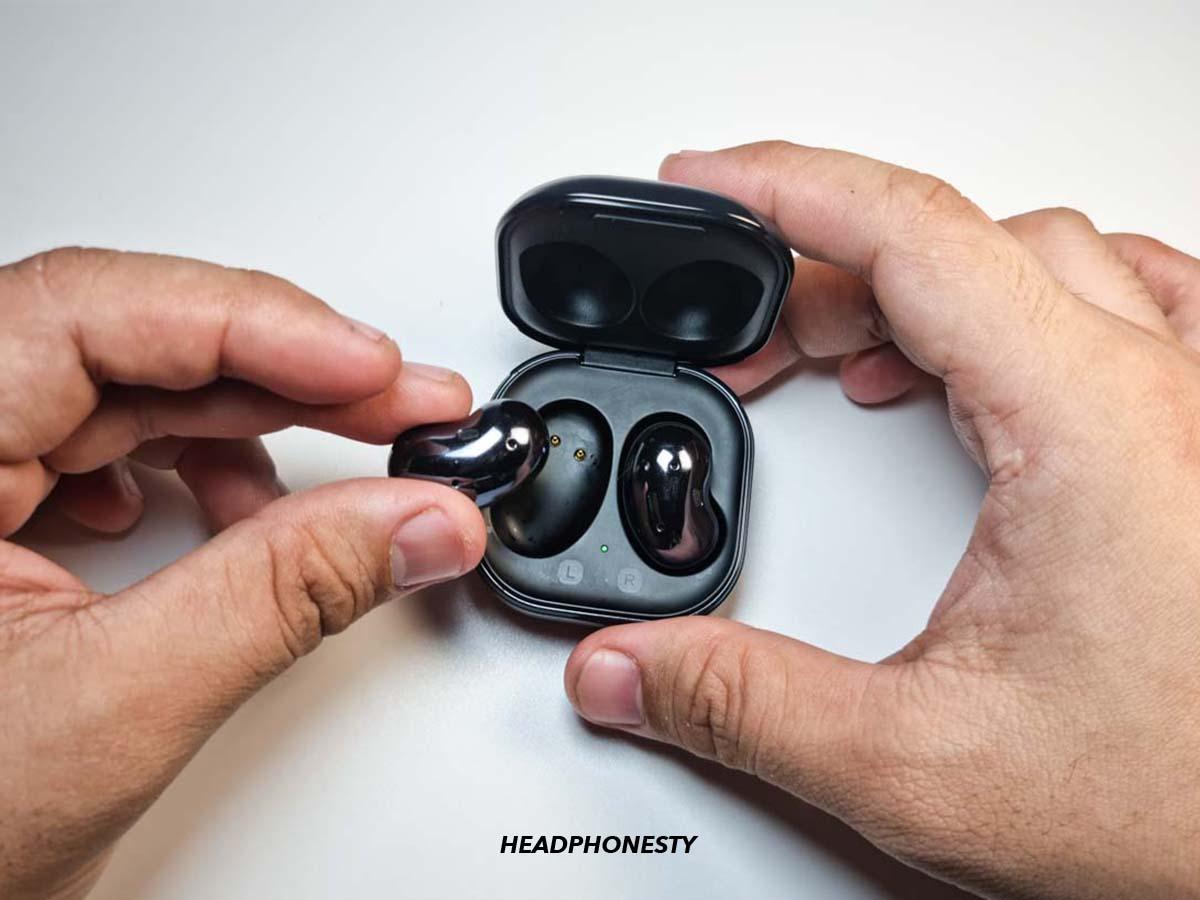
- Put your earbuds in pairing mode. For most Samsung models, open the charging case near the laptop or press and hold the touch area on both earbuds for about 3–5 seconds until the LED flashes or you hear a voice prompt.
- Add a device. Click Add Bluetooth or other device > Bluetooth. Wait for your earbuds to appear in the list.
- Select your earbuds and connect. Click the listed name (for example, Galaxy Buds) and allow the pairing to complete.
- Check audio profile. Click the speaker icon, then the audio device to ensure the laptop uses the Stereo (A2DP) profile for best sound.
If the earbuds don’t appear, toggle Bluetooth off and on, restart the laptop, or remove old pairings. These steps are core to how to connect my samsung earbuds to my laptop on Windows systems.
Step-by-step: Pair via Bluetooth on macOS
Pairing on a Mac is straightforward and fast.
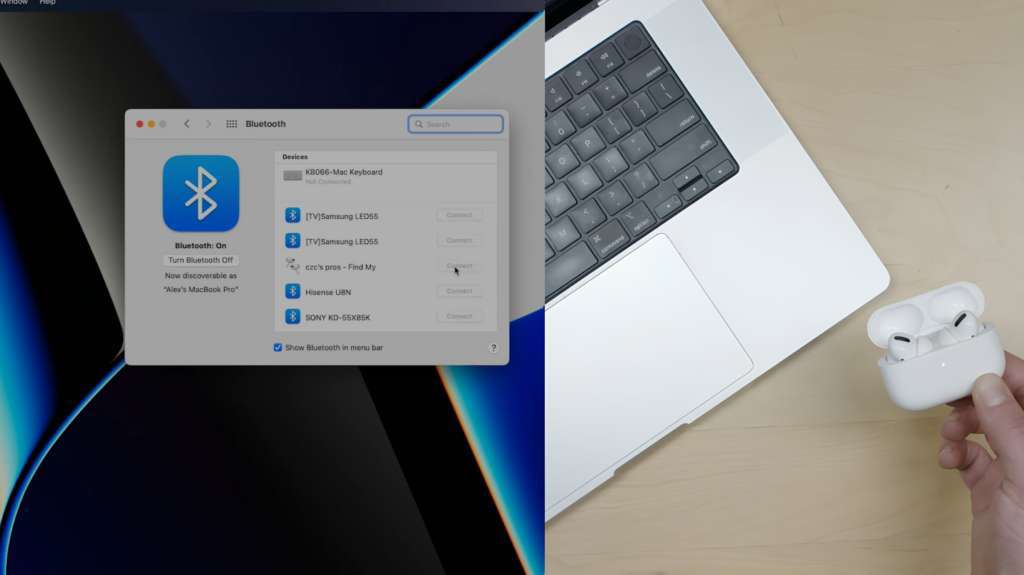
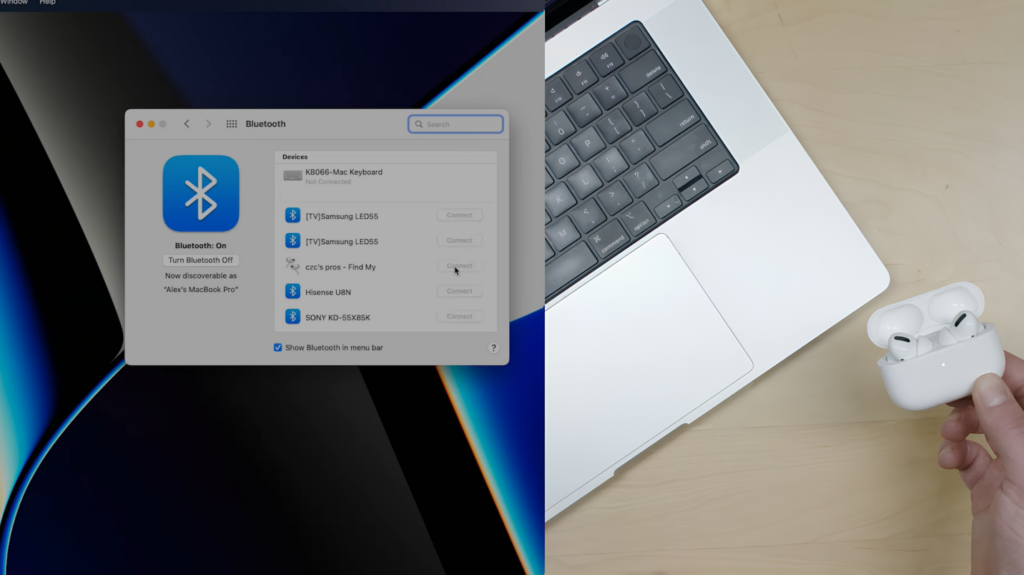
- Open Bluetooth settings. Click the Apple menu > System Settings (System Preferences) > Bluetooth.
- Activate pairing mode on the earbuds. Open the case or press and hold the touch sensors until pairing starts.
- Connect from your Mac. When the earbuds show up under Devices, click Connect.
- Confirm audio. Choose the earbuds in Sound settings to use them for output and input if supported.
If the earbuds disconnect after sleep or update, toggle Bluetooth or re-pair. This method explains how to connect my samsung earbuds to my laptop using macOS.

Troubleshooting common issues
If pairing fails or sound is poor, use these fixes I’ve tested in real scenarios.
- Device not found. Move earbuds and laptop closer. Turn Bluetooth off for 10 seconds then on again. Restart both devices.
- One earbud not working. Reset the earbuds using the Galaxy Wearable app or by holding the touch sensor while in the case. Re-pair both buds.
- Stutters or dropouts. Remove wireless interference by turning off other Bluetooth devices. Try a different USB port for Bluetooth dongles.
- Microphone not working in calls. Switch the audio profile to Hands-Free in Sound settings, or reinstall Bluetooth drivers on Windows.
- Laptop lacks Bluetooth. Use a USB Bluetooth adapter compatible with Windows/macOS and the required codecs.
These tips solve most problems when you try to connect my samsung earbuds to my laptop.
Codec, latency, and audio quality notes
Understanding codecs helps you get the best sound for music and calls.
- SBC: Universal codec. Works on all devices but is basic.
- AAC: Often used on Apple devices; gives better sound with macOS and iPhones.
- Samsung Scalable or aptX: May appear with Samsung phones and some Bluetooth adapters. Offers improved quality and lower latency.
Windows laptops typically default to SBC or aptX depending on the adapter. Macs prefer AAC. Knowing this helps when you tune settings after you connect my samsung earbuds to my laptop.
Advanced options and the Galaxy Wearable app
You can get more features by using Samsung’s app on a phone to update firmware and change settings.
- Firmware updates. Use the Galaxy Wearable app on a Samsung phone or Android device to keep earbuds current.
- Equalizer and touch controls. Customize fit and controls in the app for better call and music behavior.
- Reset option. Factory reset in the app fixes persistent pairing problems.
Though the app runs on phones, updating firmware there often improves how to connect my samsung earbuds to my laptop afterward.
Using a USB Bluetooth adapter or wired workaround
If your laptop has no Bluetooth or poor Bluetooth performance, try these options.
- USB Bluetooth dongle. Plug a modern adapter that supports aptX or AAC into a USB port for improved range and codec support.
- USB-C Bluetooth transmitters. For newer laptops, a USB-C dongle can be a neat option.
- Wired solution. Most Samsung earbuds are Bluetooth-only; a direct wired plug is not possible. Instead, use a Bluetooth receiver with a 3.5mm output if you need a wired-like experience.
Choosing the right adapter can be the difference between a solid connection and repeat dropouts when learning how to connect my samsung earbuds to my laptop.
Personal experience and practical tips
I use Samsung earbuds with my laptop daily for work and calls. A few real lessons I learned:
- Keep the earbuds charged before long calls. Low battery causes disconnects and bugs.
- Re-pair after major OS updates. Windows updates sometimes change Bluetooth drivers.
- Use the Stereo profile for media, and switch to Hands-Free only when you need the mic. Hands-Free lowers audio quality for music.
- Label your earbuds in Bluetooth settings if multiple devices share similar names. It saves time.
These small steps saved me time in meetings and gave me more reliable audio when I needed it.
PAA-style quick questions
What if my laptop won’t find the earbuds?
- Turn Bluetooth off and on, reset the earbuds, and move the devices closer. Try re-pairing after restarting both devices.
Can I pair Samsung earbuds with two devices at once?
- Some Samsung earbuds support multi-point pairing, but behavior depends on model. Check your model specs or test switching between devices.
Do I need the Galaxy Wearable app to connect to a laptop?
- No. The app is useful for updates and settings, but initial pairing to a laptop uses standard Bluetooth controls.
Will Bluetooth adapters improve latency?
- A quality adapter with aptX Low Latency can reduce lag. Laptop OS and app support also affect perceived delay.
How long does pairing take?
- Most of the time pairing completes in under two minutes if both devices are ready and in range.
Frequently Asked Questions of how to connect my samsung earbuds to my laptop
How do I put my Samsung earbuds in pairing mode?
Most models enter pairing by opening the case near a device or by pressing and holding the touch sensors for several seconds until the LED flashes or a voice prompt sounds. Check your model manual for exact instructions.
Why does my laptop show the earbuds but won’t connect?
This often happens because of driver issues, blocked Bluetooth profiles, or a previously paired device taking priority. Restart Bluetooth, remove old pairings, and update drivers to fix it.
My audio stutters during video calls. What should I do?
Close other Bluetooth devices, move closer to the laptop, and use a USB Bluetooth adapter if built-in Bluetooth is weak. Also check the audio profile and choose Stereo for media or Hands-Free for calls.
Can I use the earbuds’ mic for Zoom or Teams on my laptop?
Yes, most Samsung earbuds provide a mic via the Hands-Free profile. Select the earbuds as both input and output in your meeting app’s audio settings.
What if my laptop does not have Bluetooth?
Buy a modern USB Bluetooth dongle that supports current codecs and plug it into your laptop. After installing drivers, follow the same pairing steps to connect your earbuds.
Conclusion
You can quickly enjoy wireless audio by learning how to connect my samsung earbuds to my laptop. Follow the step-by-step pairing guides for Windows or macOS, use the Galaxy Wearable app for firmware and settings, and apply the troubleshooting tips to solve common hiccups. Try a USB Bluetooth adapter if built-in Bluetooth is weak, and use the right audio profile for music or calls. Now go pair your earbuds, test a call or playlist, and leave a note below about what worked for you or what problem you solved next.

Everett Ashford is a tech reviewer at mytechgrid.com specializing in SSDs, cameras, TVs, earbuds, headphones, and other consumer electronics. He provides honest, data-driven reviews based on hands-on testing and real-world performance analysis. Everett simplifies complex tech details to help readers make smart, confident buying decisions.