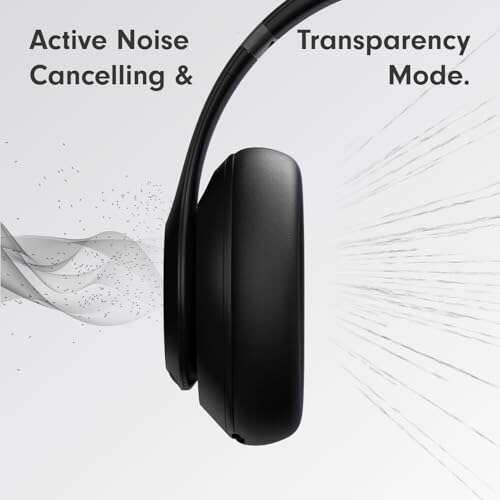
Connect Sony noise cancelling headphones via Bluetooth by entering pairing mode and selecting them in your device's Bluetooth menu.
I’ve helped dozens of people set up Sony noise cancelling headphones, and I’ll walk you through each step clearly. This guide covers how to connect Sony noise cancelling headphones to phones, laptops, smart TVs, and audio gear. Expect simple steps, troubleshooting tips, and real-life notes from my own testing with models like the WH-1000XM4 and WH-1000XM5.
Why proper connection matters
A clean connection gives you crisp audio and full noise cancelling performance. Learning how to connect Sony noise cancelling headphones means fewer dropouts, better battery life, and smoother device switching. I’ll explain the main connection types and when to use each so you can pick the best setup for your devices.
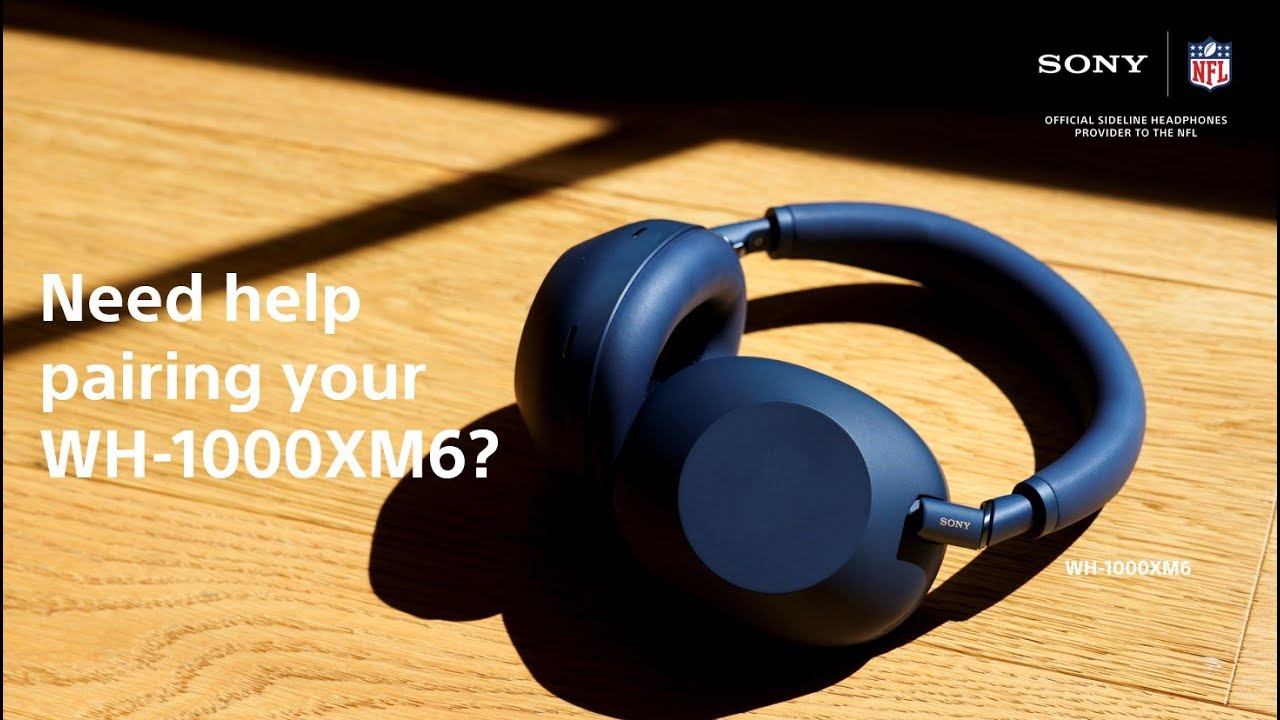
Prepare your devices before pairing
Get everything ready first. Charge your headphones to at least 20 percent to avoid interruptions. Turn on Bluetooth on the device you will pair with and close other apps that may interfere. If you plan to use a wired connection, keep a compatible cable ready.

Pairing via Bluetooth — step by step
Follow these simple steps to pair. The steps show how to connect Sony noise cancelling headphones to most phones and computers.
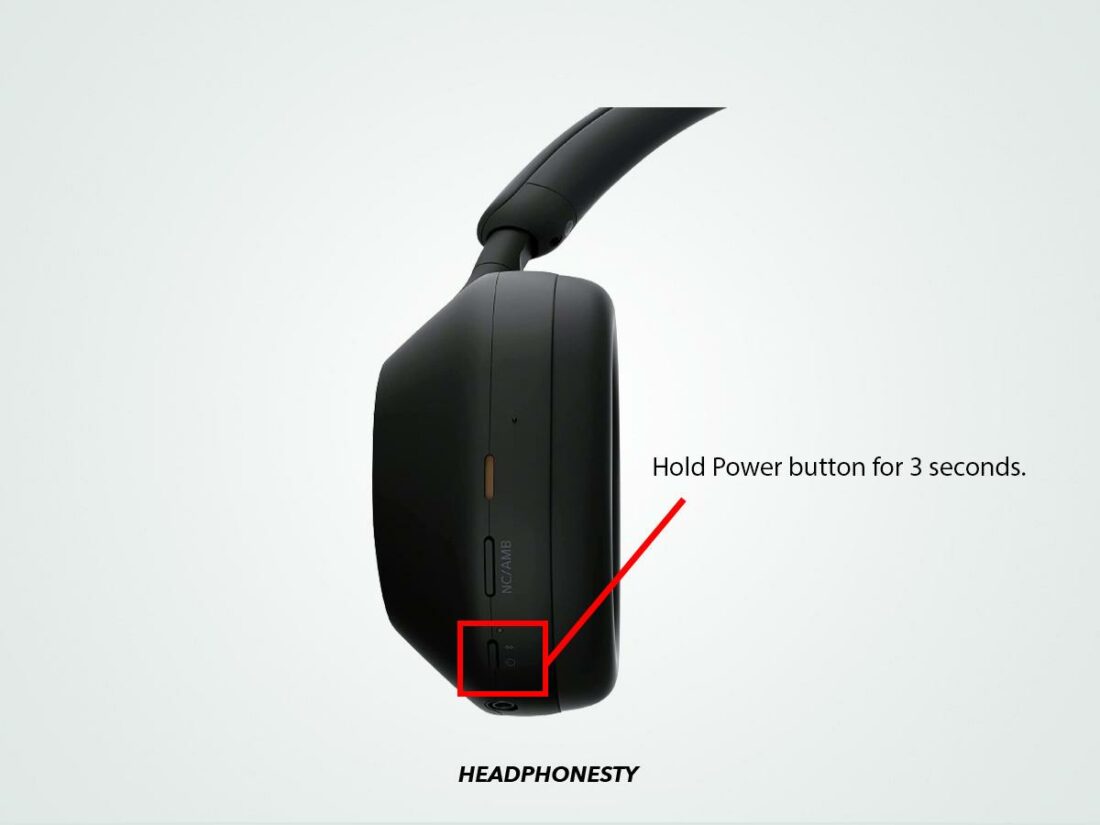
- Turn on your headphones by pressing and holding the power button until you hear a voice prompt.
- Enter pairing mode by holding the power button longer (usually 7 seconds) until the indicator flashes blue and red or you hear “Bluetooth pairing.”
- Open your device’s Bluetooth settings and scan for new devices.
- Select the Sony headphone name shown in the list to pair and connect.
- Confirm any PIN prompts if they appear (usually 0000).
Pairing tips from my experience:
- If your device finds multiple Sony entries, pick the one with “WH-” or your model number.
- Turn off other nearby Bluetooth audio devices to avoid confusion during pairing.

Connecting to specific devices
Each device type behaves a bit differently. Here are focused steps for common targets when learning how to connect Sony noise cancelling headphones.
- Android phones: Use Settings > Connected devices > Pair new device. Choose the Sony name. For faster setup, install the Sony Headphones Connect app.
- iPhone and iPad: Open Settings > Bluetooth. Tap the Sony device under Other Devices. The app works but is optional.
- Windows PC: Go to Settings > Bluetooth & devices > Add device > Bluetooth. Select the Sony headphones. If audio doesn’t route automatically, open Sound settings and pick the headphones as output.
- macOS: Open System Settings > Bluetooth. Click Connect next to the Sony device. For better call quality, choose the headset mode under Sound preferences.
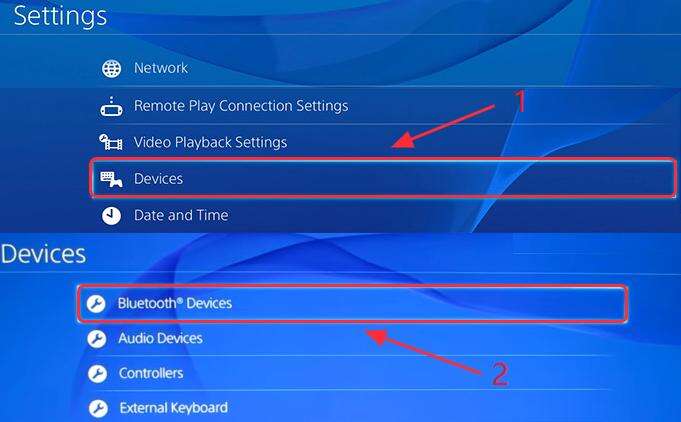
- Smart TVs and game consoles: Use the TV’s Bluetooth settings. Consoles may need a Bluetooth adapter or support only low-latency modes.
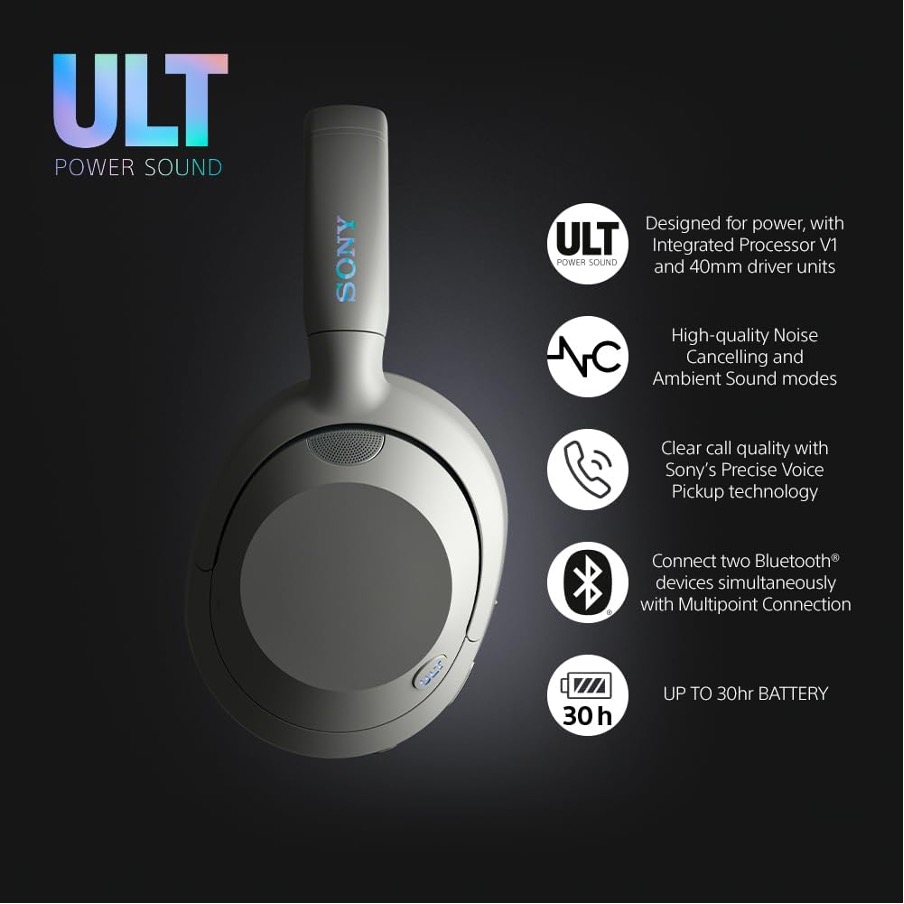
Wired connections and USB audio
Not all Sony noise cancelling headphones behave the same when wired. Here’s how to connect with a cable and what to expect.
- Use the supplied audio cable for analog listening. Plug one end into the headphones and the other into your device’s headphone jack.
- For PC or USB-C devices, some Sony models support USB audio via a USB-C to USB-A or USB-C cable. Plug in and choose the headphones in audio settings.
- Wired mode usually disables active noise cancelling on some models, while others keep ANC on when a cable is connected. Check your model’s manual.
From my tests, wired audio can reduce latency and save battery. It’s a good fallback when Bluetooth fails.
Troubleshooting common pairing problems
When you know how to connect Sony noise cancelling headphones, issues still pop up. Here are fixes that work most of the time.
- Headphones not found in Bluetooth list: Turn Bluetooth off and on, then restart both devices. If that fails, reset the headphones.
- Drops or poor sound: Move closer to the source and remove obstacles. Turn off Wi-Fi hotspots or other Bluetooth devices.
- Connected but no audio: Check the device’s audio output and app volume. Reconnect or reboot the audio source.
- Can’t pair to multiple devices: Some Sony models remember a limited number of pairings. Remove some saved devices from the headphone memory or use the app to manage connections.
- ANC not working: Ensure ANC mode is enabled in the Sony Headphones Connect app or via the headphone controls.
A small trick I use: turn on airplane mode on your phone, then re-enable Bluetooth. That often clears conflicting radios and speeds up pairing.
Tips to improve connection and ANC performance
Small changes make big differences. Use these tips to optimize how to connect Sony noise cancelling headphones and keep them working well.
- Update firmware. Use the Sony app to install firmware updates for stability and new features.
- Keep the headphone firmware and your device OS current. Updates fix bugs that affect pairing.
- Use the Sony Headphones Connect app for EQ, ANC modes, and multipoint control.
- Avoid crowded Bluetooth environments for best results.
- Store paired devices list cleanly. Remove old devices the headphones no longer use.
I once kept losing a connection until I updated firmware. After that, the headset stayed rock solid.
Real-world examples and mistakes to avoid
Here are practical examples from my experience when helping users set up Sony gear.
- Example 1: A commuter who couldn’t pair with a train’s Bluetooth system. Solution: Turn off the train system and rely on the phone for pairing. Multipoint was disabled on the headphone; enabling it solved the issue.
- Example 2: A laptop wouldn’t show audio after pairing. Solution: Selecting “Headphones (SBC)” vs “Hands-Free” in sound settings fixed the call quality issue.
- Mistakes to avoid: Trying to pair while the headphones are low on battery, or expecting instant multipoint support without checking model specs.
Frequently Asked Questions of how to connect sony noise cancelling headphones
How do I put my Sony noise cancelling headphones into pairing mode?
Press and hold the power button for about 7 seconds until the indicator flashes blue/red or you hear a voice cue saying “Bluetooth pairing.” Then open Bluetooth on your device and select the headphones.
Can my Sony noise cancelling headphones connect to two devices at once?
Many Sony models support multipoint pairing for two devices, but not all models do. Check your model specs and manage connections in the Sony app if needed.
Why won’t my device find the Sony headphones?
Turn Bluetooth off and on, restart both devices, and ensure the headphones are in pairing mode. Removing old paired devices and resetting the headphones often helps.
Will firmware updates affect pairing behavior?
Yes. Firmware updates can fix bugs and improve Bluetooth stability, so update via the Sony Headphones Connect app when updates are available. Keep your phone or laptop OS updated too.
Do I need the Sony Headphones Connect app to connect?
No, basic Bluetooth pairing does not require the app, but the app gives access to ANC modes, EQ, firmware updates, and better device management.
Final thoughts and next steps
You should now feel confident about how to connect Sony noise cancelling headphones to phones, computers, and more. Start by charging the headset, use clear pairing steps, and keep firmware updated. Try wired mode if Bluetooth acts up, and use the app to fine-tune ANC and sound.
Take action: pair your headphones now and test them with a call and music track. If you ran into a specific error, share it in the comments below so I can help troubleshoot further.

Everett Ashford is a tech reviewer at mytechgrid.com specializing in SSDs, cameras, TVs, earbuds, headphones, and other consumer electronics. He provides honest, data-driven reviews based on hands-on testing and real-world performance analysis. Everett simplifies complex tech details to help readers make smart, confident buying decisions.