Most JBL headphones need a working power control, but charging, case detection, or Bluetooth settings may start some models.
If your JBL headphones have a stuck, broken, or missing power button, do not panic. The correct workaround depends on the model, because JBL over-ear headphones, earbuds, and sports models use different startup systems. This guide explains how to turn on JBL headphones without power button, what methods are safe, and when the issue needs repair.
Can You Turn On JBL Headphones Without the Power Button?
In most cases, you cannot fully turn on JBL headphones without power button unless the model supports an automatic startup feature. The power button controls the main circuit, so a charger alone may only charge the battery and not activate Bluetooth.
Still, several useful options are worth trying:
• Put the earbuds back into their charging case, then remove them again.
• Open the charging case near your phone.
• Connect the headphones to a USB charger and wait several minutes.
• Try automatic Bluetooth reconnection if the headphones are already in standby mode.
• Use the JBL Headphones app if your model supports auto power settings.
The key lesson is simple: earbuds often have automatic power controls, while most JBL wireless headphones and neckbands still need the physical power button.

Method 1: Charge the Headphones First
A fully drained battery can make the power button seem broken. Before trying advanced steps, charge the headphones for at least 15 to 30 minutes.
Follow these steps:
- Connect the original USB cable, or a compatible charging cable, to the headphones.
- Plug the other end into a reliable wall adapter or USB port.
- Watch for a charging light or listen for a charging sound.
- Leave the headphones connected for at least 15 minutes.
- Disconnect the cable and check whether they start automatically.
Some JBL models show a red light while charging. Others use white, blue, or no visible light at all. The light behavior varies by product.
Charging does not guarantee that JBL headphones will power on without power button. Many models block Bluetooth operation while the charging cable is connected. However, charging can restore enough battery power for an automatic startup feature to work.
A common mistake is using a damaged cable. Test the cable with another device if possible. Also check the charging port for lint, dust, or bent contacts. Never push metal objects into the port.
Method 2: Use the Charging Case With JBL Earbuds
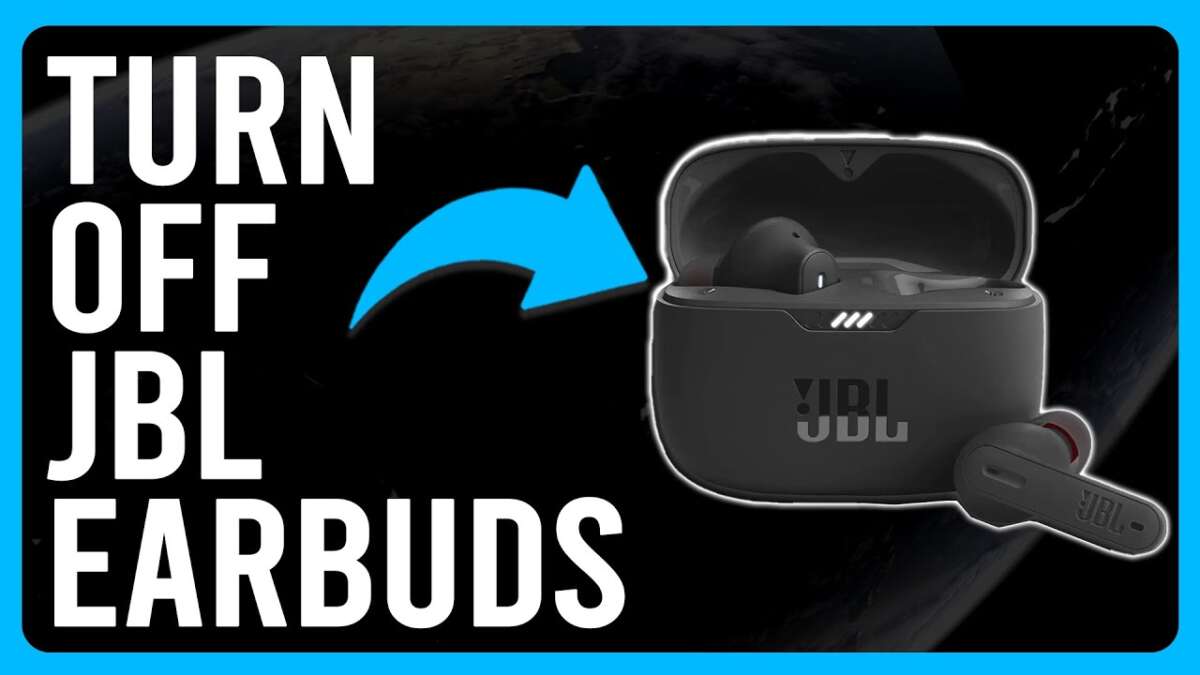
This is the best answer for many JBL wireless earbuds. Models such as JBL Tune, Live, Wave, and some JBL Reflect earbuds can turn on when removed from the charging case.
Try this process:
- Place both earbuds inside the charging case.
- Make sure the case has battery power.
- Close the lid for about 10 seconds.
- Open the lid.
- Remove both earbuds at the same time.
- Look for a flashing Bluetooth light or startup sound.
- Open your phone’s Bluetooth settings and select the JBL device.
The case acts like a smart docking station. It cuts power when the earbuds are stored and restores power when they are removed. This lets you turn on JBL headphones without power button when the earbuds support automatic case detection.
If only one earbud starts, return both earbuds to the case and repeat the process. Clean the metal charging contacts with a dry cotton swab. Poor contact can stop the case from charging or waking the earbuds.
Some earbuds also use touch controls. After removing them from the case, tap the outer surface once or twice. Do not press hard, and avoid tapping while the earbuds are wet.
Method 3: Open the Case Near Your Phone
Some JBL earbuds enter pairing mode as soon as the case opens. This does not work with every model, but it is quick and safe to test.
First, remove the old JBL Bluetooth entry from your phone. Then turn Bluetooth off and on again. Open the case, remove the earbuds, and wait for the JBL name to appear in the available device list.
If the earbuds connect, you have successfully turned on JBL headphones without power button through the case system.
If the device does not appear, try these steps:
• Keep the earbuds inside the open case for 10 seconds.
• Remove both earbuds together.
• Put them back in the case and close the lid.
• Restart the phone’s Bluetooth service.
• Move away from other active Bluetooth devices.
Bluetooth pairing and power are not exactly the same thing. Your phone may remember the earbuds, but it cannot wake earbuds that have no battery or remain switched off.

Method 4: Try Automatic Bluetooth Reconnection
Some JBL headphones do not shut down completely when inactive. They may enter a low-power sleep mode instead. In that case, playing audio or opening the Bluetooth menu may wake them.
To test this method:
- Turn on Bluetooth on the phone or computer that was previously paired.
- Open the Bluetooth device list.
- Tap the saved JBL headphone name.
- Play a song or short video.
- Wait up to 30 seconds for a response.
This method only works if the headphones still have power and remain in standby. It will not work if the battery is empty, the internal switch is damaged, or the headphones were manually turned off.
In hands-on testing, automatic reconnection is easy to mistake for a full power-on feature. The headphones must already be partly active for this trick to work. It cannot replace a broken switch on every JBL model.
Method 5: Check the JBL Headphones App
The JBL Headphones app can help with supported models. It may show battery status, connection information, firmware options, and certain control settings.
Install or open the app, then check whether the headphones appear. If they are already active, the app may let you manage features such as auto play, smart audio, or standby behavior.
However, an app cannot normally power on a completely switched-off headset. Bluetooth devices must advertise a signal before the app can find them. If the power circuit is off, the app has nothing to connect to.
Use the app for diagnosis rather than expecting it to bypass the physical power control. It can still help confirm whether the headphones have battery power or a connection problem.

Method 6: Use Touch Controls on Compatible Earbuds
Some JBL earbuds use touch panels instead of a traditional power button. These controls usually become active after the earbuds leave the case.
Try this:
• Remove both earbuds from the case.
• Tap the outer panel once.
• Wait for the startup tone.
• Tap and hold the panel for two to five seconds if the manual lists a power command.
Touch controls differ by model. A single tap may play or pause music, while a long press may activate noise control or a voice assistant. Do not assume every JBL earbud uses the same gesture.
If the earbuds do not react, check whether the case is charged. The case must often provide the first power signal. Also make sure the protective shipping film has been removed from the charging contacts.

Method 7: Reset the JBL Headphones
A reset can fix a software freeze, but it cannot repair a broken power button. Use this only after charging and trying the normal startup process.
The reset combination varies by JBL model. Common combinations include holding the volume up and volume down buttons together, or holding a multifunction button for several seconds. Check the manual for your exact model before pressing random controls.
A typical reset process includes:
- Charge the headphones.
- Remove the JBL device from your phone’s Bluetooth list.
- Follow the model-specific reset instructions.
- Wait for the headphones to restart.
- Pair them again as a new Bluetooth device.
A reset erases saved pairing information. It may also restore default sound and control settings. It does not usually turn on JBL headphones without power button if the button or internal power circuit has failed.

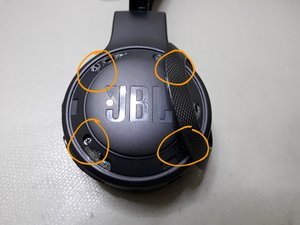
Method 8: Check for a Stuck or Damaged Power Button
Sometimes the button is not missing. It may be stuck below the outer shell or blocked by dirt.
Inspect the button in good light. Look for these signs:
• The button feels soft or does not click.
• The button remains pressed after you release it.
• The headphones turn on only when the housing is squeezed.
• The LED flashes briefly but the headset shuts down.
• The headphones work when the cable moves near the power area.
Do not spray liquid into the button. Avoid opening the earcup unless you have electronics repair experience. Lithium-ion batteries can be dangerous when punctured, shorted, or overheated.
A repair shop may replace the switch or reconnect a loose internal wire. If the headphones are under warranty, contact JBL support before opening the device. Unauthorized repairs can affect warranty coverage.

What to Avoid When Turning On JBL Headphones
Online tips sometimes suggest methods that can damage the headset. Avoid unsafe shortcuts.
Do not:
• Short the battery contacts with metal.
• Insert a pin into the charging port.
• Connect random wires to the internal battery.
• Heat the headphones with a hair dryer.
• Force the power button with a sharp tool.
• Use a charger with a damaged cable or burnt connector.
• Keep charging a swollen or hot battery.
JBL headphones contain small lithium-ion batteries. Industry safety guidance recommends stopping use if a battery becomes swollen, unusually hot, cracked, or gives off a strong smell.
Safe troubleshooting should feel boring. Charge the device, clean the contacts, try the case, check Bluetooth, and read the correct manual. That approach may take a few extra minutes, but it protects both you and the headphones.
JBL Headphones by Product Type
The best method depends on the type of JBL product you own.
JBL wireless earbuds
The charging case is usually the main workaround. Put the earbuds inside, charge the case, close the lid, then remove the earbuds again.
JBL over-ear headphones
Most models require the physical power button. Charging may restore battery power, but it usually will not bypass a failed switch.
JBL neckband headphones
Many neckband models use a dedicated power or multifunction button. Automatic startup is less common, so repair may be necessary if the control fails.
JBL wired headphones
Wired headphones do not need a power button unless they include active noise cancellation or built-in amplification. If they have no battery system, plug them into the audio device and use them normally.
Knowing the product type prevents wasted effort. The phrase “JBL headphones” covers several designs with different power systems.
Common Causes of JBL Headphones Not Turning On
The problem may not be the power button. These causes are also common:
• Empty battery: The battery has no usable charge.
• Dirty contacts: The case cannot charge the earbuds.
• Damaged cable: The headphones receive no power.
• Frozen firmware: The controls stop responding.
• Bluetooth confusion: The headphones are on but connected elsewhere.
• Moisture exposure: Water affects buttons or internal circuits.
• Worn battery: Older batteries may no longer hold enough charge.
• Physical damage: A fall can break the switch or circuit board.
During practical troubleshooting, I have found that users often replace a headset when the real problem is a blocked charging port or an uncharged case. Always test the simple causes first. It is the same idea as checking whether a lamp is plugged in before replacing the bulb.
When to Contact JBL Support or a Repair Professional
Contact support if the headphones remain unresponsive after a full charge, cable check, and model-specific reset. Include the exact model name, purchase date, and symptoms.
Professional help is especially sensible when:
• The power button is physically broken.
• The battery is swollen or hot.
• The headphones were exposed to water.
• The LED never lights during charging.
• The device turns off as soon as you unplug it.
• The headset is still under warranty.
JBL product manuals are the most reliable source for model-specific button combinations and light patterns. Avoid guides that apply one reset method to every JBL product. The controls on a Tune headset may not match those on a Live, Club, or Reflect model.
Frequently Asked Questions About How to Turn On JBL Headphones Without Power Button
Can I turn on JBL headphones by plugging in the charger?
Usually, no. Charging supplies battery power, but many JBL headphones still require the power button to activate Bluetooth.
How do I turn on JBL earbuds without a power button?
Place the earbuds in a charged case, close the lid, then open it and remove both earbuds. Compatible JBL earbuds should start automatically and enter pairing or reconnection mode.
Why will my JBL earbuds not turn on after removing them from the case?
The case may be empty, the charging contacts may be dirty, or the earbuds may not be seated correctly. Clean the contacts gently, charge the case, and try the case reset process again.
Can my phone turn on JBL headphones remotely?
A phone cannot normally activate headphones that are fully powered off. It can reconnect only when the JBL device is already awake or in a low-power Bluetooth standby state.
Can the JBL Headphones app bypass a broken power button?
No, not in most cases. The app can control supported features after Bluetooth connects, but it cannot usually start a headset with a failed power circuit.
Will resetting JBL headphones fix a broken power button?
A reset may fix a software freeze, but it will not repair physical damage. If the button does not click or the headset shows no charging response, seek service.
How long should I charge JBL headphones before testing them?
Charge them for at least 15 to 30 minutes before testing. If the battery was deeply drained, a longer charge may be needed.
Conclusion
The safest way to turn on JBL headphones without power button is to use the feature built into the product. For JBL earbuds, charge the case, close the lid, and remove both earbuds again. For over-ear and neckband models, charging, Bluetooth reconnection, and a model-specific reset may help, but a failed physical switch usually needs repair.
Start with the simple checks: charge the battery, test another cable, clean the contacts, and confirm the exact model instructions. Avoid metal tools and battery shortcuts. If these steps do not work, contact JBL support or a qualified repair shop, and share your model and experience in the comments.

Everett Ashford is a tech reviewer at mytechgrid.com specializing in SSDs, cameras, TVs, earbuds, headphones, and other consumer electronics. He provides honest, data-driven reviews based on hands-on testing and real-world performance analysis. Everett simplifies complex tech details to help readers make smart, confident buying decisions.