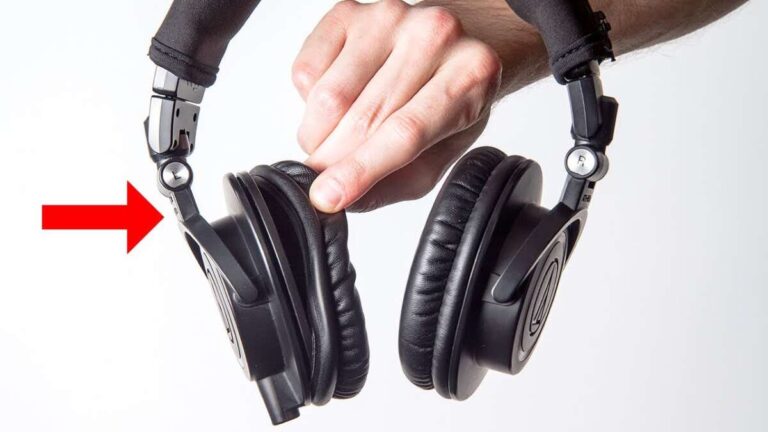
Connect wired headphones to an Xbox controller’s 3.5mm port, then adjust audio and chat settings on the console.
Learning how to connect wired headphones to Xbox is simple once you know which port, controller, and audio settings to use. This guide covers Xbox Series X|S, Xbox One, older controllers, chat problems, sound issues, and the best fixes from practical console setup experience.
What You Need to Connect Wired Headphones to Xbox
The easiest way to connect wired headphones to Xbox is through the 3.5mm headset jack on your Xbox Wireless Controller. This method sends game sound and voice chat through the headphones without extra software or a wireless receiver.
You need:
- An Xbox One or Xbox Series X|S console
- An Xbox Wireless Controller
- Wired headphones with a 3.5mm plug
- A working controller battery or rechargeable battery pack
Most modern gaming headsets use a single 3.5mm TRRS plug. This plug carries stereo sound and microphone audio through one connection. Regular wired earbuds can also work, but their microphone may not perform as well as a gaming headset.
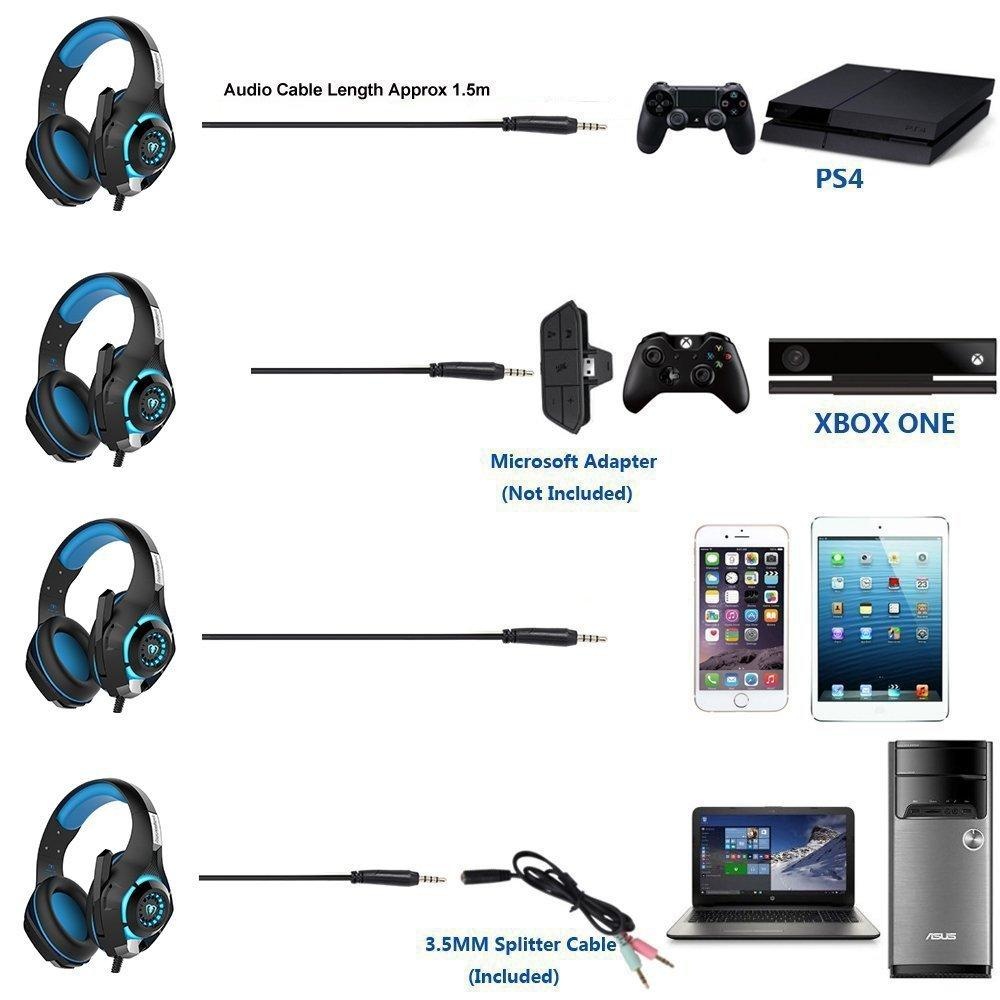
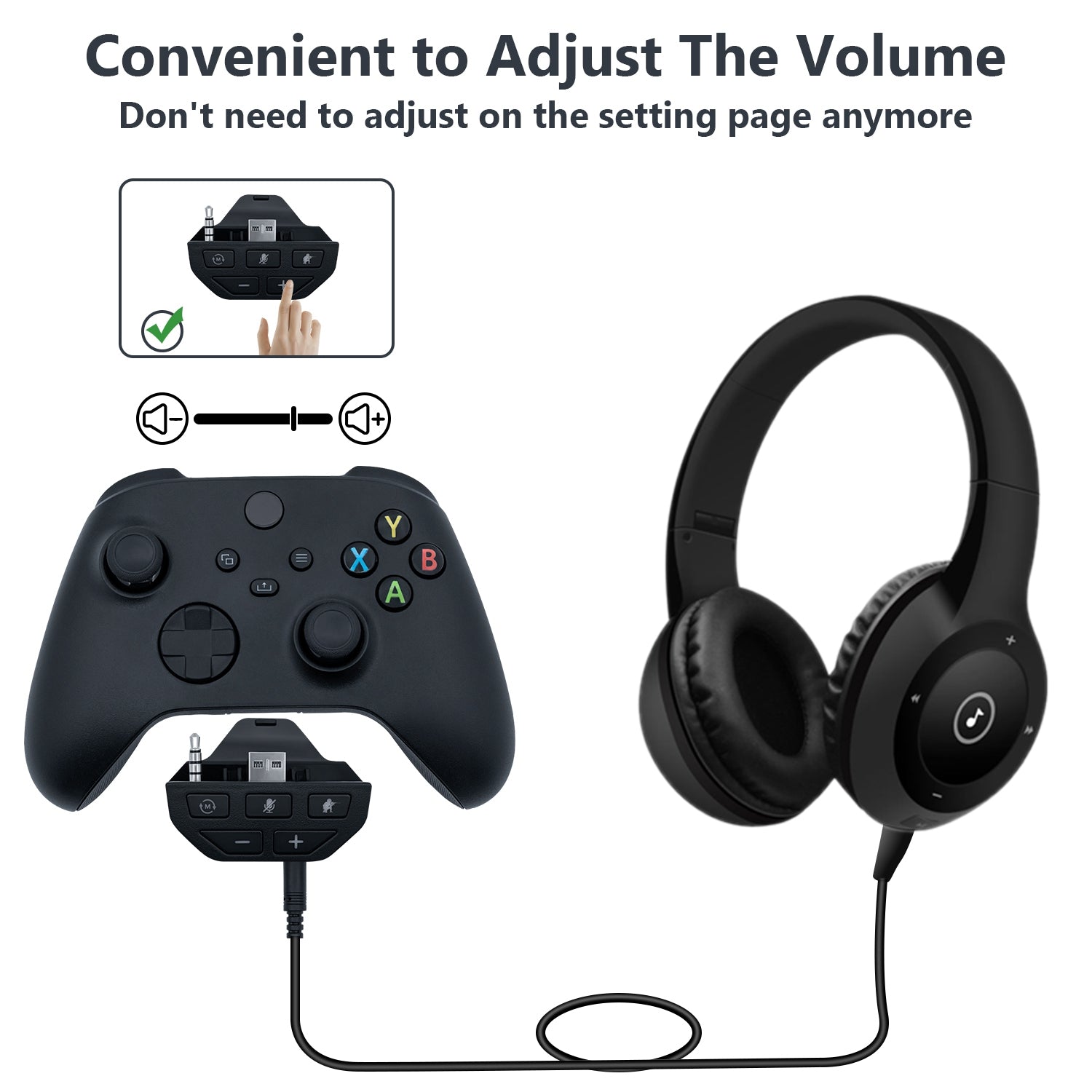
Older Xbox One controllers may not include a 3.5mm port. In that case, you need an Xbox One Stereo Headset Adapter. The adapter connects to the bottom of the controller and provides headset controls for volume, chat balance, and mute.
How to Connect Wired Headphones to Xbox
Follow these steps for a standard Xbox One or Xbox Series X|S controller.
- Turn on your Xbox console and controller.
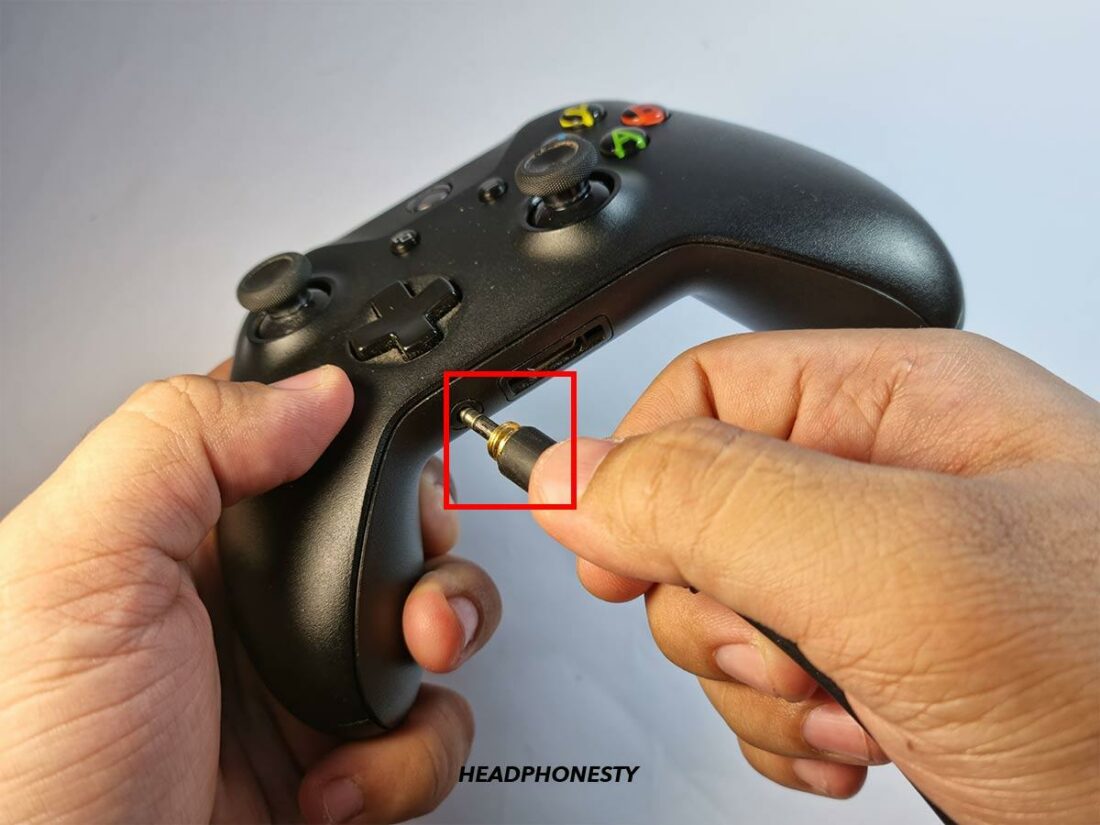
- Find the round 3.5mm headset port on the bottom of the controller.
- Insert the headphone plug firmly into the port.
- Put on the headphones and play a game or open an app with sound.
- Press the Xbox button on the controller.
- Open the audio and music controls.
- Set the headset volume to a comfortable level.
- Adjust the headset chat mixer if you want more game sound or voice chat.
- Check the microphone mute setting before joining a party.
That is how to connect wired headphones to Xbox in most cases. The console should detect the headset within a few seconds. You do not usually need to pair, download, or install anything.
If you hear sound from the TV instead, unplug the headset and reconnect it with a firm push. A loose plug can look connected while the controller still sends audio to the television. Also check that the headset mute switch is off.

How to Connect Wired Headphones to Xbox One
Xbox One supports wired headsets through compatible controllers and the Xbox One Stereo Headset Adapter. The exact process depends on the controller model.
Xbox One controller with a 3.5mm port
If your controller has a headset jack, plug the headphones directly into it. Then press the Xbox button and open the audio panel to change volume, chat balance, and microphone settings.
This is the fastest method for how to connect wired headphones to Xbox One. It also works with many third-party headsets that use a standard 3.5mm connector.
Xbox One controller without a 3.5mm port
Older Xbox One controllers need a stereo headset adapter. Connect the adapter to the wide port at the bottom of the controller. Plug your headphones into the adapter.
Use the adapter buttons to control:
- Headset volume
- Game and chat balance
- Microphone mute
If the adapter does not work, remove it and reconnect it while the console is on. Then update the controller through the Xbox Accessories app. A controller firmware update can fix headset detection and microphone problems.
How to Connect Wired Headphones to Xbox Series X|S
Xbox Series X and Series S controllers include a standard 3.5mm headset jack. This makes how to connect wired headphones to Xbox Series X|S almost identical to the process on newer Xbox One controllers.
Plug the headset into the controller, then press the Xbox button. Open the audio controls and confirm that the headset volume is turned up. The console should route game audio and party chat to the headphones automatically.
Xbox Series consoles support many wired headsets with:
- Stereo game audio
- In-game voice chat
- Xbox party chat
- Microphone mute
- Headset volume control
Some headsets advertise surround sound, Dolby Atmos, or Windows Sonic. These features may need separate console settings, an app, or a paid license. Basic stereo sound should work as soon as the headset is connected.
A useful tip is to connect the headset after turning on the controller. In my troubleshooting experience, this simple step helps the console detect headsets that do not appear right away. If the headset still fails, restart the controller and test another headset or controller.

Adjust Xbox Headset Audio and Chat Settings
Knowing how to connect wired headphones to Xbox is only half the setup. The right audio settings can make footsteps clearer and voice chat easier to understand.
Press the Xbox button, then open the audio and music controls. You should see options for headset volume, headset chat mixer, and microphone monitoring.
Headset volume
Increase or lower the total volume. Start at a moderate level. Very loud audio can cause discomfort and may make it harder to notice quiet sounds in a game.
Headset chat mixer
This control balances game sound against party or player chat.
- Move it toward game audio when chat is too loud.
- Move it toward chat when teammates are hard to hear.
- Leave it in the center for an even mix.
Mic monitoring
Mic monitoring lets you hear some of your own voice through the headset. It can help you avoid shouting, especially when the ear cups block outside sound.
Not every wired headset supports mic monitoring. If the option is unavailable or quiet, the headset may have a basic microphone or may not be fully compatible with the controller.
You can also review privacy and communication settings under Xbox account settings. Make sure voice communication is allowed and that you have not muted the player or party.

How to Connect Wired Headphones to Xbox for Party Chat
To use wired headphones for Xbox party chat, connect the headset to the controller and open or join a party through the Xbox Guide.
Check these items if party chat does not work:
- The headset plug is fully inserted.
- The headset microphone is not muted.
- The controller recognizes the headset.
- Party chat output is set to headset.
- Your privacy settings allow communication.
- Your internet connection is stable.
A headset with separate plugs for headphones and microphone may need a splitter. Xbox controllers generally use one combined 3.5mm TRRS connection. A standard PC headset with two separate plugs will not work correctly without the right adapter.
If friends hear an echo, lower the headset volume and move the microphone away from the ear cups. Echo can also happen when the television speakers remain on. Muting the TV is often the quickest fix.

Common Problems When Connecting Wired Headphones to Xbox
Even when you follow how to connect wired headphones to Xbox correctly, small hardware or setting problems can interrupt sound.
No sound in the headphones
Try these fixes:
- Unplug and reconnect the headset.
- Raise headset volume in the Xbox audio panel.
- Test another game or app.
- Restart the controller.
- Test the headphones on a phone or computer.
- Test another headset with the Xbox controller.
If the headphones work on another device but not on Xbox, the controller port may be dirty or damaged. Do not push debris deeper into the port. Use careful, dry cleaning and avoid liquids.
The microphone does not work
Make sure the headset has a microphone and uses a combined TRRS plug. Check the inline mute switch, then confirm that the microphone is enabled in party chat.
Some phone earbuds use wiring that is not fully compatible with Xbox controllers. They may play sound but fail to send microphone audio. A headset made for Xbox or a standard CTIA-compatible gaming headset is usually a safer choice.
The sound is too quiet
Raise both the Xbox headset volume and any volume control on the headset cable. Some headphones have high power needs and may sound quieter through a controller than through a computer or amplifier.
The headset disconnects
A damaged cable, loose plug, weak controller port, or low controller battery can cause brief audio cuts. Move the cable gently while testing. If the sound cuts out when the cable moves, replace the headset rather than forcing the connector.
Can You Use USB Wired Headphones With Xbox?
Many people ask how to connect wired headphones to Xbox through USB. The answer depends on the headset and Xbox compatibility.
A USB headset may not work simply by plugging it into the console. Xbox supports specific USB audio devices, and many computer-only USB headsets require drivers that Xbox consoles do not provide. Some licensed Xbox headsets work through USB, but their packaging should clearly list Xbox compatibility.
The controller’s 3.5mm port remains the most reliable wired option. It supports common analog headphones without requiring a USB driver or special setup.
You can also connect headphones to a compatible television or monitor. However, this may not provide Xbox party chat because the microphone signal usually does not travel from the controller to the display. For two-way game chat, connect the headset directly to the controller.
:max_bytes(150000):strip_icc()/PXL_20201108_004746486-e6e2c998b9704a258f0fa4878556501e.jpg)
How to Improve Wired Headphone Sound on Xbox
After learning how to connect wired headphones to Xbox, you can improve the experience with a few simple adjustments.
First, use a headset with a comfortable fit and a clear microphone. Comfort matters during long gaming sessions. A headset that presses hard on your ears can become distracting even if its sound quality is good.
Next, choose the right audio format. Stereo uncompressed audio is a dependable choice for basic wired headphones. Windows Sonic for Headphones can add a virtual spatial effect, while Dolby Atmos for Headphones may require a separate purchase or supported license.
Keep expectations realistic. Virtual surround sound can improve direction cues in some games, but it cannot turn basic stereo headphones into a true multi-speaker system. Game support, personal hearing, and headset quality all affect the result.
In practical testing, clean voice chat often matters more than extra bass. Heavy bass can hide reload sounds, footsteps, and spoken callouts. For competitive games, a balanced sound profile is often more useful than powerful low-end sound.
Safety and Comfort Tips for Xbox Headsets
Wired headphones are convenient, but safe use still matters. Keep the volume low enough that you can hear someone speaking nearby. If your ears ring or feel tired, take a break and reduce the volume.
Keep the cable behind your hands or along the side of your chair. A cable stretched across the floor can catch on a foot and pull the controller from your hands. It can also damage the headset port.
Clean the ear cups and cable from time to time. Do not use water inside the controller or headset port. Store the headphones in a safe place instead of leaving them under a chair or tangled around the console.
For children, use a volume-limited headset when possible. The World Health Organization recommends safe listening habits, including lower volume and regular breaks. Good habits help protect hearing during long gaming sessions.
Frequently Asked Questions About How to Connect Wired Headphones to Xbox
Can I plug wired headphones directly into an Xbox controller?
Yes. Plug headphones with a compatible 3.5mm connector into the headset port on the controller. Xbox One controllers without a headset port need a stereo headset adapter.
Why does my Xbox headset have sound but no microphone?
The headset may be muted, incompatible, or using separate headphone and microphone plugs. Check the inline mute switch and use a CTIA-compatible headset with one combined 3.5mm TRRS plug.
Can I use regular earbuds with an Xbox?
Yes, many regular earbuds work for game audio and chat. However, some phone earbuds have microphone wiring that is not fully compatible, so a gaming headset may provide more reliable chat.
Does Xbox support USB wired headphones?
Some Xbox-compatible USB headsets work, but many computer-only USB headsets do not. Check the product packaging for Xbox support before buying, because the console may not include the drivers a USB headset needs.
How do I make my Xbox headset louder?
Press the Xbox button and open the audio controls. Raise headset volume there, and also check the headset’s inline volume wheel or buttons.
Can I use wired headphones without a controller?
You can connect headphones to some TVs or monitors, but this may provide game sound only. For Xbox party chat and microphone support, connect the headset to a compatible controller.
Why does my Xbox keep switching back to TV sound?
The headset plug may be loose, the controller port may be dirty, or the headset may not be compatible. Reconnect the headset, restart the controller, and test another headset or controller.
Conclusion
How to connect wired headphones to Xbox comes down to one simple setup: plug a compatible 3.5mm headset into the controller, then adjust the Xbox audio and chat controls. Older Xbox One controllers may need a stereo headset adapter, while Xbox Series X|S controllers include the required port.
For the best results, use a compatible headset, keep the microphone unmuted, update the controller, and troubleshoot the plug before changing advanced settings. Try these steps during your next gaming session, and explore more Xbox audio guides or share your setup in the comments.

Everett Ashford is a tech reviewer at mytechgrid.com specializing in SSDs, cameras, TVs, earbuds, headphones, and other consumer electronics. He provides honest, data-driven reviews based on hands-on testing and real-world performance analysis. Everett simplifies complex tech details to help readers make smart, confident buying decisions.