Connect wireless headphones to your TV through Bluetooth, a compatible transmitter, or a streaming device’s headphone settings.
Learning how to connect wireless headphones for TV use is simple once you identify the audio output your television supports. This guide explains Bluetooth pairing, transmitter setup, common connection problems, sound delays, volume control, and the best option for older and newer TVs.
Check Your TV and Headphones Before You Start
Before learning how to connect wireless headphones for TV, check what type of wireless connection both devices use. Most modern headphones use Bluetooth, but not every TV has Bluetooth audio support.
Look for these details:
• Check your TV’s specifications or settings menu for Bluetooth, wireless audio, or Bluetooth speaker support.
• Check your headphones’ manual for pairing instructions and Bluetooth compatibility.
• Charge the headphones and place them near the TV.
• Disconnect the headphones from your phone, tablet, or computer.
• Turn off nearby Bluetooth devices that may connect automatically.
Bluetooth headphones usually work well with smart TVs made in recent years. However, some TVs support Bluetooth keyboards and remotes but do not support Bluetooth audio. This small difference causes many failed pairing attempts.
Also check whether your headphones use a special wireless system. Some gaming headsets use a USB receiver instead of standard Bluetooth. Others use a dedicated base station that connects to the TV through optical audio, USB, or a 3.5-millimeter audio port.

How to Connect Wireless Headphones for TV With Bluetooth
If your TV supports Bluetooth audio, this is usually the fastest method. You do not need extra cables or a transmitter.
Follow these steps:
-
Turn on your wireless headphones.
-
Put the headphones into pairing mode. This often means holding the power or Bluetooth button for several seconds.
-
Open your TV’s Settings menu.
-
Select Sound, Audio Output, or Sound Output.
-
Choose Bluetooth Speaker List, Bluetooth Audio, or a similar option.
-
Select your headphones from the list of available devices.
-
Confirm the connection if the TV asks for permission.
-
Play a program and adjust the volume.
The exact menu names vary by brand. A Samsung TV may use Settings, Sound, Sound Output, and Bluetooth Speaker List. An LG TV may use Settings, Sound, Sound Out, and Bluetooth Devices. On many Roku TVs, Bluetooth headphone support works through the Roku mobile app or a compatible Roku wireless device rather than direct TV pairing.
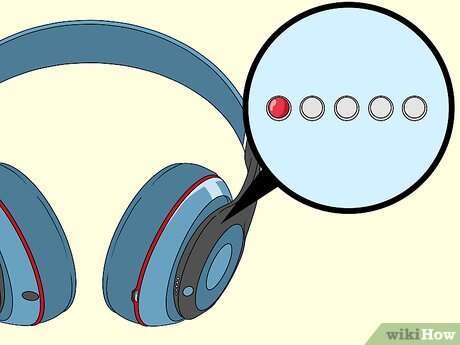
When you put headphones into pairing mode, a small light often flashes blue or white. If the headphones do not appear on the TV, turn them off, restart pairing mode, and scan again.
A useful lesson from testing wireless audio setups is to pair one device at a time. If your headphones are still connected to your phone, the TV may not find them or may lose the connection during setup.
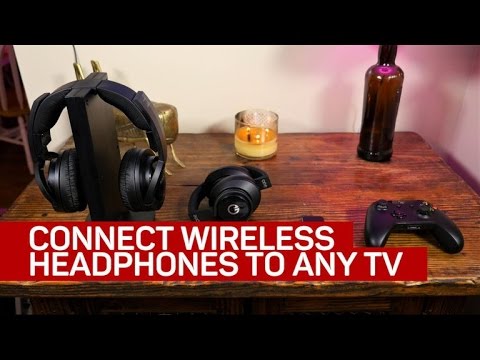
How to Connect Wireless Headphones for TV Without Bluetooth
You can still use wireless headphones if your TV has no built in Bluetooth. The most common solution is a Bluetooth transmitter.
A Bluetooth transmitter sends the TV’s sound to your headphones. It acts like a bridge between an older TV and modern wireless headphones.
Using a Bluetooth transmitter
You will need:
• A Bluetooth transmitter
• The correct audio cable
• Wireless headphones
• An available audio output on the TV
Most transmitters connect through one of these outputs:
• Optical digital audio
• 3.5 millimeter headphone output
• Red and white RCA audio output
• USB, in some models
To set it up:
-
Connect the transmitter to the TV’s audio output.
-
Connect the transmitter to power if required.
-
Turn on the headphones and activate pairing mode.
-
Put the transmitter into pairing mode.
-
Wait for the devices to connect.
-
Select the correct sound output on the TV.
-
Test the sound and adjust the volume.
Optical connections often provide clear sound, but you may need to change the TV’s digital audio format to PCM. Some transmitters cannot decode Dolby Digital or other surround sound formats.
If you use the TV’s 3.5 millimeter headphone port, the television may mute its built in speakers. This can be helpful when you want private listening, but it may not work well for a family member who also needs the speakers.

How to Connect Wireless Headphones for TV Using a Streaming Device
Some streaming devices offer their own headphone features. This can be easier than pairing headphones directly with the TV.
For example, a Roku mobile app can provide private listening on supported devices. Some streaming boxes and smart TV platforms also support Bluetooth headphones through their own menus.
Try this general process:
-
Open the streaming device’s settings.
-
Select Remotes and Devices, Accessories, or Bluetooth.
-
Choose Add Device or Pair New Device.
-
Put the headphones into pairing mode.
-
Select the headphones from the device list.
-
Start a video and confirm that the audio plays through the headphones.
This method sends audio from the streaming device to the headphones. It may not send sound from other sources, such as a cable box, Blu ray player, or game console.
That limitation matters. If you watch live TV through a cable box, pair the headphones with the cable box or use a transmitter connected to the television’s audio output.
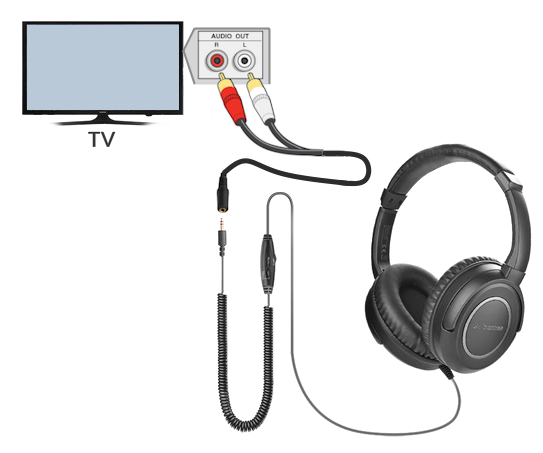
How to Connect Wireless Headphones for TV With a Dedicated Headphone System
Dedicated TV headphones use a wireless base station. These systems are different from Bluetooth headphones, but they can be easier for many viewers.
The base station usually connects to the TV with an optical cable, RCA cable, or 3.5 millimeter cable. The headphones then connect automatically to the base station.
Set up the system this way:
-
Place the base station near the TV.
-
Connect the base station to a compatible audio output.
-
Plug the base station into power.
-
Turn on the headphones.
-
Follow the pairing or charging instructions.
-
Play audio and adjust the headphone volume.
Dedicated TV headphone systems often include simple volume controls and charging docks. Some also transmit sound with less delay than basic Bluetooth devices.
They are a strong choice for older adults, people with hearing loss, or anyone who wants a simple setup. Some models also allow the TV speakers to remain active, so two people can listen at different volume levels.
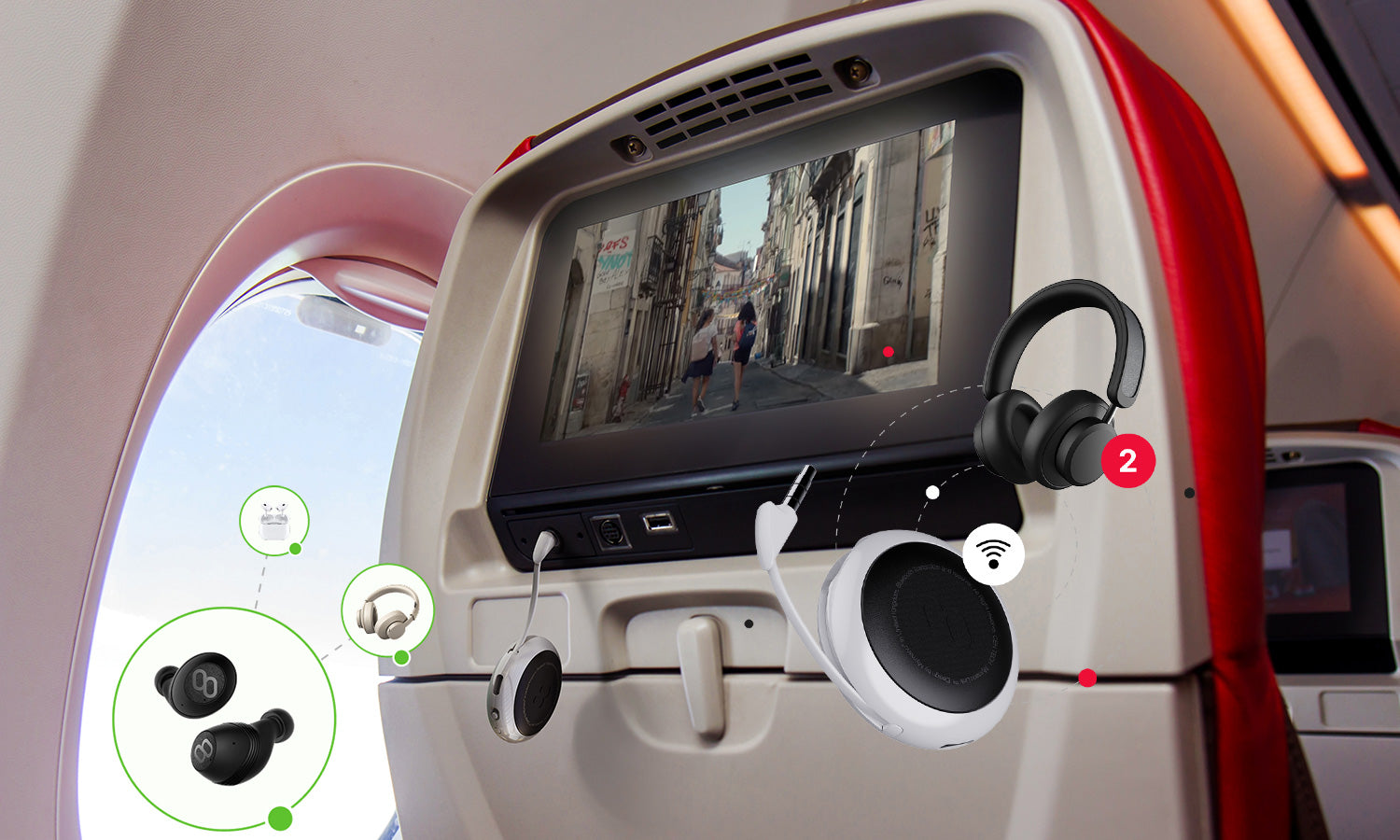
Fix Audio Delay and Lip Sync Problems
A delay happens when the picture appears before the sound. Even a small delay can make conversation feel unnatural.
Wireless audio compression and signal processing can create this problem. Bluetooth versions, headphone codecs, TV software, and transmitters all affect timing.
Try these fixes:
• Look for a Lip Sync, Audio Delay, or AV Sync setting on the TV.
• Set the TV’s digital audio output to PCM.
• Use a transmitter and headphones that support low latency.
• Keep the headphones within the recommended range.
• Remove walls and large metal objects between the devices.
• Restart both the TV and headphones.
• Update the TV firmware if an update is available.
AptX Low Latency can reduce delay, but both the transmitter and headphones must support the same low latency technology. Standard Bluetooth support alone does not guarantee perfect lip sync.
Some streaming apps process audio differently from others. Test several sources before changing many settings. If one app has delay and another does not, the problem may be related to the app or streaming device rather than the headphones.

Keep TV Speakers and Wireless Headphones Active Together
Many people want headphones for one listener while keeping the TV speakers on for others. Whether this works depends on the TV model and connection method.
Look for settings such as:
• Bluetooth plus TV speakers
• Audio Out and Internal TV Speaker
• Simultaneous audio output
• Multi output audio
Some TVs automatically mute their speakers when Bluetooth headphones connect. Others let you select both outputs.
If your TV does not offer simultaneous output, consider these options:
• Use a Bluetooth transmitter connected to an optical output.
• Use a transmitter with an audio pass through feature.
• Connect headphones to a cable box or streaming box.
• Use a dedicated TV headphone system that supports speaker output.
An optical audio connection may not control headphone volume through the TV remote. In that case, use the volume controls on the headphones or transmitter.
This is one of the most important details when learning how to connect wireless headphones for TV. A setup can work perfectly but still feel inconvenient if the remote cannot control the listening volume.
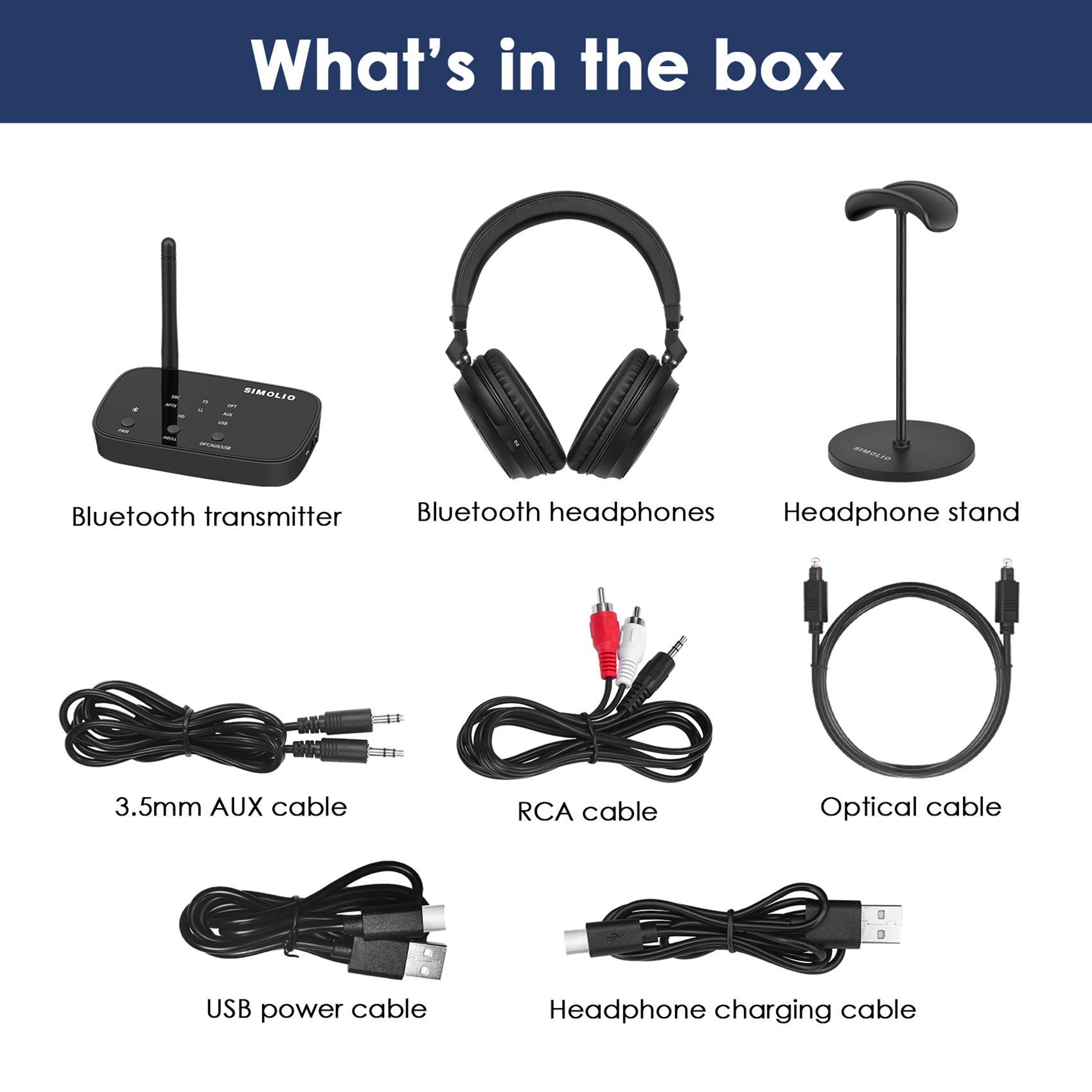
Improve Sound Quality and Connection Range
Wireless headphones can sound clear, but placement and settings matter. Keep the headphones within the range listed by the manufacturer. Bluetooth range is often strongest in an open room, while walls and electronic interference can reduce performance.
For better results:
• Keep the headphones charged.
• Place a transmitter in an open area.
• Avoid placing the transmitter behind the TV.
• Do not cover the transmitter with other devices.
• Use a wired connection for the transmitter when possible.
• Set the TV audio format to PCM when using a basic transmitter.
• Clean the headphone charging contacts.
• Keep the TV and headphones updated.
Bluetooth uses the 2.4 GHz radio band, which is also used by Wi Fi and other wireless devices. Interference is not always severe, but it can cause clicks, dropouts, or shorter range.
If the sound cuts out, move closer to the TV first. If that fixes the issue, distance or interference is likely the cause. If the problem continues at close range, remove and reconnect the headphones.

Common Problems When Pairing Wireless Headphones
Even when you follow the correct steps, pairing may fail. Most problems have a simple cause.
The TV cannot find the headphones
Make sure the headphones are in pairing mode, not just powered on. Disconnect them from other devices, restart both products, and scan again.
The headphones connect but produce no sound
Open the TV’s Sound Output menu and select the headphones manually. The TV may still be sending audio to its internal speakers or another connected device.
The headphones keep disconnecting
Charge the headphones and reduce the distance between the devices. If the headphones connect to your phone automatically, disable Bluetooth on the phone during testing.
The sound is too quiet
Raise the headphone volume first, then adjust the TV volume if the connection allows it. Some optical transmitters use separate volume controls and do not respond to the TV remote.
Only one side has sound
Check the headphone balance setting and test the headphones with a phone. If one side still fails, the issue may be with the headphones rather than the TV.
The TV shows an audio format error
Change the digital audio output from Auto, Bitstream, or Dolby to PCM. Basic Bluetooth transmitters often work best with uncompressed stereo PCM audio.

Bluetooth Headphones Versus Dedicated TV Headphones
Bluetooth headphones are flexible and often less expensive. You can use them with a phone, tablet, laptop, and TV. They are a good choice if your television supports Bluetooth audio and you want one pair for many devices.
Dedicated TV headphones offer a more focused experience. They often include a base station, long battery life, simple controls, and strong range.
Choose Bluetooth headphones when:
• Your TV has reliable Bluetooth audio support.
• You want to use the headphones with several devices.
• You already own a suitable pair.
• You are comfortable adjusting TV settings.
Choose dedicated TV headphones when:
• Your TV does not support Bluetooth.
• You need simple controls.
• You want a charging dock.
• More than one person needs flexible volume control.
• You are sensitive to audio delay.
Neither option is perfect for every home. Bluetooth is convenient, but compatibility can vary. Dedicated systems are simple, but they may cost more and work mainly with a TV.
Safety, Comfort, and Battery Tips
Wireless headphones are useful for late night viewing, but safe listening still matters. The World Health Organization advises keeping personal audio at a moderate level and taking breaks during long listening sessions.
Use these habits:
• Start at a low volume.
• Increase the level only as needed.
• Take breaks during long movies or shows.
• Keep the headphones clean.
• Do not wear headphones when you need to hear alarms or people nearby.
• Store the headphones on their charging dock or in a safe place.
Battery care also affects performance. Avoid leaving the headphones completely empty for long periods. If the battery becomes weak, the headphones may disconnect or sound uneven even when the wireless connection is working.
For older viewers, comfort can matter more than advanced features. Soft ear cushions, clear controls, and a stable fit may be more valuable than extra sound modes.
Frequently Asked Questions About How to Connect Wireless Headphones for TV
Can I connect any wireless headphones to my TV?
No. The TV must support the headphone’s connection type, such as Bluetooth, or you must use a compatible transmitter. A USB wireless receiver made for a computer or gaming console may not work when plugged into a TV.
Why will my Bluetooth headphones not connect to my TV?
The headphones may be connected to another device, or the TV may not support Bluetooth audio. Put the headphones into pairing mode, turn off nearby Bluetooth devices, and check the TV’s audio settings.
How do I connect wireless headphones to an older TV?
Use a Bluetooth transmitter connected to the TV’s optical, RCA, or 3.5 millimeter audio output. Pair the transmitter with the headphones and select the correct audio output on the TV.
Can I use wireless headphones while the TV speakers are on?
Some TVs support Bluetooth headphones and internal speakers at the same time. If your TV does not, use a transmitter with audio pass through or a dedicated TV headphone system.
How do I stop Bluetooth headphone audio delay on my TV?
Set the TV audio format to PCM and adjust the Lip Sync or AV Sync setting. A low latency transmitter and compatible headphones can reduce delay, but no wireless setup guarantees zero delay.
Can I connect two pairs of wireless headphones to one TV?
Some TVs support two Bluetooth audio devices, but many support only one pair. If your TV lacks dual audio support, use a transmitter designed to connect to two headphones.
Do wireless headphones work with cable and satellite TV?
Yes, but the connection method matters. Connect the headphones to the TV if the TV passes cable audio through its output, or connect a transmitter directly to the cable or satellite box.
Conclusion
Learning how to connect wireless headphones for TV starts with one simple check: identify the audio connection your TV supports. Use direct Bluetooth pairing when available, a transmitter for older TVs, or a dedicated headphone system for the easiest long term setup.
Remember to place devices close together, select the correct sound output, use PCM when needed, and check for audio delay. With the right method, you can enjoy clear private sound without disturbing anyone nearby.
Try the setup that matches your TV today, then share your results or explore your TV manufacturer’s audio support guide for more options.

Everett Ashford is a tech reviewer at mytechgrid.com specializing in SSDs, cameras, TVs, earbuds, headphones, and other consumer electronics. He provides honest, data-driven reviews based on hands-on testing and real-world performance analysis. Everett simplifies complex tech details to help readers make smart, confident buying decisions.