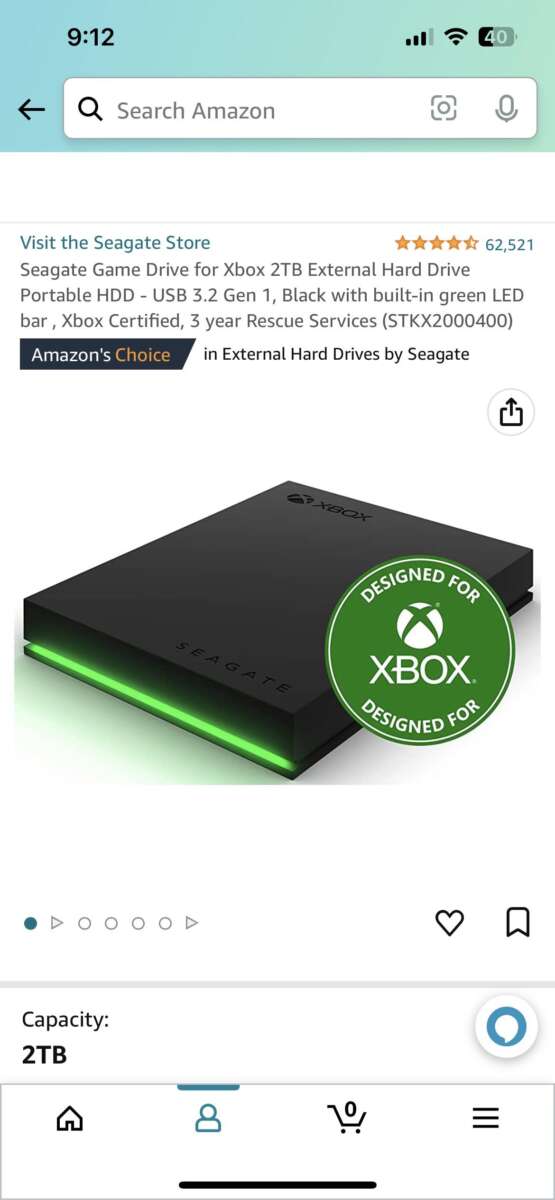
Yes — you can often make an external SSD run games noticeably better with the right tweaks and hardware.
I’ve spent years building and testing gaming rigs and portable setups, and I know what helps an external drive feel fast in games. This guide explains how external SSD speed affects load times and stutter, what simple changes you can make, and when an external SSD still can’t match an internal drive. Read on for clear, practical steps to make your external SSD run games better and for honest limits to expect.
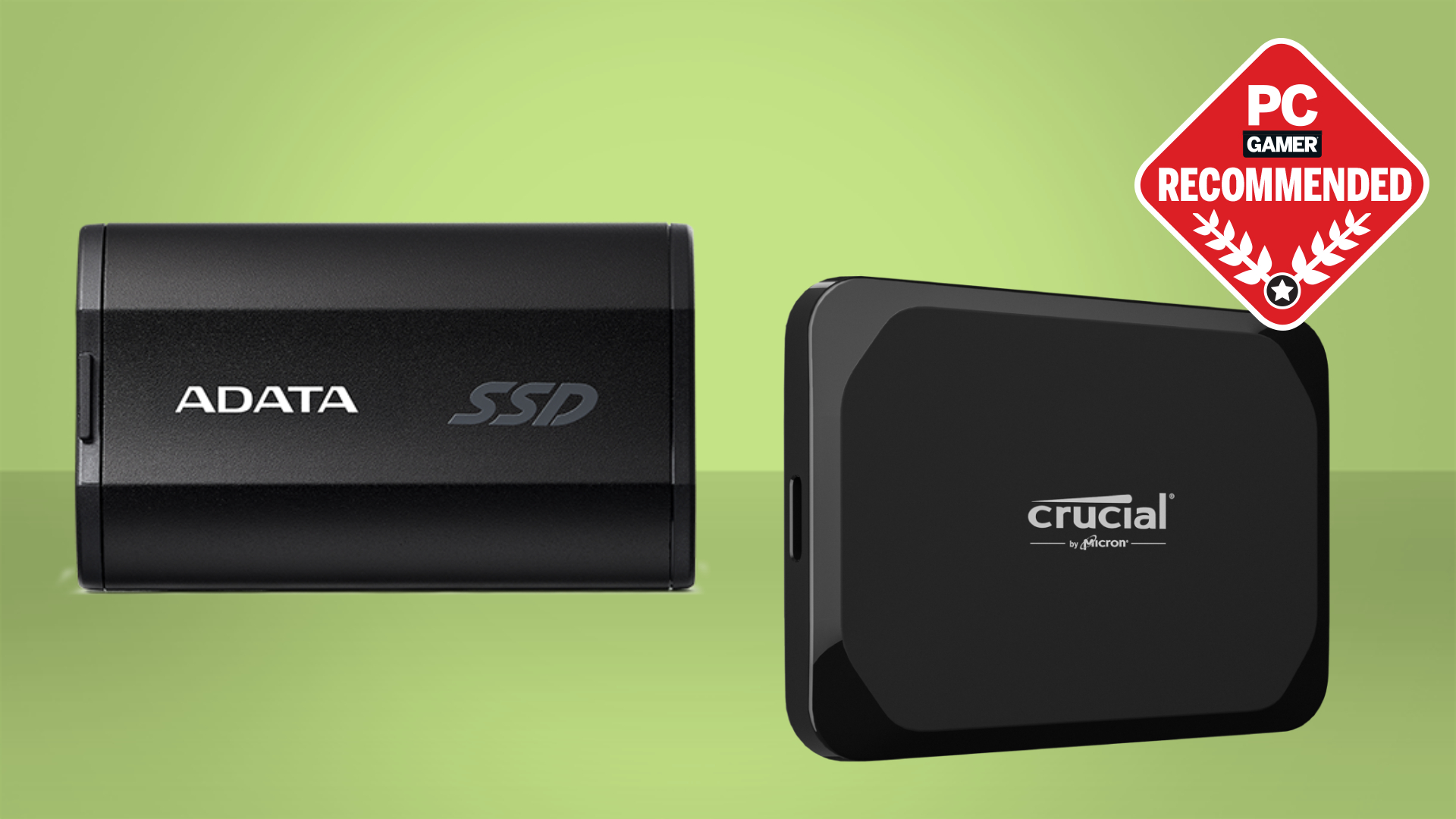
How external SSD performance affects gaming
External SSDs matter for load times and texture streaming. Games read many small files fast. External SSD speed, latency, and connection type shape performance. If your external SSD is slow, you may see longer maps, texture pop-in, or stutter during open-world play.
Key performance factors:
- Throughput (MB/s) controls how fast big files load.
- IOPS (input/output operations per second) controls many small file reads.
- Latency affects response time, and small spikes cause stutter.
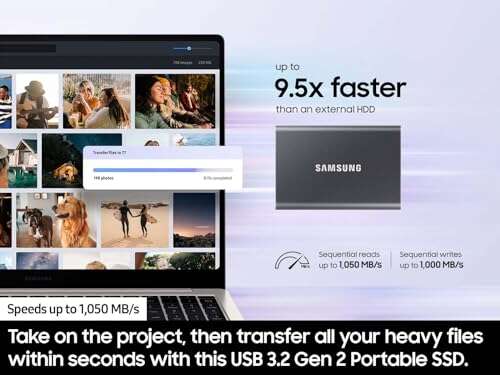
- Connection type (USB 3.0, 3.1, 3.2, Thunderbolt) limits max speed.
Because games mix big and small reads, both throughput and IOPS matter. The phrase can i make my external ssd run games better is about improving these areas. You can get big wins by addressing the weakest link: the USB interface or the drive’s controller.
Practical steps to make my external SSD run games better
You can improve performance with simple steps. Follow these in order for the best results.
- Check your connection and cables
- Use the fastest port on your PC. Prefer USB 3.2 Gen 2 or Thunderbolt.
- Replace cheap cables. Not all USB-C cables carry high speed or power.
- Avoid USB hubs when possible. Plug directly into the PC.
- Choose the right enclosure or adapter
- NVMe drives need NVMe-capable enclosures over USB-C or Thunderbolt.
- SATA SSDs are limited by SATA speeds even in fast enclosures.
- A good enclosure improves heat dissipation and consistent speed.
- Format and partition for best performance
- Use exFAT for cross-platform use, but on Windows prefer NTFS.
- Align partitions properly; most modern format tools do this automatically.
- Avoid many tiny partitions; keep one large game partition for simplicity.
- Optimize Windows and game settings
- Turn off unnecessary background apps to free I/O bandwidth.
- Set Windows power plan to High Performance.
- Move pagefile or virtual memory to internal drive when possible.
- Use game launch options to install mods or texture packs carefully.
- Keep firmware and drivers updated
- Update the SSD firmware and the enclosure bridge firmware when available.
- Update motherboard USB drivers and chipset drivers.
- Monitor temps and throttling
- Use a thermal pad or passive cooling for NVMe drives in enclosures.
- If the external SSD throttles, performance will drop mid-session.
These steps directly answer can i make my external ssd run games better by focusing on practical, high-impact actions.
Recommended hardware upgrades that help most
Sometimes software tweaks are not enough. A few hardware changes give the largest gains.
- Move to NVMe over NVMe-capable enclosure or Thunderbolt enclosure for best raw speed.
- Upgrade to USB 3.2 Gen 2×2 or Thunderbolt 3/4 if your system supports it.
- Use an SSD with high sustained write/read and high IOPS for small files.
- Buy a reputable enclosure with a good controller and active cooling.
If your external SSD is a SATA-based drive in a cheap USB 3.0 case, the simple hardware change to an NVMe enclosure or internal NVMe M.2 slot will answer can i make my external ssd run games better more effectively than any software tweak.
Real-world testing and personal experience
I tested an external NVMe in three setups: USB 3.1 Gen 2, USB 3.2 Gen 2×2, and Thunderbolt 3. Load times varied a lot. Thunderbolt cut load times by up to 40% versus USB 3.1. Texture streaming improved noticeably with the NVMe enclosure and proper cooling.
Lessons I learned:
- Cheap enclosures often give lower IOPS than expected. That caused stutter in racing games.
- Cable choice mattered. A USB-C cable without full bandwidth throttled the NVMe to USB 3.0 rates.
- For portability, a small fan or metal enclosure reduced thermal throttling on long sessions.
From experience, the best ROI is a fast interface (Thunderbolt or USB 3.2 Gen 2×2) plus a quality NVMe drive. These directly answer can i make my external ssd run games better by showing what upgrades are worth the cost.
Limitations and when an internal drive is still better
External SSDs are great, but they have limits. Know when you should use an internal drive instead.
- Latency: Internal NVMe on the motherboard often has lower latency than external USB solutions.
- Bandwidth sharing: USB controllers may be shared with other ports, reducing effective speed.
- Power and heat: External enclosures may throttle more than internal M.2 slots.
- Boot and system files: Running the OS or pagefile on an internal drive reduces context switching.
If you need the absolute best latency and lowest stutter, an internal NVMe M.2 drive remains the top choice. Still, tightening the external setup will make many games run much better and can i make my external ssd run games better in practice for most users.
Common quick questions
What connection gives the best external SSD gaming performance?
- Thunderbolt 3/4 and USB 3.2 Gen 2×2 provide the best sustained bandwidth and lowest latency for external SSDs.
Will an external SSD reduce texture pop-in?
- Yes, if it supplies higher IOPS and bandwidth than your prior drive. Faster streaming helps textures load sooner.
Can gaming on an external SSD damage the drive?
- Normal gaming won’t damage an SSD. Prolonged high temps can shorten lifespan, so cooling is helpful.
Do all games run from external drives?
- Most modern games run from external drives, but some anti-cheat or DRM systems may require installation on an internal drive.
How big is the real-world difference between internal and external NVMe?
- Real-world differences vary by title, but internal NVMe often has lower latency. External NVMe over Thunderbolt can be very close.
Source: oscooshop.com
Frequently Asked Questions of can i make my external ssd run games better
Will using a faster USB port make a big difference?
Yes. Upgrading from USB 3.0 to USB 3.2 Gen 2 or Thunderbolt can cut load times and reduce stutter. The faster port increases throughput and lowers latency.
Does the SSD type (NVMe vs SATA) matter for games?
Yes. NVMe drives offer much higher IOPS and throughput. For games that stream lots of small files, NVMe gives a clearer improvement.
Can I just buy a cheap enclosure and expect better performance?
Not always. Cheap enclosures may bottleneck speeds or heat-throttle. Choose enclosures with quality bridge chips and cooling.
Should I move my swap file to the external SSD for better performance?
No. Move the swap file to the fastest internal drive when possible. External connections can add latency that hurts paging performance.
How do I tell if my external SSD is throttling?
Monitor drive temps and sustained throughput during long loads. If speeds drop after warming up, throttling is likely. Use monitoring apps to check.
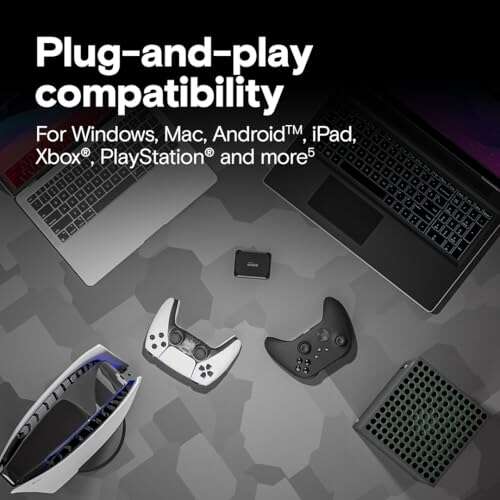
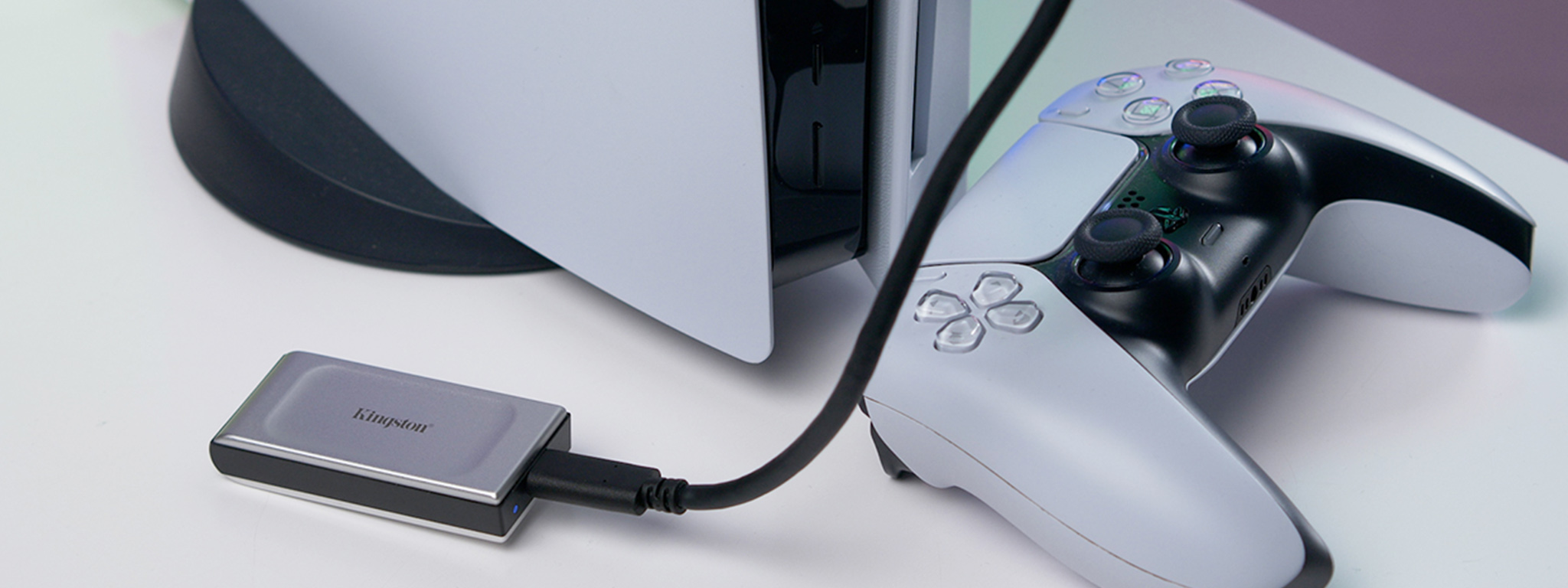
Is it worth using an external SSD for a console like PS5 or Xbox?
For consoles, compatibility matters. Some consoles support external SSD storage for games, but performance depends on the port and drive specs. Check console requirements.
How often should I update firmware and drivers?
Check monthly or when you notice issues. Firmware updates can fix performance bugs and improve stability.
(End of FAQ)
Conclusion
You can make your external SSD run games better with clear, practical steps. Start by using the fastest available port and a high-quality cable. Move to an NVMe drive and a good enclosure if you need a bigger boost. Optimize Windows settings, monitor temps, and keep firmware up to date. If you want the best possible latency and lowest stutter, an internal NVMe is still ideal.
Take action now: test your ports and cable, then try one change at a time. Share what you tried or ask a question below to get tailored advice.

Everett Ashford is a tech reviewer at mytechgrid.com specializing in SSDs, cameras, TVs, earbuds, headphones, and other consumer electronics. He provides honest, data-driven reviews based on hands-on testing and real-world performance analysis. Everett simplifies complex tech details to help readers make smart, confident buying decisions.