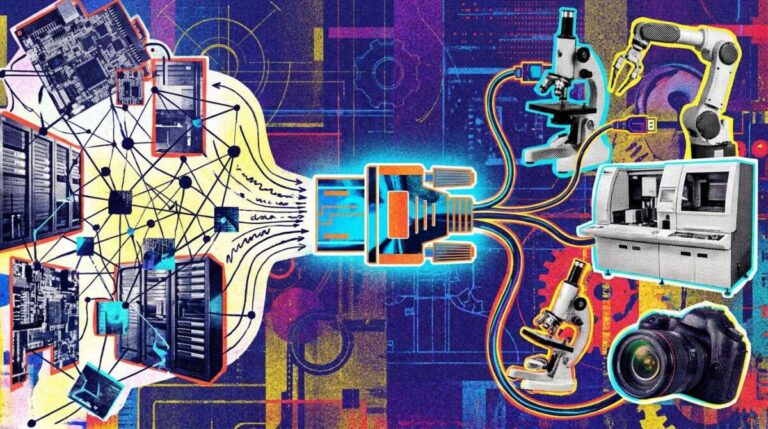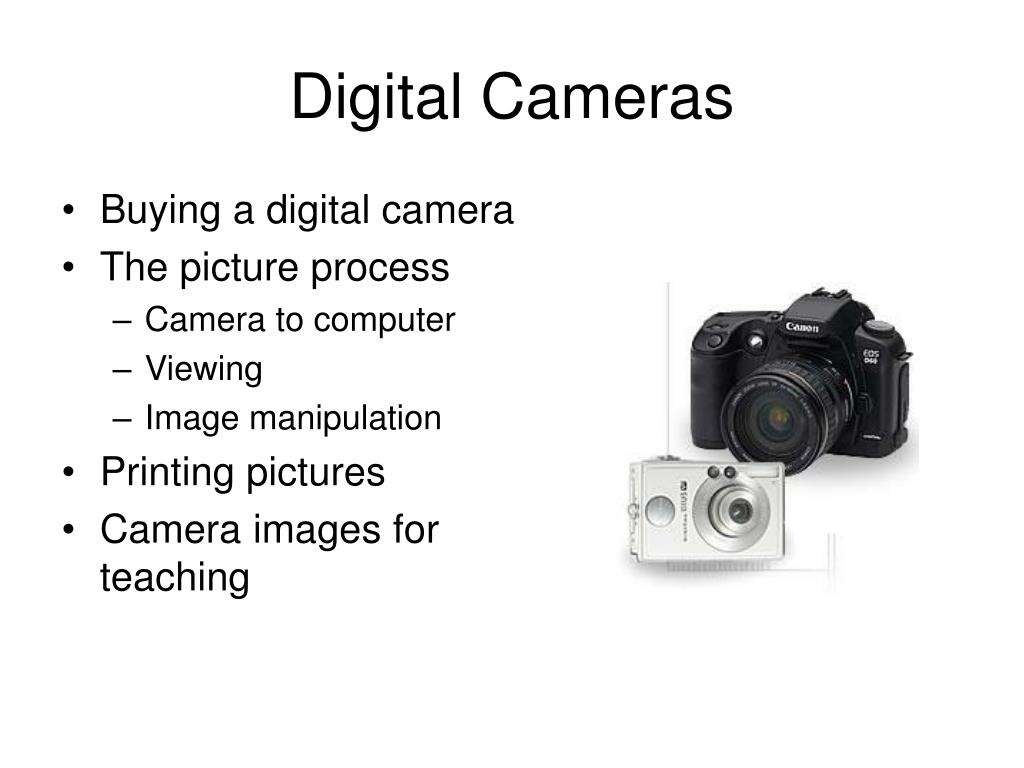
A digital camera in a computer is an input device that captures images and videos as digital files.
A digital camera in computer systems turns light into data that software can store, edit, share, or display. It may be a built-in webcam, a USB camera, or a separate camera connected to a desktop or laptop. Understanding how it works helps you choose the right device, fix common connection problems, and get better image quality.
What Is a Digital Camera in Computer Systems?
A digital camera in computer systems is hardware that captures photos or videos and sends them to a computer. Unlike a traditional film camera, it stores visual information as digital data. The computer can then process that data with apps such as Photos, Zoom, Microsoft Teams, video editors, or image design tools.
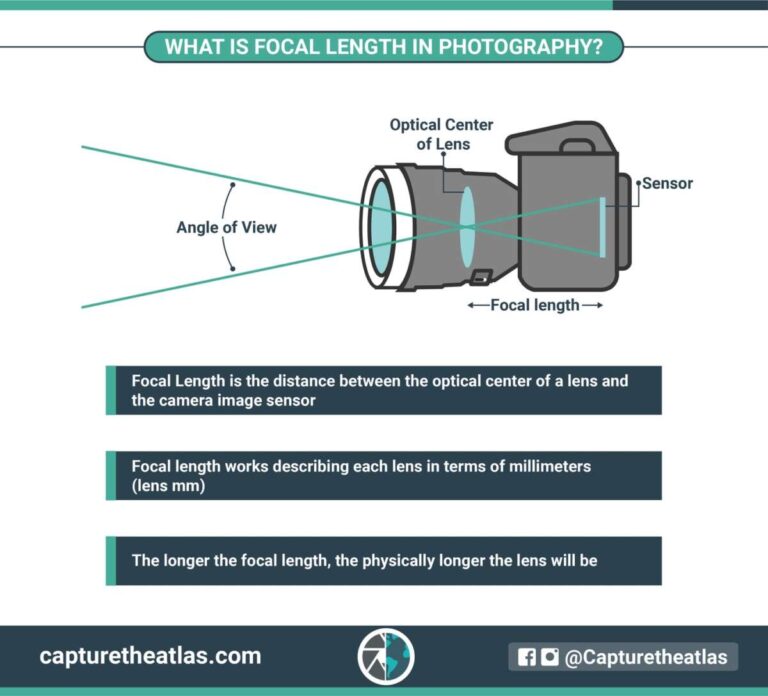
Most digital cameras use a small image sensor. The sensor detects light through the lens and changes it into electronic signals. A processor then turns those signals into a file or live video stream.
Common examples include:
• Built-in laptop webcams
• USB webcams
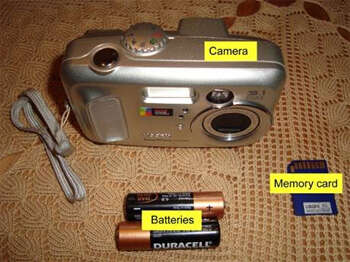
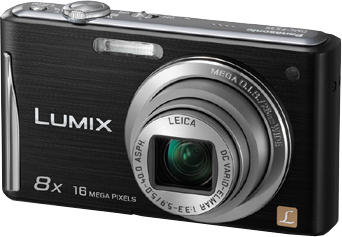
• Digital still cameras
• Mirrorless cameras used for streaming
• DSLR cameras connected through USB or capture hardware
• Document cameras used in classrooms and offices
In simple terms, a digital camera works like an eye for a computer. The lens gathers the view, the sensor detects it, and the computer receives the result.

How Does a Digital Camera Work With a Computer?
The process begins when light enters the camera lens. The lens focuses the light onto an image sensor, usually a CMOS sensor in modern consumer devices. Each tiny sensor area measures light and color.
The camera then processes this information. It may adjust brightness, color, focus, sharpness, and exposure before sending the image to the computer. A webcam often performs these changes in real time.
The basic process looks like this:
-
Light enters through the lens.
-
The image sensor records the light.
-
The camera processor converts the signal into digital data.
-
The camera sends the data through USB, Wi-Fi, Bluetooth, or another connection.
-
Computer software displays, saves, or edits the image.
A digital camera in computer use may send a single photo or a constant stream of video. A webcam sends a stream during a video call, while a digital still camera may transfer finished photo files such as JPEG or RAW images.
Image Sensors and Resolution
Resolution describes the number of pixels in an image. A 1920 × 1080 camera creates a Full HD image. A higher resolution can show more detail, but it does not always produce a better picture.
Image quality also depends on:
• Lens quality
• Lighting
• Sensor size
• Focus accuracy
• Image processing
• Compression
For example, a well-lit 1080p webcam may look better than a poorly lit 4K webcam. More pixels are useful, but they are only one part of the picture.
Digital Files and Formats
Digital cameras use different file types for different needs. JPEG files are small and easy to share. PNG files support clear graphics and transparency. RAW files keep more image information for advanced editing, but they are larger and need special software.
Video cameras may use formats such as MP4, MOV, or AVI. The exact format depends on the camera, operating system, and recording software.
Types of Digital Cameras Used With Computers
A digital camera in computer setups can take several forms. Each type suits a different task, so the best choice depends on how you plan to use it.
Built-In Webcam
A built-in webcam sits above the screen of a laptop or monitor. It is convenient and needs no extra cable. Most built-in webcams work well for video calls, online classes, and basic recordings.
Their limits often include:
• Small image sensors
• Fixed focus
• Limited low-light performance
• Basic microphones
• Few mounting options
USB Webcam
A USB webcam connects directly to a computer. It is easy to install and often provides better quality than a built-in camera. Many models include autofocus, built-in microphones, privacy covers, and adjustable mounts.
USB webcams are popular for:
• Remote work
• Video meetings
• Online teaching
• Gaming streams
• Telehealth appointments
• YouTube recordings
Many modern USB cameras support the USB Video Class standard. This allows compatible computers to recognize the camera without special drivers.
Digital Still Camera
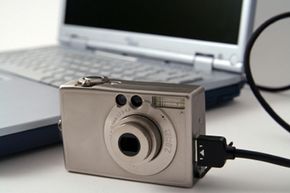
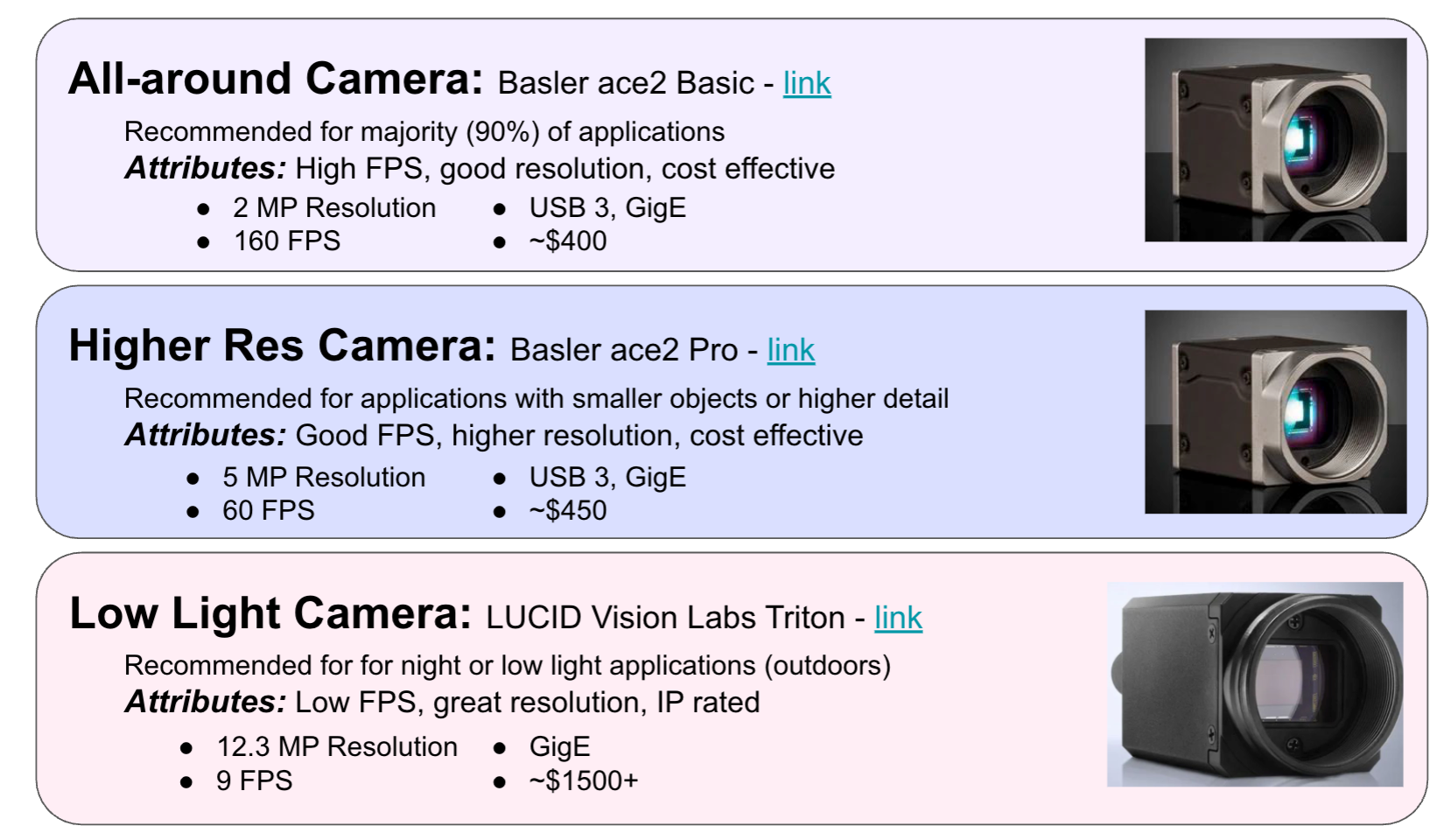
A digital still camera captures high-quality photos and may also record video. You can connect it to a computer with a USB cable or remove its memory card and use a card reader.
Some cameras can act as webcams. However, this may require special software, a clean HDMI output, or a capture card. Always check the camera maker’s instructions before buying extra equipment.
DSLR and Mirrorless Camera
DSLR and mirrorless cameras offer larger sensors, better lenses, and more control. They can create a professional look with soft backgrounds and strong detail.
They may need extra equipment, such as:
• A USB connection
• A capture card
• Continuous power
• A microphone
• A tripod
• Webcam software
These cameras are excellent for professional streaming and content creation, but they cost more and require more setup.
Document Camera
A document camera points down at books, papers, objects, or demonstrations. Teachers and presenters use them to show physical materials on a computer screen.
A document camera is different from a standard webcam because it is designed for close-up views. It can be useful for handwriting, science experiments, art lessons, and product demonstrations.
What Is a Digital Camera in Computer Used For?
A digital camera in computer environments supports many daily tasks. It is not limited to taking personal photos. It can capture live video, scan visual information, and help people communicate from different locations.
Common uses include:
• Video calls with family, coworkers, or clients
• Online classes and virtual tutoring
• Live streaming
• Recording presentations
• Creating social media videos
• Taking profile photos
• Scanning documents and objects
• Monitoring a room or workspace
• Supporting accessibility tools
• Demonstrating products or repairs
A webcam can also help with facial recognition, motion detection, and augmented reality applications. These uses depend on the software and the computer’s privacy settings.
For example, a student may use a laptop webcam for a class meeting. A small business owner may use a mirrorless camera to record product videos. A teacher may use a document camera to show a math problem step by step.
How to Connect a Digital Camera to a Computer
Connecting a digital camera in computer systems is usually simple. The exact steps depend on the camera type and operating system.
Connect a USB Camera
-
Turn on the computer.
-
Plug the camera into an available USB port.
-
Wait for the computer to detect the device.
-
Open the camera or video app.
-
Select the camera from the app’s input settings.
Windows, macOS, and ChromeOS often install basic camera support automatically. If the camera does not work, visit the manufacturer’s support page and check for updated drivers or firmware.
Connect a Digital Still Camera
A still camera usually connects in one of two ways:
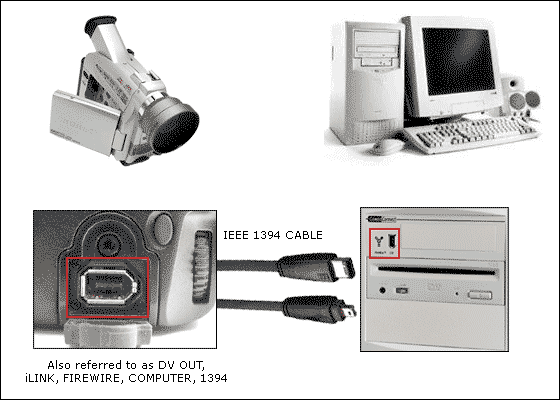
• Connect it with a USB data cable.
• Remove the memory card and insert it into a card reader.
The memory card method is often faster for moving many photos. A USB cable may allow you to control the camera or use it as a webcam, depending on the model.
Connect a Camera With HDMI
HDMI sends video from some cameras, but a computer may not accept HDMI input directly. In many cases, you need a capture card. The capture card changes the camera’s HDMI signal into a format that video software can use.
This setup is common for live streaming. It can provide better image quality than a standard webcam, but it adds cost and complexity.
Connect a Camera Wirelessly
Some cameras transfer files through Wi-Fi or Bluetooth. Wireless connections are useful when cables are inconvenient. They may be slower than USB and can use more battery power.
For large video files, a wired connection or memory card reader is often more reliable.

Benefits of Using a Digital Camera With a Computer
A digital camera in computer use offers several practical benefits. It gives the computer a way to capture real-world images and video without manual drawing or scanning.
Better Communication
Video makes online communication more personal. People can see facial expressions, demonstrations, and visual cues. This can help remote teams, teachers, and families feel more connected.
Easy File Storage
Digital images can be saved on a computer, external drive, or cloud service. You can create folders, add file names, and organize years of photos without using physical film.
Fast Editing and Sharing
Computer software can crop, resize, enhance, and export images in seconds. You can also share them through email, messaging apps, websites, and social networks.
Flexible Creative Work
A computer-connected camera supports photography, filmmaking, streaming, graphic design, and online publishing. It gives beginners a simple way to experiment and gives professionals more control.
Lower Long-Term Cost
Digital photography does not require film development for every photo. You can review images right away and keep only the best ones. This can reduce waste and save money over time.

Limitations and Risks of Digital Cameras
Although a digital camera in computer setups is useful, it also has limits. Knowing them helps you use the device safely and realistically.
Privacy Concerns
A camera can reveal personal spaces, faces, documents, and private conversations. Malicious software may try to access a camera without permission.
Use these safety steps:
• Close the camera app when you finish.
• Review camera permissions in system settings.
• Keep the operating system updated.
• Use a physical privacy cover when possible.
• Avoid unknown camera software.
• Do not point the camera at private documents or sensitive areas.
A privacy cover is helpful, but it does not replace good security habits.
Lighting Problems
Small webcams often struggle in dark rooms or with bright windows behind the user. The image may look grainy, pale, or too dark.
Place a light in front of you rather than directly behind you. Soft daylight near a window often works well. A simple desk lamp can also improve the image.
Storage Needs
High-resolution photos and videos can use a great deal of storage. A long 4K recording may be many times larger than a short Full HD clip.
To manage space:
• Delete unwanted files.
• Move older files to an external drive.
• Use cloud backups.
• Export videos in a suitable format.
• Keep at least two copies of important files.
Compatibility Issues
Not every camera works with every computer or app. A camera may need a special driver, adapter, capture card, or operating system version.
USB ports can also differ. A USB-C camera may need an adapter for an older computer. Check the connection type before purchasing equipment.

How to Choose the Right Digital Camera for a Computer
The best digital camera in computer use depends on your goal, budget, room, and technical skill. A basic webcam may be enough for calls, while content creators may need a dedicated camera.
Consider these points:
Purpose
Choose a webcam for simple calls and online meetings. Choose a mirrorless or DSLR camera for professional video. Choose a document camera for books, papers, and demonstrations.
Resolution
Full HD is suitable for most calls and online videos. 4K can help with cropping and detailed recording, but it needs more storage and stronger computer hardware.
Frame Rate
Frame rate measures how many images the camera records each second. Thirty frames per second works well for meetings. Sixty frames per second creates smoother motion for gaming or action.
Autofocus
Autofocus helps keep your face or an object sharp. It is useful when you move during a call or hold products up to the camera.
Microphone Quality
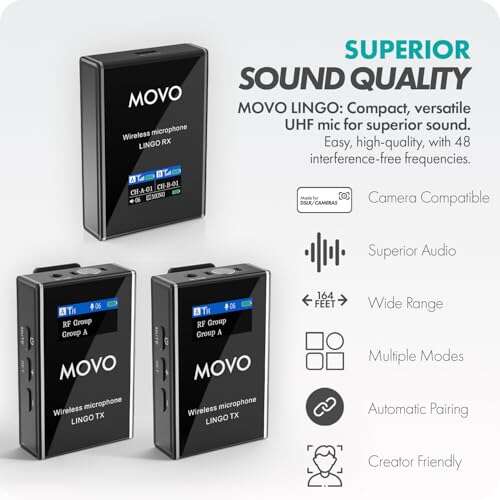
A camera may include a microphone, but a separate USB or wireless microphone often sounds better. Clear sound matters as much as a sharp image.
Low-Light Performance
If your room is not bright, choose a camera with good low-light performance. A larger sensor and a quality lens can help, but better lighting is often the simplest fix.
Privacy Features
Look for a physical shutter, removable cable, or clear permission controls. These features make it easier to protect your privacy.
Common Digital Camera Problems and Solutions
When a digital camera in computer systems fails, the cause is often simple. Start with basic checks before trying advanced fixes.
The Computer Does Not Detect the Camera
Try these steps:
-
Unplug the camera.
-
Restart the computer.
-
Connect the camera to another USB port.
-
Test a different data cable.
-
Check whether the camera has power.
-
Look for system or driver updates.
Some USB cables provide power but cannot transfer data. This is a common mistake. Try the original cable or a cable known to support data transfer.
The Camera Works in One App but Not Another
Open the app’s settings and choose the correct camera. Another program may already be using the device.
Close video apps that are running in the background. Then reopen the app you want to use.
The Picture Looks Blurry
Clean the lens with a soft lens cloth. Make sure autofocus is active and that the subject has enough light. Some cameras focus poorly when the subject is too close.
The Video Lags
Video lag can result from a weak USB connection, limited computer resources, poor network speed, or high camera settings. Lower the resolution, close unused apps, and use a wired network when possible.
The Camera Image Is Upside Down
This issue often comes from software settings or a camera mounted incorrectly. Check the video app for a rotate or mirror option. Do not confuse a mirrored preview with an upside-down image.
Practical Tips From Real Camera Setups
In camera and computer projects, one lesson appears again and again: good setup matters more than expensive equipment. A simple webcam with clear light and clean audio can look more professional than a costly camera used in a dark room.
One common mistake is placing the camera too low. This creates an unflattering angle and shows too much of the ceiling. Place the lens close to eye level, then frame your head and shoulders with a little space above your head.
Another lesson is to test everything before an important meeting or live stream. Check the camera, microphone, lighting, internet connection, and recording folder. A five-minute test can prevent a stressful last-minute problem.
Use this quick setup checklist:
• Clean the lens.
• Place the camera at eye level.
• Face a soft light source.
• Select the correct camera in the app.
• Check microphone input.
• Remove private items from the background.
• Record a short test clip.
• Keep a backup cable nearby.
If you use a DSLR or mirrorless camera, check battery life and overheating limits. Some models stop recording after a set period. Continuous power can help, but it must be compatible with the camera.
Digital Camera, Webcam, Scanner, and Computer Camera
These terms are related, but they do not mean exactly the same thing.
A digital camera captures photos or video and stores them as digital data. A webcam is a digital camera designed mainly for live video with a computer. A computer camera usually means any camera that works with a computer, including a built-in webcam.
A scanner captures flat documents and images. It does not usually provide live video. A document camera captures live views of papers, books, and objects.
The key difference is the type of visual information each device captures:
• Digital camera: Photos and videos
• Webcam: Live video for computer apps
• Scanner: Flat pages and photographs
• Document camera: Live close-up views of physical materials
Knowing these differences helps you select the right device for your task.
Frequently Asked Questions About What Is a Digital Camera in Computer
What is a digital camera in computer terms?
A digital camera in computer terms is an input device that captures photos or video and sends the data to a computer. The computer can display, store, edit, or share the captured content.
Is a webcam the same as a digital camera?
A webcam is a type of digital camera made for live video on a computer. However, many digital cameras, including some DSLR and mirrorless models, can also work as webcams.
Is a digital camera an input or output device?
A digital camera is an input device because it sends visual information into a computer. The computer may then show that information through an output device such as a monitor.
How does a digital camera connect to a computer?
A digital camera can connect through USB, Wi-Fi, Bluetooth, HDMI with a capture card, or a memory card reader. The correct method depends on the camera model and the computer’s available ports.
What is the main advantage of a digital camera?
The main advantage is fast image capture and easy digital storage. You can review, edit, copy, and share photos or videos without developing film.
Why is my digital camera not working on my computer?
The camera may have a bad cable, low battery, blocked permission, missing driver, or incompatible app setting. Try another port, check system permissions, restart the computer, and select the camera manually in the app.
Can a phone camera work with a computer?
Yes, a phone camera can work with a computer through a cable, wireless app, or webcam software. The quality and features depend on the phone, software, and connection method.
Conclusion
A digital camera in computer systems is an input device that changes light into digital photos or video. Built-in webcams, USB cameras, document cameras, DSLR models, and mirrorless cameras all serve different needs.
The right setup depends on your purpose, lighting, resolution needs, connection type, and privacy expectations. Start with reliable basics: position the camera well, use good light, test the connection, and protect your files and permissions. Explore your computer’s camera settings today, and share your questions or experience in the comments.

Everett Ashford is a tech reviewer at mytechgrid.com specializing in SSDs, cameras, TVs, earbuds, headphones, and other consumer electronics. He provides honest, data-driven reviews based on hands-on testing and real-world performance analysis. Everett simplifies complex tech details to help readers make smart, confident buying decisions.