A SATA SSD drive uses flash memory and a SATA connection to make storage faster and quieter.
If you are replacing an old hard disk drive, a SATA SSD drive is often the simplest and most useful upgrade. It can make a computer start faster, open apps sooner, and feel much more responsive without requiring a new motherboard. This guide explains how SATA solid-state drives work, what their limits are, how they compare with NVMe SSDs, and how to choose the right model.

What is a SATA SSD drive?
A SATA SSD drive is a solid-state storage device that uses NAND flash memory and the Serial ATA interface to store and move data. Unlike a traditional hard disk drive, it has no spinning platters, moving heads, or motor.
The word “SSD” means solid-state drive. “SATA” describes the connection used to communicate with the computer. Together, these terms describe an SSD that connects through the same basic storage interface used by many hard drives and older optical drives.
Most SATA SSDs use the SATA III standard, also called SATA 6Gbps. In real use, SATA III SSDs usually reach about 500 to 560 megabytes per second for sequential reads and writes. The exact speed depends on the controller, flash type, drive capacity, workload, and computer.
A SATA SSD drive normally appears in one of these forms:
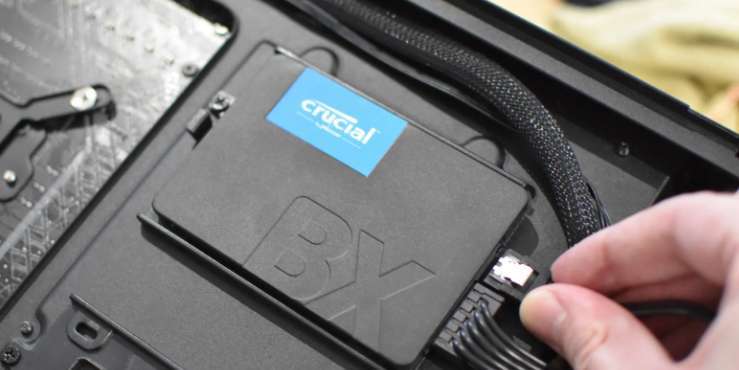
• 2.5-inch drive: This is the most common shape for desktop computers and laptops.
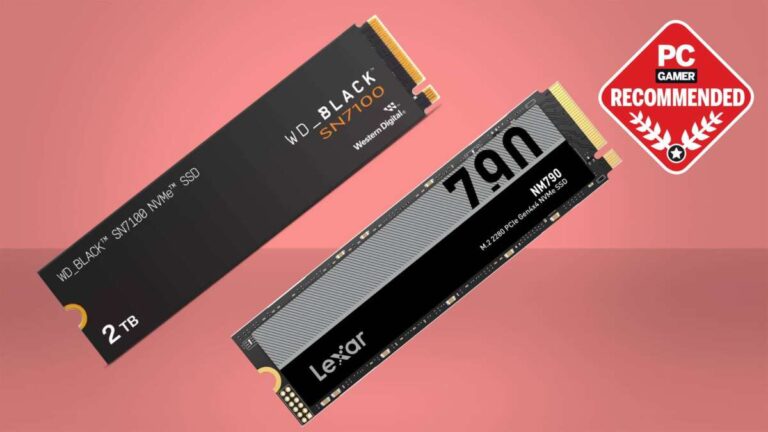
• M.2 SATA drive: This is a small stick-shaped drive that uses the M.2 slot but still communicates through SATA.
• mSATA drive: This older, smaller format appeared in some laptops and compact computers.
The drive stores information in memory cells. The controller manages those cells, corrects errors, spreads writes, and communicates with the computer. You can think of the controller as a traffic manager that keeps data moving safely through the drive.
How does a SATA SSD drive work?
A SATA SSD drive stores data in NAND flash memory. NAND is nonvolatile memory, which means it keeps information even when the computer is turned off.
The drive divides data into pages and blocks. A page is a small unit used to read or write data. A block contains many pages and must usually be erased before new data can be written to it.
Because flash cells have a limited number of write cycles, the SSD controller uses several important processes:
• Wear leveling spreads data across the flash cells so that one area does not wear out too quickly.
• Garbage collection reorganizes valid data and clears space for new writes.
• Error correction helps recover accurate data when flash cells become less reliable.
• TRIM tells the SSD which data blocks are no longer needed. This helps the drive manage free space more efficiently.
• Overprovisioning reserves some storage for maintenance, replacement cells, and background tasks.
When you save a file, the computer sends the data through the SATA cable or connector. The SSD controller places that data in NAND flash cells. When you open the file later, the controller retrieves the stored information and sends it back to the computer.
This process has no mechanical delay. That is why an SSD feels much faster than a hard drive, even when both use the same SATA connection.
SATA SSD drive speeds and performance
A SATA SSD drive is limited by the SATA interface. SATA III offers a theoretical link speed of 6 gigabits per second, but the usable data rate is lower because of communication overhead.
In practical terms, many good SATA SSDs provide:
• Sequential read speeds of about 500 to 560 MB/s
• Sequential write speeds of about 450 to 530 MB/s
• Much lower access time than a hard disk drive
• Faster random performance for small files and system tasks
Sequential speed matters when moving large files, such as videos or disk images. Random performance matters more when starting Windows, opening apps, loading web pages, or handling many small files.
For example, replacing a 7,200 rpm hard drive with a SATA SSD can reduce operating system startup time from around a minute to seconds. Programs may also open more quickly, and the computer may feel less delayed when several tasks run at once.
A SATA SSD drive will not always make a video export or game installation finish instantly. The processor, software, source drive, destination drive, and file size also matter. Still, the improvement in everyday response is usually easy to notice.
SATA SSD drive versus hard drive
The biggest difference between a SATA SSD drive and a hard disk drive is the way each stores data.
A hard drive uses spinning magnetic platters and a moving read/write head. An SSD uses electronic flash memory. This gives the SSD several practical advantages.
Benefits of a SATA SSD drive
• Faster boot and application load times
• Better response when opening many small files
• Silent operation because there are no moving parts
• Lower power use in many laptop workloads
• Better resistance to vibration and movement
• Less heat in many systems
• Smaller and lighter designs
A hard drive may still offer more storage for less money. It can be useful for large media collections, backups, and files that do not need fast access. For many users, the best setup combines an SSD for the operating system with a hard drive for bulk storage.
During hands-on computer upgrades, one common mistake is judging the drive only by its advertised sequential speed. The real improvement often comes from fast access time and strong random performance. A lower-priced SATA SSD can feel far better than a fast hard drive, even if both use the same SATA port.
Limits compared with a hard drive
A SATA SSD drive can cost more per terabyte than a hard disk. Its flash memory also has a limited write endurance rating, although modern SSDs can last for many years under normal home and office use.
A hard drive can also be easier to recover after some types of electronic failure. Neither technology is immune to data loss, so important files should always have a separate backup.
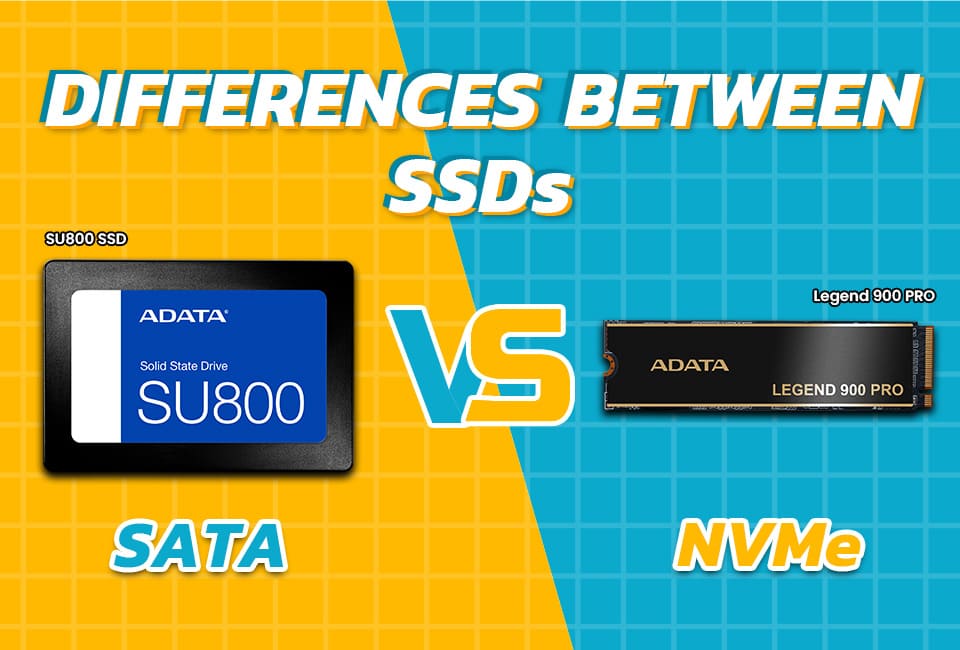
SATA SSD drive versus NVMe SSD
NVMe SSDs also use flash memory, but they communicate through PCI Express instead of SATA. This lets them use more bandwidth and handle more commands at the same time.
A SATA SSD drive usually reaches around 550 MB/s. A modern PCIe 3.0 NVMe SSD can often exceed 3,000 MB/s, while PCIe 4.0 and PCIe 5.0 models can reach much higher speeds.
The difference sounds huge, but the everyday benefit depends on the task. Starting a computer, opening office software, and browsing the web may not feel several times faster on NVMe. Large file transfers, professional video work, software development, and some content creation tasks can show a clearer advantage.
Choose a SATA SSD drive when:
• Your computer has only a SATA connection.
• You are replacing a 2.5-inch hard drive in an older laptop.
• You need a simple upgrade with broad compatibility.
• Your daily work includes office apps, browsing, schoolwork, or casual gaming.
• You want reliable solid-state storage at a reasonable price.
Choose an NVMe SSD when:
• Your motherboard supports the correct M.2 PCIe slot.
• You often move large files.
• You edit high-resolution video or work with large project files.
• You want the highest storage performance available for your system.
One important warning is that not every M.2 drive is interchangeable. An M.2 SATA SSD drive needs an M.2 slot that supports SATA. An M.2 NVMe drive needs PCIe and NVMe support. The shape may look similar, but the communication method is different.
SATA SSD form factors and connectors
Before buying a SATA SSD drive, check both the physical size and the connector type.
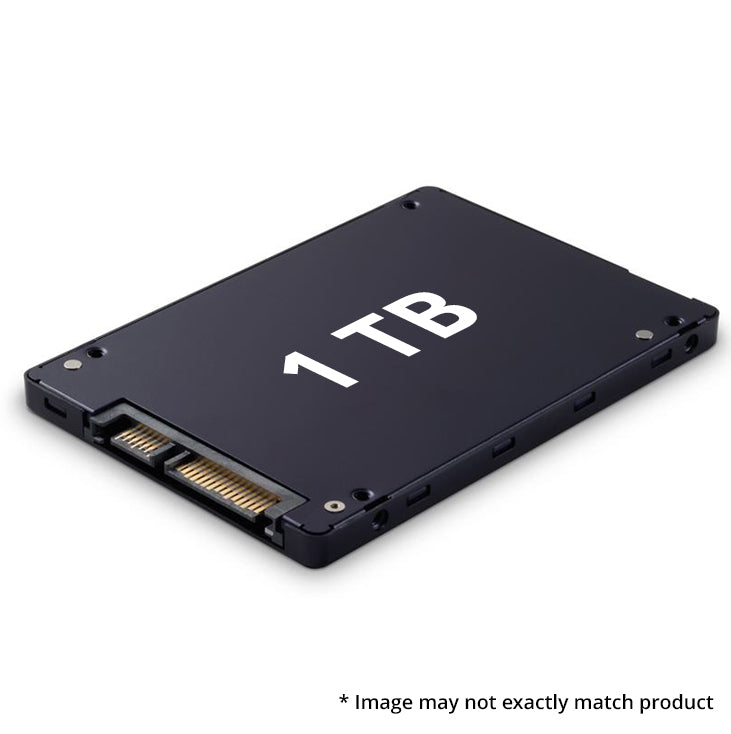
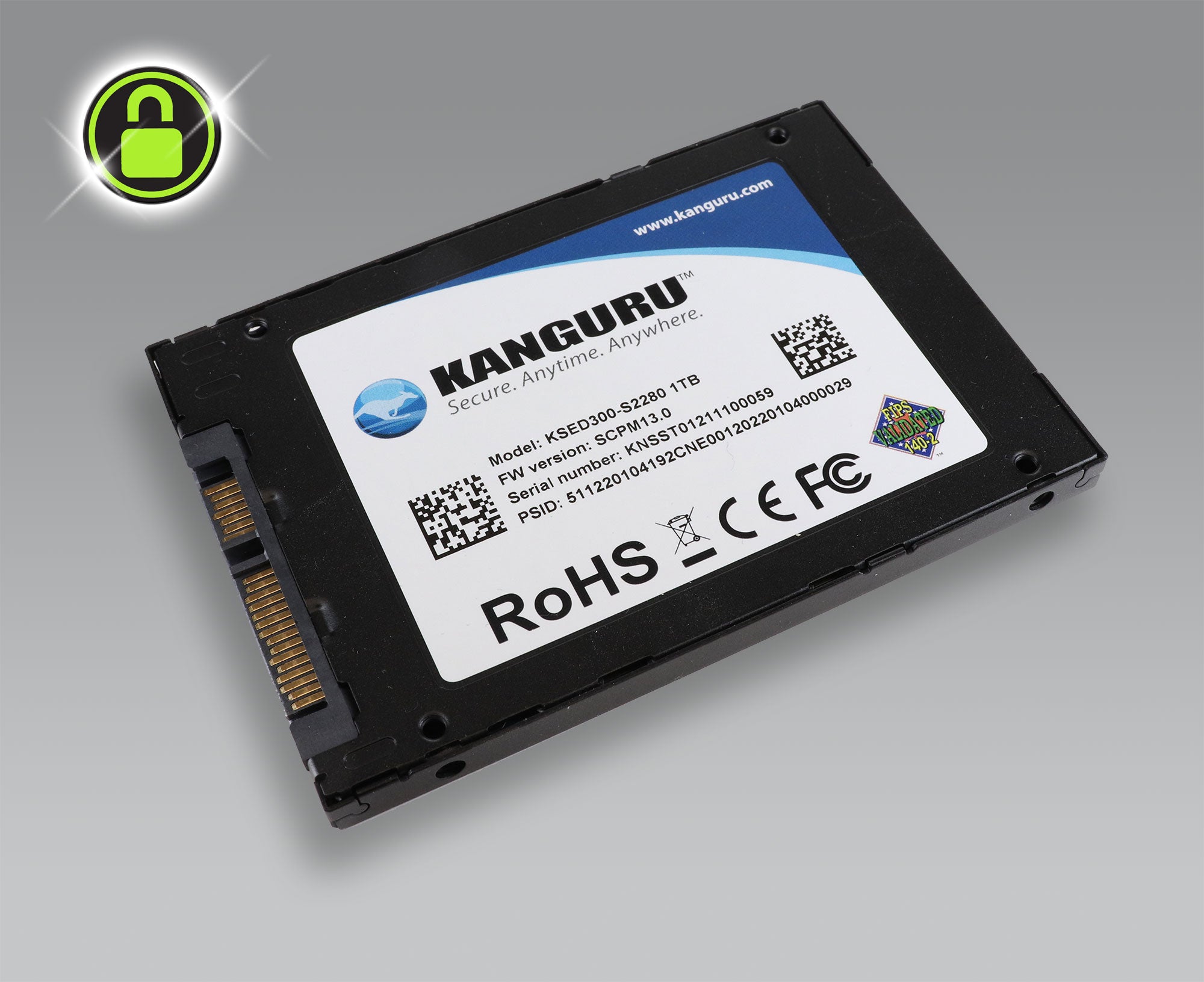
2.5-inch SATA SSD
The 2.5-inch model is the safest choice for many upgrades. It normally uses two connections:
• A SATA data connector that links to the motherboard
• A SATA power connector from the power supply
Most 2.5-inch SATA SSDs are 7 millimeters thick. Some laptops have a spacer or mounting bracket for a proper fit. Desktop users may need a 2.5-inch adapter if the case has only larger drive bays.
M.2 SATA SSD
An M.2 SATA SSD is smaller and fits directly into a compatible M.2 slot. It does not normally need a separate SATA data cable.
However, M.2 slots vary by motherboard. Some support SATA, some support NVMe, and some support both. Always check the computer or motherboard manual before buying.
mSATA SSD
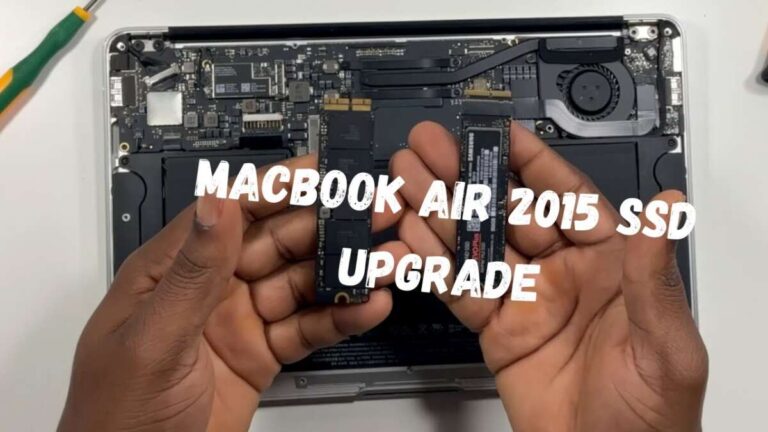
mSATA was used in some older laptops, mini PCs, and embedded systems. It is not the same as M.2. An mSATA drive requires an mSATA slot and cannot be installed directly in a normal M.2 slot.
Advantages of a SATA SSD drive
The main value of a SATA SSD drive is balance. It offers a large improvement over a hard drive while working with many older computers.
Key advantages include:
• Easy installation: A 2.5-inch model uses familiar SATA connections.
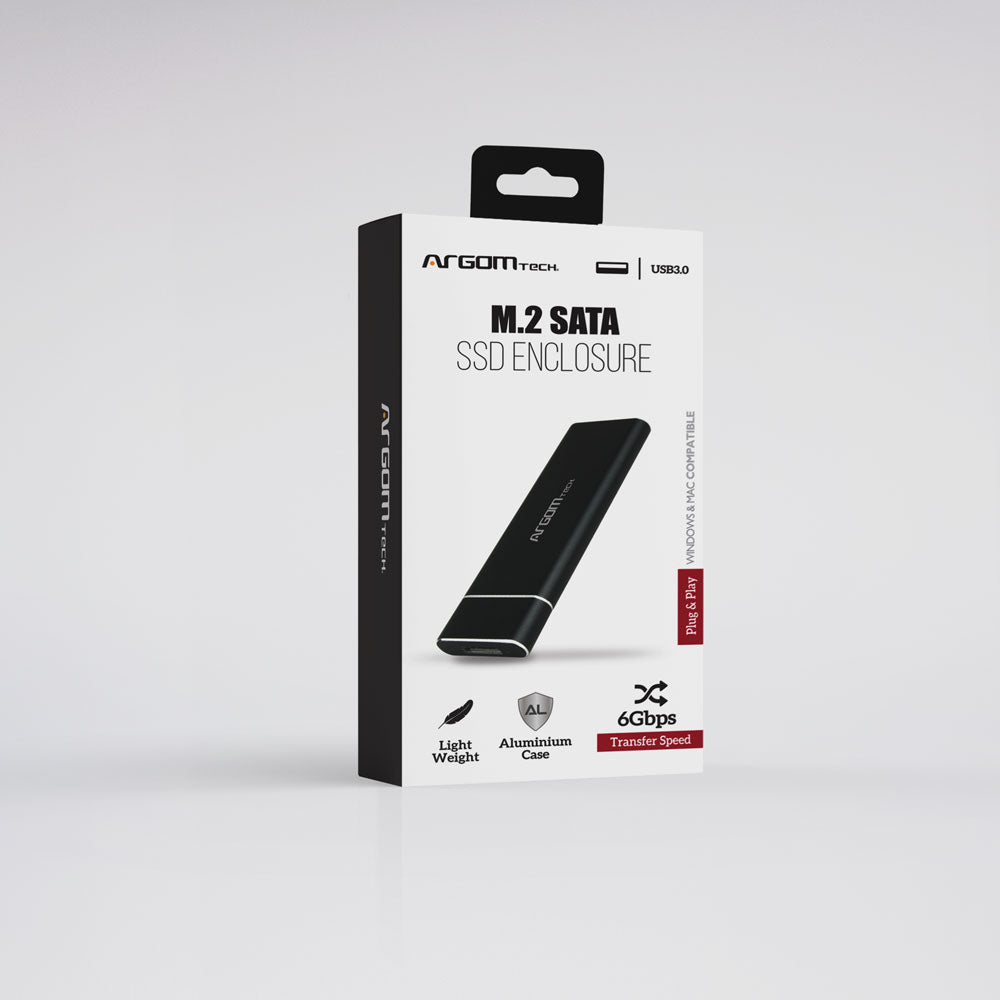
• Broad compatibility: Many desktops, laptops, game consoles, and external enclosures support SATA.
• Low noise: There are no moving parts to create vibration or sound.
• Strong everyday performance: Operating systems and apps load quickly.
• Lower heat: Most models produce less heat than mechanical drives during normal use.
• Better durability during movement: An SSD is less sensitive to bumps while operating.
• Simple cloning: Many users can copy an old system drive to the new SSD.
A SATA SSD drive is especially helpful for an older laptop that feels slow but still has a good processor and enough memory. The storage upgrade cannot fix every problem, but it often removes the largest source of delay.
Limitations of a SATA SSD drive
SATA SSDs are useful, but they are not ideal for every situation.
The main limitations are:
• Lower maximum speed than NVMe SSDs
• Lower value per terabyte than many hard drives
• Limited write endurance, depending on the flash type and capacity
• Possible performance drops during very large, continuous writes
• Compatibility concerns with older BIOS settings or drive bays
• No built-in protection from accidental deletion or malware
Some low-cost models use QLC flash. QLC stores four bits in each cell and can provide high capacity at a lower price. It may slow down during long writes after its faster cache is full. TLC flash, which stores three bits per cell, often provides a better balance for frequent writing.
DRAM can also affect performance. A drive with DRAM may handle mapping data more smoothly, while some DRAM-less SSDs use host memory buffer technology. A DRAM-less drive is not automatically bad, but reviews and endurance data matter more than a single specification.
How to choose the best SATA SSD drive
Start with compatibility, capacity, workload, and warranty. Speed should come after those points.
1. Confirm compatibility
Check the computer manual or motherboard specifications. For a 2.5-inch SSD, confirm that you have a SATA data port, a SATA power plug, and enough physical space.
For an M.2 SATA SSD, confirm that the M.2 slot supports SATA. This single check can prevent an expensive buying mistake.
2. Pick a suitable capacity
Common choices include:
• 250GB or 256GB: Suitable for a basic system, but space can become tight.
• 500GB or 512GB: A strong choice for most home and office computers.
• 1TB: Useful for games, photos, creative apps, and larger files.
• 2TB or more: Better for large libraries and systems that need one main drive.
A larger SSD often has more NAND memory available for parallel work. This can improve performance and endurance compared with a very small model from the same product family.
3. Check the flash type
TLC is a good general choice for a primary computer drive. QLC can be a sensible budget choice for light use and large storage, but check independent testing if you regularly write large files.
4. Review endurance
Manufacturers may list endurance as TBW, or terabytes written. TBW estimates how much data the drive can write under stated conditions before reaching its rated limit.
Do not treat TBW as a guaranteed failure date. Many drives continue working beyond that figure, while other failures can happen earlier. It is best used for comparing similar models.
5. Look for a useful warranty
A longer warranty can show that the manufacturer has confidence in the product. Also check whether the warranty uses a time limit, a TBW limit, or whichever comes first.
6. Read real testing
Independent reviews can reveal sustained write behavior, temperature, power use, firmware issues, and performance after the cache fills. Advertised peak speed alone does not tell the whole story.
How to install a SATA SSD drive
Installing a 2.5-inch SATA SSD is usually straightforward. Back up your important files before opening the computer.
-
Shut down the computer and unplug it from power.
-
Hold the power button for a few seconds to discharge residual power.
-
Open the case or laptop access panel.
-
Mount the SSD in a suitable 2.5-inch bay or bracket.
-
Connect the SATA data cable to the SSD and motherboard.
-
Connect the SATA power cable from the power supply.
-
Close the computer, start it, and enter the BIOS or UEFI if needed.
-
Confirm that the drive is detected.
-
Initialize and format the drive in the operating system if it is new.
-
Restore files or clone the old system drive.
A cloning process copies the old drive to the new one. It can save time, but the partition may need to be expanded afterward so the operating system can use the full capacity.
For a fresh installation, create a bootable installer, select the new SSD, and follow the setup steps. A clean install removes old software clutter, but it also requires you to reinstall programs and restore personal files.
In upgrade work, I have seen people connect the new drive correctly but forget to change the boot order. If the computer keeps starting from the old drive, check the UEFI boot menu and confirm that the new SSD contains the active system installation.
How to maintain a SATA SSD drive
A SATA SSD drive needs less routine care than a hard drive, but good habits still matter.
• Keep important files backed up in at least two separate locations.
• Leave some free space, especially on the system drive.
• Install firmware updates only through trusted manufacturer software.
• Keep the operating system and storage drivers current.
• Make sure TRIM is enabled.
• Avoid constant unnecessary benchmark tests.
• Monitor drive health with a reputable tool.
• Protect laptops from heat and blocked air vents.
Modern operating systems usually manage TRIM automatically. You do not need to defragment an SSD like a hard drive. Traditional defragmentation creates extra writes and offers little benefit for solid-state storage.
A full SSD may slow down because the controller has less free space for garbage collection and wear leveling. Keeping roughly 10% to 20% free can help in heavy-use systems, although the ideal amount varies by drive and workload.
Monitor attributes such as percentage used, available spare, temperature, and total host writes. SMART data can provide useful warnings, but it cannot predict every sudden failure. Backup remains the most important protection.
SATA SSD drive lifespan and reliability
The lifespan of a SATA SSD drive depends on flash quality, capacity, workload, temperature, firmware, and how much data is written.
Reading data does not usually wear flash cells in the same way writing and erasing do. A home computer that browses the web, runs office apps, and stores photos may write far less data than a video editing workstation or database server.
A larger drive often has more cells available for wear leveling. That is one reason a 1TB model may have a higher TBW rating than a 500GB version in the same product line.
Watch for these warning signs:
• The drive disappears from the BIOS or operating system.
• Files become corrupted or fail to open.
• The drive switches to read-only mode.
• SMART health reports serious errors.
• The computer freezes during storage-heavy tasks.
If you notice these symptoms, copy important files immediately. Do not wait for the drive to fail completely.
Reliability ratings are useful, but they are not promises. A drive can fail early because of electronics, firmware, power problems, or manufacturing defects. A backup plan is more valuable than any single endurance number.
Common mistakes to avoid
Several errors appear often during SATA SSD upgrades.
• Buying an NVMe drive for a SATA-only M.2 slot
• Forgetting the SATA power cable
• Using a damaged or loose data cable
• Cloning a larger old drive to a smaller SSD without checking used space
• Not changing the boot order after cloning
• Treating the SSD as a backup
• Filling the drive completely
• Choosing only by advertised read speed
• Installing unknown firmware from an untrusted site
• Skipping a file backup before migration
The safest approach is simple: check compatibility, back up first, install carefully, and test the new drive before erasing the old one.

When should you buy a SATA SSD drive?
A SATA SSD drive is a smart choice when your computer still uses a hard drive and you want a noticeable speed upgrade at a reasonable cost.
It is also useful when:
• Your computer lacks an NVMe-compatible slot.
• You need a replacement for a failing 2.5-inch hard drive.
• You want a quiet external or internal storage device.
• You need a second drive for games or applications.
• You are upgrading an older office computer or family laptop.
You may prefer NVMe if your system supports it and the price difference is small. You may prefer a hard drive if you need several terabytes for archives and speed is not important.
The best purchase is not always the fastest drive. It is the drive that fits your computer, workload, budget, and backup plan.
Frequently Asked Questions About What Is a SATA SSD Drive
Is a SATA SSD drive better than a hard drive?
Yes, a SATA SSD drive is usually much faster, quieter, and more resistant to movement than a hard drive. A hard drive may still offer more storage for less money.
Is a SATA SSD drive the same as an M.2 SSD?
No. M.2 describes a physical shape and slot, while SATA describes a communication interface. An M.2 SSD can use SATA or NVMe, so you must check the slot and drive specifications.
How fast is a SATA SSD drive?
Most SATA III SSDs reach about 500 to 560 MB/s for sequential reads. Real performance varies with the drive model, computer, file size, and workload.
Can I use a SATA SSD drive in an old computer?
Often, yes. If the computer has a compatible SATA data port, power connection, and mounting space, a 2.5-inch SATA SSD can usually replace its hard drive.
Does a SATA SSD drive need defragmentation?
No. Modern operating systems use TRIM and other maintenance methods for SSDs. Traditional defragmentation is unnecessary and can create extra writes.
How long does a SATA SSD drive last?
Many SATA SSDs last for years under normal consumer use. Lifespan depends on total writes, temperature, flash type, capacity, firmware, and general drive quality.
Should I buy a SATA SSD drive with TLC or QLC flash?
TLC is usually the better all-purpose choice because it offers a strong balance of speed and endurance. QLC can work well for light use and high-capacity storage, especially when the price is the main concern.
Can a SATA SSD drive improve gaming?
Yes, it can reduce game load times compared with a hard drive. It usually does not increase average frame rates, because frame rates depend more on the graphics card, processor, memory, and game settings.
Conclusion
A SATA SSD drive is a flash-based storage device that uses the SATA interface instead of moving parts. It delivers much faster access, quieter operation, lower vibration, and better everyday responsiveness than a traditional hard drive.
Its main limit is speed. SATA SSDs are slower than NVMe models, but they remain excellent for older laptops, desktops, office systems, gaming libraries, and affordable upgrades. Check the connector, choose enough capacity, review endurance, and keep reliable backups.
If your computer still feels slow because of an aging hard drive, a SATA SSD drive may be the most practical upgrade you can make. Compare compatible models, plan the installation, and take the first step toward a faster system today.

Everett Ashford is a tech reviewer at mytechgrid.com specializing in SSDs, cameras, TVs, earbuds, headphones, and other consumer electronics. He provides honest, data-driven reviews based on hands-on testing and real-world performance analysis. Everett simplifies complex tech details to help readers make smart, confident buying decisions.