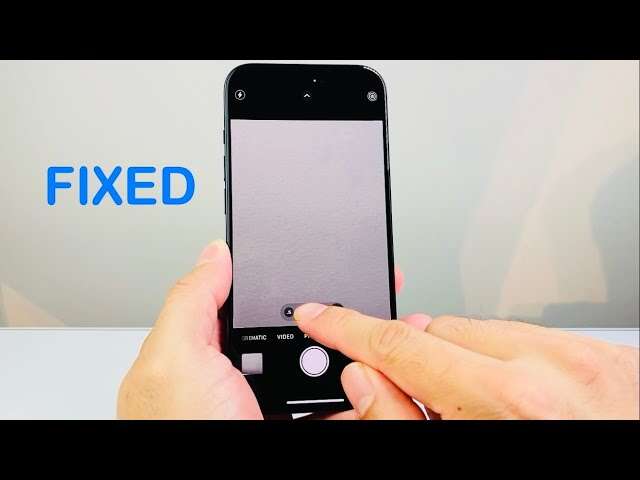
A dirty lens, blocked camera, poor light, software glitch, or hardware damage can make your front camera blurry.
If you are asking, “why is my front camera blurry,” the cause is often simple to fix. However, persistent blur can also point to focus problems, app errors, moisture, or a damaged camera module. This guide explains each likely cause, shows safe fixes, and helps you decide when professional repair is the best choice.
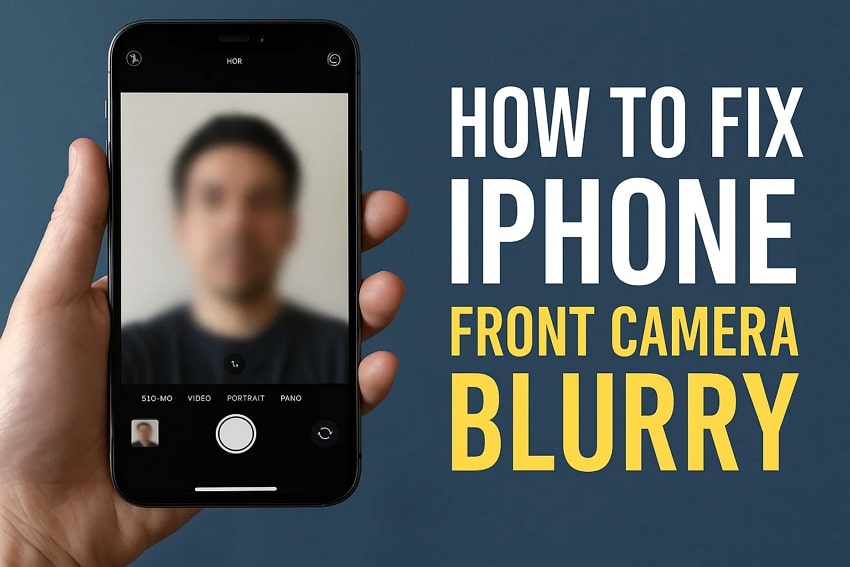
Why is my front camera blurry?
Your front camera may look blurry because the lens is dirty, your phone case blocks part of it, or the camera cannot focus well. Low light, screen protectors, condensation, and software bugs can also reduce image sharpness.
Sometimes, the problem is not the camera itself. The preview may look soft because of poor lighting or a weak video call connection. Start with the simple checks below before assuming your phone needs repair.
Common causes of a blurry front camera
The most common reasons include:
• Fingerprints, oil, dust, or makeup on the lens
• A scratched camera lens or damaged screen protector
• A phone case covering the camera edge
• Low light or strong backlighting
• Camera app glitches
• An outdated operating system
• Moisture or condensation inside the phone
• A failed autofocus or front camera module
• Blur caused by a third-party app, such as a social media or video chat app
The front camera lens is very small. Even a thin layer of skin oil can scatter light and make your face look hazy. Think of it like looking through a smudged window. The scene is still there, but the fine detail disappears.
Clean the front camera lens safely
Cleaning the lens is the fastest way to fix a blurry front camera. Use a clean microfiber cloth, such as the type made for eyeglasses. Wipe the lens gently in small circles.
Avoid paper towels, tissues, rough clothing, and household cleaners. These can leave fibers, cause tiny scratches, or push dirt into the edge of the camera opening.
Follow these steps:
-
Turn off the camera app.
-
Remove the phone case.
-
Use a dry microfiber cloth to wipe the front camera area.
-
Check for oil, dust, makeup, or dried liquid.
-
Take a new photo in good light.
If the lens has sticky residue, slightly dampen one corner of the cloth with clean water. Do not spray liquid directly onto the phone. Keep moisture away from the speaker, screen edges, and camera opening.
In my troubleshooting experience, lens cleaning solves more blurry front camera complaints than people expect. Many users clean the display but forget that the camera sits behind or beside the screen. That small missed spot can make every selfie look soft.

Check your case and screen protector
A case or screen protector can cause front camera blur if it covers the lens or reflects light into it. This issue is common with thick privacy protectors, poorly aligned glass, and older cases that have shifted over time.
Remove the case and take a test photo. If the photo becomes clear, the case opening is too small or badly placed. Replace it with a case designed for your exact phone model.
Also inspect the screen protector around the front camera. Look for:
• Bubbles
• Scratches
• Dust trapped under the glass
• A cloudy coating
• A dark ring over the camera
• Misalignment around the camera cutout
Some screen protectors have a camera cover or a frosted surface. These features may protect the lens, but they can also soften photos. If your front camera became blurry after installing a protector, remove it carefully or have it replaced.
Never use a sharp tool to clean around the camera. A needle can scratch the lens cover or damage the display.

Improve lighting and camera distance
Poor lighting is another major reason why your front camera is blurry. In a dark room, the phone may use a slower shutter speed and raise image brightness. Small hand movements can then create motion blur.
Move near a window or use a soft lamp in front of your face. Avoid placing a bright window directly behind you. Strong backlighting can make your face look dark and reduce detail.
For clearer selfies:
• Face a window instead of standing with your back to it.
• Keep the light slightly above eye level.
• Avoid very bright lights directly overhead.
• Hold the phone steady.
• Keep your face within the camera’s normal focus range.
• Do not move while the photo is being taken.
Front cameras also have limits. Many are designed for close portraits, not very near objects. If your face is extremely close to the phone, move back a few inches and test again.
Try tapping your face on the preview screen if your phone supports tap to focus. Some front cameras have fixed focus, so tapping may not change focus. It can still help the phone set exposure correctly.

Restart the phone and update the camera software
A temporary software error can make the front camera blurry. The camera app may fail to load the correct focus setting, process the image poorly, or conflict with another app using the camera.
Restart your phone first. This clears many short-term system errors without changing your photos or settings.
Then check for updates:
• Install the latest iOS or Android update.
• Update the camera app if your phone allows it.
• Update video call and social media apps.
• Close apps that may be using the camera in the background.
If the problem happens in only one app, the camera hardware may be fine. For example, your front camera may look clear in the built-in Camera app but blurry in Instagram, Snapchat, FaceTime, Zoom, or Messenger. In that case, check the app’s video quality, beauty filter, portrait effect, and data settings.
Some apps reduce image quality to save mobile data. A weak internet connection can also make a video call look blurry, even when the original camera image is sharp.

Test the front camera in different apps
Testing the camera in more than one app helps identify the source of the problem. Start with the built-in Camera app because it usually gives the clearest test.
Take a photo and record a short video. Then compare the result with a video call or social media camera.
Use this simple test:
-
Open the built-in Camera app.
-
Switch to the front camera.
-
Take a photo in bright, even light.
-
Record a short video.
-
Open a second camera app.
-
Compare sharpness, focus, and lighting.
If every app produces a blurry image, the issue may involve the lens, focus system, moisture, or camera hardware. If only one app looks blurry, adjust that app or reinstall it.
Be careful when judging photos after they upload. Social platforms often compress images and videos. A photo may look sharp in your gallery but soft after posting. That is normal compression, not necessarily a broken front camera.

Clear the camera app cache on Android
Android users may fix a blurry front camera by clearing the camera app cache. The exact menu names vary by phone maker, but the process is usually similar.
Try these steps:
-
Open Settings.
-
Tap Apps or Apps & notifications.
-
Select Camera.
-
Tap Storage or Storage & cache.
-
Choose Clear cache.
-
Restart the phone and test the camera.
Clearing the cache removes temporary files. It should not delete your photos. Avoid tapping Clear storage or Clear data unless you understand the result, because that may reset camera preferences.
On some Android phones, you can also reset the Camera app settings. This may turn off filters, change image size, or restore default exposure settings. Resetting the app is useful if the blur began after changing a camera mode or setting.
iPhone users do not normally have a separate camera cache button. Closing the Camera app, restarting the iPhone, updating iOS, or reinstalling a problem app is usually the better approach.

Turn off beauty filters and portrait effects
Beauty filters can make a front camera look blurry by smoothing skin and removing fine detail. Portrait effects may also soften the background or misread the edge of your hair and face.
Check the camera preview for settings such as:
• Beauty
• Skin smoothing
• Retouch
• Face correction
• Portrait mode
• Soft focus
• Cinematic effects
• Low-resolution video
Turn these features off and take another test photo. If the image becomes clearer, the camera is working normally. You can use a lighter filter later if you like the effect.
Portrait mode is not perfect in every situation. Hair, glasses, hats, and dim light can confuse the software. The phone may blur parts of your face or create a soft outline around your head.
Check for moisture or condensation
Moisture can make the front camera look foggy or blurry. This may happen after rain, a splash, a humid bathroom, or a sudden move from a cold place into a warm room.
Look closely at the camera area. A misty patch under the glass suggests condensation inside the phone. Do not use a hair dryer, heater, oven, or direct sunlight to dry it. Strong heat can damage the battery, screen, seals, or internal parts.
Instead:
• Turn the phone off.
• Remove the case and charging cable.
• Wipe the outside with a dry cloth.
• Place the phone in a dry, room-temperature area.
• Allow it to dry naturally.
Do not rely on rice. Small grains and dust can enter ports, and rice does not reliably remove internal moisture. If the camera remains foggy, seek service from a qualified repair provider.
Water resistance also has limits. A phone rated for water resistance may lose that protection after drops, repairs, age, or seal damage. The rating is not a guarantee against every liquid accident.
Look for physical damage
A blurry front camera can result from a cracked lens cover, scratched glass, or damage caused by a drop. Even if the screen still works, the camera may have suffered internal harm.
Inspect the camera area under a bright light. Look for cracks, chips, deep scratches, or a cloudy mark that does not disappear after cleaning.
Hardware damage is more likely when:
• The blur began immediately after a drop.
• The image has a bright haze or strange flare.
• One side of the image is always soft.
• The camera cannot focus at any distance.
• The phone makes unusual sounds when opening the camera.
• Other camera features have also stopped working.
Do not press hard on the camera glass or try to open the phone yourself. Front camera parts can be attached to the display, earpiece, Face ID system, or other sensors. An incorrect repair can create a larger and more expensive problem.
Know when the front camera needs repair
If cleaning, lighting, app tests, and software updates do not help, repair may be necessary. This is especially true when the front camera is blurry in every app and under bright light.
Back up your photos and important data before service. Ask the repair shop to inspect the camera module, lens cover, display assembly, and moisture indicators.
Choose a repair provider that:
• Uses parts made for your phone model.
• Explains the repair before starting.
• Protects your personal data.
• Gives a clear estimate.
• Tests the camera after repair.
• Explains whether water resistance may change.
On some phones, the front camera is linked to biometric security. For example, replacing parts near facial recognition sensors may affect face unlock. Ask the technician about this before approving the work.
A manufacturer service center may cost more, but it can be the safer choice for phones with advanced sensors or warranty coverage. Independent repair shops may offer lower prices, but quality can vary. Compare reviews, parts policies, and warranty terms.
Mistakes to avoid when fixing a blurry front camera
Trying random fixes can make the issue worse. Avoid these common mistakes:
• Do not spray glass cleaner or alcohol directly on the phone.
• Do not scrape the lens with a pin, knife, or fingernail.
• Do not heat the phone to remove moisture.
• Do not factory reset the phone before backing up your data.
• Do not assume a blurry video call means the camera is broken.
• Do not remove internal parts without the right tools and training.
• Do not ignore a blurry camera after water exposure.
The safest approach is simple: clean, remove accessories, improve light, restart, test another app, and inspect for damage. This order saves time and reduces the risk of unnecessary repairs.
How to prevent a blurry front camera
Prevention is easier than repair. Keep the camera area clean and protect your phone from drops, water, and extreme heat.
Useful habits include:
• Wipe the lens with a microfiber cloth once in a while.
• Keep the phone in a dry pocket or bag.
• Use a case with a precise camera opening.
• Replace scratched or cloudy screen protectors.
• Avoid placing the phone face down on dirty surfaces.
• Keep camera apps and the operating system updated.
• Store the phone away from steam and heavy humidity.
If you take many selfies or make frequent video calls, check the camera before an important meeting or event. A ten-second test can prevent an awkward blurry call or missed family photo.
Frequently Asked Questions About Why Is My Front Camera Blurry
Why is my front camera blurry but the back camera is clear?
The front and back cameras use separate lenses and camera modules. If the back camera is clear but the front camera stays blurry after cleaning, the front lens, focus system, or front camera hardware may be the problem.
Why is my front camera blurry after I dropped my phone?
A drop can scratch the lens cover, shift the camera module, or damage internal focus parts. Remove the case, clean the lens, and test the camera in bright light; if the blur remains, arrange a professional inspection.
Can a screen protector make my front camera blurry?
Yes. A misaligned, scratched, cloudy, or low-quality screen protector can cover the camera or scatter light. Remove or replace the protector if the blur started soon after installation.
Why is my front camera blurry on video calls but clear in the Camera app?
Video call apps often compress video to reduce data use. Check your internet connection, app settings, lighting, and any beauty filters before assuming the camera is damaged.
How do I clean a blurry front camera?
Turn off the camera app and wipe the lens gently with a clean, dry microfiber cloth. Do not spray liquid onto the phone or use rough materials that may scratch the lens.
Can low light make the front camera blurry?
Yes. Low light can cause slower shutter speeds, higher image noise, and motion blur. Move toward a soft light source, hold the phone steady, and keep your face in focus range.
Should I reset my phone if the front camera is blurry?
A factory reset is rarely the first step. Try cleaning the lens, restarting the phone, updating software, testing another app, and removing accessories before considering a reset.
Conclusion
A blurry front camera is usually caused by a dirty lens, blocked camera opening, poor lighting, a filter, or an app problem. Moisture, scratches, drops, and failed hardware are less common but need more care.
Start with the safest fixes: clean the lens, remove the case and screen protector, improve the light, restart the phone, and compare several apps. If the front camera remains blurry everywhere, back up your data and contact a trusted repair provider.
Try these steps today, then share your experience or explore more smartphone troubleshooting guides for practical ways to keep your camera clear.

Everett Ashford is a tech reviewer at mytechgrid.com specializing in SSDs, cameras, TVs, earbuds, headphones, and other consumer electronics. He provides honest, data-driven reviews based on hands-on testing and real-world performance analysis. Everett simplifies complex tech details to help readers make smart, confident buying decisions.