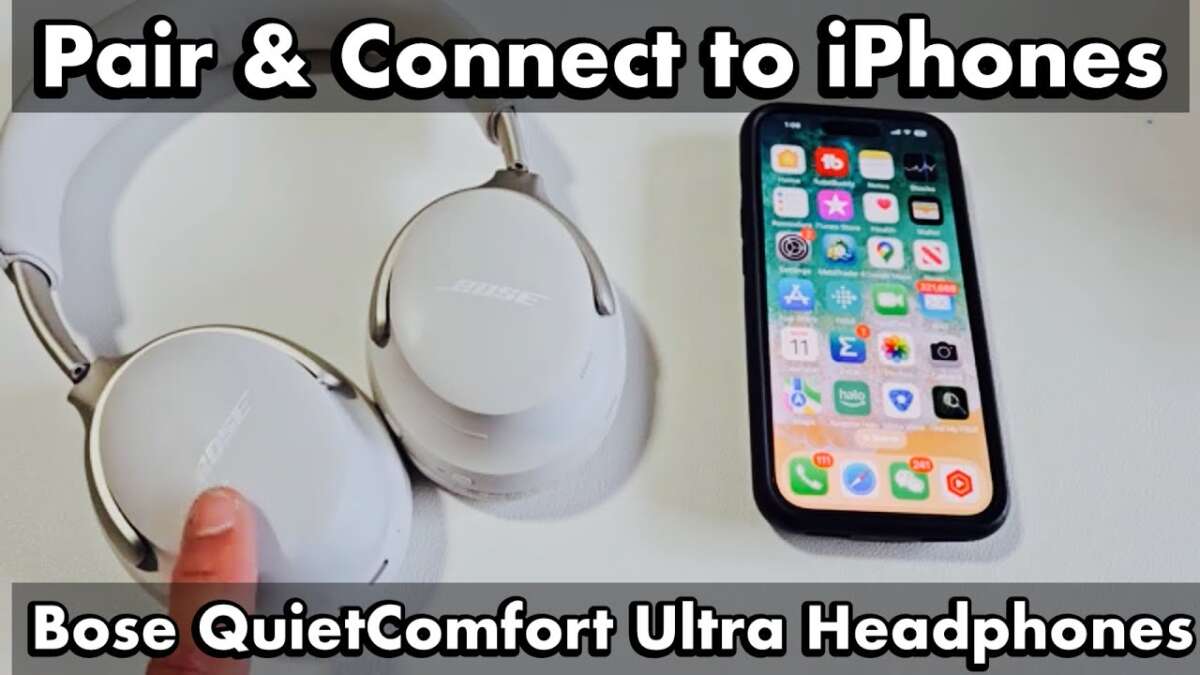
Pair quickly: enable Bluetooth on your iPhone, put Bose QuietComfort in pairing mode, then select it in Settings > Bluetooth.
I’ve spent years testing headphones and helping people pair gear. In this guide I’ll walk you through exactly how to connect bose quietcomfort headphones to iphone, step by step. You’ll get simple pairing instructions, fast fixes for common problems, tips to keep audio stable, and real-world advice from my own experience. Read on to pair your headphones fast and enjoy great sound without guesswork.
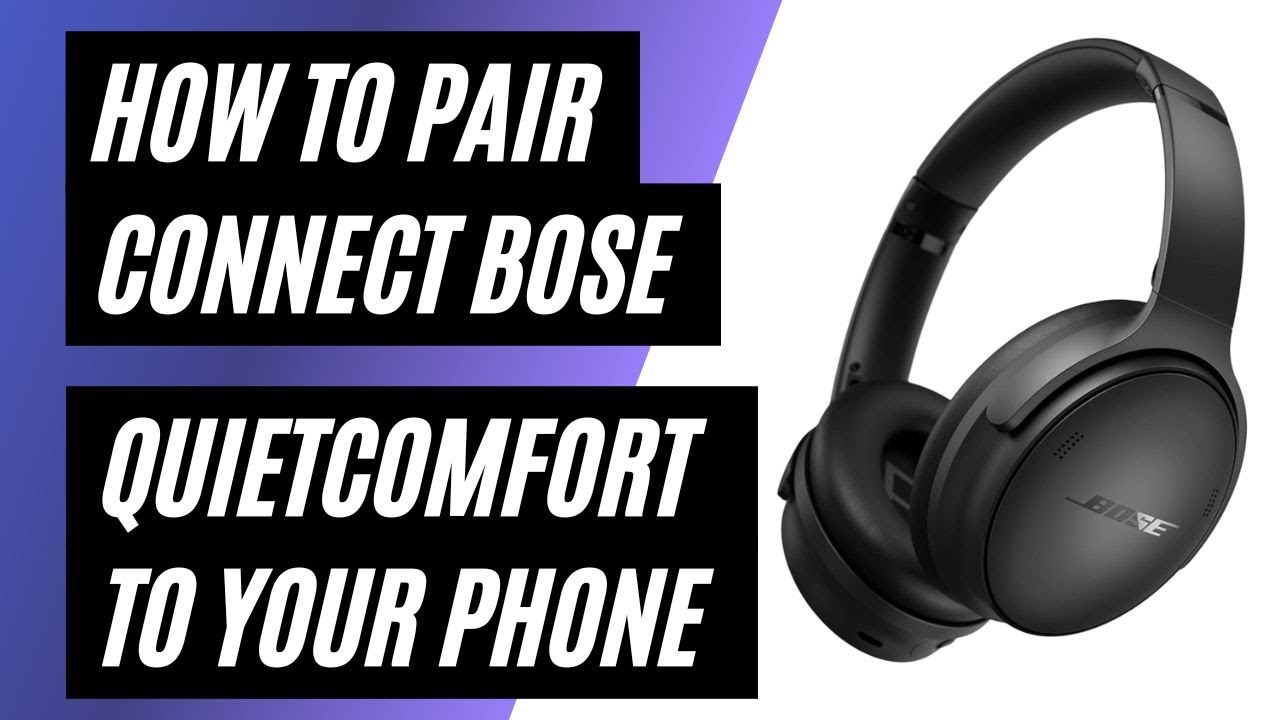
Preparing your iPhone and Bose QuietComfort
Before you start, make sure both devices are ready. Update your iPhone to the latest iOS version. Charge the Bose QuietComfort headphones to at least 20 percent. Turn off other nearby Bluetooth devices to reduce interference.
Check which Bose QuietComfort model you have. Different models (QC35, QC45, QuietComfort Earbuds) use similar pairing steps but small button differences. Note whether your headphones support multipoint. That affects reconnect behavior.
Keep the iPhone screen unlocked while pairing. Open Settings, then Bluetooth, and stay on that screen until the headphones show up. This avoids accidental timeouts and makes pairing smoother.
Step-by-step: how to connect bose quietcomfort headphones to iphone
Follow these clear steps to pair and connect. I’ll keep each step short and exact.
- Turn on Bluetooth on your iPhone
- Open Settings > Bluetooth and toggle Bluetooth on. Stay on the Bluetooth screen.
- Put the Bose QuietComfort into pairing mode
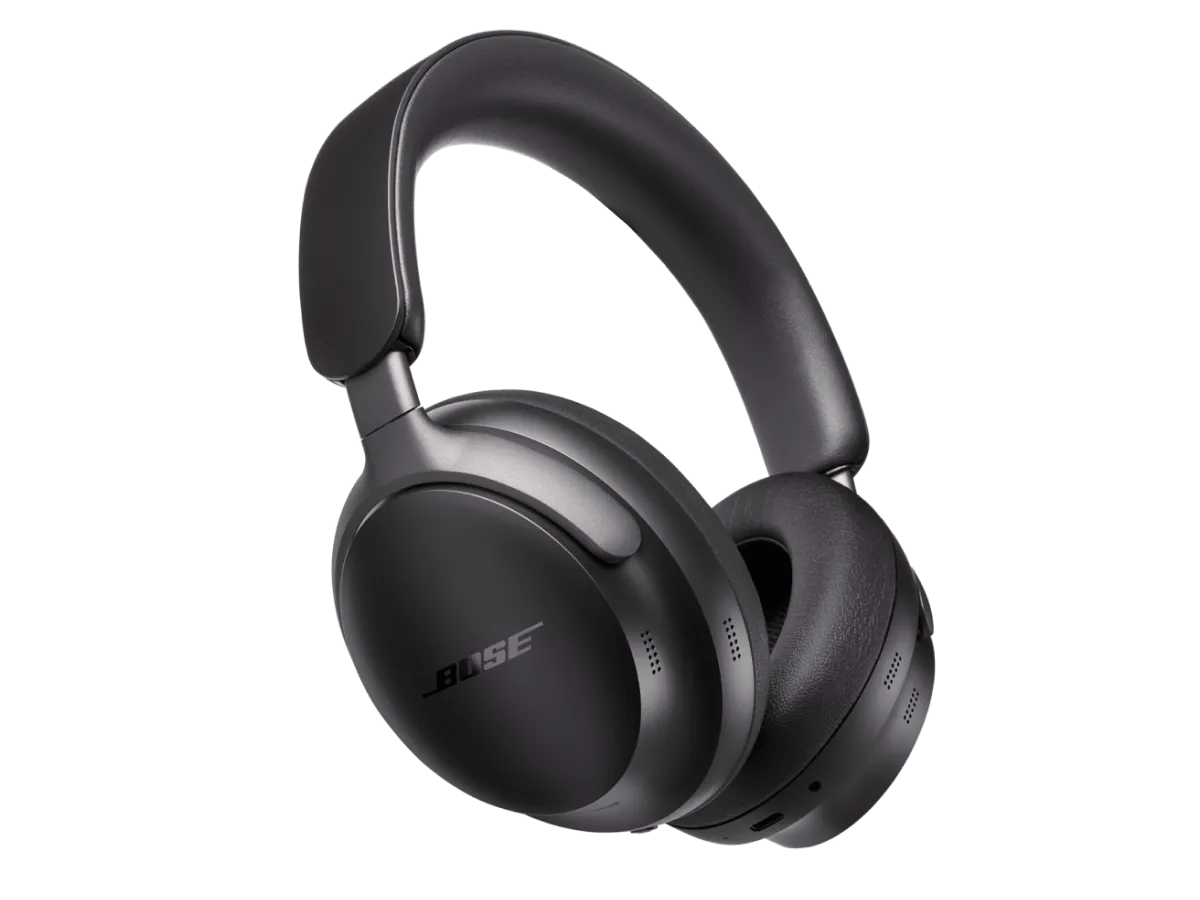
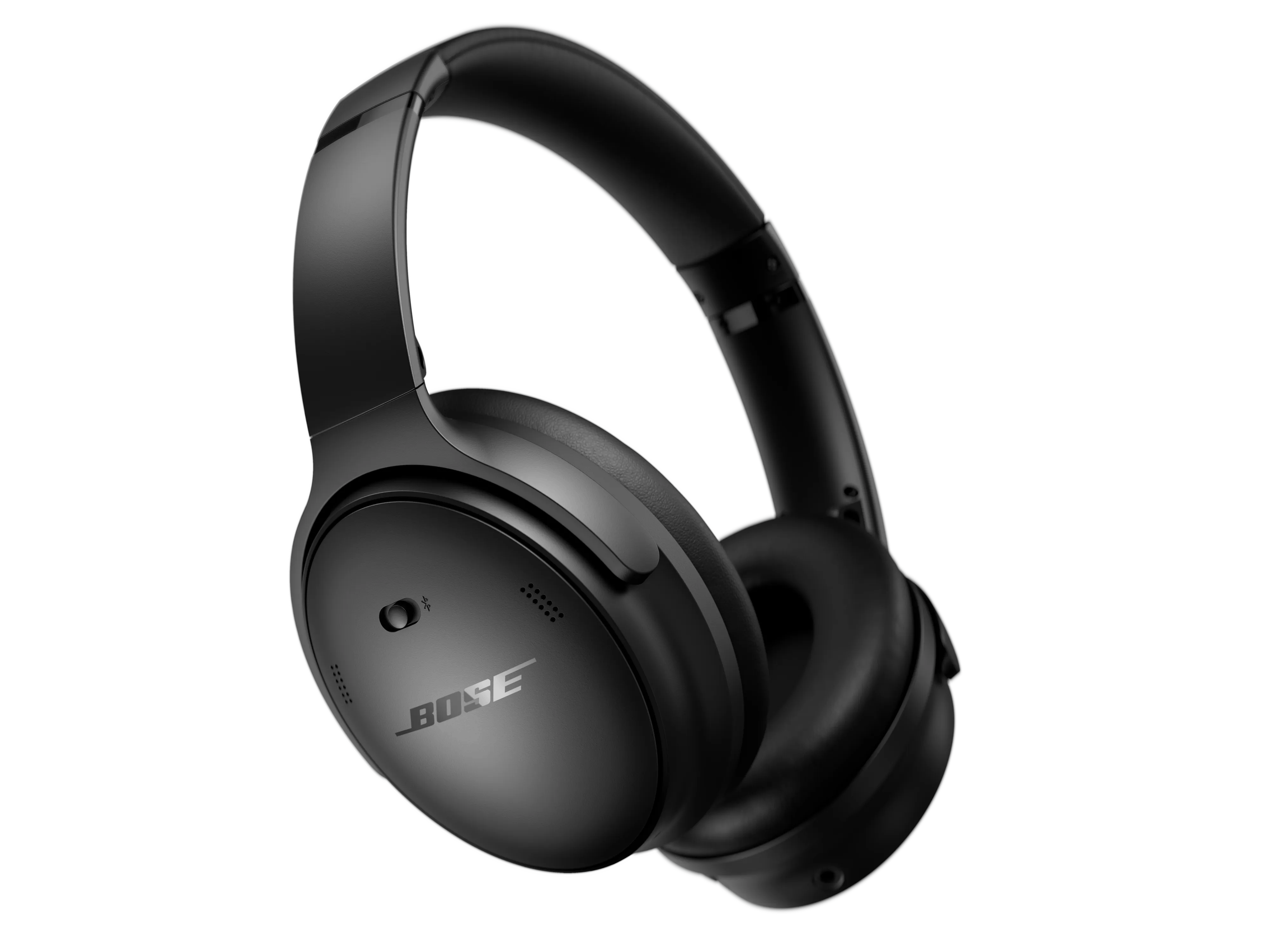
- Over-ear QC models: power on the headphones. Slide or press the power/Bluetooth switch to the Bluetooth symbol and hold until you hear “ready to pair” or see a blinking Bluetooth light.
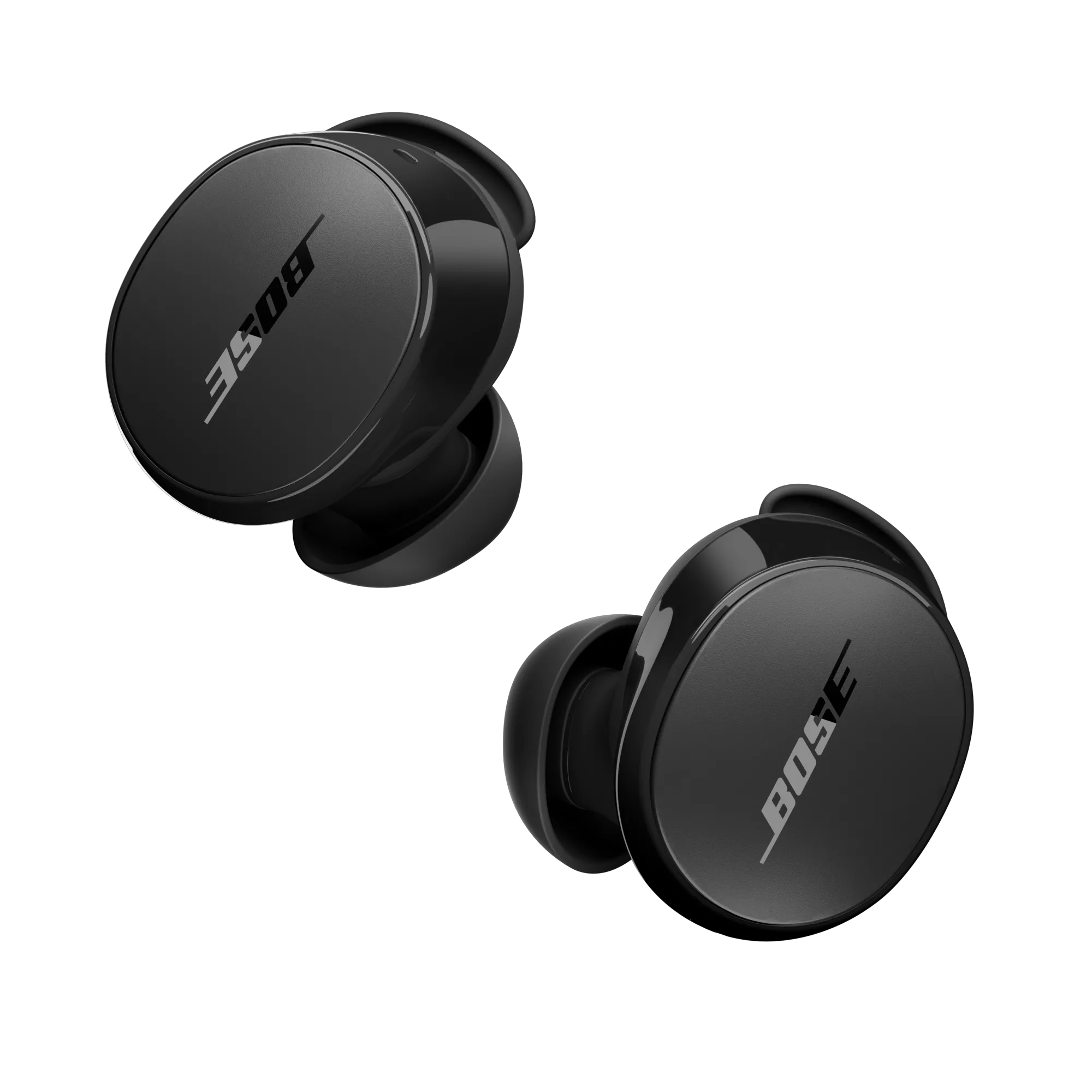
- QuietComfort Earbuds: open the case or press the Bluetooth button on the case until the LED blinks. If unsure, press and hold the power/Bluetooth button for 5–7 seconds.
- Find the headphones on your iPhone
- Look under “Other Devices” on the Bluetooth screen. Tap the name that matches your Bose QuietComfort headphones.
- Complete the connection
- Wait for “Connected” to appear. You might hear a confirmation tone from the headphones. Test audio with music or a video.
- Confirm audio routing
- For calls or calls via apps, open Control Center or the app’s audio settings and ensure the Bose QuietComfort headphones are selected.
If you’re connecting multiple devices, enable multipoint (if supported) via the Bose app or device settings to keep the headphones linked to two devices at once.

Troubleshooting common pairing problems
Pairing can fail for several small reasons. These quick fixes cover the usual cases.
- Headphones won’t appear on iPhone
- Turn Bluetooth off and on. Restart your iPhone and the headphones. Put the headphones in pairing mode again.
- Stuck on “Connecting”
- Forget the device on your iPhone: tap the info icon next to the headphone name and choose Forget This Device. Re-pair from scratch.
- Intermittent audio dropouts
- Move closer to the iPhone. Reduce sources of interference like Wi-Fi routers or microwaves. Disable other Bluetooth devices that may be competing.
- Paired but no sound
- Check volume levels on both iPhone and headphones. In Control Center, confirm audio is directed to the Bose headphones.
- Headphones pair to a different device automatically
- Turn off Bluetooth on other devices or use the Bose app to remove prior pairings. Consider enabling multipoint if you want multiple connections.
If resets are needed, factory-reset the headphones (check the specific model’s reset steps). After reset, repeat the pairing steps above.
Tips to improve Bluetooth stability and audio quality
These small habits make a big difference. Try them to keep sound clean and reliable.
- Keep firmware updated
- Use the Bose app to install firmware updates. Updates fix bugs and improve Bluetooth performance.
- Limit distance and obstacles
- Bluetooth works best within 30 feet with clear line-of-sight. Walls and pockets weaken the signal.
- Reduce wireless clutter
- Turn off unused Wi-Fi and Bluetooth accessories. This reduces interference.
- Use AAC or SBC codec awareness
- iPhones use AAC over Bluetooth for better audio. If your Bose supports AAC, the iPhone will pick it automatically.
- Use a wired backup when needed
- Many QuietComfort models include an aux cable. Use it when Bluetooth is blocked or during long listening sessions where latency and battery matter.
From my testing, keeping firmware updated and avoiding pockets while streaming fixed most dropouts.

Compatibility, battery, and model differences
Not all Bose QuietComfort models behave identically with an iPhone. Here are key differences and practical notes.
- QC35 and QC45 over-ear headphones
- These models pair via the power/Bluetooth switch. They typically reconnect quickly to iPhones. Battery life varies by model and active noise cancelation.
- QuietComfort Earbuds
- Earbuds use a case for pairing and charging. The case can change pairing behavior. Keep the case charged.
- Multipoint support
- Some models support connecting to two devices at once. If you need phone plus laptop, check your model’s multipoint feature in its manual.
- Battery monitoring
- iPhone displays battery percentage for most Bose models once connected. If it doesn’t, check the Bose app for battery info.
- Firmware differences
- Firmware updates can change behavior. Always update before troubleshooting persistent issues.
If you plan to use the headphones for calls, check the mic quality and test with a quick call. Call audio and music audio may have different behaviors.
Personal experience and practical lessons
I’ve paired Bose QuietComfort headphones with many iPhones of different iOS versions. Here’s what I learned the hard way.
- Patience helps
- Waiting a few seconds on the Bluetooth screen makes pairing more consistent. Rushing to press buttons often misses the pairing window.
- Factory reset as a last resort
- I found that a reset resolved weird reconnect loops when all else failed. Keep pairing info saved elsewhere if you reset often.
- Use the Bose app
- The app not only updates firmware but also helps toggle settings like multipoint and voice prompts. That saved me time when setting up family devices.
- Labeling helps
- If you often swap headphones between family phones, rename the headphones in Bluetooth settings. It prevents accidental pairings.
Mistakes to avoid: don’t assume low battery won’t affect pairing; low power can prevent proper pairing modes. Also, avoid testing multiple pairing methods at once—stick to one clear sequence.

Frequently Asked Questions of how to connect bose quietcomfort headphones to iphone
How do I put my Bose QuietComfort headphones in pairing mode with my iPhone?
Put the headphones into pairing mode by holding the power/Bluetooth button until the voice prompt says “ready to pair” or the LED blinks. On the iPhone, open Settings > Bluetooth and select the Bose QuietComfort device when it appears.
Why won’t my iPhone find my Bose QuietComfort headphones?
Common causes include low headphone battery, Bluetooth turned off on the iPhone, or interference from other devices. Restart both devices and try pairing again while on the Bluetooth screen.
How can I reconnect my Bose QuietComfort headphones after they were paired before?
Open Settings > Bluetooth and tap your headphones under “My Devices” to connect. If auto-reconnect fails, forget the device and re-pair from scratch.
Will Bose QuietComfort headphones work with any iPhone model?
Yes, most Bose QuietComfort models work with modern iPhones via Bluetooth. Some features like battery readout depend on the model and iOS version.
How do I fix stutter or dropouts between my iPhone and Bose QuietComfort headphones?
Move closer to the iPhone, turn off other Bluetooth devices, and update headphone firmware. If problems persist, try a factory reset of the headphones.
Conclusion
You now have a clear, practical guide on how to connect bose quietcomfort headphones to iphone. Start by preparing both devices, follow the simple pairing steps, and use the troubleshooting tips if anything goes wrong. Keep firmware updated, reduce interference, and use the Bose app for extra control.
Take action: pair your headphones now and try a quick audio test. If you run into problems, apply the troubleshooting checklist. If this guide helped, leave a comment or share your pairing tips so others can benefit.

Jamie Lee is a seasoned tech analyst and writer at MyTechGrid.com, known for making the rapidly evolving world of technology accessible to all. Jamie’s work focuses on emerging technologies, product deep-dives, and industry trends—translating complex concepts into engaging, easy-to-understand content. When not researching the latest breakthroughs, Jamie enjoys exploring new tools, testing gadgets, and helping readers navigate the digital world with confidence.