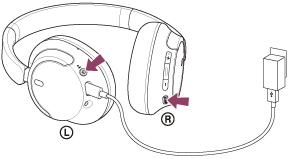
Press and hold the power and custom (or NC) buttons for about 7 seconds to reset most Sony headphones.
I’ve helped dozens of people and tested many Sony models, so I know how frustrating pairing glitches, sound issues, or weird settings can be. This guide explains how to factory reset Sony headphones step by step, when to use each reset method, model-specific tips, and what to do after the reset. You’ll get clear, safe instructions you can follow even if you’re not tech-savvy. Read on to resolve pairing problems, fix persistent audio bugs, or prepare a pair for a new owner.

Why you might factory reset Sony headphones
A factory reset clears settings and Bluetooth pairings. It often fixes problems that normal restarts don’t fix. Common reasons to reset:
- Persistent pairing failures or “can’t connect” errors.
- One earbud not working or uneven audio.
- Firmware or app settings that won’t update or act odd.
- Preparing headphones for sale or giving them away.
- Restoring defaults after accidental setting changes.
Factory reset is a deeper step than turning the headphones off and on. Use it when simpler fixes fail.

What a factory reset does and what it won’t do
A factory reset will:
- Clear Bluetooth pairings and saved settings.
- Return sound and behavior settings to defaults.
- Remove custom button mappings and saved EQ presets.
A factory reset won't:
- Physically repair hardware faults.
- Downgrade or necessarily change firmware (you may still need to update firmware after reset).
- Recover deleted personal files (headphones don’t store files, but paired-device lists are erased).
Knowing this helps decide whether to reset or pursue repair or support.

Before you reset: quick checklist
Do these steps first. They save time and data.
- Try a simple power cycle. Turn headphones off, wait 10 seconds, turn back on.
- Forget the device in your phone’s Bluetooth settings and re-pair.
- Restart the source device (phone, laptop, tablet).
- Charge the headphones fully. Low battery can block reset or firmware tasks.
- Back up any important app settings (note custom EQ or sound presets).
- Make a note of model number. You’ll need it if you look up model-specific steps.
If you tried the checklist and problems persist, proceed with a factory reset.
How to factory reset Sony headphones — recommended methods
I explain two safe ways: the Sony Headphones Connect app method (recommended) and a common manual button method. Use the app first when available. If the app can’t connect, use the manual method.
How to factory reset Sony headphones using the Sony Headphones Connect app (recommended)
- Install and open the Sony Headphones Connect app on your phone.
- Power on the headphones and connect them to your phone.
- In the app, tap the device name to open settings.
- Find System (or Device Settings) and look for Initialize or Reset.
- Follow on-screen instructions to confirm the factory reset.
- After completion, re-pair to your device and update firmware if prompted.
How to factory reset Sony headphones using the manual button method (common)
- Turn your headphones off.
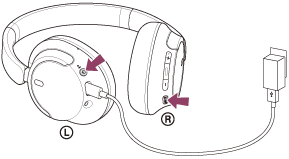
- Press and hold the power button and the custom/NC button at the same time for about 7 seconds.
- Wait for the indicator light to flash or for a voice prompt that confirms reset.
- The headphones will clear pairings and settings and turn off or enter pairing mode.
- Re-pair with your device.
Notes about the manual method
- Some models use the power button plus Noise Canceling (NC), Ambient or Custom button. If your model has a custom button, it is often the other key used.
- If the manual method fails, try the app method or consult the model’s quick start guide.

Model-specific tips and examples
Below are practical tips for common Sony models. Always check your model’s guide if steps differ.
WH-1000XM4 and WH-1000XM5
- App method: Open Sony Headphones Connect > System > Initialize.
- Manual method: With the headset off, press and hold the power button and the custom button (or NC/Ambient) for about 7 seconds until lights change. This clears pairings.
WF-1000XM4 and other WF-series earbuds
- App method: Use Sony Headphones Connect and choose Initialize for earbuds.
- If earbuds won’t connect to the app, place earbuds in case, close then open the lid, and use the app’s initialize option or follow the earbud-specific manual steps for resetting the case and earbuds.
Older models (WH-1000XM3, WF-1000XM3, CH-series)
- Many older Sony models support reset via the app or via a two-button hold while powered off. Look for an app Initialize option first.
If you can’t find a reset option in the app, note the model number and check the quick start guide that came with your headphones. The app method is usually the most reliable.
After the reset: re-pairing and firmware
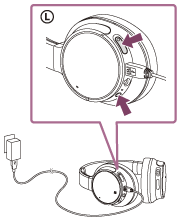
Steps to follow immediately after resetting:
- Turn headphones on and set them to pairing mode.
- Open Bluetooth settings on your phone and pair fresh.
- Reinstall or re-open Sony Headphones Connect to apply settings.
- Check for firmware updates in the app and install them while the headphones are charged.
- Recreate any custom EQ or sound settings.
Updating firmware after a reset often fixes lingering bugs and improves stability.
Troubleshooting if reset doesn’t work
If a reset didn’t fix the issue, try these steps:
- Charge the headphones for at least 30 minutes. Some resets won’t complete on low battery.
- Try the app on a different phone to rule out phone-side issues.
- Uninstall and reinstall the Sony Headphones Connect app.
- Clear Bluetooth cache on Android or toggle Bluetooth on/off on iOS.
- Factory reset your source device’s Bluetooth list if it’s blocking connections.
- If none of this works, contact Sony support or visit a service center.
Personal experience: tips and common mistakes
I once reset a pair of Sony headphones twice before realizing my phone still had the old pairing saved. Lesson learned: always forget or remove old pairings on the source device before re-pairing. Another tip: keep the Sony Headphones Connect app updated. The app often exposes the simplest reset path and firmware update tools.
Common mistakes to avoid:
- Resetting while battery is very low.
- Skipping firmware updates after reset.
- Assuming reset fixes hardware problems like blown drivers.
Limitations and safety notes
- A factory reset won’t fix physical damage or worn drivers.
- Resetting erases pairings. Have passwords or device access ready to re-pair.
- Always use the official app or manufacturer instructions for best results.
PAA-style quick questions
Q: Will a factory reset delete firmware updates?
A: No, a factory reset usually restores settings and pairings, but firmware updates typically remain. You can check the app and update firmware if needed.
Q: How often should I reset my Sony headphones?
A: Only when you have persistent issues that other fixes do not solve. Frequent resets are not necessary.
Q: Will a reset fix one earbud not working?
A: It can fix software or pairing issues that cause that problem. If the problem persists, hardware checks are needed.
Frequently Asked Questions of how to factory reset sony headphones
How do I factory reset Sony WH-1000XM4?
Use Sony Headphones Connect: System > Initialize. Or with the headset off, press and hold the power and custom/NC button about seven seconds until indicators confirm reset.
How do I factory reset Sony WF-1000XM4 earbuds?
Open Sony Headphones Connect and use the Initialize option for earbuds. If they won't connect, follow the model’s manual reset steps in the app or the quick guide.
Will factory reset remove my custom EQ settings?
Yes. A factory reset clears custom EQ settings and returns audio profiles to defaults.
Does resetting clear the Bluetooth list on my phone?
No. Reset clears only the headphone’s stored pairings. You should forget the headphone in your phone’s Bluetooth list manually if needed.
My headphones still won’t pair after reset. What next?
Charge them fully, restart your phone, remove any old pairing entries on the phone, then re-pair. If that fails, try another phone or contact support.
Conclusion
Factory resetting Sony headphones is an effective step when pairing errors, odd audio behavior, or persistent bugs resist simple fixes. Use the Sony Headphones Connect app for the safest, model-specific initialize option. If the app isn’t available, a manual button reset often clears settings and pairings. After resetting, re-pair, update firmware, and rebuild your preferred settings. Try these steps calmly and methodically, and you’ll often restore normal function fast. If you found this helpful, try the reset steps on your headphones now, leave a comment with your model if you get stuck, or subscribe for more practical guides.

Jamie Lee is a seasoned tech analyst and writer at MyTechGrid.com, known for making the rapidly evolving world of technology accessible to all. Jamie’s work focuses on emerging technologies, product deep-dives, and industry trends—translating complex concepts into engaging, easy-to-understand content. When not researching the latest breakthroughs, Jamie enjoys exploring new tools, testing gadgets, and helping readers navigate the digital world with confidence.