You can check if an SSD is failing by reviewing SMART health data, testing performance, and watching for file errors.
Learning how to check if an SSD is failing can help you protect your photos, work files, and operating system before a sudden crash. SSDs do not always give clear warnings, so a careful check should combine health data, system symptoms, backup status, and real-world behavior.
Why SSDs fail
An SSD stores data in flash memory cells. Each cell can handle only a limited number of write cycles. Modern SSDs manage this wear with spare memory, error correction, and wear leveling, but no drive lasts forever.
The controller can also fail. In some cases, the flash memory is healthy, but the controller or firmware stops communicating with the computer. This can make the SSD vanish from the BIOS, Disk Management, Finder, or File Explorer.
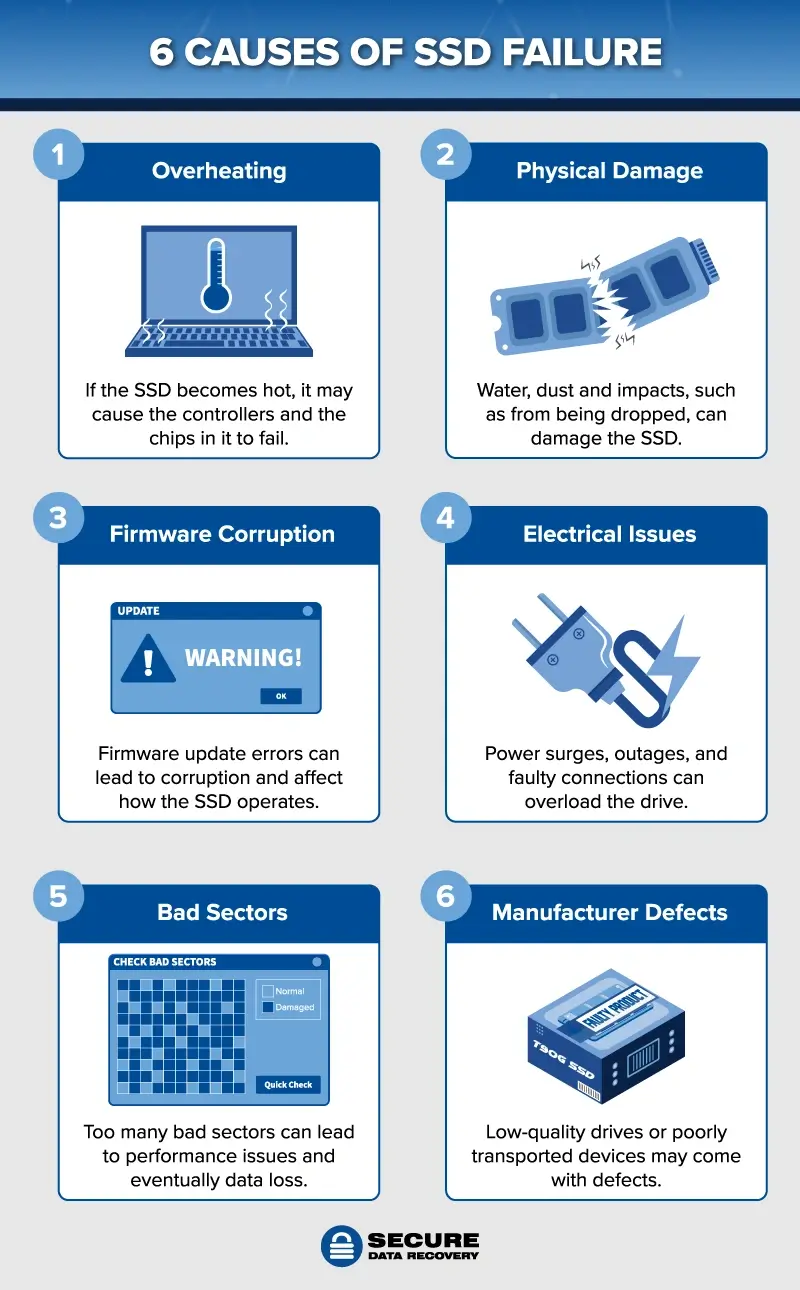
Common causes of SSD failure include:
- Worn flash memory cells
- Controller failure
- Excess heat
- Power loss during a write
- Damaged firmware
- Manufacturing defects
- Physical damage to the drive or connector
- A loose SATA cable or poorly seated M.2 drive
- Excessive writes from video editing, virtual machines, or large databases
The first lesson in how to check if an SSD is failing is simple: do not treat every slow computer as proof of drive failure. A full drive, low system memory, malware, a damaged cable, or a failing power supply can create similar symptoms.
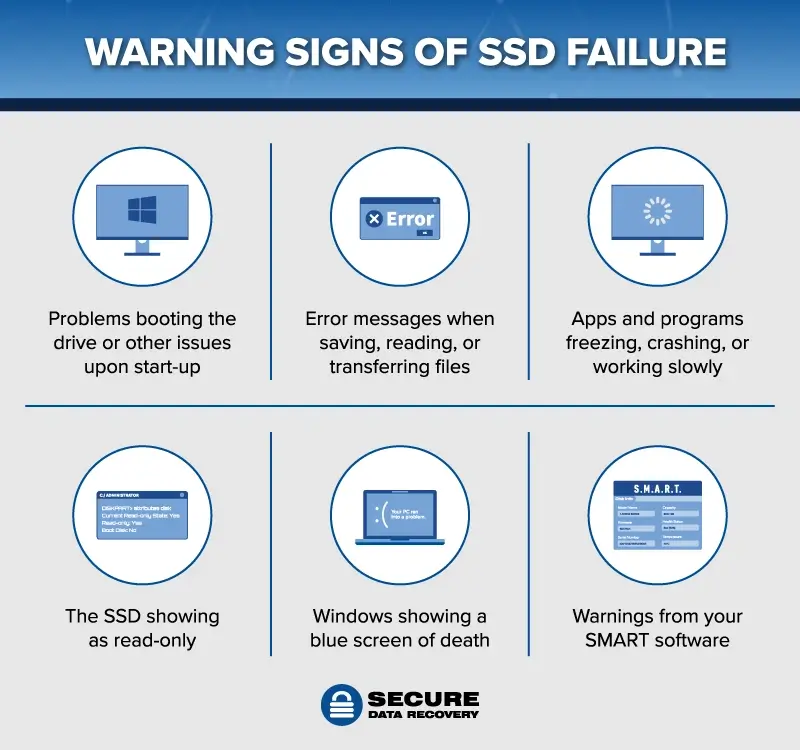
Signs that an SSD may be failing
A failing SSD may show one warning sign or several at once. Some symptoms are easy to notice, while others appear only in diagnostic reports.
Watch for these common signs:
- Files become corrupted or refuse to open
- Windows displays “Windows detected a hard disk problem” or related storage errors
- The computer freezes during file transfers
- The SSD disappears after a restart
- The operating system takes much longer to boot
- Applications crash when they read or save data
- Files copy at very low speeds
- The drive becomes read-only
- The system shows a blue screen with storage-related errors
- macOS reports disk errors or cannot complete repairs
- Linux logs repeated input/output errors
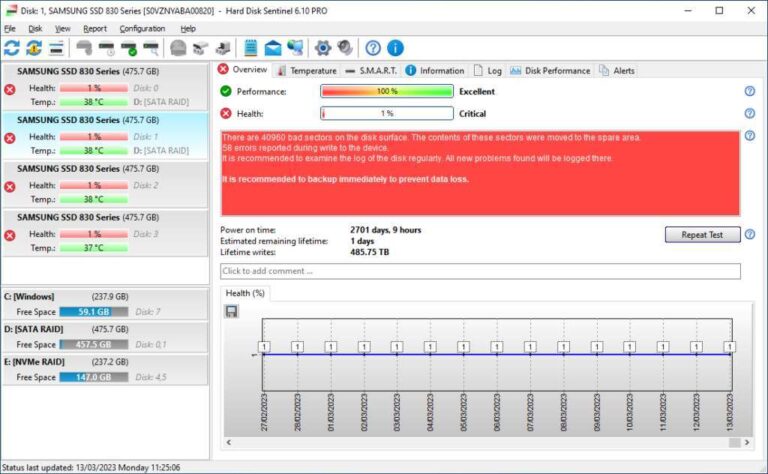
- The SSD reports a critical warning in a health tool
- The drive reaches an unusually high temperature
One symptom does not prove that the SSD is failing. For example, slow file transfers may result from a nearly full drive. A disappearing SATA SSD may have a bad cable. That is why learning how to check if an SSD is failing requires more than running one test.
In my troubleshooting experience, file corruption and repeated input/output errors deserve the most attention. A slow boot can have many causes, but a drive that cannot reliably read the same file is much more concerning.

How to check if an SSD is failing with SMART data
SMART stands for Self-Monitoring, Analysis, and Reporting Technology. It records internal drive data, such as temperature, error counts, spare capacity, and the amount of data written.
SMART is often the best first step in how to check if an SSD is failing because it does not require a long surface scan. Still, SMART is not perfect. A drive can fail suddenly without giving a clear warning, and a “good” rating does not guarantee that every file is safe.
Check an SSD in Windows
Windows may show basic drive health information through Settings, but a dedicated diagnostic tool usually provides more detail.
Try this process:
- Open Settings.
- Select System.
- Choose Storage.
- Open Advanced storage settings.
- Select Disks and volumes.
- Choose the SSD.
- Open Properties.
- Review the drive health details if Windows provides them.
You can also use PowerShell. Open PowerShell as an administrator and run:
Get-PhysicalDisk | Select FriendlyName, HealthStatus, OperationalStatus
A healthy drive often shows “Healthy” for its health status. This report is useful, but it is limited. For detailed SMART attributes, use a trusted drive utility from the SSD maker or a well-known diagnostic application.
Check an SSD on macOS
On a Mac, open Disk Utility and select the physical SSD, not only the volume beneath it. The First Aid feature can find and repair some file system problems.
You can also view basic storage details by selecting:
- Apple menu
- About This Mac
- More Info
- System Report
- NVMExpress or SATA/SATA Express
Apple’s built-in tools may not show every SMART attribute for every third-party drive. If the drive is external, the USB enclosure may also hide health data.
Check an SSD in Linux
Linux users can use the smartmontools package. For a SATA SSD, a typical command is:
sudo smartctl -a /dev/sda
For many NVMe drives, use:
sudo smartctl -a /dev/nvme0
The exact device name may differ. Confirm the correct drive before running tests, especially on a system with more than one disk.
Which SMART values matter most
SMART reports can look confusing because different brands use different attribute names. Focus on the overall health result and the values that clearly indicate media, error, or spare-capacity problems.
Important values may include:
- Percentage Used: This estimates how much of the drive’s rated endurance has been consumed.
- Available Spare: This shows spare flash capacity reserved for replacing worn blocks.
- Critical Warning: This can report serious NVMe conditions, such as low spare space or unsafe temperature.
- Media and Data Integrity Errors: Any growing count is a concern.
- Error Information Log Entries: Repeated errors can point to communication or media problems.
- Unsafe Shutdowns: A high number may reflect power loss, but it does not automatically mean the SSD is failing.
- Temperature: High heat can reduce performance and shorten component life.
- Total Host Writes: This shows how much data the computer has written to the SSD.
- Reallocated or Bad Blocks: On some drives, a rising count indicates that the SSD is replacing damaged storage areas.
Do not panic over one number. A high total host write count may be normal for an older workstation. An unsafe shutdown count may come from power cuts or forced restarts. The trend matters more than a single reading.
A drive that reports 90 percent used endurance may continue working for years, while another drive with low reported wear may fail because of a controller fault. This limitation is central to how to check if an SSD is failing accurately.
Test SSD performance and stability
A performance test can reveal severe slowdowns, but it should not be your only test. Benchmark software writes and reads data, which adds wear and can create unnecessary risk on a drive that already shows errors.
Before testing, back up important files. Then close other applications and make sure the computer has stable power.
Useful checks include:
- Copying a large file to the SSD and back
- Opening several large files
- Installing or verifying a trusted application
- Running a light read benchmark
- Watching for freezes, errors, or sudden speed drops
- Checking whether transfer speeds remain stable over time
New SSDs often slow down during long writes when their temporary cache fills. This behavior is normal for many consumer drives. It does not automatically mean the SSD is failing.
A stronger warning appears when the drive repeatedly stops responding, returns read errors, or produces corrupted copies. If a file changes after being copied, stop testing and focus on data recovery.
One mistake I have seen often is running a destructive benchmark before making a backup. That test may push a weak drive over the edge. When learning how to check if an SSD is failing, protect the data first and measure performance second.
Check file system errors
Sometimes the SSD is healthy, but the file system is damaged. File system errors can happen after a power loss, forced shutdown, operating system crash, or unsafe removal of an external drive.
Windows file system check
Open Command Prompt as an administrator and run:
chkdsk C: /scan
Replace C: with the correct drive letter when needed. This command checks the file system while Windows is running.
If Windows finds problems, it may recommend an offline repair. Do not run repair commands blindly on a drive that is failing or contains important files. Repairs can change file system records, so create a backup or disk image first when possible.
macOS file system check
Use Disk Utility’s First Aid feature. Select the physical drive and then check its containers and volumes. If the Mac cannot repair the volume, start from macOS Recovery and try again.
Linux file system check
Linux tools vary by file system. The fsck command can repair many file systems, but the file system should normally be unmounted before repair. Always confirm the correct partition and read the command documentation first.
File system repair can fix directory problems, but it cannot repair worn flash cells or a failing controller. This distinction helps explain why how to check if an SSD is failing involves both hardware and software checks.
Review system logs for storage errors
System logs often reveal problems before the drive stops working. Look for repeated messages that mention input/output errors, controller resets, timeouts, or critical warnings.
On Windows, open Event Viewer and review:
- Windows Logs
- System
- Disk
- StorAHCI
- stornvme
- Ntfs
Messages about bad blocks, reset commands, or failed read and write operations deserve attention. A single event may be harmless, but repeated events near the same time can indicate a real problem.
On macOS, Console can show storage and kernel messages. On Linux, use commands such as:
dmesg | grep -i -E "error|fail|nvme|ata|i/o"
System logs can also point to another cause. For example, repeated link resets may come from a faulty SATA cable, a loose connection, or a motherboard port. Replace the cable or test another port before declaring the SSD dead.
Check SSD temperature and airflow
Heat affects SSD performance and reliability. NVMe drives can become especially warm during large transfers because they sit close to the processor or graphics card.
Use the manufacturer’s utility, BIOS hardware monitor, or a trusted monitoring program to check temperature. Exact limits vary by model, so compare the reading with the drive’s technical specifications.
Signs of thermal trouble include:
- Performance drops after several minutes of heavy work
- The drive becomes very hot to the touch
- The system reports a temperature warning
- The SSD works again after cooling down
- Errors appear only during long transfers
Improve airflow by removing dust, checking case fans, and using the correct M.2 heatsink when supported. Do not place a heatsink on an SSD if it interferes with installation or warranty requirements.
Temperature alone does not prove that an SSD is failing. It can, however, explain slow performance and repeated thermal throttling. It is another useful part of how to check if an SSD is failing without guessing.
What to do if the SSD shows warning signs
If the drive still works, copy important files immediately. Start with irreplaceable items such as personal photos, financial records, work documents, password vaults, and project files.
Use a second storage device for the backup. A backup stored on the same failing SSD does not protect you.
Follow this order:
- Stop unnecessary downloads, updates, and benchmarks.
- Copy critical files to a separate drive or secure cloud service.
- Verify that the copied files open correctly.
- Create a full disk image if you need the operating system or applications.
- Replace the SSD if errors continue or health data worsens.
- Keep the old drive disconnected unless you need professional recovery.
If the SSD disappears, avoid repeated power cycles. Each restart may reduce your recovery options. A professional data recovery service may help, but SSD recovery can be difficult because of encryption, TRIM, and flash translation layers.
Never open an SSD and never freeze it. Those old hard drive recovery tricks do not apply to modern flash storage and may cause more damage.
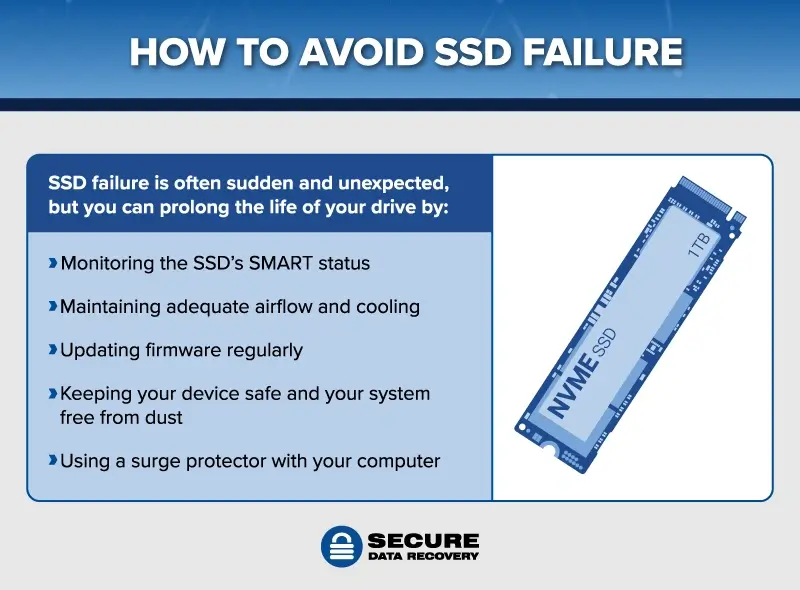
How to prevent SSD failure
You cannot prevent every SSD failure, but good habits reduce risk and make recovery easier.
- Keep at least one verified backup.
- Leave some free space on the SSD.
- Install firmware updates only from the drive maker.
- Use a surge protector or a quality uninterruptible power supply.
- Avoid blocking airflow around NVMe drives.
- Do not defragment an SSD as if it were a traditional hard drive.
- Use the operating system’s normal shutdown process.
- Check drive health every few months.
- Replace drives used for critical work before they reach the end of their rated endurance.
- Keep recovery keys for encrypted drives in a safe place.
Many SSDs include a manufacturer warranty based on time, capacity, or total bytes written. Check the specific warranty terms for your model. Warranty coverage does not replace a backup, and it may not cover lost data.
The most useful long-term habit is a simple backup routine. A healthy drive can fail tomorrow, so prevention and recovery planning matter as much as knowing how to check if an SSD is failing.
Common mistakes when diagnosing an SSD
People often make the same diagnostic mistakes. Avoiding them can save both time and data.
- Assuming a “good” SMART result means the drive cannot fail
- Treating every slow transfer as proof of failure
- Running a write-heavy benchmark before backing up
- Repairing the file system before copying important files
- Ignoring a loose cable or poor M.2 connection
- Using an untrusted tool that asks to erase the drive
- Reinstalling the operating system before checking the hardware
- Keeping the only backup on the suspected SSD
- Repeatedly restarting a drive that disappears
A clean health report is useful evidence, not a guarantee. The strongest diagnosis comes from several matching clues: health warnings, repeated system errors, corrupted files, and unstable performance.
That balanced approach is the safest answer to how to check if an SSD is failing. Test carefully, compare results over time, and act quickly when important data is at risk.
Frequently Asked Questions
How can I check if an SSD is failing on Windows?
Review the drive in Settings, run a SMART diagnostic tool, and check Event Viewer for disk or NVMe errors. You can also use Get-PhysicalDisk in PowerShell to view the reported health status.
Can an SSD fail without showing SMART warnings?
Yes. SMART can miss sudden controller, firmware, power, or electronic failures. That is why corrupted files, disappearing drives, and repeated input/output errors matter even when the health report says the drive is good.
Is a slow SSD always failing?
No. A full drive, thermal throttling, low free space, background tasks, or a damaged cable can cause slow speeds. Test the drive after checking temperature, connections, available space, and system load.
How long does an SSD usually last?
There is no single lifespan for every SSD. Endurance depends on the flash type, model, workload, temperature, and total data written, so use the manufacturer’s endurance rating as a guide rather than a promise.
Should I replace an SSD that reports a critical warning?
Yes, especially if the SSD contains important data or shows read and write errors. Back up the drive first if it still works, then replace it as soon as practical.
Can CHKDSK repair a failing SSD?
CHKDSK can repair some file system problems, but it cannot fix worn flash memory or a damaged controller. Back up important data before using repair commands because changes to the file system may affect recovery.
What is the safest first step if an SSD disappears?
Stop unnecessary restarts and check the cable, port, power connection, or M.2 seating only if you can do so safely. If the drive remains missing, consider professional recovery before attempting aggressive repairs.
Conclusion
The safest way to check if an SSD is failing is to combine SMART data, system logs, file system checks, temperature readings, and real-world stability. No single health score can predict every failure, so take repeated errors, corrupted files, and disappearing drives seriously.
Back up important data before running demanding tests. If the SSD shows clear warning signs, replace it rather than waiting for a complete failure. Use these checks every few months, keep reliable backups, and share your own storage lessons or questions in the comments.

Everett Ashford is a tech reviewer at mytechgrid.com specializing in SSDs, cameras, TVs, earbuds, headphones, and other consumer electronics. He provides honest, data-driven reviews based on hands-on testing and real-world performance analysis. Everett simplifies complex tech details to help readers make smart, confident buying decisions.