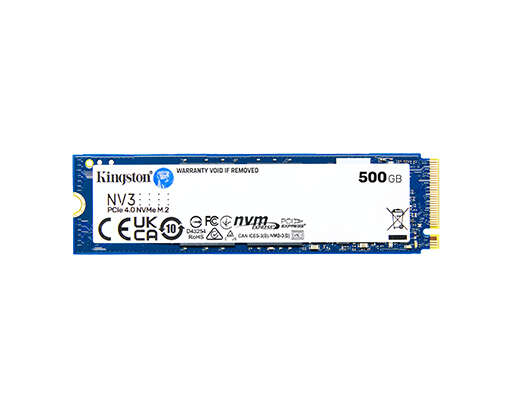
You can check whether a drive is an HDD or SSD in minutes using built‑in OS tools or simple commands.
I’ve spent years fixing PCs and tuning storage for speed. I’ll show clear, practical steps for how to check drive is hdd or ssd on Windows, macOS, and Linux. Read on to learn fast checks, commands, and the signs that separate HDDs from SSDs. You’ll finish ready to identify drives, avoid common mistakes, and pick the right storage for your needs.

Why it matters to know whether a drive is HDD or SSD
Knowing how to check drive is hdd or ssd helps you make better choices. It affects performance, backups, upgrades, and troubleshooting. SSDs boot fast and handle random reads well. HDDs give cheaper capacity for bulk storage.
Use the right commands and tools to avoid guesswork. That saves time and prevents accidental disk operations. Below are practical steps and real tips from my experience.

How to check drive is HDD or SSD on Windows
There are several quick Windows methods. Pick one that fits your comfort level.
- Task Manager
- Open Task Manager (Ctrl+Shift+Esc). Go to Performance. Select each Disk. It will show “SSD” or “HDD” on modern Windows 10/11.
- PowerShell
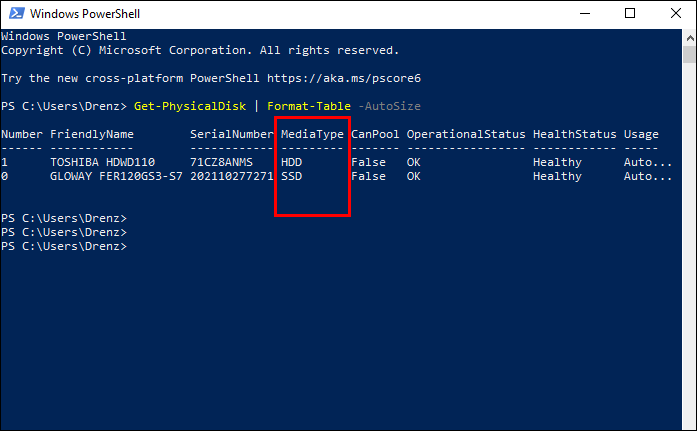
- Run: Get-PhysicalDisk | Format-Table FriendlyName, MediaType. MediaType will say SSD or HDD.
- WMIC (legacy)
- Run: wmic diskdrive get model,mediaType,size. It may show "Fixed hard disk media" or "SSD" depending on the drive.
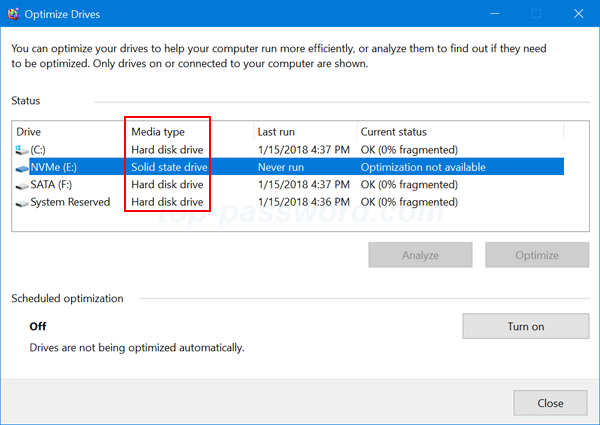
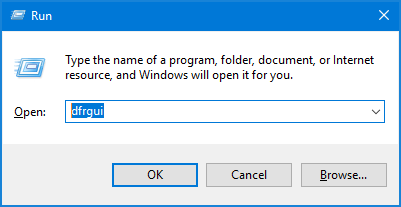
- Disk Defragment tool
- Open Optimize Drives. The Media type column lists SSD or HDD for most drives.
- Device Manager and Properties
- Check Disk drives entries for model info. Use the model string to look up details online if the OS doesn’t label it.
I prefer PowerShell. It’s fast and reliable on servers and desktops. When a drive is in an external USB enclosure, Windows may not always report media type correctly. In that case, use model lookup.
How to check drive is HDD or SSD on macOS
macOS makes this easy with built-in tools.
- About This Mac
- Click Apple menu → About This Mac → System Report. Look under NVMe, SATA/SATA Express, or Storage for device details.
- Disk Utility
- Open Disk Utility and select the drive. It often shows “Solid State” for SSDs.
- Terminal command
- Run: diskutil info disk0 and check the line “Solid State: Yes” or “No.”
If a drive uses NVMe, macOS shows it under NVMExpress. For Fusion Drives, macOS may hide the physical layout; use diskutil to inspect each device.

How to check drive is HDD or SSD on Linux
Linux offers precise, scriptable checks.
- lsblk
- Run: lsblk -o NAME,ROTA,TYPE,SIZE,MOUNTPOINT. ROTA 0 indicates SSD; 1 indicates HDD.
- /sys filesystem
- Run: cat /sys/block/sda/queue/rotational. 0 = SSD, 1 = HDD.
- hdparm and smartctl
- Run: sudo hdparm -I /dev/sda | grep -i 'nominal media rotation' or sudo smartctl -i /dev/sda. HDDs show rotation rate; SSDs do not.
- nvme-cli
- For NVMe: sudo nvme list shows NVMe SSDs and model info.
These commands are reliable even for drives in bracketed setups. If you ask how to check drive is hdd or ssd in a script, use the /sys/block approach.
Physical inspection and labeling
Sometimes a simple look is enough.
- Check labels
- Drive labels often say SSD, HDD, or show capacity and model numbers.
- Form factor clues
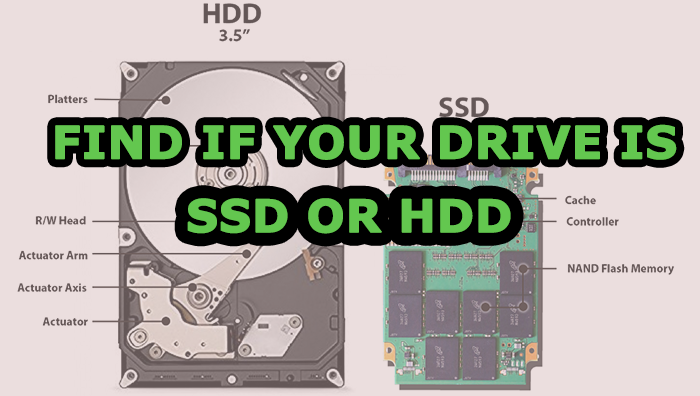
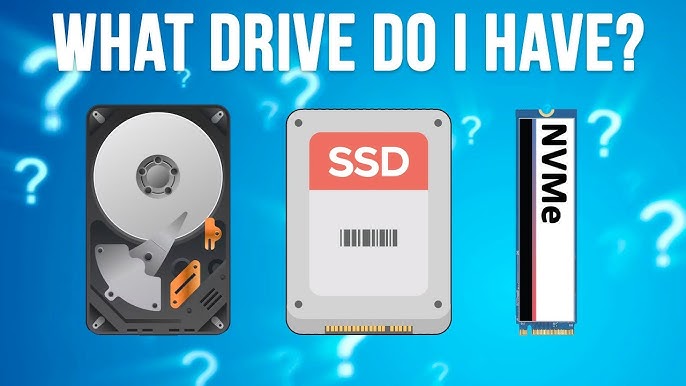
- 2.5 inch drives can be HDDs or SSDs. 3.5 inch drives are almost always HDDs. M.2 sticks are SSDs.
- Connectors and speed
- SATA power and data cables are common to both. NVMe uses M.2 or PCIe slots and is SSD only.
If the device is in an external case, labels may be missing. Remove the drive from the enclosure only if you’re comfortable.
Performance checks and SMART data
Practical tests help confirm drive type.
- Benchmarking
- Use CrystalDiskMark (Windows), Blackmagic (macOS), or fio (Linux). SSDs typically show much higher random IOPS and lower latency.
- SMART attributes
- Run smartctl -a /dev/sda to inspect attributes. Look for “Rotation Rate” or “Nominal Media Rotation Rate” for HDDs. SSDs will show wear leveling and percentage used fields.
- TRIM support
- SSDs support TRIM. On Linux, check fstrim. On Windows, check “Optimize Drives” and TRIM status via fsutil behavior query DisableDeleteNotify.
Performance tests give a practical read on real-world behavior. They also reveal failing drives. Remember to avoid running heavy writes on a drive you suspect is failing.
Common signs, benefits, and limitations
Quick comparison and pitfalls.
- Speed
- SSDs: fast boot and app load times. HDDs: slower, especially for random reads.
- Noise and heat
- SSDs: silent and cooler. HDDs: spinning noise and more heat.
- Cost and capacity
- HDDs: cheaper per GB for bulk storage. SSDs: higher cost but falling rapidly.
- Lifespan
- SSDs have finite write cycles but usually outlast typical consumer use. HDDs suffer mechanical wear.
- Limitations and false positives
- Hybrid drives (SSHD) mix both. External enclosures or USB bridges can hide SSD status. Some OSes mislabel older drives.
If you need to know how to check drive is hdd or ssd for upgrades, weigh cost per GB and performance needs.
Personal experience, tips, and common mistakes
I’ve upgraded dozens of machines. Here’s what I learned.
- Don’t trust only the model name
- I once swapped drives that looked identical. Always confirm with OS tools or commands.
- Be careful with external enclosures
- Some USB bridges present SSDs as HDDs. Remove the drive for a definitive check if possible.
- Backup before tests
- Run benchmarks only after backup. Heavy tests can stress failing drives.
- Use scripts for multiple machines
- For fleets, a short PowerShell or shell script that checks mediaType or /sys/block is a time-saver.
These practical tips come from troubleshooting slow boots and mismatched drives in office upgrades. They save time and headaches.
Frequently Asked Questions of how to check drive is hdd or ssd
How fast can I tell if a drive is SSD or HDD?
Often under a minute. Use Task Manager on Windows, diskutil on macOS, or lsblk on Linux for instant results.
Can an external USB drive be misreported?
Yes. USB-to-SATA bridges can hide the media type. The model lookup or removing the drive provides certainty.
Are NVMe drives always SSDs?
Yes. NVMe is a protocol for SSDs over PCIe. If the drive shows up as NVMe, it’s an SSD.
What if the OS says “Unknown” for media type?
Use model lookup, SMART data, or physical inspection. Commands like cat /sys/block/sda/queue/rotational often work when the OS UI doesn’t help.
Will benchmarking damage my drive?
Normal benchmarking won’t damage modern drives if used responsibly. Avoid repeated heavy writes on drives that show SMART errors.
Conclusion
You now know several clear ways to determine how to check drive is hdd or ssd across Windows, macOS, and Linux. Use built-in tools first, then commands or smart data when you need more detail. Back up before testing and be mindful of external enclosures and hybrids.
Try the quick method for your OS right now. If you found this guide useful, share your experience below or subscribe for more practical storage tips.

Jamie Lee is a seasoned tech analyst and writer at MyTechGrid.com, known for making the rapidly evolving world of technology accessible to all. Jamie’s work focuses on emerging technologies, product deep-dives, and industry trends—translating complex concepts into engaging, easy-to-understand content. When not researching the latest breakthroughs, Jamie enjoys exploring new tools, testing gadgets, and helping readers navigate the digital world with confidence.