Allow Snapchat to use your camera by enabling camera permission in Settings or granting access when prompted.
I’ve guided hundreds of users through app permissions and I’ll walk you step-by-step on how to allow Snapchat to use camera on iPhone and Android. This guide explains exact taps, common fixes, privacy trade-offs, and simple troubleshooting so you can get back to snapping quickly and safely. Read on for clear, tested steps and practical tips from hands-on experience.

Why camera access matters
Camera access is how Snapchat takes photos and records video. If Snapchat can’t use your camera, you can’t send Snaps, use face filters, or scan Snapcodes. Granting access lets the app function as intended while keeping media features smooth and fast. Knowing how to allow Snapchat to use camera helps you fix permission problems in minutes.
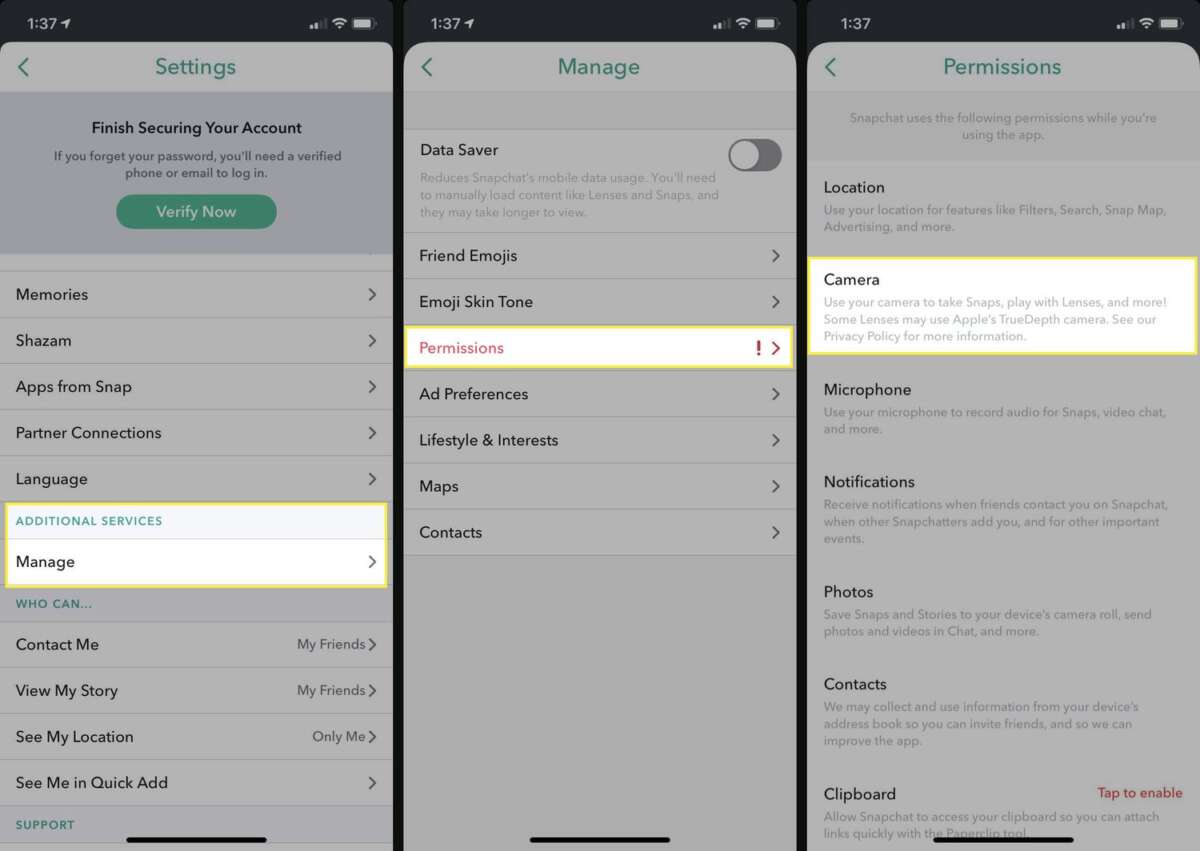
:max_bytes(150000):strip_icc()/B5-AllowCameraonSnapchat-annotated-82428d3371a940c5b3cb6c4ca49afd20.jpg)
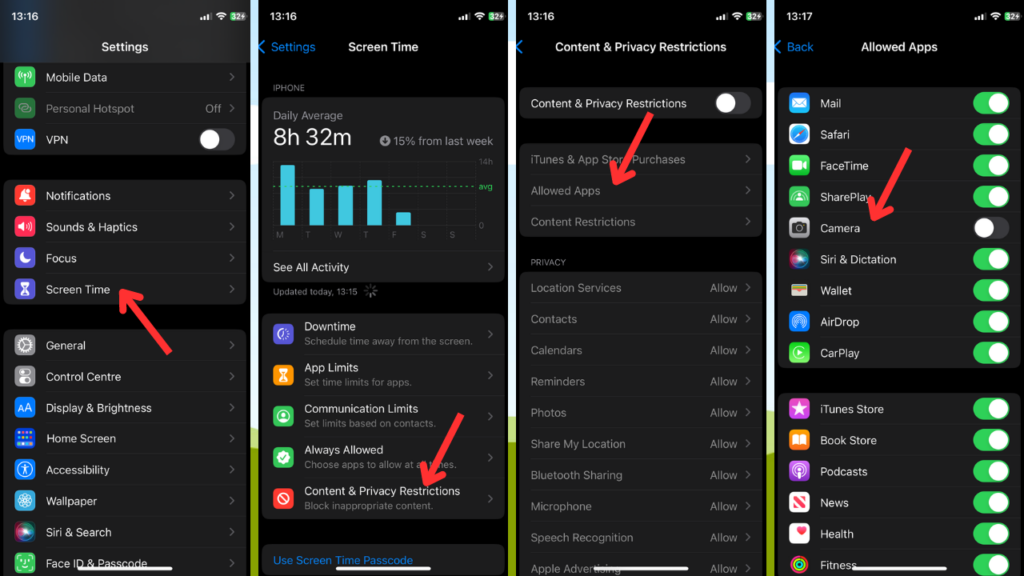
How to allow Snapchat to use camera on iPhone
Follow these steps if you use an iPhone. They work for recent iOS versions.
- Open Settings.
- Scroll down and tap Snapchat.
- Toggle Camera to on.
- If you saw “Ask Next Time” or “While Using the App,” choose “While Using the App” for normal use.
- Open Snapchat and test the camera by tapping the camera icon.
If you denied permission earlier and the Camera option is grayed out, restart your phone and check again. If the app still won’t access the camera, update iOS and Snapchat, then retry. Knowing how to allow Snapchat to use camera on iPhone saves time and avoids reinstalling the app unnecessarily.

How to allow Snapchat to use camera on Android
Android steps vary by phone model, but these general directions apply.
- Open Settings.
- Tap Apps or Apps & notifications.
- Find and tap Snapchat.
- Tap Permissions.
- Tap Camera and select Allow.
- Open Snapchat and confirm the camera works.
Some Android phones use Privacy or Permission manager. If so, open Permission manager, find Camera, and enable Snapchat. For Android, understanding how to allow Snapchat to use camera often means checking both app permissions and system-level privacy controls.
:max_bytes(150000):strip_icc()/C5-AllowCameraonSnapchat-annotated-e5b9605157ec47b48a0b8d048fdaf298.jpg)
Troubleshooting common camera problems
If Snapchat still can’t use the camera, try these quick fixes.
- Restart the device to clear temporary glitches.
- Force close Snapchat and reopen it.
- Update Snapchat from the App Store or Play Store.
- Clear Snapchat cache: App settings > Storage > Clear cache (Android) or Snapchat profile > Settings > Clear Cache (iOS inside the app).
- Reinstall Snapchat if permissions look correct but camera still fails.
Why can’t Snapchat access my camera?
- Often a denied permission or an outdated app causes the issue. Check Settings > Snapchat > Camera and update the app.
Why does Snapchat say “Camera failed”?
- That can mean a hardware problem or a software conflict. Restart, update, and test other camera apps. If the native camera also fails, it may be a hardware issue.
Can a battery saver block camera access?
- Yes. Battery saver or power modes can limit background app activity and sensors. Turn off power saver and try again.

Privacy, security, and permissions explained
Granting camera access gives Snapchat permission to use your device’s camera when you open the app. This permission does not mean always-on recording. Mobile platforms restrict camera use to the foreground app unless screen recording is enabled.
Keep privacy in mind:
- Use “While Using the App” on iPhone to limit background access.
- Revoke permissions anytime in Settings if you notice odd behavior.
- Check microphone permission too if you use video Snaps.
I once left camera permissions on for many apps. I later audited and removed access for apps I no longer used. That simple step reduced my privacy exposure and kept my phone running smoother. Being intentional about permissions is both safe and smart.

Tips and best practices from experience
- Grant permissions only when you plan to use the feature. This reduces unnecessary access.
- Test the camera right after changing permissions to confirm success.
- Keep Snapchat and your OS updated to prevent permission bugs.
- If filters or AR lenses misbehave, clear the app cache first.
- Reboot after changing permissions to ensure the system applies settings immediately.
Common mistakes to avoid:
- Reinstalling the app before checking system permissions.
- Ignoring system privacy prompts that explain access choices.
- Using third-party camera apps that may conflict with Snapchat.

People also ask–style quick questions
Why is Snapchat not allowed to use my camera after an update?
- Updates can reset or change permission prompts. Check Settings > Snapchat > Camera and re-enable permission.
Will revoking camera permission delete my snaps?
- No. Revoking permission stops new photo/video creation but does not delete existing saved snaps or chats stored in the app.
Does Snapchat need microphone access too?
- Yes for video snaps with sound and many voice features. Allow microphone if you want full functionality.
How do I allow Snapchat to use camera for only one session on iPhone?
- Choose “Ask Next Time” in the app permission prompt. The app will request access each time you open it.
Can a VPN or firewall block the camera?
- VPNs typically don’t block the camera. Firewalls rarely affect hardware permissions but can block data upload. Focus on permissions and app settings first.
Frequently Asked Questions of how to allow snapchat to use camera
How do I enable camera access for Snapchat on my iPhone?
Open Settings, scroll to Snapchat, and toggle Camera to on. Choose “While Using the App” for normal use.
How do I give Snapchat camera permission on Android?
Go to Settings > Apps > Snapchat > Permissions, then enable Camera. On some phones, use Permission manager and allow Snapchat access.
Snapchat still shows a black screen. What next?
Restart your device, update the app, and clear the app cache. If the native camera app is also black, you may have a hardware issue.
Can I allow Snapchat to use camera temporarily?
On iPhone you can select “Ask Next Time” or allow only while using the app. On Android, grant and revoke permission when needed.
Is it safe to let Snapchat access my camera?
Yes if you use current app and OS versions and apply “While Using the App” when possible. Review permissions periodically for safety.
What if the Camera toggle in settings is grayed out?
A restart often fixes this. If not, update the OS. Persistent gray toggles can indicate a device policy or admin restriction.
Will reinstalling Snapchat reset camera permissions?
Yes. Reinstalling can make the app ask for permissions again on first launch. This is useful if permissions got stuck.
Conclusion
You can allow Snapchat to use camera quickly by checking app permissions, updating the app, and testing the camera. Follow the iPhone and Android steps above, use the troubleshooting tips, and manage privacy by choosing limited access when possible. Try the steps now to restore snapping power, and leave a comment with your device and issue if you need help. If this helped, subscribe for more clear, practical tech guides.

Everett Ashford is a tech reviewer at mytechgrid.com specializing in SSDs, cameras, TVs, earbuds, headphones, and other consumer electronics. He provides honest, data-driven reviews based on hands-on testing and real-world performance analysis. Everett simplifies complex tech details to help readers make smart, confident buying decisions.