To reset Bose 700 headphones, hold the Power/Bluetooth button for 10 seconds, then reconnect them to your device.
Knowing how to reset Bose 700 headphones can save you from dropped Bluetooth connections, frozen controls, and audio that cuts out at the worst time. The process is simple, but the right method depends on whether you need a quick restart, a cleared Bluetooth list, or a full factory reset. This guide explains each option in clear steps and includes practical fixes for common Bose Noise Cancelling Headphones 700 problems.
What resetting Bose 700 headphones actually does
A reset refreshes the headphone software and clears temporary connection errors. It can help when your Bose 700 headphones will not connect, fail to appear in Bluetooth settings, or keep switching between devices.
There are three different actions to understand:
• A restart turns the headphones off and on again without removing saved settings.
• Clearing the Bluetooth device list removes old pairing data from the headphones.
• A factory reset returns the headphones to their original setup state and removes stored product settings.
When learning how to reset Bose 700 headphones, start with the least disruptive option. A simple restart often solves the issue without forcing you to pair every device again.

How to restart Bose 700 headphones
A basic restart is the safest first step. It works like restarting a phone when an app becomes slow or unresponsive.
Follow these steps:
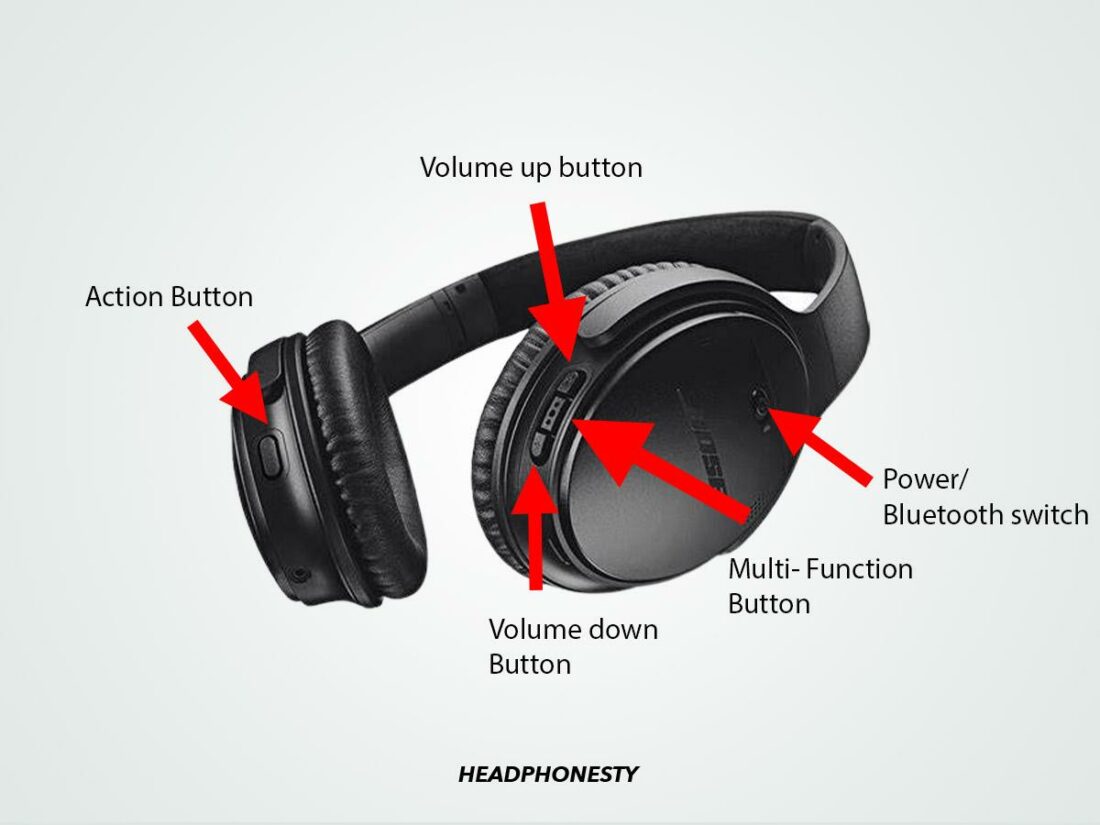
- Press the Power/Bluetooth button on the right earcup to turn the headphones off.
- Wait about 30 seconds.
- Press the Power/Bluetooth button again to turn them on.
- Try playing audio or making a test call.
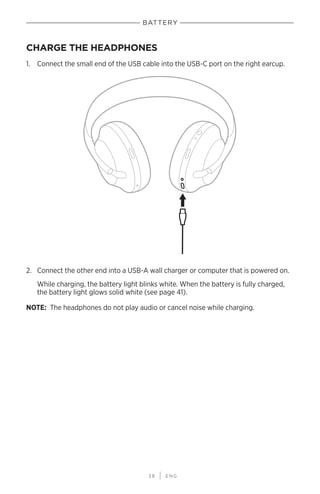
If the headphones do not respond, connect the USB-C charging cable and let them charge for several minutes. Then try the restart again.
This process does not normally erase your paired devices. It simply gives the internal software a fresh start, which may fix short-term bugs, delayed controls, or a connection that suddenly stopped working.

How to reset Bose 700 headphones with the Power/Bluetooth button
This is the standard reset method for many connection and control problems. It is more thorough than simply turning the headphones off and on.
- Remove the Bose 700 headphones from your head.
- Disconnect any audio or charging cable if one is attached.
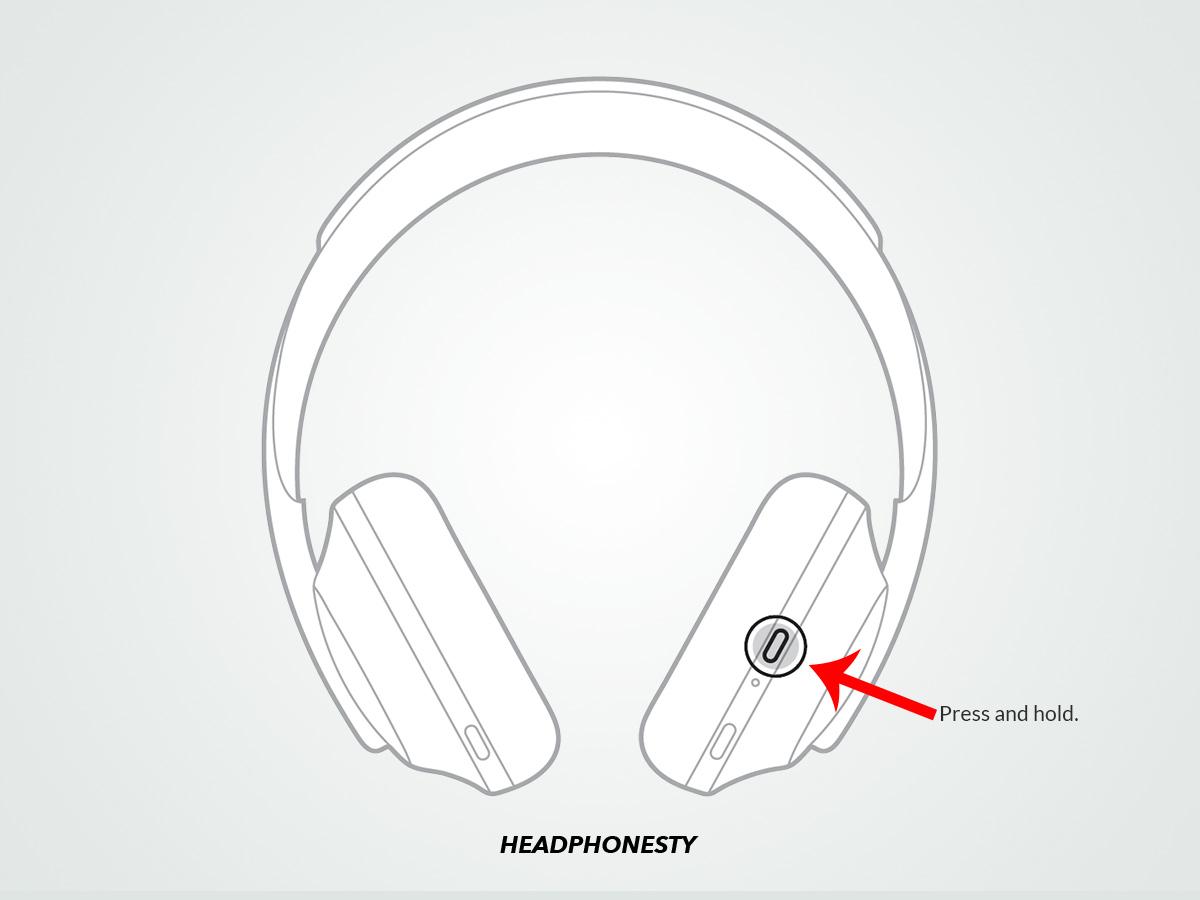
- Press and hold the Power/Bluetooth button on the right earcup.
- Keep holding it for about 10 seconds.
- Release the button when the headphones respond or the Bluetooth indicator changes.
- Turn the headphones on again.
- Open your phone or computer’s Bluetooth settings and test the connection.
The exact light pattern or voice prompt may vary with the firmware version. If the headphones do not reset after one attempt, charge them first and repeat the process.
This method is useful when you are trying to learn how to reset Bose 700 headphones because it does not require the Bose Music app. It is also helpful when the app cannot detect the headphones.
How to clear the Bose 700 Bluetooth pairing list
Sometimes the headphones work correctly, but they keep connecting to the wrong phone, tablet, or laptop. In that case, clearing the Bluetooth list is often better than performing a full factory reset.
To clear saved Bluetooth connections:
- Turn on the Bose 700 headphones.
- Press and hold the Power/Bluetooth button for around 10 seconds.
- Listen for a voice prompt confirming that the Bluetooth device list was cleared.
- Open Bluetooth settings on each device you want to use.
- Remove or forget the Bose 700 headphones from those device lists.
- Turn Bluetooth off and back on.
- Pair the headphones again.
Bluetooth pairing information can remain stored on both sides. Clearing only the headphones may not be enough if your phone still tries to use an old connection record.
For this reason, how to reset Bose 700 headphones often includes two steps: clear the headphone list, then forget the headphones on your phone or computer.

How to factory reset Bose 700 headphones
A factory reset is the most complete reset option. It can remove product settings, stored connections, and other customized data. Use it when normal resets do not solve the problem or when you are giving the headphones to someone else.
The easiest method is usually through the Bose Music app:
- Open the Bose Music app.
- Select your Bose Noise Cancelling Headphones 700.
- Open Settings.
- Look for Product Settings, Product Information, or Restore Factory Settings.
- Select the factory reset option.
- Follow the instructions shown in the app.
- Pair the headphones again after the reset finishes.
App names and menu locations may change after software updates. If you do not see the factory reset option, update the Bose Music app and the headphones first.
A factory reset should be treated as a last resort. It may remove personalized settings, saved Bluetooth devices, and preferences such as noise cancellation or shortcut choices.
What to do before resetting Bose 700 headphones
Resetting is useful, but it should not be the first answer to every problem. A few quick checks can prevent unnecessary setup work.
Before you reset Bose 700 headphones, check the following:
• Charge the headphones for at least 15 minutes.
• Make sure the USB-C cable fits firmly in the charging port.
• Keep the headphones close to your phone during pairing.
• Turn off Bluetooth on nearby devices that may connect automatically.
• Update the Bose Music app from the Apple App Store or Google Play.
• Restart the phone, tablet, or computer.
• Remove the headphones from the device’s Bluetooth list.
• Check that the headphones are not connected to a second device.
The Bose 700 headphones support multipoint Bluetooth connections, so they may connect to two devices at once. This feature is convenient, but it can also make troubleshooting confusing. Turning Bluetooth off on nearby devices helps identify whether another device is taking control.
How to pair Bose 700 headphones after a reset
After you reset Bose 700 headphones, pair them as if they were new. This creates a clean connection and helps prevent old Bluetooth data from causing the same problem again.
Use these steps:
- Turn on the headphones.
- Press and hold the Power/Bluetooth button until the Bluetooth light slowly blinks.
- Open Bluetooth settings on your phone, tablet, or computer.
- Select Bose NC 700 Headphones from the list.
- Wait for the connected message or voice prompt.
- Open the Bose Music app if you want to manage settings.
- Play a short audio clip to confirm the connection.
If Bose NC 700 Headphones do not appear, switch Bluetooth off and on again. You can also move away from other Bluetooth devices and repeat the pairing process.
A useful troubleshooting lesson is to pair with only one device first. Once that connection works, add other devices one at a time. This makes it much easier to find the source of a connection problem.

Troubleshooting problems after resetting Bose 700 headphones
If the reset did not fix the issue, use the symptom that best matches your problem.
The headphones still will not turn on
Connect them to a reliable charger and check the charging light. Try a different USB-C cable and wall adapter if there is no response.
Avoid assuming that every charging problem means the battery has failed. A damaged cable, loose port, or weak power source can produce the same symptom.
The headphones will not connect to Bluetooth
Forget Bose NC 700 Headphones from your phone’s Bluetooth menu. Then clear the headphone pairing list, restart the phone, and pair again.
Also check whether the headphones are connected to another nearby device. This is a common cause of failed pairing.
The Bose Music app cannot find the headphones
Confirm that Bluetooth permissions are enabled for the app. On some phones, location or nearby-device permissions may also be needed for product discovery.
Close the app fully, restart the phone, and reopen the app. If that fails, reinstalling the app can help, but you may need to sign in again.
Audio keeps cutting out
Keep the phone within a few feet of the headphones during testing. Wi-Fi congestion, walls, crowded public spaces, and multiple active Bluetooth devices can affect the connection.
Test with a downloaded song instead of a streaming service. If downloaded audio works normally, the problem may be the internet connection rather than the headphones.
The controls are slow or unresponsive
Restart the headphones first. If the touch controls remain unreliable, clean the outer earcup with a soft, dry cloth and check for a firmware update.
Do not spray cleaner directly onto the headphones. Moisture can damage electronic parts and microphone openings.
Mistakes to avoid when resetting Bose 700 headphones
Many reset problems come from using the right method at the wrong time. These simple mistakes are easy to avoid.
• Do not release the Power/Bluetooth button too soon. Hold it for the full reset period.
• Do not pair the headphones before removing the old Bluetooth entry from your phone.
• Do not perform a factory reset for a minor audio pause.
• Do not charge the headphones with a visibly damaged cable.
• Do not press several buttons at random while the headphones are updating.
• Do not assume the Bose Music app and headphone firmware are current.
• Do not test the headphones with several devices at the same time.
One practical rule is to change only one thing at a time. Restart the headphones, test them, and then move to clearing Bluetooth data if needed. This approach shows which step solved the problem.
When a reset will not fix the problem
A reset can solve software and pairing faults, but it cannot repair physical damage. Contact Bose support or an authorized service provider if the headphones have liquid damage, a cracked earcup, a damaged charging port, or a battery that drains unusually fast.
You should also seek help if the headphones repeatedly shut down after a full charge. That pattern may point to a battery or internal hardware issue rather than a Bluetooth problem.
Firmware updates can also affect performance. Use the Bose Music app to check for available updates, and keep the headphones charged during the update process. Do not disconnect them while new firmware is installing.
The most reliable order is simple: charge, restart, clear Bluetooth data, update the software, and then perform a factory reset. This sequence avoids unnecessary data loss while still covering the main causes of Bose 700 problems.
Frequently asked questions about how to reset Bose 700 headphones
How do I reset Bose 700 headphones without the Bose Music app?
Press and hold the Power/Bluetooth button for about 10 seconds. Release it when the headphones respond, then turn them on and pair them again.
Will resetting Bose 700 headphones erase saved Bluetooth devices?
A basic restart usually does not erase saved devices. Clearing the Bluetooth list or restoring factory settings can remove saved connections, so you may need to pair your devices again.
Why are my Bose 700 headphones not showing in Bluetooth?
First, charge and restart the headphones. Then clear their Bluetooth list, forget them on your phone, and hold the Power/Bluetooth button until pairing mode starts.
How long should I hold the Power/Bluetooth button?
Hold the button for about 10 seconds during the reset process. If nothing happens, charge the headphones and try again with the headphones disconnected from other cables.
Do I need to reset Bose 700 headphones before selling them?
A factory reset is recommended before selling or giving them away. It removes stored connections and personal settings, helping protect your privacy.
Can resetting fix poor noise cancellation?
A restart or factory reset may fix a software-related noise cancellation problem. If performance remains poor, check the ear cushion seal, update the firmware, and contact Bose support if needed.
Conclusion
Learning how to reset Bose 700 headphones gives you a clear way to solve many pairing, control, and software problems. Start with a simple restart, clear the Bluetooth list when connections are confused, and use a factory reset only when other steps fail.
Charge the headphones, remove old Bluetooth records, pair one device at a time, and keep the Bose Music app updated. If resetting does not help, the issue may involve the battery, charging port, or another hardware fault. Try these steps today, and share your experience or troubleshooting result in the comments.

Everett Ashford is a tech reviewer at mytechgrid.com specializing in SSDs, cameras, TVs, earbuds, headphones, and other consumer electronics. He provides honest, data-driven reviews based on hands-on testing and real-world performance analysis. Everett simplifies complex tech details to help readers make smart, confident buying decisions.